How to Schedule Messages on WhatsApp: Messenger App, Business App, Web & API Explained
Ever needed to send a WhatsApp message at the right time but couldn’t be online to do it?
For businesses, this problem shows up every day. Missed follow-ups, delayed reminders, forgotten customer nudges. Teams either send messages manually or rely on risky WhatsApp automation tools that can trigger spam flags, quality drops, or even WhatsApp account bans.
The challenge isn’t whether to schedule messages, it’s how to schedule WhatsApp messages safely without breaking WhatsApp rules.
This guide breaks down how to schedule messages on WhatsApp across the Messenger app, WhatsApp Business App, WhatsApp Web, and the official WhatsApp Business API. You’ll learn what works, what doesn’t, and how businesses use scheduling to stay compliant while scaling conversations and conversions.
Next up: a quick TL;DR with the fastest takeaways before we go step-by-step.
TL;DR
WhatsApp does not offer native message scheduling across most apps.
Android, iPhone, WhatsApp Web, and the Business App rely on manual workarounds or device-dependent methods.
Third-party automation tools may seem convenient but can risk spam flags, quality score drops, or account bans.
The WhatsApp Business API is the only official way to schedule messages safely, reliably, and at scale.
Choosing the right method depends on volume, compliance needs, and business maturity.
Next up: why WhatsApp message scheduling matters so much for businesses and a quick stat attack to put things into perspective.
Why WhatsApp Message Scheduling Matters for Businesses
First, a quick reality check: WhatsApp doesn’t offer a native “schedule message” feature.
Yes, the WhatsApp Business App supports auto-replies and away messages but that’s not REAL scheduling. It doesn’t trigger messages based on timing, intent, or customer actions.
This gap creates very real business problems:
Follow-ups still depend on manual effort
Important messages get delayed or forgotten
Leads from different time zones slip through
Customers messaging after hours stay unattended
High-intent leads from click-to-WhatsApp ads don’t get instant responses
In short, timing breaks at scale.
That’s why businesses turn to shortcuts, third-party tools, or official WhatsApp automation to schedule messages more reliably. From simple iPhone workarounds to Android apps and ultimately the WhatsApp Business API message scheduling becomes a growth lever when aligned with the right setup.
Quick stat check:
Businesses using scheduled messaging see up to 32% higher conversions
85% of consumers prefer timely, proactive brand messages on WhatsApp
75% of customers expect brands to stay responsive beyond business hours
The takeaway is simple: without scheduled WhatsApp messages, you’re leaving engagement and revenue on the table.
Next up: let’s break down how to schedule messages on WhatsApp, starting with Android what works, what doesn’t, and what to watch out for.
How to Schedule WhatsApp Messages on Android
WhatsApp still doesn’t support native scheduling, so on Android you typically use a third-party scheduler that automates the send action via Accessibility. Below are the clean, practical steps (plus the key settings that usually break delivery).
Option 1: Schedule with SKEDit (Most common workaround)
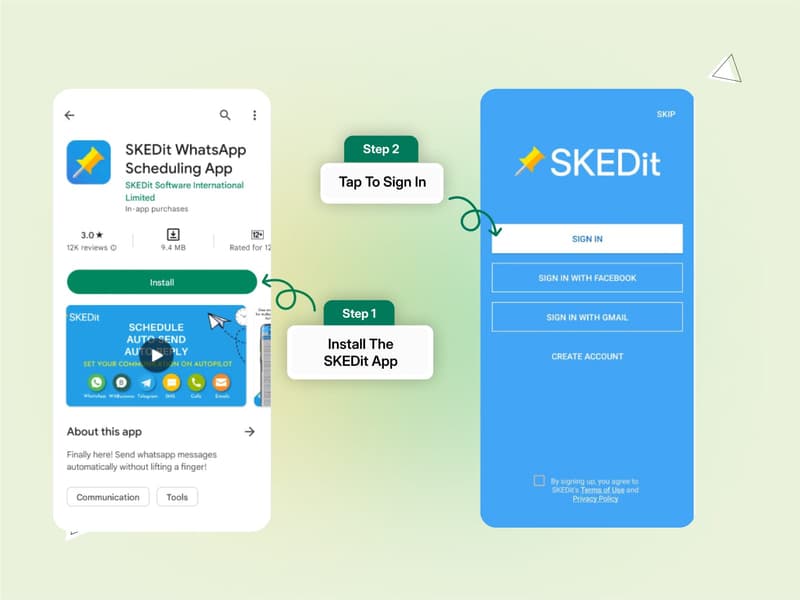
Step 1: Install SKEDit
Open Google Play Store → install SKEDit: Auto Message Scheduler.
Open the app and create/sign in to your account (if prompted).
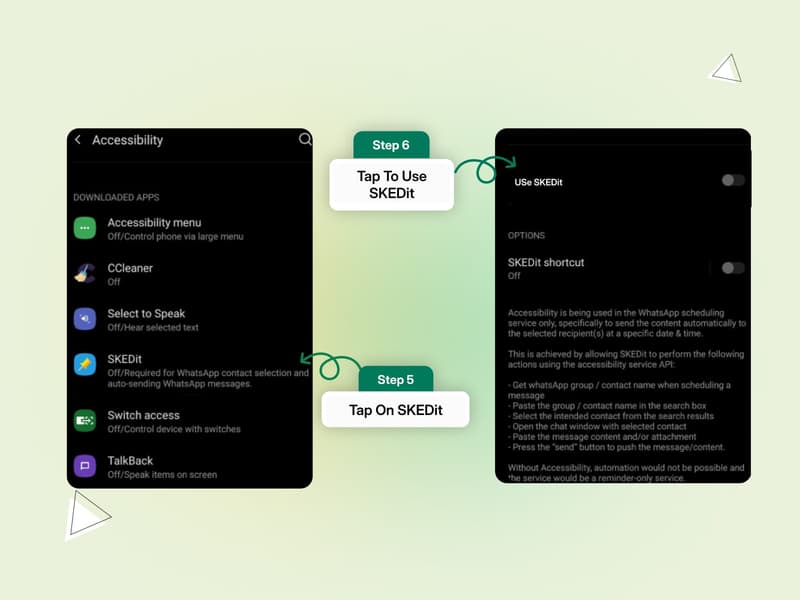
Step 2: Grant required permissions
When prompted, allow the basic permissions.
Go to Settings → Accessibility → Installed apps/Services → SKEDit → Turn ON.
Confirm permissions so SKEDit can automate actions.
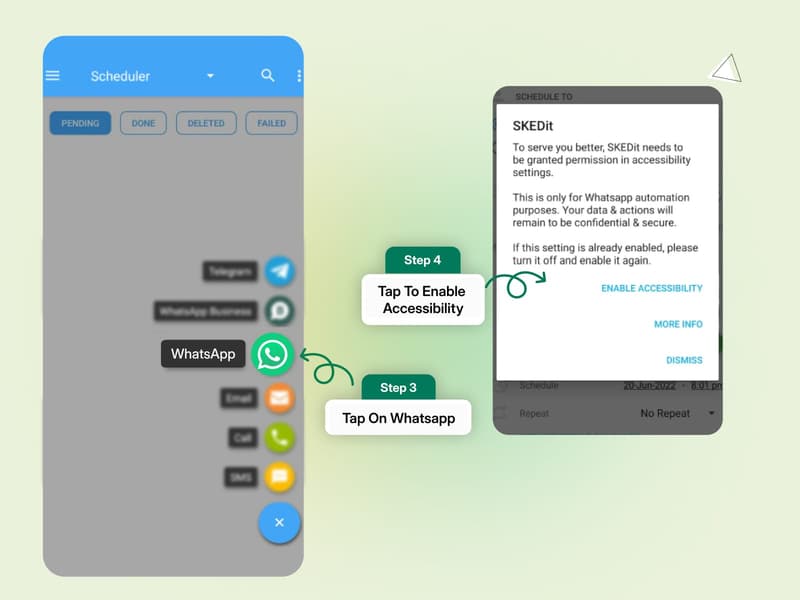
Step 3: Choose WhatsApp channel
In SKEDit, tap + (Create/New schedule).
Select WhatsApp (or WhatsApp Business, if you use the Business App).
Step 4: Select recipient
Choose the contact or group.
Double-check the recipient (especially if you have similar contact names).
Step 5: Write the message
Type your message.
If supported on your version, attach media (image/file) via the attachment option.
Step 6: Set date, time, and repeat rules
Pick the date + time.
If you need recurring messages, set Repeat (daily/weekly/monthly).
Step 7: Choose sending mode
Turn ON “Ask me before sending” if you want a safety check (recommended).
You’ll get a prompt at send time to confirm.
If you turn it OFF, some devices may require you to:
Disable screen lock, or
Allow the app to run unrestricted in the background (varies by phone).
Step 8: Schedule
Tap Schedule / Create.
You should see the scheduled item in your list.
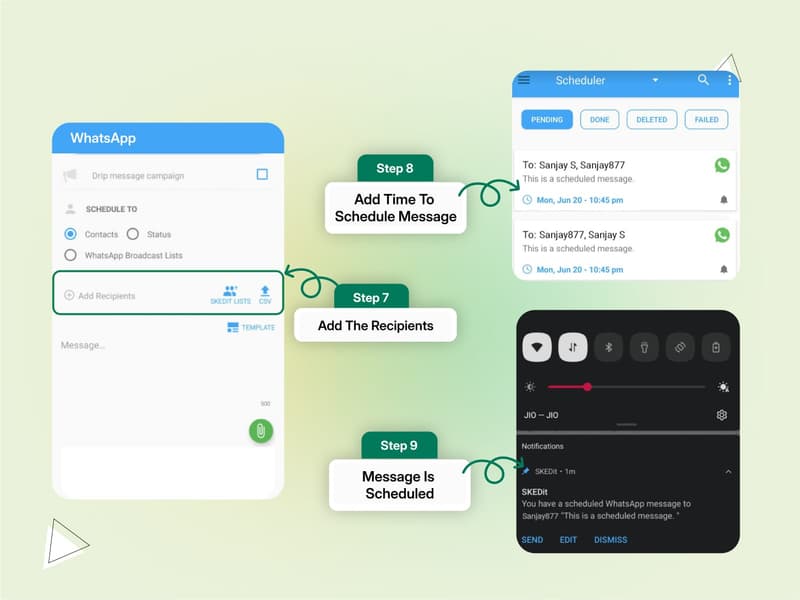
Step 9: Delivery behavior
At send time, SKEDit may:
Notify you to confirm (if “Ask me before sending” is ON), or
Attempt to send automatically (device restrictions may affect this).
Option 2: Schedule with Auto Text (Similar flow)
Step 1: Install Auto Text: Bulk SMS Scheduler from Play Store
Step 2: Grant permissions + enable Accessibility for the app
Step 3: Choose WhatsApp/WhatsApp Business as the channel
Step 4: Pick recipient(s)
Step 5: Write message → set date/time (and recurrence if needed)
Step 6: Save/Schedule
Important Android Checks (Avoid failed sends)
Battery Optimization: Set the scheduler app to Unrestricted / Don’t optimize
Background Data: Allow background data + auto-start (if your phone has it)
Screen/Lock behavior: Some phones won’t allow automation while locked
Don’t use the phone while it sends: Touching the screen can interrupt automation
Privacy note: These apps often request broad permissions, use carefully for business data
Next up: how scheduling works on iPhone (iOS) including the manual confirmation requirement and what iPhone users can and cannot automate.
How to Schedule WhatsApp Messages on iPhone
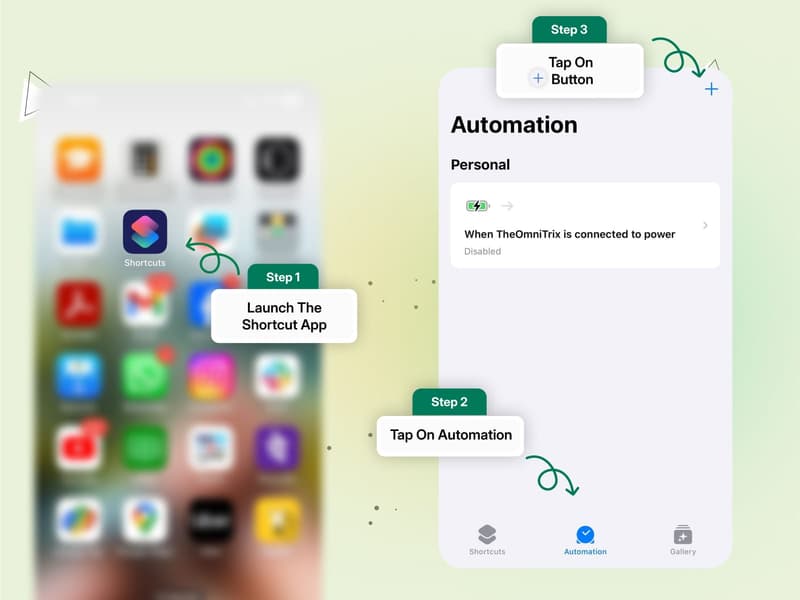
Step 1: Open the Shortcuts app
Shortcuts comes pre-installed on most iPhones.
If not, download Shortcuts from the App Store.
Step 2: Go to Automations
Open the app → tap Automation (bottom tab).
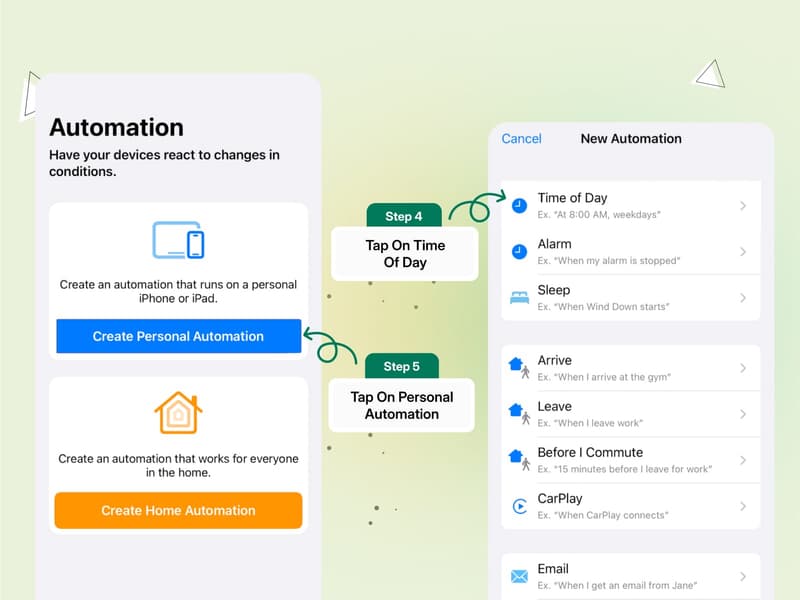
Tap + → select Create Personal Automation.
Step 3: Set the time trigger
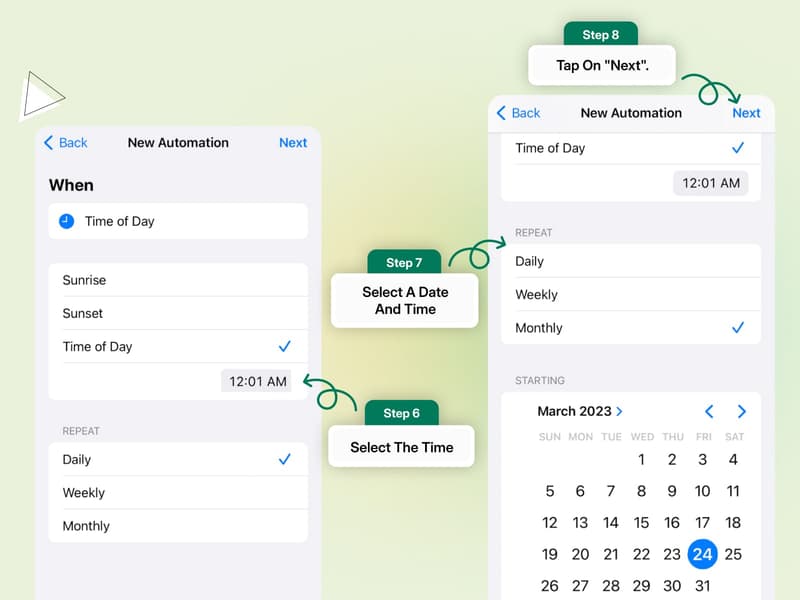
Choose Time of Day.
Select the date and time when the WhatsApp message should be sent.
Tap Next.
Step 4: Add your message content
Tap Add Action → search for Text.
Enter the WhatsApp message you want to schedule.
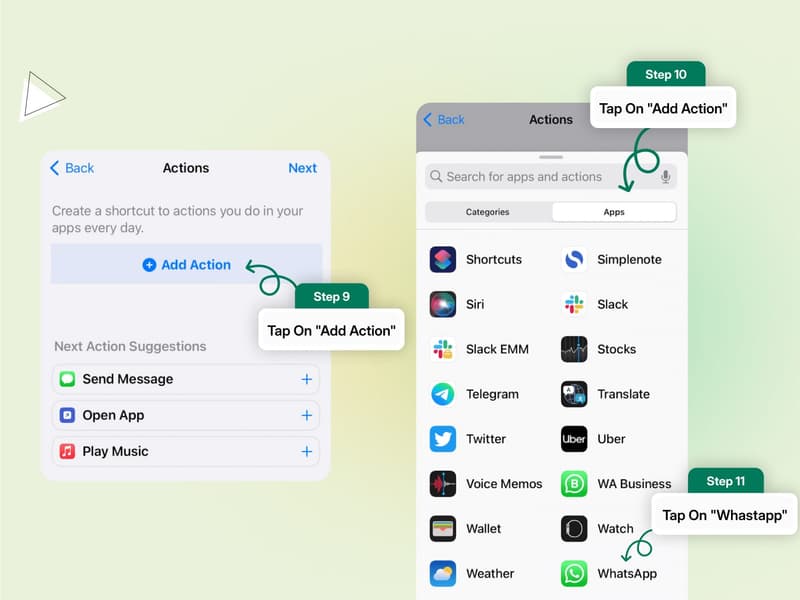
Step 5: Connect WhatsApp
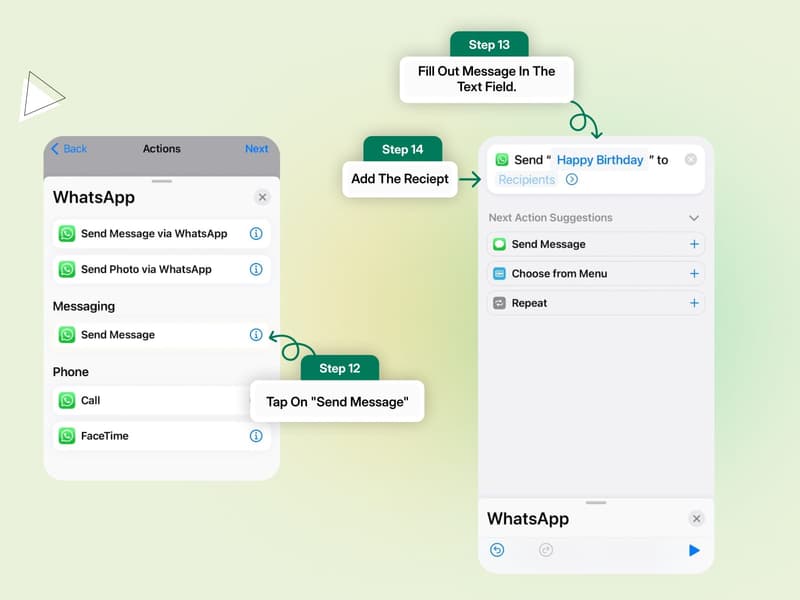
Tap Add Action again → search WhatsApp.
Select Send Message via WhatsApp.
Choose the contact or group.
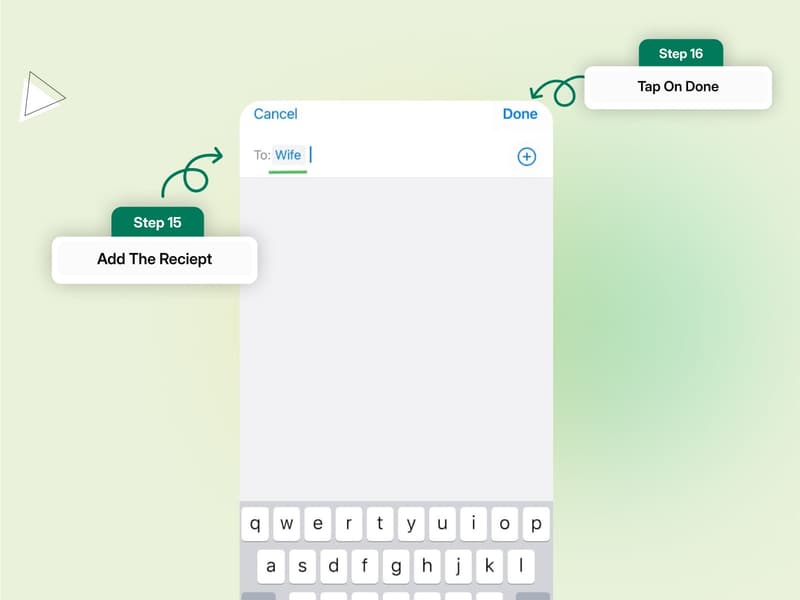
Step 6: Save the automation
Tap Next → review → tap Done.
Manual Confirmation Requirement (Important)
When the scheduled time arrives:
iOS sends you a notification.
You must tap the notification and confirm to send the message.
This means the message is not sent automatically. Apple enforces this step to prevent unintended messaging.
Limitations to Keep in Mind
No fully automatic WhatsApp message delivery
Manual approval required every time
Not suitable for bulk, recurring, or business-scale messaging
Limited control compared to Android scheduling apps
This method works for personal reminders or one-off messages, but it quickly becomes inefficient for business use.
Next up: how to schedule messages on WhatsApp Web, and why desktop workarounds are even more restrictive.
How to Schedule WhatsApp Messages on WhatsApp Web
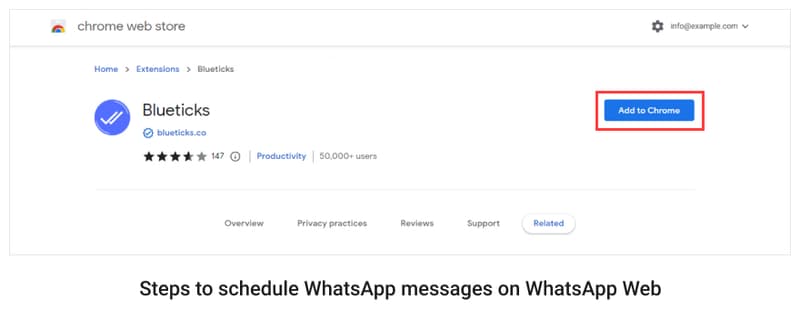
WhatsApp Web does not support native message scheduling. To schedule messages from your desktop, you’ll need a browser extension, most commonly Blueticks for Google Chrome.
Here’s how it works in practice.
Schedule WhatsApp Messages on WhatsApp Web Using Blueticks
Step 1: Install the Blueticks extension
Open the Chrome Web Store.
Search for Blueticks – WhatsApp Scheduler and install the extension.
Step 2: Log in to WhatsApp Web
Open web.whatsapp.com in Chrome.
Scan the QR code using your phone to log in.
Step 3: Open the chat you want to schedule a message for
Select a contact, group, or chat from the chat list.
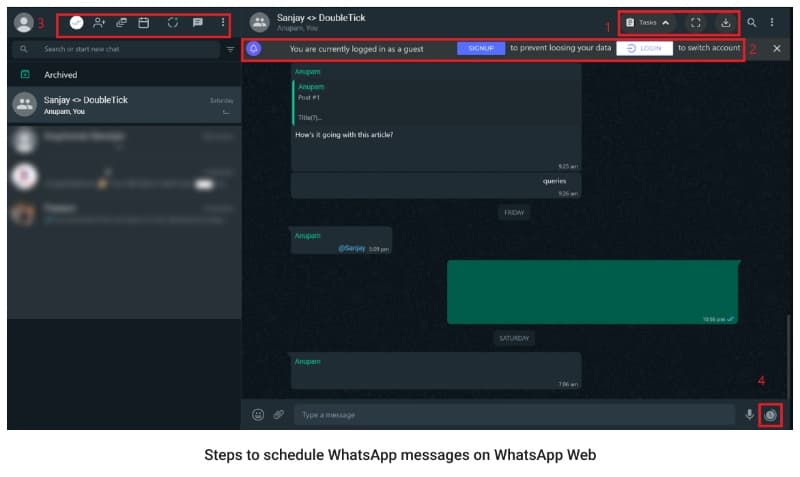
Step 4: Open the scheduler
You’ll see a new scheduler icon added near the message input box.
Click the icon to open the WhatsApp message scheduler.
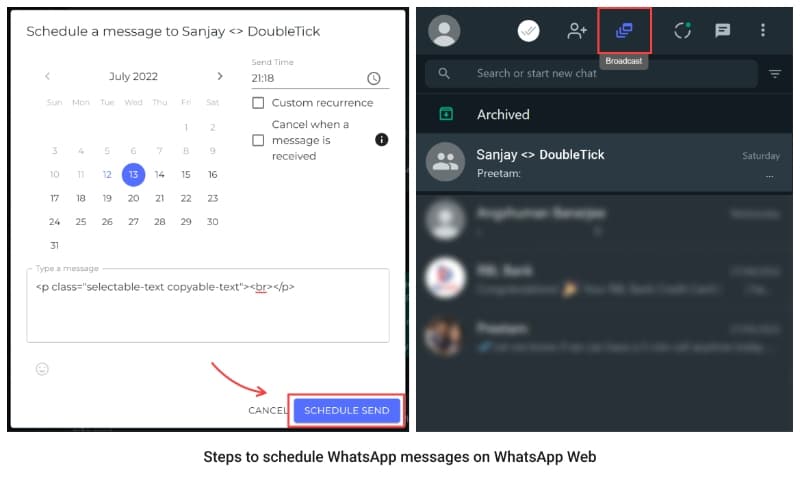
Step 5: Compose your message
Type the message you want to send.
(Optional) Set a custom recurrence if you want the message to repeat.
Step 6: Choose date and time
Select the exact date and time for delivery.
Step 7: Schedule the message
Click Schedule Send.
The message will be sent automatically at the scheduled time, as long as WhatsApp Web remains active.
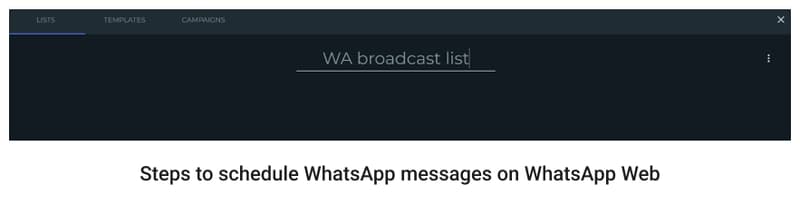
Limitations You Should Know
Requires WhatsApp Web to stay logged in
Depends on browser stability and internet connection
Not designed for bulk, event-based, or high-volume messaging
Privacy risks due to third-party browser access
This method works fine for occasional desktop scheduling, but it’s not built for structured business workflows or automation at scale.
Next up: how to schedule messages using the WhatsApp Business App, what’s possible, and where it still falls short for growing teams.
How to Schedule WhatsApp Messages on the WhatsApp Business App
The WhatsApp Business App does not support true message scheduling by date or time. However, it does allow basic automated responses using Greeting Messages and Away Messages. These are triggered by customer actions, not by a fixed schedule.
Here’s how to set them up, step by step.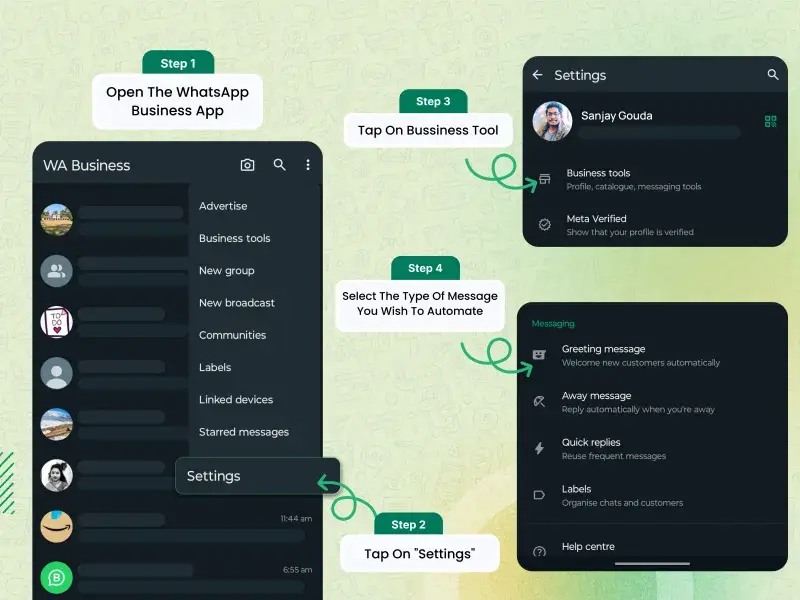
Use Greeting Messages (Auto-send when a user messages you)
Step 1: Open the WhatsApp Business App on your phone
Step 2: Tap Settings (top-right) → select Business Tools
Step 3: Tap Greeting Message
Step 4: Turn ON Send greeting message
Step 5: Tap the pencil icon → write your message
Step 6: Choose recipients (everyone, new customers, etc.)
Step 7: Tap Save
👉 This message is sent automatically when a user starts a conversation.
Use Away Messages (Auto-send outside business hours)
Step 1: Go to Settings → Business Tools
Step 2: Tap Away Message
Step 3: Turn ON Send away message
Step 4: Tap the pencil icon → write your away message
Step 5: Tap Schedule
Step 6: Choose Outside of business hours
Step 7: Save your settings
👉 This message is triggered only when customers message you outside your set hours.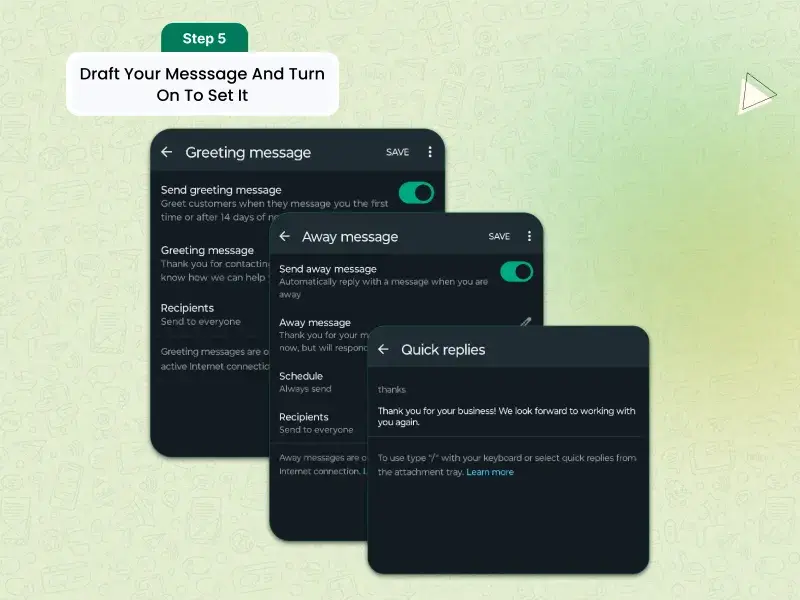
What You Can and Can’t Do with the Business App
What works:
Auto replies for new or incoming messages
Basic coverage outside business hours
Simple customer acknowledgement
What doesn’t:
No scheduling by specific date or time
No proactive message sending
No automation based on user actions or campaigns
Limited to Greeting, Away, and Quick Replies
In short, this setup works for basic availability messages, but it’s not designed for sales follow-ups, reminders, or marketing campaigns.
Next up: how businesses schedule WhatsApp messages properly at scale using the WhatsApp Business API, without third-party risks or manual work.
How to Schedule WhatsApp Messages on YCloud WhatsApp Business API
The most reliable route to schedule and automate the WhatsApp message is YCloud.
Since the exact scheduling flow is best understood visually inside the YCloud dashboard, refer to this short walkthrough video:
Start at:2:25 (this is where the scheduling steps begin)
Up next, let’s explore the benefits of scheduling WhatsApp messages.
Benefits of Scheduling WhatsApp Messages
For B2B teams, WhatsApp scheduling isn’t about convenience it’s about control, consistency, and scale. When done right, it directly impacts productivity, engagement, and revenue outcomes.
Here are the core business benefits without the fluff:
1. Save time and improve team productivity
Scheduling removes manual follow-ups and repetitive sending. Teams typically recover 20–30% of time that can be redirected toward high-value tasks like closing deals, onboarding customers, or handling complex queries.
2. Engage customers at the right time
Scheduled messages let you reach users when they’re most responsive, not when your team happens to be online. Messages sent during high-attention windows consistently see higher engagement than ad-hoc sends.
3. Operate across time zones effortlessly
If you serve global customers, scheduling ensures messages land in local business hours, improving response rates and purchase intent, without late-night manual work from your team.
4. Maintain consistent brand communication
Planned messaging reduces last-minute errors and uneven outreach. Consistency builds trust, keeps campaigns aligned, and ensures customers receive updates even when teams are busy or offline.
5. Stay compliant and secure
Unlike device-based schedulers or browser extensions, API-based scheduling keeps data encrypted and avoids the risks of account flags, quality drops, or unexpected bans.
6. Improve internal coordination
With scheduled campaigns and shared visibility, teams avoid duplicate sends, missed follow-ups, and handover gaps, especially important for sales, support, and ops teams working together.
In short, WhatsApp scheduling turns reactive messaging into a predictable, scalable communication engine.
Next up: practical best practices for scheduling WhatsApp messages so you avoid spam signals, improve delivery, and get consistent results.
Best Practices for Scheduling WhatsApp Messages
Scheduling WhatsApp messages can feel like a productivity breakthrough but overusing it or using it incorrectly can quickly hurt engagement, trust, and even account health. For B2B teams, discipline matters more than automation.
Here are practical, battle-tested best practices to get it right.
1. Respect time zones and quiet hours
Scheduling does not mean sending messages anytime. Stick to 8 AM–9 PM in the recipient’s local time zone. Messages sent outside these windows feel intrusive and are more likely to be ignored or reported.
2. Personalize, don’t broadcast blindly
Scheduled messages should still feel human. Use names, reference context, and align the message with where the customer is in their journey. Personalization consistently outperforms generic messaging.
3. Be strategic with timing
Don’t guess, observe. Analyze when your audience responds most. For many B2B use cases, follow-ups and reminders perform better in the evening or early morning, but this varies by region and industry.
4. Test, learn, and refine
Treat scheduling like a performance lever. Test different send times, formats, and tones. Use response and conversion data to refine your strategy instead of locking into assumptions.
5. Control frequency to avoid fatigue
This is critical. Just because you can schedule messages doesn’t mean you should. Over-scheduling leads to disengagement, opt-outs, and spam signals. Prioritize relevance over volume.
6. Stay compliant with WhatsApp policies
Always send messages users have opted in to receive. Avoid unsolicited promotions, respect template rules (for API users), and follow WhatsApp’s terms closely. Compliance protects both delivery and brand credibility.
In short, effective WhatsApp scheduling is about timing + relevance + restraint. When those three align, automation amplifies results instead of creating noise.
Next up: real-world challenges in WhatsApp message scheduling and how businesses overcome them without risking bans or poor customer experience.
Challenges in WhatsApp Message Scheduling & How to Overcome Them
While scheduling WhatsApp messages unlocks speed and scale, it’s not without challenges, especially for businesses. The key is understanding where things break and choosing the right approach early.
Here are the most common challenges and practical ways to solve them.
1. No native scheduling support
The challenge: WhatsApp still doesn’t offer built-in message scheduling.
How to overcome it:
For light use, workarounds and shortcuts can help. But for reliable, long-term scheduling, businesses should move to official WhatsApp Business API platforms such as YCloud that support time-based messaging without device dependency.
2. Security and privacy risks
The challenge: Many third-party apps require disabling screen locks, granting Accessibility access, or allowing deep device permissions.
How to overcome it:
Use Meta-authorized WhatsApp Business API providers such as YCloud. These operate within WhatsApp’s security framework, maintain end-to-end encryption, and don’t rely on device-level hacks.
3. Template approval constraints
The challenge: API-based scheduling requires pre-approved message templates, which can slow down execution.
How to overcome it:
Build a template library in advance, covering reminders, follow-ups, alerts, and promotions. Over time, performance data helps you refine templates that consistently get approved and perform well.
4. Message delivery uncertainty
The challenge: Scheduled messages may fail due to poor connectivity, user inactivity, or quality score limits.
How to overcome it:
Track delivery statuses, monitor quality metrics, and set up retry logic for critical messages. Responsible frequency management also reduces delivery suppression.
5. Personalization at scale
The challenge: As message volume grows, maintaining relevance becomes harder.
How to overcome it:
API-based platforms allow CRM and CDP integrations, enabling dynamic variables, audience segmentation, and context-aware messaging, so automation doesn’t feel generic.
The takeaway: most scheduling challenges aren’t technical; they’re tool and strategy mismatches. Choosing the right setup early avoids rework, risk, and lost engagement.
Next up: real-world applications of scheduled WhatsApp messages and how teams use them across sales, support, and marketing.
Real-World Use Cases
Scheduling WhatsApp messages isn’t a theoretical feature it’s already being used across industries to improve response rates, reduce manual work, and drive predictable outcomes. Below are practical, high-impact use cases where scheduling delivers clear business value.
1. Lead nurturing and conversion
Timed follow-ups keep leads warm without manual chasing. For example, a real estate firm can schedule property recommendations early in the morning, catching prospects during high-attention moments and improving reply rates.
2. Customer onboarding and education
Businesses can guide new customers through a structured onboarding journey. Healthcare providers, for instance, can schedule care instructions, reminders, and check-ups, building trust while improving compliance.
3. Appointment reminders and confirmations
Missed appointments are a costly problem. Service businesses like salons, clinics, or repair services use scheduled WhatsApp reminders to reduce no-shows and improve booking adherence.
4. Targeted promotional campaigns
Retail and D2C brands schedule promotions around peak engagement windows, such as lunch breaks or evenings to maximize visibility and conversions without spamming.
5. Customer feedback collection
Scheduling feedback requests at the right moment, post-purchase or post-service, significantly increases response rates. Educational institutions, for example, can collect structured feedback after classes or semesters.
Common Business Use Cases at a Glance
User onboarding: Scheduled reminders, guides, and walkthroughs for SaaS and digital products
Lead recovery: Abandoned cart and incomplete signup nudges
Lifecycle messaging: Follow-ups across the sales pipeline
Promotions: Personalized, time-bound campaigns
Feedback: Post-interaction surveys and forms directly on WhatsApp
The common thread is timing. When messages arrive at the right moment, they feel helpful not intrusive and drive stronger outcomes than reactive messaging.
Next up: how to put all of this together and turn WhatsApp scheduled messages into a predictable revenue engine.
Turn WhatsApp Scheduling into a Revenue Engine
WhatsApp scheduling isn’t just about convenience, it’s about predictable growth. By automating follow-ups, reminders, and campaigns, businesses reduce manual effort while improving response rates and conversions.
Basic tools may work for small teams, but they don’t scale. With an official WhatsApp Business API platform like YCloud, you can schedule messages securely, personalize at scale, and stay fully compliant, without device or browser dependencies.
The result: consistent engagement, better conversions, and revenue that keeps moving even when your team is offline.
Next up let's see how you can get started with YCloud.
How to Get YCloud?
Kindly click on the Below Banner to book a FREE DEMO and learn more about our product offering, features and pricing plans.
Built with AI at its core, YCloud is the ultimate WhatsApp marketing and automation solution, giving you everything you need in one powerful platform.
Now market, sell, support, and scale your business by 10X with YCloud!
Ready to try? Explore How to Get YCloud for FREE next!
How to Get YCloud for FREE?
It's Simple!
Subscribe to our FREE plan and get a free lifetime experience of YCloud with unlimited messaging API.
[Book a FREE Demo] and see how YCloud can power up your WhatsApp strategy!
Suggested Read:
20 Proven WhatsApp Lead Generation Strategies to Boost Conversions in 2026
The Definitive Guide to WhatsApp Marketing Strategies for 2026
WhatsApp Pay Explained: How WhatsApp Payment Works for Modern Businesses
How to Unblock WhatsApp API Account & Recover Access Quickly
25 Best WhatsApp Broadcast Software for Bulk WhatsApp Messaging
Top 25 Wati Alternatives Compared: Features, Free Trials, Pricing & G2 Ratings
30 Best Bulk WhatsApp Marketing Software with Features, Pricing, Free Trials & G2 Ratings
Wati Pricing Explained: Full Cost Analysis with Plans, Hidden Costs, & Better Alternatives
Best WhatsApp Automation Tools to Boost Sales, Support & Marketing
50 Best WhatsApp Marketing Tools to Automate, Engage & Sell More
We Tested 25 SendGrid Alternatives and Here’s What We Found