Customer Support

English

Struggling with WhatsApp API Template Message Approval? 15+ Common Rejection Reasons & Fixes

Most businesses don’t struggle with WhatsApp API because of setup.
They struggle because their WhatsApp API template messages keep getting rejected!
And that’s not just frustrating… It’s risky!
Use the wrong format, push borderline promotional content, or misuse categories, and you’re not just facing rejections… you’re increasing the chances of flags, quality rating drops, or even account restrictions.
The most common culprits?
Invalid format and wrong category selection.
Invalid format and wrong category selection.
But that’s just the surface; there are multiple hidden checks that impact approval.
This is exactly where most teams get stuck:
Templates look fine internally, but fail Meta’s review.
Templates look fine internally, but fail Meta’s review.
So in this guide, we’ll break down:
- How the WhatsApp API template message approval process actually works
- The 15+ most common rejection reasons (with fixes)
- What to check before submission to avoid delays
- How to get templates approved faster, consistently
So without further ado, let’s start with the basics, what exactly is a WhatsApp API template message and how it works.
What is a WhatsApp API Template Message?
A WhatsApp API template message is a pre-approved message format that businesses send to customers using the WhatsApp Business API.
Unlike regular messages, templates must be reviewed and approved by Meta before they can be used. This is mandatory and applies to all businesses using the API.
What Are These Templates Used For?
Templates are mainly used for:
- Marketing messages
- Utility updates (order, reminders, alerts)
- Authentication messages (OTPs, verification)
They ensure that messages are structured, relevant, and not spammy.
Template Creation Limits Breakdown
- Unverified businesses: Up to 250 approved templates per WABA
- Verified businesses: Up to 6,000 approved templates
Next, let’s understand why WhatsApp requires template approval in the first place.
Why WhatsApp Strictly Reviews Template Messages
WhatsApp doesn’t allow businesses to send messages freely at scale.
Every WhatsApp API template message must goes through approval for a reason:
- Spam prevention → Stops unsolicited bulk messaging
- Quality control → Ensures messages are clear and professional
- User trust → Keeps the customer experience clean and reliable
- Regulatory compliance → Aligns with global messaging rules
- Brand safety → Prevents misuse of the API
This is why even small mistakes can lead to rejection. The system is designed to be strict.
Next, let’s break down template categories and why choosing the wrong one gets you rejected instantly.
WhatsApp Template Categories Explained (Pick This Right)
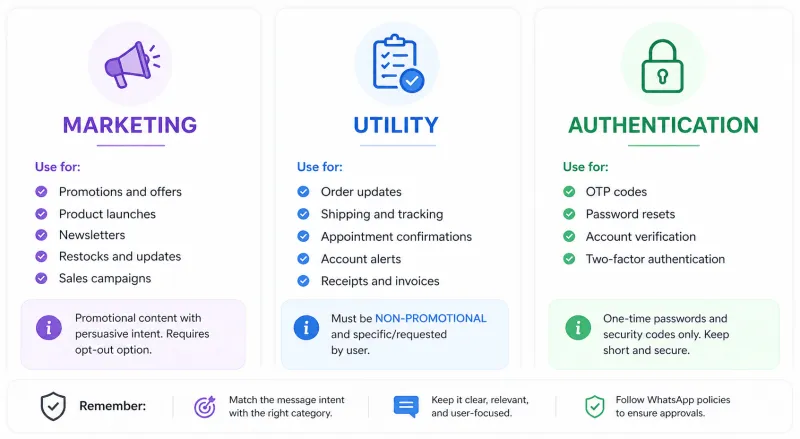
Every WhatsApp API template message must fall into one of these three categories.
Choosing the wrong one is one of the top rejection reasons.
Template Categories at a Glance
| Category | Purpose | Common Use Cases | Key Rule |
|---|---|---|---|
| Utility | Transactional / user-related updates | Order updates, shipping, reminders, account alerts | Must be non-promotional and linked to user action |
| Authentication | Identity verification | OTPs, login codes, password resets | Must be purely verification-only |
| Marketing | Promotional communication | Offers, campaigns, product updates, re-engagement | Any promotional intent = Marketing |
What Most Teams Get Wrong
- Adding promotional text in Utility → gets rejected or reclassified
- Using generic or vague content → flagged as Marketing
- Mixing Utility + Marketing → automatically treated as Marketing
Meta’s rule is simple:
If it’s not strictly Utility or Authentication, it becomes Marketing.
If it’s not strictly Utility or Authentication, it becomes Marketing.
Simple Way to Decide
- Is this message tied to a user action or transaction? → Utility
- Is it just a code or verification? → Authentication
- Is it trying to promote or sell? → Marketing
Get this wrong, and your template either gets rejected or misclassified.
Next, let’s walk through how the WhatsApp template approval process actually works step by step.
WhatsApp Template Approval Process: How It Works
Once you submit a WhatsApp API template message, Meta reviews it through automated checks and, if needed, human moderation.
Here’s the usual flow:
| Step | What Happens |
|---|---|
| 1. Template submitted | You submit the template through your WhatsApp API provider (Such as YCloud) or Meta Business Manager. |
| 2. Format check | Meta checks structure, placeholders, language, category, buttons, and samples. |
| 3. Policy check | The message is scanned for spam, misleading claims, prohibited content, and policy violations. |
| 4. Category review | Meta checks whether the selected category matches the message intent. |
| 5. Human review | If the template is unclear or sensitive, it may go for manual review. |
| 6. Final decision | The template is approved, rejected, or flagged with a status update. |
1. Automated Classification (First Layer)
Meta uses NLP to understand intent.
- “Order confirmed” → Utility
- “Special offer for you” → Marketing
If your message mixes intent, it creates confusion and often leads to rejection or reclassification.
Rule: Keep one template = one clear purpose.
2. Content & Link Review
Meta also checks:
- External links (must be clear and trusted)
- No shortened or suspicious URLs
- No misleading or hidden intent
If the link looks unclear, the template may fail.
3. Human Moderation (Second Layer)
If the system is unsure, human reviewers step in.
They check:
- Clarity and tone
- Grammar and spelling
- Overall message quality
Poor language or unclear messaging is treated as low quality.
4. Regional Policy Checks
Approval can vary by region.
- Some countries have stricter rules (especially for finance, promotions)
- What works in one region may fail in another
Tip: Localise content based on geography.
5. Language & Quality Rating
- Language code must match the message
- Templates are rated: Green, Yellow, Red
Consistently low-quality (Red) templates can impact your ability to send or get approvals.
In short, Meta checks intent, clarity, trust, and compliance, not just format.
Next, let’s cover the main section: the top WhatsApp API template rejection reasons and how to fix each one.
Top WhatsApp API Template Rejection Reasons & How to Fix Them
Most rejections aren’t random.
They follow clear patterns. Once you understand them, approvals become predictable.
Here are the most common reasons and how to fix each one.
1. Promotional or Spammy Language
Reason:
Your message sounds like an ad instead of a user-relevant message. Excessive caps, urgency, and pushy tone trigger rejection.
Your message sounds like an ad instead of a user-relevant message. Excessive caps, urgency, and pushy tone trigger rejection.
Rejected Example:
“LIMITED TIME OFFER!!! Save 50% TODAY!!! Click NOW!!!”
“LIMITED TIME OFFER!!! Save 50% TODAY!!! Click NOW!!!”
Approved Example:
“Hi {{1}}, your order {{2}} has been confirmed. Track here: {{3}}”
“Hi {{1}}, your order {{2}} has been confirmed. Track here: {{3}}”
Fix:
Keep the tone neutral and contextual. Avoid CAPS, multiple exclamation marks, and urgency-heavy phrases.
Keep the tone neutral and contextual. Avoid CAPS, multiple exclamation marks, and urgency-heavy phrases.
2. Missing or Incorrect Variables
Reason:
No placeholders or wrongly formatted variables make the template look generic or unsafe.
No placeholders or wrongly formatted variables make the template look generic or unsafe.
Rejected Example:
“Hello customer, your order is ready.”
“Hello customer, your order is ready.”
Approved Example:
“Hi {{1}}, your order {{2}} is ready for pickup.”
“Hi {{1}}, your order {{2}} is ready for pickup.”
Fix:
- Use proper format: {{1}}, {{2}}
- Keep variables sequential
- Always add context around them
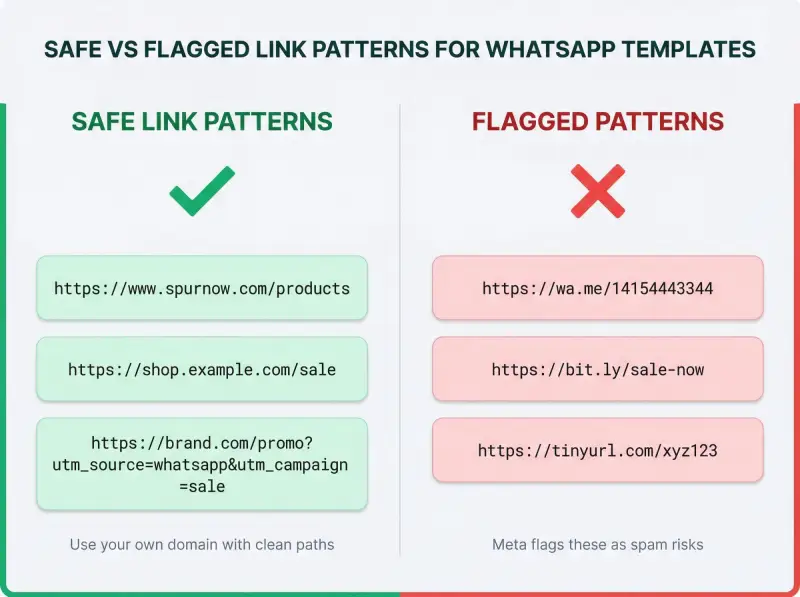
3. Suspicious or Shortened Links
Reason:
Short URLs or mismatched domains look like phishing.
Short URLs or mismatched domains look like phishing.
Fix:
- Use full HTTPS branded URLs
- Avoid bit.ly, tinyurl
- Keep links relevant to the message
4. Wrong Template Category
Reason:
Submitting promotional content under Utility is one of the biggest rejection triggers.
Submitting promotional content under Utility is one of the biggest rejection triggers.
Example Mistake:
“Your order is confirmed. Get 10% off your next purchase.”
“Your order is confirmed. Get 10% off your next purchase.”
Fix:
- Keep Utility = strictly non-promotional
- Move mixed content to Marketing
5. Vague or Unclear Message
Reason:
Meta cannot understand the intent.
Meta cannot understand the intent.
Rejected Example:
“Reminder: {{1}}”
“Reminder: {{1}}”
Approved Example:
“Hi {{1}}, your appointment on {{2}} is confirmed.”
“Hi {{1}}, your appointment on {{2}} is confirmed.”
Fix:
Clearly answer:
Clearly answer:
- What is this message about?
- What should the user do next?
6. Policy Violations
Reason:
Content violates WhatsApp policies.
Content violates WhatsApp policies.
Content relating to prohibited items (tobacco, alcohol, gambling, drugs), requesting sensitive user data (passwords, full bank details), misleading claims or abusive language will be rejected.
Fix:
- Never ask for full card details or IDs
- Avoid restricted industries/content
- Stay within compliance rules
7. Poor Grammar or Formatting
Reason:
Typos, bad structure, or messy formatting signal low quality.
Typos, bad structure, or messy formatting signal low quality.
Fix:
- Proofread
- Keep sentences clean and readable
- Avoid excessive spacing or formatting tricks
8. Too Many Variables, Not Enough Context
Reason:
High variable density makes the message unclear.
High variable density makes the message unclear.
Rejected Example:
“Hi {{1}} Order {{2}}”
“Hi {{1}} Order {{2}}”
Approved Example:
“Hi {{1}}, your order {{2}} has been shipped.”
“Hi {{1}}, your order {{2}} has been shipped.”
Fix:
Add enough static text so the message makes sense on its own
Add enough static text so the message makes sense on its own
9. Duplicate Templates
Reason:
Submitting the same content again with a different name.
Submitting the same content again with a different name.
Fix:
Change both:
Change both:
- Template name
- Message wording
10. Language Mismatch
Reason:
Selected language doesn’t match actual message content.
Selected language doesn’t match actual message content.
Fix:
Ensure language setting = message language exactly
Ensure language setting = message language exactly
11. Header/Footer or Media Issues
Reason:
- Emojis or formatting in headers
- Variables in footer
- Missing sample media
Fix:
- Keep header/footer simple
- Provide sample media and variable values
12. Template Gets Paused Later
Reason:
Users block or report your messages → quality drops.
Users block or report your messages → quality drops.
Fix:
- Improve relevance
- Ensure proper opt-in
- Avoid over-messaging
13. Message Undeliverable Issues
Reason:
- User on old WhatsApp version
- Terms not accepted
- Marketing limits exceeded
Fix:
- Ask users to update app
- Respect per-user limits
- Keep targeting clean
14. Missing Samples During Submission
Reason:
Meta can’t understand how variables or media will be used.
Meta can’t understand how variables or media will be used.
Fix:
Always provide:
Always provide:
- Sample values for {{1}}, {{2}}
- Sample media if used
15. Too Many Spaces / Formatting Tricks
Reason:
Extra spaces, tabs, or line breaks trigger rejection.
Extra spaces, tabs, or line breaks trigger rejection.
Fix:
Keep formatting simple and clean
Keep formatting simple and clean
16. Low-Quality or Generic Templates
Reason:
Message lacks context or feels mass-generated.
Message lacks context or feels mass-generated.
Fix:
Make it:
Make it:
- Specific
- Context-driven
- Clearly useful to the user
In a nutshell, most rejections happen due to format, category mismatch, unclear intent, or policy issues.
Fix these once, and your approval rate improves significantly.
Next, let’s look at a final checklist before submitting your WhatsApp API template message to avoid rejection completely.
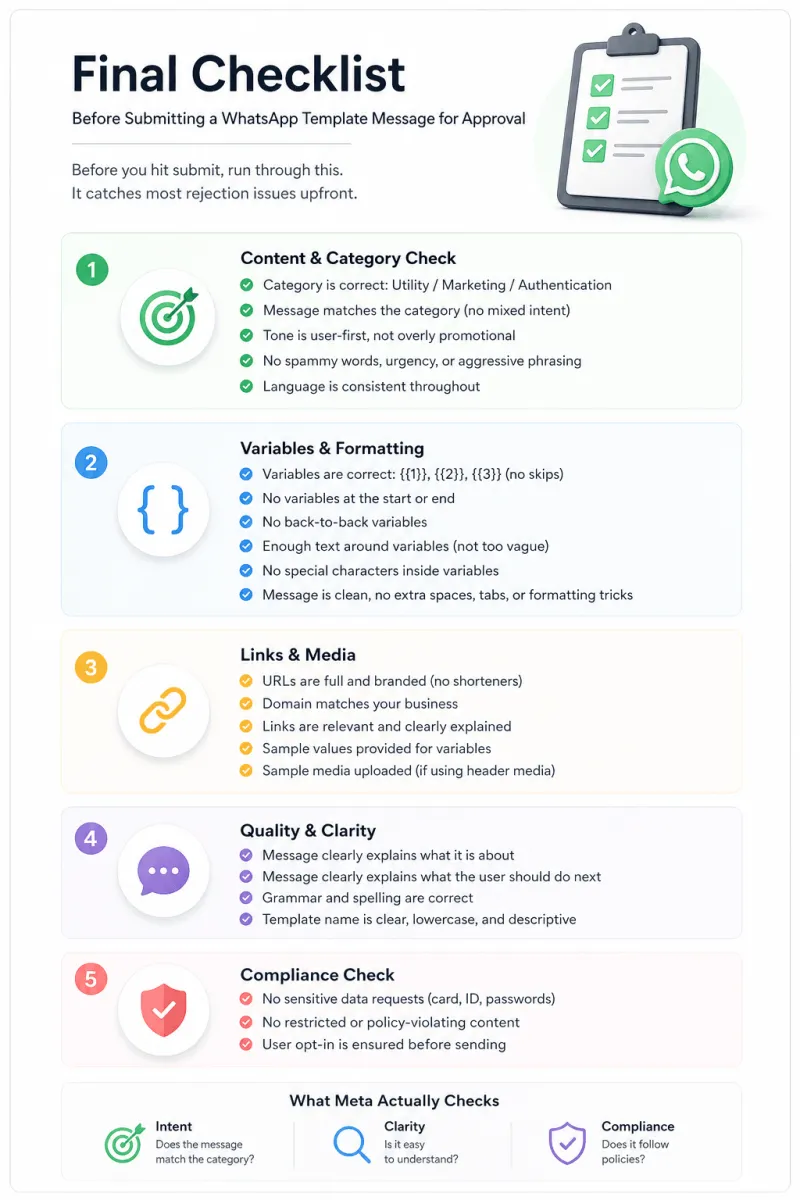
Final Checklist Before Submitting a WhatsApp Template Message for Approval
Before you hit submit, run through this.
It catches most rejection issues upfront.
It catches most rejection issues upfront.
1. Content & Category Check
- Category is correct: Utility / Marketing / Authentication
- Message matches the category (no mixed intent)
- Tone is user-first, not overly promotional
- No spammy words, urgency, or aggressive phrasing
- Language is consistent throughout
2. Variables & Formatting
- Variables are correct: {{1}}, {{2}}, {{3}} (no skips)
- No variables at the start or end
- No back-to-back variables
- Enough text around variables (not too vague)
- No special characters inside variables
- Message is clean, no extra spaces, tabs, or formatting tricks
3. Links & Media
- URLs are full and branded (no shorteners)
- Domain matches your business
- Links are relevant and clearly explained
- Sample values provided for variables
- Sample media uploaded (if using header media)
4. Quality & Clarity
- Message clearly explains:
-
- What it is about
- What the user should do next
- Grammar and spelling are correct
- Template name is clear, lowercase, and descriptive
5. Compliance Check
- No sensitive data requests (card, ID, passwords)
- No restricted or policy-violating content
- User opt-in is ensured before sending
What Meta Actually Checks
- Intent → Does the message match the category?
- Clarity → Is it easy to understand?
- Compliance → Does it follow policies?
If these three are clean, approval is usually smooth.
If your template looks clear, specific, and safe, it gets approved.
If it looks generic, pushy, or unclear, it gets rejected.
If it looks generic, pushy, or unclear, it gets rejected.
Next, let’s understand how long approval takes and what you should expect after submission.
Approval Timeline: What to Expect After Submission
Most are approved very quickly.
- Typical approval time: 1–5 minutes
- If flagged for review: up to 24 hours
What Happens in Practice
- If your template is clean and compliant, it gets approved almost instantly
- If something looks unclear (category, wording, links), it goes for manual review
If it’s still pending after a while:
- Wait up to 24 hours
- If no update, duplicate and resubmit with small improvements (wording, clarity, category)
Next, let’s see how to appeal a WhatsApp template rejection if you believe it was incorrect.
Can Meta Change Your Template Category After Approval?
Yes. And this is where many teams get caught off guard.
What Changed (2025 Update)
- From April 9, 2025, Meta can automatically reclassify templates
- Even approved Utility templates can be moved to Marketing
- Older templates are also being re-evaluated silently
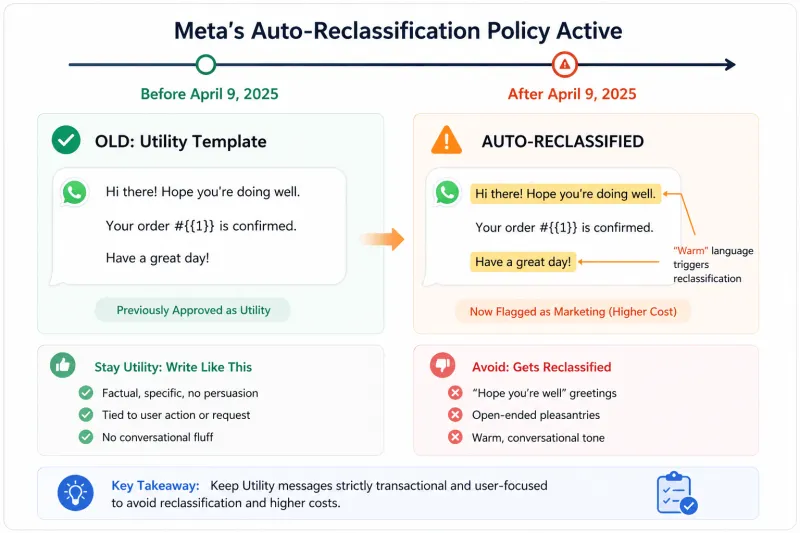
This means approval is not final.
Your template can still be reclassified later if the wording doesn’t strictly match the category.
Your template can still be reclassified later if the wording doesn’t strictly match the category.
Common Trigger
Utility templates that sound even slightly “warm” or open-ended:
- “Hope you’re doing well…”
- “Check this out…”
- “You might like this…”
These can get pushed into Marketing.
If it feels even slightly promotional, Meta will treat it as Marketing, sooner or later.
Next, let’s look at how to appeal a rejected template and get it approved.
How to Appeal a WhatsApp Template Rejection
If your WhatsApp API template message gets rejected, you have two options: appeal or resubmit.
Option 1: Appeal via Meta (If You Believe It’s Incorrect)
- Go to your WhatsApp API Platform's Template Dashboard → Rejected Templates
- Click Request Review / Appeal
- Add a short, clear explanation
Include:
- Template name + ID
- Purpose of the message (1 line)
- What each variable represents (with sample values)
- Why the category is correct
- Confirmation of user opt-in
Keep it factual. No long explanations.
Option 2: Resubmit a Fixed Version (Faster in Most Cases)
- Duplicate the template
- Fix format, content, or category
- Add clearer context and samples
- Submit as a new template
Timeline & Expectation
- Appeals usually take 24–48 hours
- Success depends on what you changed
- Re-submitting the same content rarely works
Next, let’s look at best practices to get your templates approved faster consistently.
WhatsApp Template Best Practices
Keep this simple. Most approvals come down to a few basics done right.
Content & Tone
- Use clear, professional language (no hype or spam tone)
- Keep it user-focused, not brand-heavy
- Clearly state what the message is about
Variables
- Use correct format: {{1}}, {{2}}
- Add at least one variable for personalization
- Provide accurate sample values during submission
- Don’t overuse variables or make them vague
Formatting
- Keep message short and readable (ideally under 1000 chars)
- Avoid messy formatting, extra spaces, or symbols
- Proofread for grammar and clarity
Links & Compliance
- Use full HTTPS branded URLs
- Never ask for sensitive data
- Ensure user opt-in before sending
Submission Hygiene
- Choose the correct category
- Use a clear, descriptive template name
- Test your template before submitting
Simple rule: Clear message + correct format + right category = fast approval.
Next, let’s see how to check template status inside YCloud.
How to Check Template Status in YCloud
Once you submit a template, you can track everything inside YCloud.
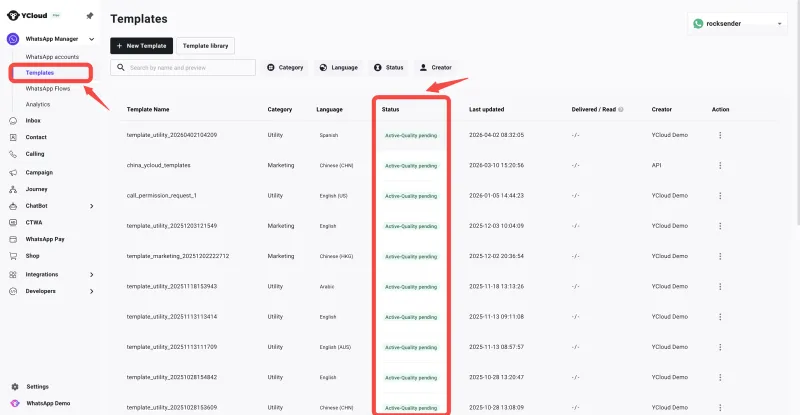
Where to Check
- Go to Dashboard → WhatsApp Manager → Templates
- View templates by status:
- Pending
- Approved
- Action Required
- Rejected
- Refresh the dashboard for the latest updates
If Your Template Gets Rejected
- Check the rejection reason
- Fix the issue (format, category, wording, etc.)
- Duplicate and resubmit the updated version
Most templates get approved on the second attempt if corrected properly.
💡 Pro Tip:
Use YCloud’s pre-approved Template Library, which contains 100+ templates already approved for multiple industries. Simply customize them for your needs.
Next, let’s look at YCloud’s AI-powered template generation to speed up approvals.
YCloud’s AI WhatsApp Template Message Generator (NEW)
Creating approved WhatsApp templates takes time because every message must follow WhatsApp Business API format and policy rules.
With YCloud’s AI WhatsApp Template Message Generator, you can create ready-to-submit templates for marketing, utility, and authentication use cases in minutes.
How It Works
- Open YCloud Dashboard
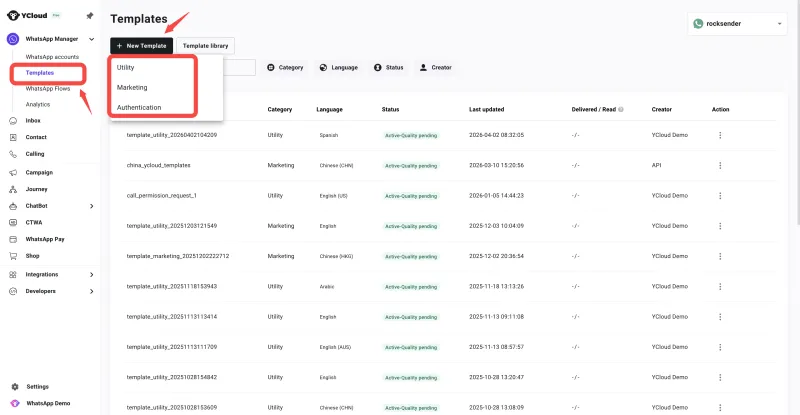
- Go to WhatsApp Manager → Templates
- Click New Template
- Select the template category (Utility, Marketing or Authentication)
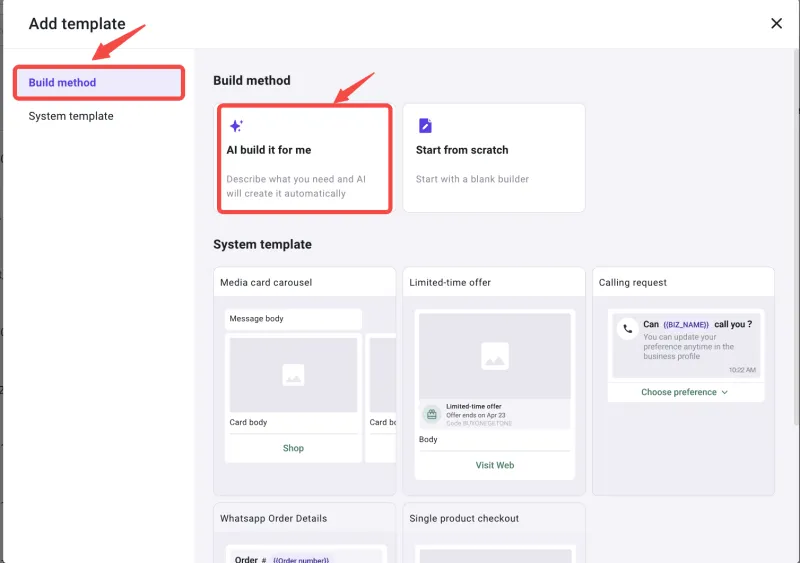
- Choose Build Method → “AI build it for me”
- Fill in:
- Scenario
- Industry
- Tone of voice
- Language
- Number of templates
- Click Generate
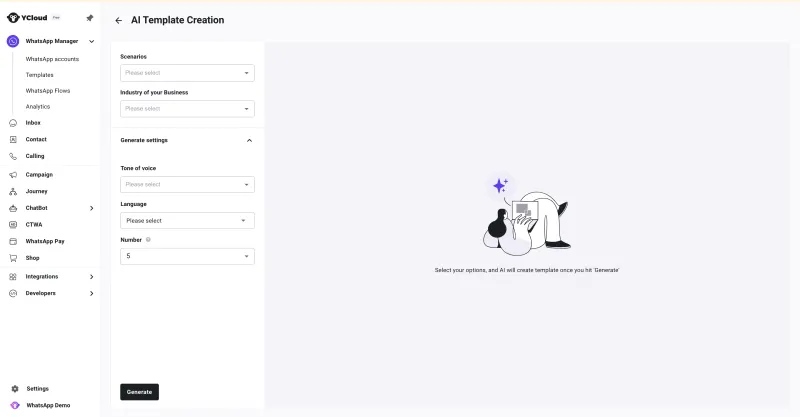
That’s it.
YCloud will generate WhatsApp template message examples with the right structure, variables, and category alignment, so your team can create templates faster with fewer manual errors.
Get Your Templates Approved Faster
Get approved templates faster with YCloud's intelligent compliance checks and pre-approved template library.
Frequently Asked Questions
What is a WhatsApp API template message?
A WhatsApp API template message is a pre-approved message format used by businesses to send structured communications like updates, notifications, and promotions.
Why does my WhatsApp template keep getting rejected?
Common reasons include:
- Wrong category selection
- Invalid variable formatting
- Spammy or unclear language
- Policy violations
Fix the issue and resubmit with better clarity.
What are the most common rejection codes?
- INVALID_FORMAT → Issue with variables or structure
- TAG_CONTENT_MISMATCH → Category or language doesn’t match content
How long does template approval take?
- Typically 1–5 minutes
- Can take up to 24–48 hours if manual review is required
Can I edit a template after approval?
No.
Approved templates cannot be edited. You need to create a new version.
Approved templates cannot be edited. You need to create a new version.
Can I edit and resubmit a rejected template?
Yes.
Fix the issue mentioned in the rejection reason and resubmit a corrected version.
Fix the issue mentioned in the rejection reason and resubmit a corrected version.
What should I do if my template gets rejected multiple times?
- Re-check format, category, and clarity
- Rewrite instead of making small edits
- If needed, create a fresh template from scratch
Can I appeal a template rejection?
Yes.
You can request a review via WhatsApp Manager by providing:
You can request a review via WhatsApp Manager by providing:
- Template purpose
- Variable samples
- Category justification
How long do appeals take?
Usually 24–48 hours, depending on manual review.
Can Meta change my template category after approval?
Yes.
Meta can automatically reclassify templates (e.g., Utility → Marketing) if wording feels promotional.
Meta can automatically reclassify templates (e.g., Utility → Marketing) if wording feels promotional.
Are approved templates valid forever?
Yes, but:
- Templates can be paused or disabled due to poor performance
- Long-unused templates may require revalidation
What happens if users block my messages?
High block rates can:
- Lower quality rating
- Pause or disable templates
Improve targeting and relevance before resending.
Is there a limit on how many templates I can submit?
No strict limit, but it’s better to submit in batches to track performance and approvals.
How many templates can I have approved?
There’s no strict cap, but limits depend on your WABA verification level.
Can I use emojis in templates?
Yes.
Use them sparingly. Avoid excessive or irrelevant usage.
Use them sparingly. Avoid excessive or irrelevant usage.
Are there language restrictions?
Templates can be created in supported languages, but:
- The selected language must match the content exactly
- Avoid mixing languages in one template
What is the difference between template messages and session messages?
- Template messages → Pre-approved, used to initiate or send structured updates
- Session messages → Free-form replies within an active conversation window
What words trigger template rejection?
- “Buy now”
- “Limited offer”
- “Act fast”
Avoid aggressive or misleading phrases.
Can I use links in templates?
Yes, but:
- Use full HTTPS links
- Avoid URL shorteners
- Ensure links match your domain
Can I use WhatsApp (wa.me) links in templates?
No.
Direct WhatsApp links are often flagged and may lead to rejection.
Direct WhatsApp links are often flagged and may lead to rejection.
Do I need to provide sample values for variables?
Yes.
Sample values help reviewers understand context and improve approval chances.
Sample values help reviewers understand context and improve approval chances.
What are best practices for using variables?
- Use correct format: {{1}}, {{2}}
- Keep them sequential
- Add meaningful context around them
- Avoid overusing variables
Can incorrect variable usage lead to rejection?
Yes.
Wrong format, missing sequence, or vague usage is a top rejection reason.
Wrong format, missing sequence, or vague usage is a top rejection reason.
Can I request sensitive information in templates?
No.
Do not ask for:
Do not ask for:
- Credit card numbers
- Bank details
- Passwords
Only partial identifiers (like last 4 digits) are allowed in specific cases.
Are there restricted industries or content?
Yes.
Avoid:
Avoid:
- Gambling
- Adult content
- Misleading financial claims
- Prohibited products
What happens if my template is too vague?
Vague templates (e.g., “Reminder: {{1}}”) are often rejected.
Always provide clear context and purpose.
Always provide clear context and purpose.
Can I duplicate an existing template?
No.
Duplicate content gets rejected. Modify both name and message.
Duplicate content gets rejected. Modify both name and message.
What happens if my template is paused?
A paused template means:
- Poor user feedback or high block rate
- You must improve and resubmit
Why is my message marked as undeliverable?
Possible reasons:
- User on outdated WhatsApp version
- User hasn’t accepted terms
- Marketing limits exceeded
How can I fix a spam rejection?
- Remove pushy language
- Reduce emojis
- Make tone helpful and natural
How do I fix template rejection quickly?
- Check rejection reason
- Fix format or category
- Rewrite clearly
- Resubmit
How many variables should I use?
Use only what’s needed.
Too many variables make the message unclear and increase rejection risk.
Too many variables make the message unclear and increase rejection risk.
What naming format should I use for templates?
- Lowercase
- No spaces
- Use underscores
Example: order_update, otp_login
Do I need opt-in before sending templates?
Yes.
User consent is mandatory before sending any template message.
User consent is mandatory before sending any template message.
Do I need to include opt-out options?
Recommended for marketing templates to reduce spam reports and improve quality.
Can I track template performance?
Yes.
Monitor:
Monitor:
- Approval rate
- Quality rating
- User engagement
Can I use a template library instead of creating from scratch?
Yes.
Using pre-approved templates saves time and improves approval rates.
Using pre-approved templates saves time and improves approval rates.
Do all BSPs handle template approvals the same way?
The approval logic is the same, but:
- Tools
- UI
- Support
may differ across providers.
What if my account gets restricted?
Contact your BSP (like YCloud) or Meta support to:
- Review the issue
- Request reactivation
Related Articles

Make your business communications much easier!


Trusted by