Customer Support

English

WhatsApp API Message Templates: Key Terms & Mechanics Explained

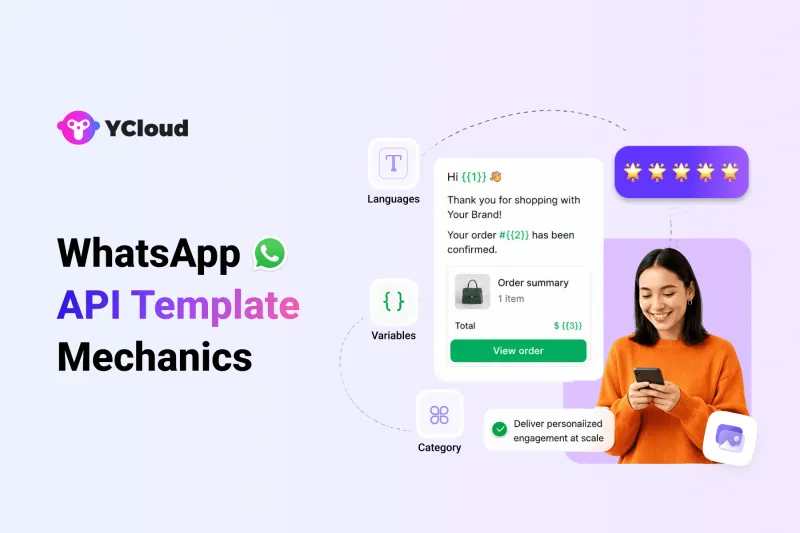
This guide explains the WhatsApp API Message Template mechanics that apply across all template categories.
For category-specific template rules, you can refer to separate guides on Marketing messages, Utility messages, and Authentication messages HERE.
Key Notes:
- Templates are WhatsApp Business API Account assets that businesses use to send structured template messages through the WhatsApp API.
- Template messages are the only type of message that can be sent to WhatsApp users outside of a customer service window.
- Templates are commonly used for bulk messaging, campaign messaging, alerts, reminders, OTPs, and follow-ups when no active customer service window is open.
In short, if your business wants to message customers at scale or continue a conversation after the support window closes, you need approved WhatsApp API Message Templates.
Next, let’s start with the first mechanic: template creation.
Template Creation
Follow the steps below to create a WhatsApp API Message Template in YCloud:
Open YCloud Console → WhatsApp Manager → Template → New Template
You can choose to create the WhatsApp API Message Template either yourself or let the AI create it for you.
With the AI, you simply have to describe what you need, and the AI will create it automatically for you.
If you create templates manually, the structure remains largely the same regardless of which WhatsApp API platform you use. What changes are usually the category and the components.
- The category tells WhatsApp whether the template is Marketing, Utility, or Authentication.
- The components define what the template contains, such as header, body, footer, buttons, variables, or media.
You can create up to 100 templates per WhatsApp Business Account per hour.
Common API Syntax
curl 'https://graph.facebook.com/v23.0/<WHATSAPP_BUSINESS_ACCOUNT_ID>/message_templates' \
-H 'Authorization: Bearer <ACCESS_TOKEN>' \
-H 'Content-Type: application/json' \
-d '
{
  "name": "<NAME>",
  "category": "<CATEGORY>",
  "language": "<LANGUAGE>",
  "parameter_format": "<PARAMETER_FORMAT>",
  "components": [<COMPONENTS>]
}'
In simple terms, every template needs a clear name, category, language, parameter format, and message structure before it can be submitted for review.
Next, let’s look at template names and the basic naming rules you should follow.
Names
Every WhatsApp API Message Template must have a name.
Template names do not have to be unique. This means you can use the same template name for different language versions of the same message.
For example:
- order_update for English
- order_update for Hindi
- order_update for Spanish
Template names can be up to 512 characters, but it’s better to keep them short and easy to identify.
The naming format must be clean.
A template name can include only:
- Lowercase letters
- Alphanumeric Characters
- Underscores
Good examples:
- order_confirmation
- payment_reminder
- login_otp
- cart_recovery_offer
Avoid names like:
- Order Confirmation
- Payment-Reminder
- Login OTP!
In short, use simple names that clearly describe the template’s purpose.
Next, let’s look at template categories and how they define the purpose of your WhatsApp API Message Template.
Categories
Every WhatsApp API Message Template must fall under one of three categories:
The category tells WhatsApp what the message is meant to do.
- Marketing is used for promotions, offers, product updates, retargeting, and customer re-engagement.
- Utility is used for non-promotional updates like order confirmations, payment reminders, delivery alerts, account updates, and support follow-ups.
- Authentication is used for OTPs, login codes, account recovery, and identity verification.
Read this One-Stop Guide to WhatsApp API Message Template Categories to know about WhatsApp API Message Template in detail.Choosing the right category is important because it affects:
- Template approval
- Message restrictions
- Pricing
- Category review
- Future recategorization by WhatsApp
If a template is placed in the wrong category, WhatsApp may reject it, approve it under another category, or update the category later.
In short, don’t choose the category based on what you want the message to cost. Choose it based on what the message actually says and what action it is trying to drive.
Next, let’s break down template components and understand what a WhatsApp API Message Template is made of.
Components
A WhatsApp API Message Template is built with different components. These components decide how the message looks and what action a customer can take.
Common template components include:
- Header — text, image, video, document, or location shown at the top of the message.
- Body — the main message text. This is where most variables and customer-specific details are used.
- Footer — short supporting text, usually used for disclaimers or extra context.
- Buttons — clickable actions like visiting a website, calling a number, copying an OTP, or quick replies.
The components you can use may vary based on the template category. For example, an Authentication template is more restricted, while Marketing templates usually support more flexible formats.
In short, components are the building blocks of your WhatsApp API Message Template. Keep them clear, relevant, and aligned with the message purpose.
Next, let’s look at Languages and how template language selection works.
Languages
Every WhatsApp API Message Template needs a language code during creation.
This tells WhatsApp which language the template is written in. For example:
- en_US for English
- hi for Hindi
- es for Spanish
- pt_BR for Brazilian Portuguese
Meta does not translate your template text or variables automatically. So, if you want to send the same message in multiple languages, you need to create each language version yourself with the right text and sample values.
For example, these can share the same template name:
- order_update in English
- order_update in Hindi
- order_update in Spanish
But each language version still counts as a separate template against your template limit.
In short, create templates in the exact language your customer will receive, and make sure the variables also match that language.
Next, let’s look at parameter formats and how variables work inside WhatsApp API Message Templates.
Parameter Formats
Some WhatsApp API Message Template components support variables. These variables are placeholders that get replaced with real customer data when you send the template.
For example:
Hi {{first_name}}, your order {{order_number}} has been shipped.
- Here, {{first_name}} and {{order_number}} are parameters.
When creating a template, you must:
- Choose a parameter format: Named or Positional
- Add sample values for every parameter
- Pass real values in the send message payload later
If you do not select a format, WhatsApp uses positional parameters by default.
Named Parameters
Named parameters use clear variable names.
Example:
{{first_name}}
{{order_number}}
{{order_number}}
Rules:
- Must be unique
- Use lowercase letters and underscores
- Wrapped in double curly brackets
- Values can be sent in any order because each parameter has a name
Example template text:
Thank you, {{first_name}}! Your order number is {{order_number}}.
Example send values:
[
  {
    "type": "text",
    "parameter_name": "first_name",
    "text": "Jessica"
  },
  {
    "type": "text",
    "parameter_name": "order_number",
    "text": "SKBUP2-4CPIG9"
  }
]
Positional Parameters
Positional parameters use numbers instead of names.
Example:
{{1}}
{{2}}
{{2}}
Rules:
- Must start from {{1}}
- Must follow the same order as the template text
- Values must be sent in the same sequence
Example template text:
Hi {{1}}! Your order number is {{2}}. Thank you.
Example send values:
[
  {
    "type": "text",
    "text": "Jessica"
  },
  {
    "type": "text",
    "text": "SKBUP2-4CPIG9"
  }
]
Named vs Positional Parameters
Named | {{first_name}} | Clear, readable templates | Match values by parameter name |
Positional | {{1}} | Simple templates with fewer variables | Match values by order |
Simple rule: use named parameters when the template has multiple variables. It keeps your WhatsApp API Template Message easier to read, edit, and manage.
Next, let’s look at Media and how images, videos, documents, and other media work inside templates.
Media
Some WhatsApp API Message Templates can include media in the header.
This is useful when your message needs a visual or document, such as:
- Product image
- Offer banner
- Invoice PDF
- Ticket or booking document
- Video preview
If you create a template with a media header, you need to upload the media first using the Resumable Upload API. WhatsApp then gives you an asset handle, which you include in your template creation request.
That media file is also reviewed during template approval. So, don’t use random placeholder images or unclear documents. Use a sample that matches the actual message purpose.
For example, if the template is for an invoice reminder, the media should look like an invoice document, not a promotional banner.
Also, media support depends on the template category. For example, Authentication templates do not allow media, while Marketing and Utility templates may support media headers depending on the use case.
Simple rule: use media only when it adds context. If the message works clearly without it, keep the template text-only.
Next, let’s look at Template Review and how WhatsApp checks your template before approval.
Template Review
Every WhatsApp API Message Template goes through review after it is created or edited.
If WhatsApp approves the template, its status becomes Approved, and you can start using it to send template messages.
If the template is rejected or moved to any other status, you cannot use it until the issue is fixed.
During review, WhatsApp checks things like:
- Whether the selected category is correct
- Whether the message follows template guidelines
- Whether variables and examples are clear
- Whether the content matches the business use case
- Whether media, buttons, and components are valid
If your template gets rejected, you can usually edit the content, change the category, create a new template, or request a review depending on the reason.
Simple rule: write templates clearly, avoid mixed intent, and make sure the message matches the category you selected.
Know How WhatsApp Assigns a Category During Template CreationNext, let’s look at Template Status and what each status means after submission.
Template Status
A WhatsApp API Message Template must be in Approved status before you can use it to send messages.
The first status is decided during template review. Later, WhatsApp may change the status based on template usage, quality feedback, or policy issues.
Common template status values include:
- Approved — the template passed review and can be used.
- Pending — the template is still under review.
- Rejected — the template did not pass review and cannot be used.
- Paused — the template is temporarily stopped due to quality issues.
- Disabled — the template can no longer be used.
Status changes are shared through the message_template_status_update webhook.
You can also check a template’s current status anytime by logging in to your WhatsApp API platform dashboard.
Example Request
curl 'https://graph.facebook.com/<API_VERSION>/<TEMPLATE_ID>?fields=status' \
-H 'Authorization: Bearer <ACCESS_TOKEN>'
Example Response
{
  "status": "APPROVED",
  "id": "1259544702043867"
}
Simple rule: don’t assume a template is usable just because it was created. Always check that its status is Approved before using it in a campaign or automation.
Next, let’s look at WhatsApp Manager and how it helps you create, review, and manage templates from one place.
WhatsApp Manager
You can also manage WhatsApp API Message Templates from the “Template” section in your WhatsApp Manager YCloud account.
It shows each template’s review status.
This helps you quickly understand which templates are ready to use, which need action, and which are at risk.
| Status | What It Means | Can You Send It? |
|---|---|---|
| In-Review | The template is still under review. This can take up to 24 hours. | No |
| Rejected | The template failed review or violates WhatsApp policies. | No |
| Active - Quality Pending | The template is approved but has not received enough quality feedback yet. | Yes |
| Active - High Quality | The template has little to no negative feedback. | Yes |
| Active - Medium Quality | The template has some negative feedback or low read rates. It may become paused if issues continue. | Yes |
| Active - Low Quality | The template has poor feedback or low read rates and is at risk of being paused or disabled. | Yes, but risky |
| Paused | The template is paused due to recurring negative feedback or low read rates. | No |
| Disabled | The template has been disabled due to ongoing quality issues. | No |
| Appeal Requested | An appeal has been submitted for review. | Depends on current status |
Next, let’s look at template limits and how many WhatsApp API Message Templates your business can create.
Template Limits
A WhatsApp Business Account does not get unlimited templates by default. The limit depends on the status of its parent business portfolio.
| Business Portfolio Status | Template Limit |
|---|---|
| Unverified business portfolio | Up to 250 message templates per WhatsApp Business Account |
| Verified business portfolio with at least one approved display name | Up to 6,000 message templates per WhatsApp Business Account |
Apart from how many templates you can create, WhatsApp also has delivery-related limits and controls.
These include:
- Messaging limits — control how many template messages you can send outside the customer service window.
- Template pacing — slows delivery so WhatsApp users can give feedback before the template is scaled further.
- Template pausing — temporarily stops templates that receive poor feedback or low engagement.
- Template archival — archives and deletes templates inactive for 12 months or more. Archived templates are deleted after 28 days unless restored.
- Per-user marketing template limits — restrict how many marketing template messages a WhatsApp user can receive from businesses.
In short, template limits are not just about storage. They also affect how safely and consistently your business can send WhatsApp API Template Messages at scale.
Next, let’s look at Time-to-live and how long WhatsApp keeps trying to deliver a template message.
Time-to-Live
If a message sent to a WhatsApp user cannot be delivered then the system keeps trying to deliver for a period known as the time-to-live (TTL).
If the message is not delivered within the TTL period, WhatsApp drops it.
This is especially important for time-sensitive messages like OTPs, payment reminders, flash sales, delivery alerts, or limited-time offers.
| Template Type | Default TTL | Custom TTL Range | API Support |
|---|---|---|---|
| Authentication | 10 minutes | 30 seconds to 15 minutes | Cloud API |
| Utility | 30 days | 30 seconds to 12 hours | Cloud API |
| Marketing | 30 days | 12 hours to 30 days | Marketing Messages API for WhatsApp |
For Authentication templates, keep the TTL equal to or shorter than the OTP expiry time. Otherwise, users may receive a code after it is no longer valid.
You can set TTL during template creation using:
"message_send_ttl_seconds": 900
For Authentication and Utility templates, you can also set:
"message_send_ttl_seconds": -1
This sets the TTL to 30 days.
What Happens When TTL Expires?
If WhatsApp cannot deliver the message before the TTL ends, the message is dropped.
So, if you do not receive a delivered webhook before the TTL expires, treat the message as undelivered. It’s also better to keep a small buffer because webhook updates can sometimes arrive with a minor delay.
TTL and Category Updates
If WhatsApp automatically changes a template’s category, the custom TTL is cleared and set to null.
You’ll need to set the TTL again based on the new category’s allowed range.
Simple rule: use shorter TTL for urgent messages and longer TTL only when the message stays useful over time.
Next, let’s look at Quality Rating and how customer feedback can affect template delivery.
Quality Rating
Quality rating shows how customers respond to your WhatsApp API Message Template over time.
WhatsApp calculates it based on template usage, customer feedback, read rates, and engagement. Newly created templates start with an UNKNOWN quality score, and the rating changes as WhatsApp collects more signals.
| API Quality Score | WhatsApp Manager Status | What It Means | Can You Send It? |
|---|---|---|---|
| GREEN | Active - High Quality | Little to no negative feedback. | Yes |
| YELLOW | Active - Medium Quality | Some negative feedback or low read rates. The template may soon be paused or disabled. | Yes |
| RED | Active - Low Quality | Poor feedback or low read rates. The template is at risk of being paused or disabled. | Yes, but risky |
| UNKNOWN | Active - Quality Pending | Not enough feedback or read-rate data yet. | Yes |
Quality rating matters because it can affect template pacing, template pausing, and overall delivery. If a template keeps receiving negative feedback or low engagement, WhatsApp may eventually change its status. If the status is no longer Approved, the template cannot be used until approval is restored.
You can also check a template’s quality score through the Template API by requesting the quality_score field.
Example Request
curl 'https://graph.facebook.com/v25.0/<TEMPLATE_ID>?fields=quality_score' \
-H 'Authorization: Bearer <ACCESS_TOKEN>'
Example Response
{
  "quality_score": {
    "score": "GREEN",
    "date": 1758754645
  },
  "id": "1387372356726668"
}
Simple rule: send relevant, expected, and useful messages. If users ignore, block, or report your template, its quality rating can drop.
Next, let’s look at delivery sequence of multiple messages and how WhatsApp handles more than one message sent to the same user.
Delivery Sequence of Multiple Messages
When you send multiple WhatsApp API messages one after another, WhatsApp does not guarantee that customers will receive them in the same order as your API requests.
For example, if you send:
- Order confirmed
- Payment received
- Delivery scheduled
The customer may not always receive them in that exact sequence.
If message order is important, wait for the delivered status in the status webhook before sending the next message.
Simple rule: don’t trigger the next message only because the API request was sent. Trigger it after WhatsApp confirms the previous message was delivered.
This is especially important for:
- OTP flows
- Payment journeys
- Order updates
- Step-by-step onboarding
- Multi-message campaigns
- Customer support automation
In short, use delivery webhooks to control sequence when timing matters.
Next, let’s look at Template Management and how businesses can organize, edit, monitor, and maintain WhatsApp API Message Templates.
Template Management
Template management covers the actions you use to get, edit, delete, archive, and unarchive WhatsApp API Message Templates. These actions can be handled through the Message Templates API or, in some cases, through WhatsApp Manager.
| Action | What It Means |
|---|---|
| Get templates | Fetch all templates in a WhatsApp Business Account, or filter by fields like name, category, and status. |
| Create templates | Create a new template with its name, category, language, parameter format, and components. |
| Edit templates | Update the category, components, or time-to-live of eligible templates. |
| Delete templates | Delete templates by name, template ID, or multiple template IDs. |
| Archive / Unarchive templates | Manage inactive templates before they are permanently deleted. |
A few important rules to remember:
- Only Approved, Rejected, or Paused templates can be edited.
- Approved templates can be edited up to 10 times in 30 days or once in 24 hours.
- You cannot edit individual components. If you edit components, the full component set gets replaced.
- If you delete an approved template, you cannot create another template with the same name for 30 days.
- Templates inactive for 12 months or more may be archived and scheduled for deletion after 28 days.
In short, template management is not just about creating templates. It’s about keeping your templates clean, updated, approved, and safe to use at scale.
Next, let’s understand how WhatsApp assigns a category during template creation.
Create WhatsApp API Templates Faster with YCloud AI
Creating a WhatsApp API Message Template needs the right category, format, variables, language, and structure.
YCloud simplifies this with AI-powered template creation. You add basic inputs like scenario, industry, event details, tone, and language, and YCloud AI creates a ready-to-edit template draft.
YCloud also has a Template Library with ready-made samples for:
- Promotions
- Order updates
- Payment reminders
- OTPs
- Support follow-ups
- Re-engagement campaigns
You can pick a template, edit it, and submit it for review. Since these templates are built around Meta’s guidelines, they help reduce common approval mistakes.
With YCloud, you can also manage templates, send broadcasts, schedule campaigns, automate replies, manage chats, and track performance from one place.
How to Get YCloud?
Kindly click on the banner below to book a FREE DEMO and learn more about our product offering, features and pricing plans.
Built with AI at its core, YCloud is the ultimate WhatsApp marketing and automation solution, giving you everything you need in one powerful platform.
Now market, sell, support, and scale your business by 10X with YCloud!
Ready to try? Explore How to Get YCloud for FREE next!
How to Get YCloud for FREE?
It's Simple!
Subscribe to our FREE plan and get a free lifetime experience of YCloud with unlimited messaging API.
Book a FREE Demo and see how YCloud can power up your WhatsApp strategy!
🚀 Try YCloud today and experience how effortless WhatsApp automation can be when you have the right partner.
Wrapping Up!
WhatsApp API Message Templates become easier to manage when you understand the basics: creation, names, categories, components, languages, parameters, media, review, status, limits, TTL, and quality rating.
These mechanics decide how your templates are created, reviewed, delivered, and maintained over time.
So, before sending any campaign or customer update, make sure your template is clear, correctly structured, and aligned with WhatsApp’s rules.
With YCloud, you can create templates faster using AI, use ready-made templates from the library, manage approvals, and run WhatsApp campaigns from one place.
Frequently Asked Questions
What are WhatsApp API Message Templates?
WhatsApp API Message Templates are pre-approved message formats businesses use to send structured messages through the WhatsApp API, especially outside the customer service window.
When do I need a WhatsApp API Message Template?
You need a WhatsApp API Message Template when you want to message users outside the 24-hour customer service window or send bulk messages, campaigns, alerts, OTPs, and follow-ups.
What are the main WhatsApp API Message Template categories?
The main template categories are Marketing, Utility, and Authentication. Each category has different use cases, approval rules, and pricing logic.
What are WhatsApp API Message Template components?
Template components are the building blocks of a template. They can include a header, body, footer, buttons, variables, and media depending on the template type.
Can I use variables in WhatsApp API Message Templates?
Yes. You can use variables to personalize messages with customer-specific details like name, order ID, payment amount, delivery date, or OTP.
What is the difference between named and positional parameters?
Named parameters use clear names like {{first_name}}, while positional parameters use numbers like {{1}}. Named parameters are easier to manage when a template has multiple variables.
Can WhatsApp API Message Templates include media?
Yes, some templates can include media in the header, such as images, videos, or documents. However, media support depends on the template category.
How long does WhatsApp template review take?
Template review usually happens automatically after creation or editing. In WhatsApp Manager, templates under review may show as In-Review, and review can take up to 24 hours.
What does Approved status mean for a WhatsApp template?
Approved status means WhatsApp has accepted the template and you can use it to send template messages.
Why does a WhatsApp API Message Template get rejected?
A template may be rejected if the category is wrong, the content is unclear, variables are not properly defined, media is invalid, or the message violates WhatsApp policies.
What is WhatsApp template quality rating?
Template quality rating shows how users respond to your template. It is based on signals like customer feedback, read rates, engagement, blocks, and reports.
What happens if a template has a low quality rating?
A low-quality template can still be sent, but it may be paused or disabled if it continues receiving negative feedback or low engagement.
What is time-to-live in WhatsApp API Message Templates?
Time-to-live, or TTL, is the period WhatsApp keeps trying to deliver a template message if it cannot be delivered immediately.
Can I edit an approved WhatsApp API Message Template?
Yes, but with limits. Approved templates can be edited up to 10 times in 30 days or once in 24 hours. Some fields, like components and TTL, can be updated.
How can YCloud help with WhatsApp API Message Templates?
YCloud helps businesses create WhatsApp API Message Templates faster with AI-powered template creation, ready-made template samples, template management, broadcasts, automation, shared inbox, and analytics.
Related Articles

Make your business communications much easier!


Trusted by