Customer Support

English
Your One-Stop Guide to WhatsApp API Message Template Categories


If you’re here, chances are you already have the WhatsApp API and are ready to create your first WhatsApp campaign message. Or, you’re planning to get the WhatsApp API and want to understand how WhatsApp API Message Templates actually work before you start.
But before creating a WhatsApp API Message Template, the first question is: What kind of message are you sending?
Is it a promotion? A payment reminder? An OTP? An order update? A support follow-up? Each of these messages serves a different business purpose, and WhatsApp treats them differently through template categories like Marketing, Utility, and Authentication. Meta’s category guidelines also make it clear that each category has its own purpose, rules, restrictions, and pricing logic.
That’s why understanding template categories is the foundation of proper WhatsApp API Template Message Creation.
So… in this guide, we’ll break down WhatsApp API Message Template categories, approval rules, rejection reasons, category updates by Meta, review options, and how to create better templates without unnecessary back-and-forth.
Next, let’s start with the different types of WhatsApp API Message Templates and where each one fits.
Read This Article to Know the Most Common Mistakes People Make With Meta WhatsApp API
Types of WhatsApp API Message Templates
WhatsApp API messages usually fall into four buckets:
- Marketing
- Utility
- Authentication
- Service.
The first three are WhatsApp API Message Template categories.
Service messages are different, they are free-form replies sent after a customer starts the conversation.

Here’s the quick breakdown:
Marketing Templates
Used for promotions, offers, product launches, abandoned cart reminders, re-engagement campaigns, and other messages that aim to drive awareness, sales, or customer action.
Utility Templates
Used for non-promotional updates such as order confirmations, payment reminders, account alerts, delivery updates, refund updates, and other user-requested or transaction-related messages.
Authentication Templates
Used to verify a user’s identity through OTPs, login codes, account recovery codes, or other secure verification steps.
Service Messages
These are not template messages. Service messages are free-form replies sent within the customer service window after a user starts the conversation. They are mainly used for support, queries, and real-time customer assistance.
So, before creating a WhatsApp API Template Message, the first step is choosing the right category because WhatsApp uses these categories to decide approval, restrictions, and pricing logic.
Next, let’s look at Marketing Template guidelines and understand when a message is treated as promotional.
Marketing Template Guidelines
These are the most flexible template messages, but also the most likely to be treated as promotional. Meta’s guidelines classify messages for awareness, sales, retargeting, app promotion, and customer relationship building under marketing.
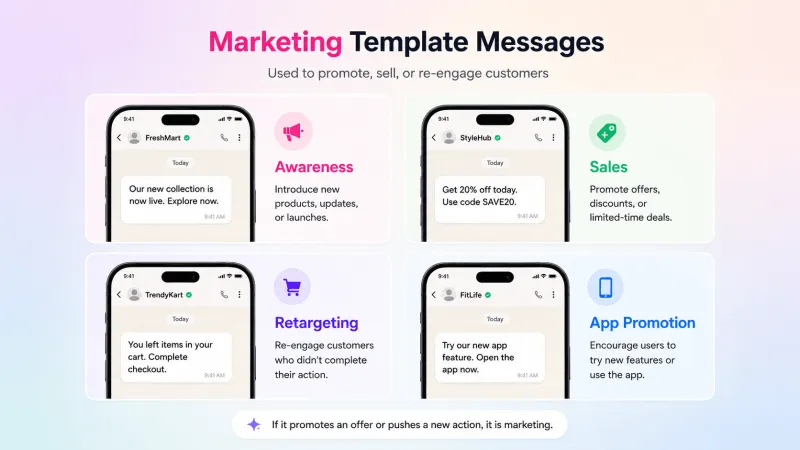
A template may also be marked as Marketing when:
- It mixes utility + promotional content, like an order update with a discount code.
- The message is unclear, too generic, or has only placeholders like {{1}}.
- It asks users to complete a new action, purchase, renewal, booking, or app activity.
Note: Examples are illustrative only, templates containing similar content or content including this example text may be categorized differently based on their exact content.Message Objective | Business Goal | Example Template |
Awareness | Introduce your business, product, service, feature, event, or announcement. | “We’ve launched {{new_feature}} to help you manage {{task}} faster. Tap below to learn more.” |
Sales | Share offers, coupons, upgrades, renewals, or purchase-driven messages. | “Get {{20}}% off on your next order. Use code {{code}} before {{date}}.” |
Retargeting | Bring back users who visited your website, abandoned a cart, paused an application, or showed interest earlier. | “You left {{product_name}} in your cart. Complete your checkout before it goes out of stock.” |
App Promotion | Ask users to download, open, or take action inside your app. | “Your {{reward}} is waiting in the app. Open now to claim it before {{date}}.” |
Build Customer Relationships | Send personalized greetings, check-ins, reminders, or conversation starters. | “Hi {{name}}, we’ve added new options based on your recent interest. Would you like to explore them?” |
Simple rule: If the message tries to influence a customer to buy, renew, revisit, click, download, or engage with an offer, treat it as a marketing template.
Cost of Marketing Template Message
The cost of a Marketing WhatsApp API Template Message depends on the customer’s country.
You can check the latest country-wise marketing template pricing on YCloud’s pricing page:https://www.ycloud.com/pricing
Next, let’s look at Utility Template guidelines and understand which messages qualify as non-promotional customer updates.
Utility Template Guidelines
Utility templates are used for non-promotional messages triggered by a user action, request, transaction, account activity, or critical update.
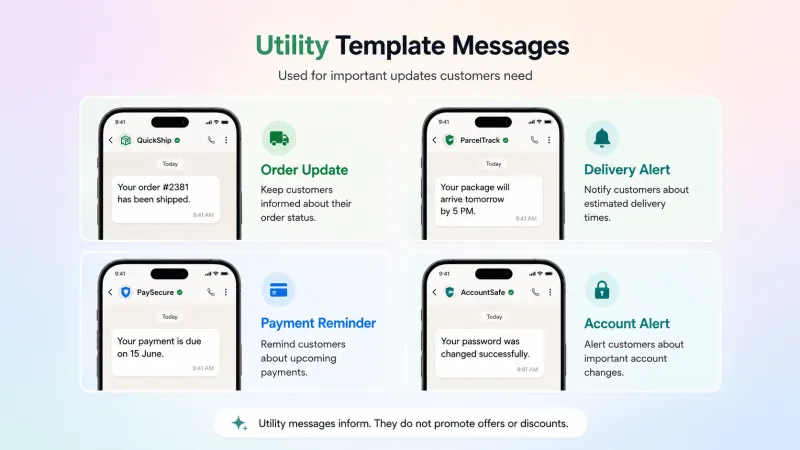
To qualify as a Utility WhatsApp API Template Message, the message must be:
- Non-promotional — no offers, upsells, coupons, renewals, or persuasive CTAs.
- User-specific or user-requested — linked to an order, payment, account, service, transaction, or support request.
- Essential or critical — in cases like safety alerts, fraud warnings, service outages, legal updates, or product recalls.
Note: Examples are illustrative only, templates containing similar content or content including this example text may be categorized differently based on their exact content.Opt-In Management | Confirm opt-in or opt-out for WhatsApp updates. | “You’ve successfully opted in to receive WhatsApp updates from us.” |
Order Management | Confirm, update, cancel, ship, or refund an order. These messages should not promote, recommend, upsell, or cross-sell products; include offers; or attempt to secure renewals. | “Your order {{order_id}} has been shipped and will arrive by {{date}}.” |
Account Alerts or Updates | Send account-specific alerts, reminders, or service updates. These messages should not promote, recommend, upsell, or cross-sell products; include offers; or attempt to secure renewals. | “Your payment for {{service_name}} is due on {{date}}.” |
Feedback Surveys | Collect feedback for a specific order, visit, chat, or transaction. Specificity of the order or interaction to which these relate is necessary. A general/generic survey or request for feedback will not be approved as utility. | “How was your recent support chat about {{ticket_id}}? Share your feedback below.” |
Continue a Conversation on WhatsApp | Move a user-requested conversation from another channel to WhatsApp. These messages should not be initiated without a user having requested the conversation to be moved to WhatsApp. | “You requested support on {{channel}}. We’re continuing the conversation here on WhatsApp.” |
Important: A general feedback request may not qualify as utility. It should be tied to a specific order, visit, transaction, or support interaction.
Essential or Critical Utility Messages
Some essential or critical utility templates are allowed even when they are not tied to a direct transaction, but they must still be non-promotional.
Public Safety | Weather alerts, crisis response | “There is a {{storm}} alert in your area. Please stay indoors until {{time}}.” |
Public Service | Health alerts, voting updates, disbursements | “Your {{benefit_name}} balance is {{amount}} and will expire on {{date}}.” |
Public Disruption | System outages, operational disruption | “A service outage is affecting {{area}}. We expect restoration by {{time}}.” |
Account or Product Protection | Fraud alerts, recalls, warranty updates | “We noticed unusual activity on your account ending in {{digits}}. Review it below.” |
Legal or Regulatory Compliance | Identity, privacy, compliance notices | “Our privacy policy was updated on {{date}}. View the details below.” |
Simple rule: If the message only informs the user about something they requested, purchased, used, or must know for safety/compliance, it is likely utility.
If it tries to sell, promote, renew, or influence a new purchase, it becomes marketing.
Cost of Utility Template Message
The cost of a Utility WhatsApp API Template Message depends on the customer’s country.
You can check the latest country-wise Utility template pricing on YCloud’s pricing page:https://www.ycloud.com/pricing
Next, let’s move to Authentication Template guidelines and understand how OTP and verification messages work.
Read This Article to Know Why Your WhatsApp Utility Templates Are Still Being Classified as Marketing
Authentication Template Guidelines
This is the most restricted WhatsApp API Message Template category. Only authentication templates can be used to send one-time passcodes for identity verification. Marketing or utility templates cannot be used for OTPs.
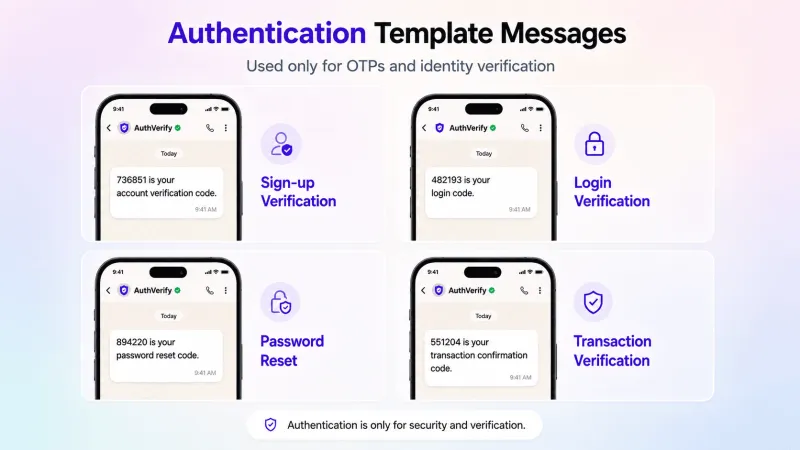
They are mainly used for:
- New account creation
- Login or account recovery
- Account security checks
- Transaction verification
To qualify as an authentication template, your message must:
- Use WhatsApp’s preset authentication template format.
- Configure a one-time password button, such as copy-code or one-tap.
- Avoid URLs, media, and emojis.
- Keep parameters within the allowed length limit that is 15 characters.
Authentication | Verify users with one-time passcodes during login, signup, recovery, or transaction steps. | “{{code}} is your verification code.” |
Authentication with security note | Add a safety reminder while sending the OTP. | “{{code}} is your verification code. For your security, do not share this code.” |
Authentication with expiry warning | Tell users when the OTP will expire. | “{{code}} is your verification code. This code expires in {{minutes}} minutes.” |
Simple rule: If the message contains an OTP or verification code, it should be an authentication template.
Cost of Authentication Template Message
The cost of an Authentication WhatsApp API Template Message depends on the customer’s country.
You can check the latest country-wise authentication template pricing on YCloud’s pricing page:https://www.ycloud.com/pricing
Next, let’s look at Service messages and how free-form messaging works inside the customer service window.
Read This Article to Know the 15+ Most Common WhatsApp API Template Message Rejection Reasons & Fixes
Service Messages = Free-Form Messaging
Service messages are different from WhatsApp API Message Templates.
They are free-form messages sent after a customer messages your business first. Once the customer starts the chat, a 24-hour customer service window opens, and your team can reply without using a pre-approved template.
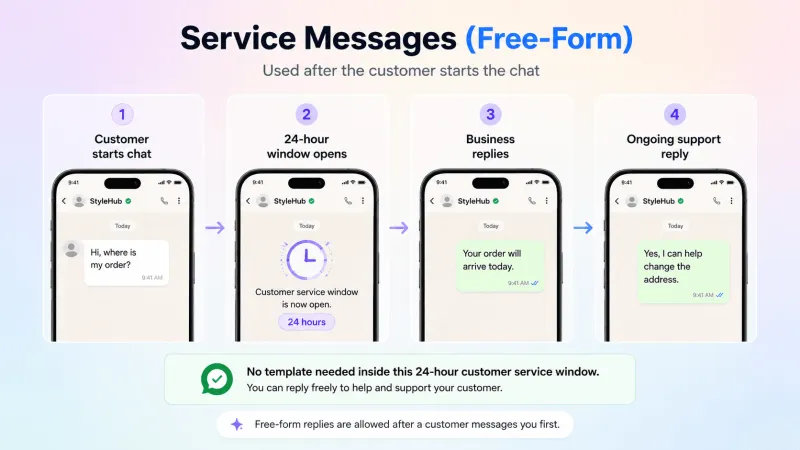
Service Message | Customer asks a question and your team replies within 24 hours. | “Sure, your order is being packed and will be shipped today.” |
Template Message | Business starts the conversation or reply after the 24-hour window. | “Your order {{order_id}} has been shipped.” |
Service messages are mainly used for:
- Customer support
- Product queries
- Order-related questions
- Complaint handling
- Real-time assistance
Simple rule: If the customer starts the conversation, you can reply with free-form service messages inside the 24-hour window. If the window closes, you need an approved WhatsApp API Message Template to continue.
Cost of Service Messages
Meta does not charge for service messages. So, when your business replies to a customer within the customer service window, those service messages are free.
Next, let’s understand how WhatsApp assigns a category when you create a new WhatsApp API Template Message.
Read This Article to Understand the WhatsApp 24-Hour Conversation Window
How WhatsApp Assigns a Category During Template Creation
When you create a WhatsApp API Message Template, you choose a category: Marketing, Utility, or Authentication.
WhatsApp then checks your template content against its category guidelines. Based on that review, your template gets one of three statuses: Approved, Pending, or Rejected.
In some cases, WhatsApp may also detect that your selected category is wrong. For example, if you choose Utility but the message has promotional intent, WhatsApp can update it to Marketing before submission.
Approved Status
Approved means WhatsApp agrees with your selected category and the template has passed review.
Once approved, you can use the template to send messages.
You’ll be notified through:
- WhatsApp Manager alert
- message_template_status_update webhook with event set to APPROVED
If a Utility template is approved as Marketing instead, you can request a category review within 60 days from the category update date.
Pending Status
Pending means WhatsApp agrees with the selected category, but the template is still under review.
Once the review is complete, the template will move to either Approved or Rejected.
You’ll get the final update through email, WhatsApp Manager, and webhook notification.
Rejected Status
Rejected means WhatsApp does not agree with the selected category or the template content does not meet the required guidelines.
If rejected, the webhook event will be set to REJECTED, with the reason usually shown as INCORRECT_CATEGORY.
You can then:
- Create a new template
- Edit the template category and resubmit
- Request a review
Duplicated Templates from Phone Number Migration
When templates are duplicated during phone number migration, eligible templates are copied to the destination WABA.
WhatsApp then performs category checks again to make sure the duplicated templates are correctly categorized.
Next, let’s see how WhatsApp can update a template’s category even after it has already been approved.
How WhatsApp Updates a Template’s Category After Initial Approval
WhatsApp can update a template’s category even after it has already been approved.
This usually happens when an approved template does not match Meta’s latest category guidelines. For example, a template approved as Utility may later be treated as Marketing if it contains promotional intent.
How It Works
Utility template should be Marketing | WhatsApp updates the category to Marketing. The template status stays Approved, so you can still use it. |
Marketing or Utility template should be Authentication | The category does not change immediately, but the template is later marked Rejected and can no longer be used. |
Business misuses template categories | From April 16, 2025, WhatsApp may update Utility templates to Marketing without the usual 24-hour notice. |
How You Are Notified
WhatsApp may notify you through:
Email | Sent to people with full control of the WABA. It includes template details and links to WhatsApp Manager or Business Support. |
Webhook | A template_category_update webhook is triggered when a category is going to change or has changed. |
WhatsApp Manager | You may see an information icon, banner, or downloadable CSV showing affected templates. |
Business Support Home | Shows the template name, current category, and the category WhatsApp believes is correct. |
Your Options
If WhatsApp says your Utility template will be updated to Marketing, you can:
- Create a new template.
- Request a review.
- Accept the category change and continue using it as Marketing.
If the review is approved, the template category will not change.
If the review is not approved, the template will be updated as notified.
If the review is not approved, the template will be updated as notified.
For templates that WhatsApp believes should be Authentication, review is not available. The safer option is to create a new authentication template from the Template Library before the existing one is rejected.
How to Check Impacted Templates via API
You can use the Message Templates API to check templates that have been or may be updated:
GET /<WHATSAPP_BUSINESS_ID>/message_templates?fields=category,correct_categoryHere’s how to read it:
category and correct_category match | The template is already in the correct category. |
| Values do not match | The template may be updated to the correct_category. |
correct_category is empty or null | The template is not impacted. |
You can also check impacted templates directly in WhatsApp Manager > Message Templates > Manage Templates.
Next, let’s look at how to update a template category or request a category review when you disagree with WhatsApp’s decision.
How to Update a Template Category or Request a Category Review
Sometimes, WhatsApp may reject your template or classify it under a category you don’t agree with.
In that case, you have two options: edit the template category or request a category review.
Edit Your Template’s Category
You can update a template’s content or category through the API or WhatsApp Manager.
Via API | Edit the template content or only the category. | WhatsApp runs category validation and template review again. If approved, the category is updated. |
Via WhatsApp Manager | Open Manage Templates, select the template, edit it based on the correct category guidelines, and resubmit. | If it passes review, the category is updated. |
Once the category is updated, WhatsApp triggers a template_category_update webhook. The new_category field shows the updated category.
When Can You Request a Category Review?
You can request Meta to review the category when:
- The template is Utility or Marketing and its status is Rejected.
- The template is Marketing and its status is Approved.
Possible Review Outcomes
Review Approved | The category is updated. A template_category_update webhook is triggered. |
Review Rejected | The category stays the same. |
How to Request a Category Review
Category review can only be requested through WhatsApp Manager.
Go to:
WhatsApp Manager → Message Templates → Business Support → Template Category Updates
Then select the templates you want reviewed and click Request Review.
How to Track Review Status
In Review tab | Templates currently submitted for category review. |
Unchanged tab | Templates where the review was rejected. The category may still update later during automatic category updates. |
Reversed tab | Templates where the review was approved. If the category was already changed, it may be reverted. |
Simple rule: If the issue is content, edit and resubmit. If you believe WhatsApp classified the template incorrectly, request a category review.
- If you’re a YCloud user, then you can check, edit and update all these in your WhatsApp Manager → Templates section.
- You can also filter them by Category, Language, Status, and Creator.
- You can use YCloud’s Template Library for successful approval of your WhatsApp template messages.
Next, let’s look at the restrictions Meta applies when businesses misuse the template categorisation system.
Restrictions on Businesses Misusing Template Categorization
WhatsApp expects businesses to select the right category during WhatsApp API Template Message Creation.
If a business repeatedly submits promotional messages as Utility templates, WhatsApp may apply restrictions. These restrictions can start with a warning and move to rate limits or utility template suspension.
Warning | WABA admins receive a written warning. After this, Utility templates detected as Marketing may be updated instantly without advance notice. | Ongoing |
Rate Limiting | Utility message volume is capped within a 24-hour rolling window. Extra Utility messages are rejected. Marketing and Authentication messages are not affected. | Minimum 7 days |
Utility Restriction | All approved Utility templates on the WABA are changed to Marketing. New Utility template creation and category reviews are disabled. | 7 days, or 30 days for repeat violations |
Business Portfolio Restriction | If misuse continues across multiple WABAs, restrictions apply across all WABAs under the same Meta Business Suite. | 30 days |
Repeat violations can lead to stronger enforcement and longer restriction periods.
Notifications
You’ll be notified when enforcement starts, changes, or is lifted through:
Email | Sent to WABA admins with full control. |
Webhook | An account_update webhook with restriction details. |
Webhook Events
When a WABA is restricted for Utility template misuse, WhatsApp sends an account_update webhook like this:
{
  "field": "account_update",
  "value": {
    "event": "ACCOUNT_RESTRICTION",
    "violation_info": {
      "violation_type": "<violation_type>"
    },
    "restriction_info": [
      {
        "restriction_type": "<restriction_type>",
        "expiration": "<unix_timestamp>"
      }
    ]
  }
}
restriction_info appears only when an active restriction is applied, such as rate limits or Utility template suspension. It is not included for warnings or recovery events.
Warning | UTILITY_TEMPLATE_ABUSE | — |
Utility Template Suspension | UTILITY_TEMPLATE_ABUSE | RESTRICTED_UTILITY_TEMPLATES |
Suspension Removed | UTILITY_TEMPLATE_ABUSE_UNBAN | — |
Utility Messages Rate Limited | UTILITY_TEMPLATE_ABUSE_RATE_LIMIT | RATE_LIMITED_UTILITY_TEMPLATE_MESSAGING |
Rate Limit Removed | UTILITY_TEMPLATE_ABUSE_RATE_LIMIT_RECOVERY | — |
Your Options
If you believe WhatsApp wrongly changed a template’s category, you can appeal at the template level.
Go to Business Support → Template Category Updates, select the affected templates, and click Request Review.
Next, let’s look at how YCloud’s AI-powered template message creation and Template Library can help businesses create cleaner, compliant WhatsApp API Message Templates faster.
Create WhatsApp API Message Templates Faster with YCloud
Creating a compliant WhatsApp API Message Template takes time. You need the right category, clear intent, proper formatting, and content that matches Meta’s template guidelines.
YCloud makes this easier with AI-powered WhatsApp API Template Message Creation.
You can enter a basic prompt, like the Scenarios, Industry of your Business, Briefly Describe Event Content, Tone of voice, and language. YCloud’s AI then helps create a ready-to-edit template draft based on your use case.
YCloud also has a template library with ready-made sample templates for common business needs, such as:
- Promotional campaigns
- Order updates
- Payment reminders
- OTP and verification messages
- Customer support follow-ups
- Re-engagement campaigns
You can pick a template, make small edits, and submit it for review. Since these templates are built around Meta’s category logic and guidelines, they help reduce common mistakes during submission.
Beyond template creation, YCloud also helps you run the full WhatsApp marketing from one place:
- Create and manage WhatsApp API Message Templates
- Send broadcasts to segmented audiences
- Schedule campaigns
- Automate replies with AI chatbots
- Manage customer chats in a shared team inbox
- Track campaign and message performance
- Integrate it with third-party tools and CRM
and much more.
So instead of writing every template from scratch, your team can create cleaner, more compliant WhatsApp API Template Messages faster.
Next, let’s wrap up the guide with a quick summary of what businesses should remember before creating templates.
Wrapping Up!
WhatsApp API Message Templates are not just about writing a message and sending it for approval. The right category, clear intent, and clean structure decide how smoothly your template gets approved and how your business is charged.
Before creating any WhatsApp API Template Message, be clear on one thing: is it Marketing, Utility, Authentication, or a Service reply?
With YCloud, you can simplify this process using AI-powered template creation, ready-to-use template libraries, broadcast tools, automation, shared inbox, AI-Agents, and campaign analytics, all in one place.
So, if you want to create compliant templates faster and run better WhatsApp campaigns, YCloud gives your team the right starting point.
Frequently Asked Questions
What is a WhatsApp API Message Template?
A WhatsApp API Message Template is a pre-approved message businesses use to start conversations with customers or send messages outside the 24-hour customer service window. It can be used for marketing, utility, or authentication purposes.
What are the main WhatsApp API Message Template categories?
The main WhatsApp API Message Template categories are Marketing, Utility, and Authentication. Service messages are different because they are free-form replies sent within the customer service window after a user starts the chat.
What is a Marketing WhatsApp API Template Message?
A Marketing template is used for promotional messages, offers, product announcements, abandoned cart reminders, re-engagement campaigns, app promotions, and messages designed to drive sales or customer action.
What is a Utility WhatsApp API Template Message?
A Utility template is used for non-promotional updates such as order confirmations, payment reminders, delivery updates, refund alerts, account notifications, and other user-requested or transaction-related messages.
What is an Authentication WhatsApp API Template Message?
An Authentication template is used to verify a user’s identity through OTPs, login codes, account recovery codes, or transaction verification messages. OTPs should be sent only through authentication templates.
What is the difference between Utility and Marketing templates?
Utility templates inform users about something they requested, purchased, or need to know. Marketing templates promote, sell, recommend, renew, retarget, or push users toward a new business action.
Why does WhatsApp reject message templates?
WhatsApp may reject templates if the category is incorrect, the content is unclear, the message violates policy, the template has poor formatting, or promotional content is submitted as a Utility template.
Can WhatsApp change my template category after approval?
Yes. WhatsApp can update a template’s category after approval if the message content does not match the selected category. For example, a Utility template with promotional intent may be changed to Marketing.
What should I do if my WhatsApp API Template Message is rejected?
You can create a new template, edit the category or content and resubmit it, or request a category review through WhatsApp Manager if you believe the rejection was incorrect.
How much does a WhatsApp API Template Message cost?
The cost depends on the template category and the customer’s country. Marketing, Utility, and Authentication templates may have different pricing based on WhatsApp Business Platform rates.
Checkout the pricing HERE: https://www.ycloud.com/pricing
Are Service messages free on WhatsApp API?
Yes. Service messages are free-form replies sent within the 24-hour customer service window after a customer starts the conversation. They do not require pre-approved templates.
Can I send promotional content in a Utility template?
No. Utility templates must be non-promotional. If you include discounts, offers, upsells, renewals, or persuasive CTAs, WhatsApp may classify the message as Marketing.
How can I improve WhatsApp API Message Template approval chances?
Choose the right category, keep the message clear, avoid mixed intent, use correct placeholders, follow Meta’s template guidelines, and avoid adding promotional content to Utility or Authentication templates.
Can YCloud help create WhatsApp API Message Templates?
Yes. YCloud offers AI-powered template message creation and a ready-to-use template library, helping businesses create cleaner WhatsApp API Message Templates and submit them for review faster.
Related Articles

Make your business communications much easier!


Trusted by