
How to Migrate WhatsApp API Providers Without Losing Your Number or Templates

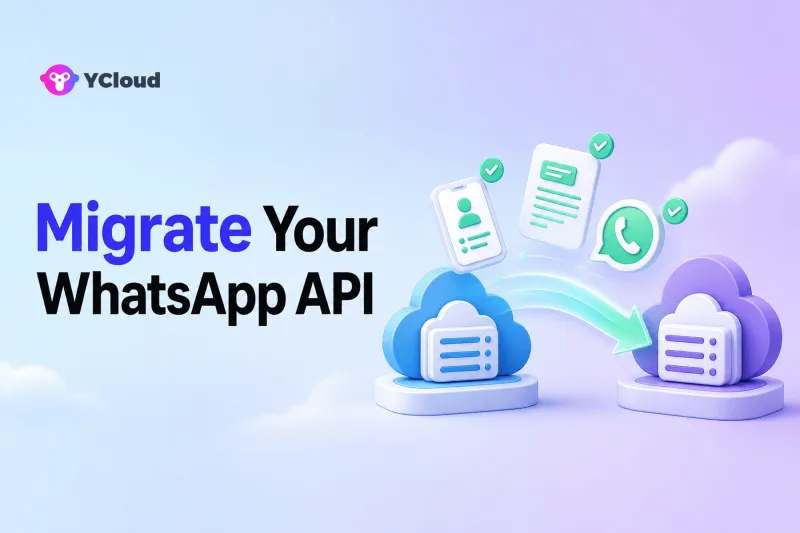
You can usually move an eligible WhatsApp Business Platform phone number from one provider to another while retaining the number and important account attributes, but you should not assume that every template, message, or workflow will transfer. A safe migration verifies Meta Business ownership, destination WABA readiness, display-name approval, payment and data-region requirements, number access, two-step verification, qualifying templates, Webhooks, application credentials, history backup, and post-cutover validation before the old service is cancelled.
Understand What Is Actually Moving
A WhatsApp provider migration normally changes the provider or platform through which a phone number is connected and operated. It is not a transfer of your entire customer-service or marketing application.
Separate the project into three layers:
- Meta account layer: Meta Business Portfolio, WhatsApp Business Account (WABA), phone number, display name, quality rating, messaging limit, Official Business Account status where applicable, and message templates.
- Provider connection layer: onboarding relationship, credentials, message endpoints, Webhook configuration, billing, logs, and provider-specific objects.
- Business application layer: Inbox history, assignments, notes, contact fields, consent records, segments, campaigns, automations, AI knowledge, integrations, reports, and internal message IDs.
Provider documentation from YCloud, Twilio, 360dialog, and respond.io indicates that important number attributes and qualifying templates can be retained or duplicated in supported migrations. It also shows why blanket guarantees are unsafe: low-quality, rejected, pending, or otherwise ineligible templates may not move; template quality may reset or be reviewed; historical conversations and provider-specific workflow objects can follow different rules.
What Can Commonly Be Retained
Current provider documentation broadly identifies the following as retainable in an eligible provider-to-provider migration:
- the phone number;
- approved display name;
- phone-number quality rating;
- messaging-limit tier;
- Official Business Account status, when the account has it; and
- qualifying approved templates.
The exact rules vary. Twilio says Meta duplicates high-quality templates into the destination WABA and reviews them again; some can become rejected, and duplicated-template quality begins as unknown. YCloud says approved medium/high-quality templates synchronize, while low-quality or unusable templates do not and template quality starts over. Respond.io similarly excludes low-quality, rejected, or pending templates.
Treat these sources as destination-specific guidance, not a universal promise. Ask your selected provider to confirm the current rules for your source WABA, destination WABA, business portfolio, and migration path in writing.
What Commonly Does Not Move Automatically
Do not assume the following will transfer with the number:
- historical conversation content stored by the old provider;
- Inbox assignments, internal comments, tags, or case status;
- provider contact records and custom attributes;
- campaign definitions and past campaign analytics;
- workflow, bot, Journey, or AI-agent configuration;
- CRM mappings and ecommerce integrations;
- API credentials, endpoint URLs, or Webhook secrets;
- provider message IDs and log history; or
- plan, balance, credits, and support arrangements.
YCloud's number-migration guide explicitly says historical chat records are not migrated and advises backing them up with the original provider. Respond.io describes protection for its own existing Workflows and Broadcasts when moving an already connected channel onto respond.io's provider offering; that should not be generalized to arbitrary workflows stored in a different vendor's system.
Create an artifact-by-artifact inventory and assign an owner to export, rebuild, validate, or deliberately retire each item.
Step 1: Freeze the Scope and Select a Change Window
Document the source and destination accounts and WABA IDs, Meta Business Portfolio, phone number, display name, data region, active templates, sending and Webhook applications, operational dependencies, and responsible people.
Choose a lower-risk window, pause nonessential campaign sends, and set a clear decision point for proceeding or escalating. Do not promise “zero downtime.” Some providers describe migration as having no downtime, while other documented transitions can have brief interruption. Plan for delayed or failed messaging until your own validation proves otherwise.
Step 2: Confirm Business and WABA Readiness
Provider migration guides commonly require a healthy, properly owned setup. Verify that the Business Portfolio and source WABA are active and accessible, the destination WABA is ready, payment or invoices meet the applicable requirements, the display name is approved with no pending change, data regions are compatible where relevant, administrators can access WhatsApp Manager, and the destination has room for the number.
Twilio's current migration guide says the source WABA and new destination WABA must use the same data-localization region during registration. YCloud describes moving between WABAs in the same Business Manager account. Because onboarding designs differ, follow the destination provider's current instructions rather than copying steps from another vendor.
Step 3: Secure Access to the Phone Number
The migration flow generally requires number verification using an SMS or voice one-time password. Confirm that your team can receive it before the change window, including for virtual numbers or numbers behind an IVR.
Record who controls the number, who may receive the code, whether international SMS or calls work, any IVR routing, and the fallback method. Do not repeatedly retry without understanding a failure.
Step 4: Disable Two-Step Verification at the Correct Time
YCloud, Twilio, 360dialog, and respond.io migration instructions all identify disabling WhatsApp two-step verification for the number as a preparation step. If your team cannot change it directly, the existing provider or the Meta account administrator may need to help.
Treat this as a controlled security change: identify the owner, disable it close to the migration, limit access during the window, complete verification, and restore the recommended security controls after validation. Do not disable it days in advance without a reason.
Step 5: Back Up Templates and Classify Their Risk
Export or record every template your applications use, including:
- template name and language;
- category;
- components, variables, media, and buttons;
- current approval and quality state;
- business owner and use case;
- application code or workflow that calls it; and
- recent send volume and criticality.
Classify templates as critical, replaceable, or obsolete. Highlight pending, rejected, paused, disabled, low-quality, or recently edited templates because they may not qualify for migration.
After cutover, compare the destination template list with the inventory. Twilio warns that duplicated templates are reviewed and some may become rejected. Provider-specific template identifiers can also change, so update application mappings rather than assuming the old identifier will work.
Step 6: Export the Business Application Layer
Preserve the records required for operations and compliance: contacts and consent, suppression lists, open cases, customer attributes, permitted history, campaign records, automation logic, AI configuration, integrations, and reporting baselines. Check format, completeness, timestamps, identifiers, encryption, and retention. A contact CSV is not a full backup if workflows depend on message or case context.
Step 7: Prepare the Destination Before Cutover
Before touching the production number, prepare users, roles, contact schema, Inbox routing, approved automation, system mappings, the authenticated Webhook receiver, monitoring, safely stored credentials, and a test plan for each critical message path.
If the destination is YCloud, this may include configuring its Inbox, Contact, Campaign, Journey, Chatbot, AI Agent, and API/Webhook connections according to the parts your team will use. If the destination is API-first, prepare your own operating systems and integration layer instead.
Step 8: Execute the Provider-Directed Migration
Follow the destination provider's current embedded signup or migration flow. Usually, the process asks you to select the existing Meta Business Portfolio, use or create the appropriate destination WABA, enter the existing phone number, and verify it with the one-time password.
Avoid improvising with steps from an old blog post. Migration requirements change, and the destination provider is responsible for its current onboarding workflow.
Step 9: Reconnect APIs, Webhooks, and Message Mappings
A successful number move does not reconnect your application automatically. Update URLs or SDKs, credentials and scopes, sender/WABA/template identifiers, Webhook verification, event parsing, retry and idempotency logic, downstream destinations, and monitoring thresholds.
Keep the old integration from sending after cutover, but preserve read-only access to historical logs until retention and contract rules allow closure.
Step 10: Run a Layered Validation
Validate the number and display name first, then qualifying templates, outbound acceptance and status events, inbound Webhook and Inbox delivery, agent reply, one approved automation, consent/suppression controls, and CRM/report reconciliation.
Use controlled recipients and a negative case. Keep campaign volume low until delivery, replies, and routing remain stable.
Step 11: Stabilize, Then Cancel the Old Service
Do not cancel the source subscription before the destination is validated unless the providers' process explicitly requires a different sequence. 360dialog, for example, tells customers migrating away to settle invoices, disable two-factor authentication, complete the migration with the new provider, and then cancel the old number subscription to avoid further charges.
After stabilization, confirm no critical traffic reaches the old endpoint, export permitted logs and invoices, cancel old services, remove obsolete access, restore required security settings, update operating documentation, and record what did and did not migrate.
Choose a Destination That Matches the Operating Model
Migration is a good time to decide whether you need only an API connection or a complete WhatsApp operating layer. Developer-led teams with existing systems may prefer Twilio or a WhatsApp-focused API provider such as 360dialog. Teams that want support, marketing, automation, customer data, AI, and integrations together should include YCloud in the evaluation. Multichannel conversation teams may also assess respond.io or similar platforms.
Use the WhatsApp API provider shortlist and BSP selection guide before choosing the destination. The safest migration begins with buyer fit, clear ownership, and a tested exit path—not a last-minute number transfer.
Frequently Asked Questions
Can I keep my WhatsApp phone number when changing providers?
An eligible WhatsApp Business Platform number can generally be migrated, subject to Meta and provider requirements. Confirm business ownership, WABA readiness, display-name status, number access, payment or invoice conditions, two-step verification, and destination eligibility.
Will all my WhatsApp templates move to the new provider?
Do not assume so. Current provider documentation says qualifying approved templates can be duplicated or synchronized, while low-quality, rejected, pending, or otherwise ineligible templates may not move. Re-review or new identifiers may also require application changes.
Does WhatsApp chat history migrate with the number?
Provider-to-provider number migration should not be treated as a chat-history transfer. YCloud explicitly says historical chat records do not migrate in its number-migration flow. Export permitted history and verify the destination's import options separately.
Is WhatsApp provider migration guaranteed to have no downtime?
No universal zero-downtime promise is safe. Plan a controlled window, pause nonessential sends, test the destination in layers, and prepare escalation. Actual interruption depends on the migration path and surrounding systems.
When should I cancel my old provider?
Usually after the destination number, templates, APIs, Webhooks, Inbox, and critical workflows have passed validation, unless provider instructions require otherwise. Also settle invoices, export needed data, and confirm cancellation to prevent continued billing.
Frequently Asked Questions
Can I keep my WhatsApp phone number when changing providers?
Will all my WhatsApp templates move to the new provider?
Does WhatsApp chat history migrate with the number?
Is WhatsApp provider migration guaranteed to have no downtime?
When should I cancel my old provider?
Related Articles

Make your business communications much easier!


Trusted by