
How to Create TikTok Click to WhatsApp Ads (CTWA) with YCloud

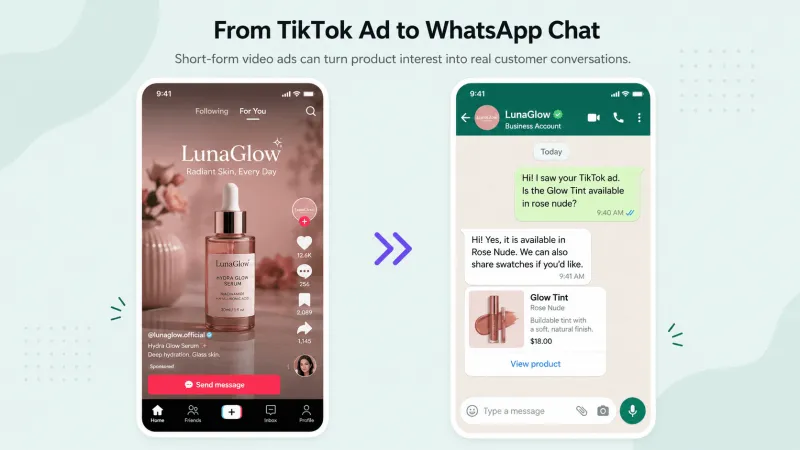
What Are TikTok Message Ads?
- The user clicks the ad and starts chatting with the business inside TikTok.
- The user clicks the ad and continues the conversation in a third-party messaging app such as WhatsApp.
Example of the Live User Journey

Why Choose TikTok Message Ads?
- Ad traffic goes straight into WhatsApp, so the path to conversation is shorter.
- Customer inquiries can be handled and followed up centrally in YCloud’s Team Inbox.
- Conversation events and conversion feedback can help improve campaign performance over time.
Prerequisites Before Setup
Setup Flow Overview
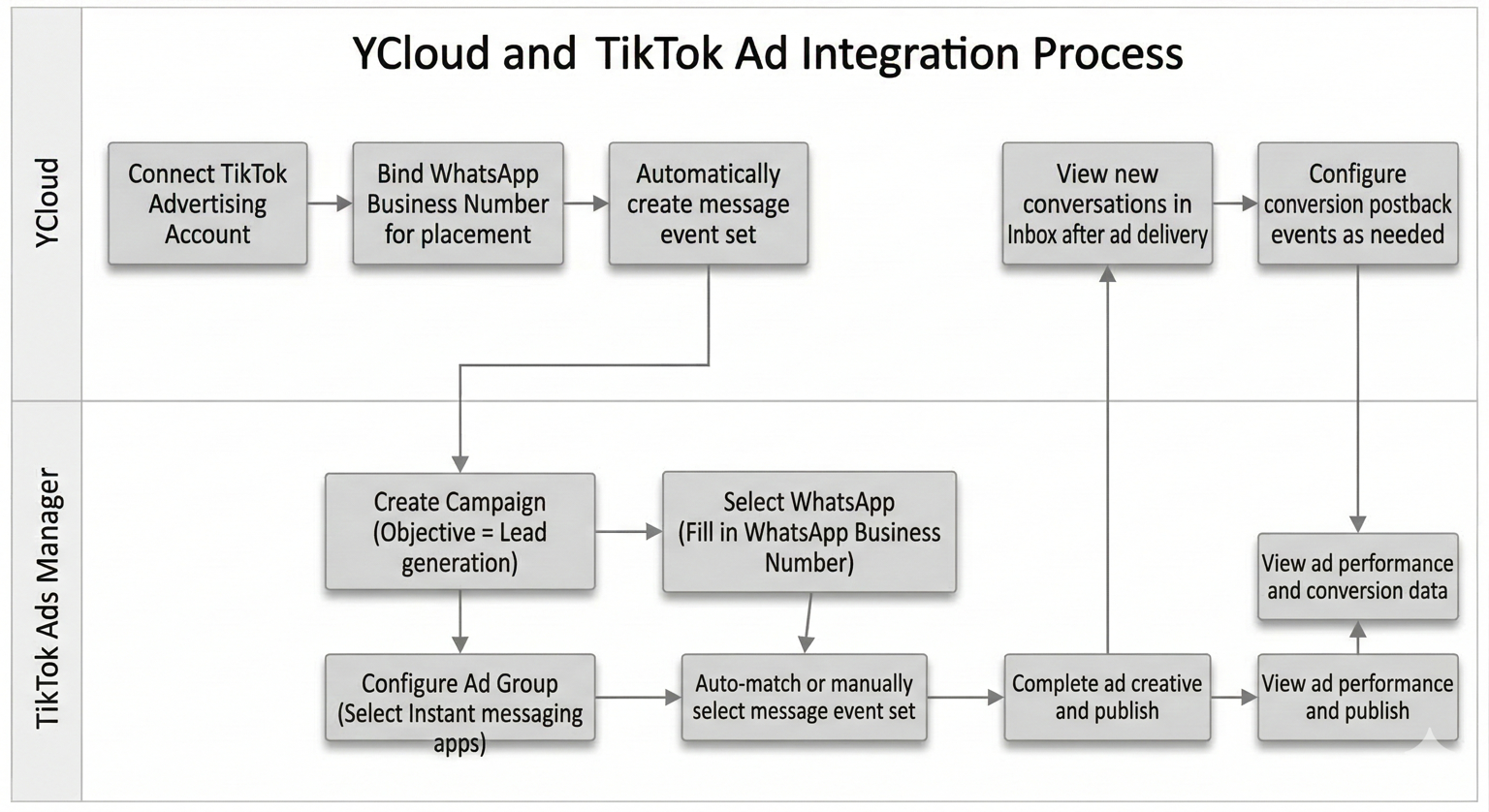
- Confirm that the TikTok ad account for this campaign is available and usable.
- Make sure the current operator has sufficient permission to complete the authorization.
- Have a WhatsApp Business number already connected to YCloud.
- Use that number to receive inquiries generated by TikTok ads.
- Make sure the responsible team can respond to incoming lead conversations in time.
- Ensure YCloud is enabled and accessible.
- Confirm that the WhatsApp Business number used for ad delivery has already been linked in YCloud, as shown below.
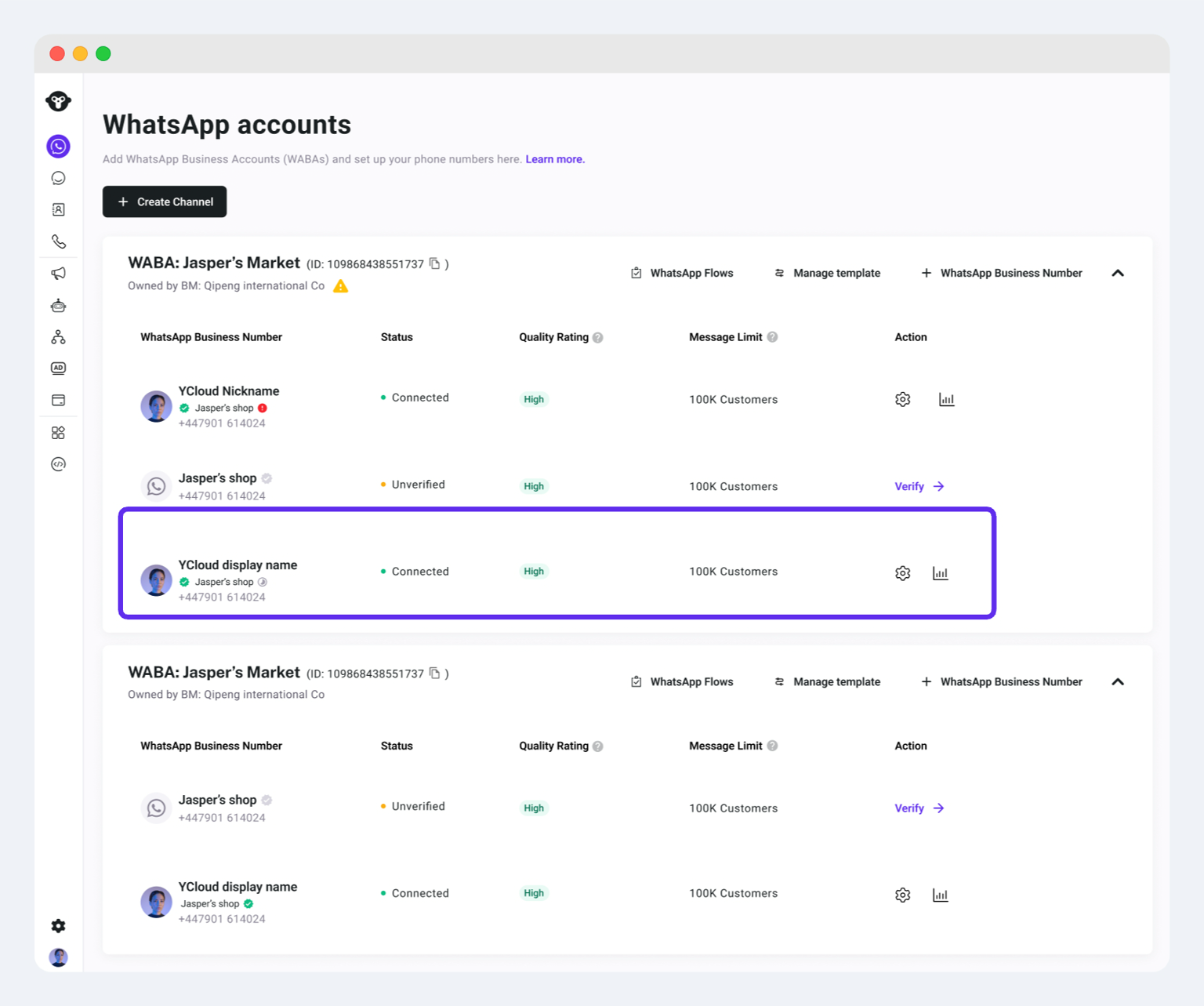
- If it has not been linked yet, first go to Add a WhatsApp Business Number.
Step-by-Step Process to Set Up TikTok Click to WhatsApp Ads (CTWA) with YCloud
In YCloud, Connect TikTok Ad Account and Bind the WhatsApp Number
Step 1: Connect TikTok Ad Account in YCloud
Steps
- In YCloud, go to CTWA and click Connect Ad Account (TikTok).
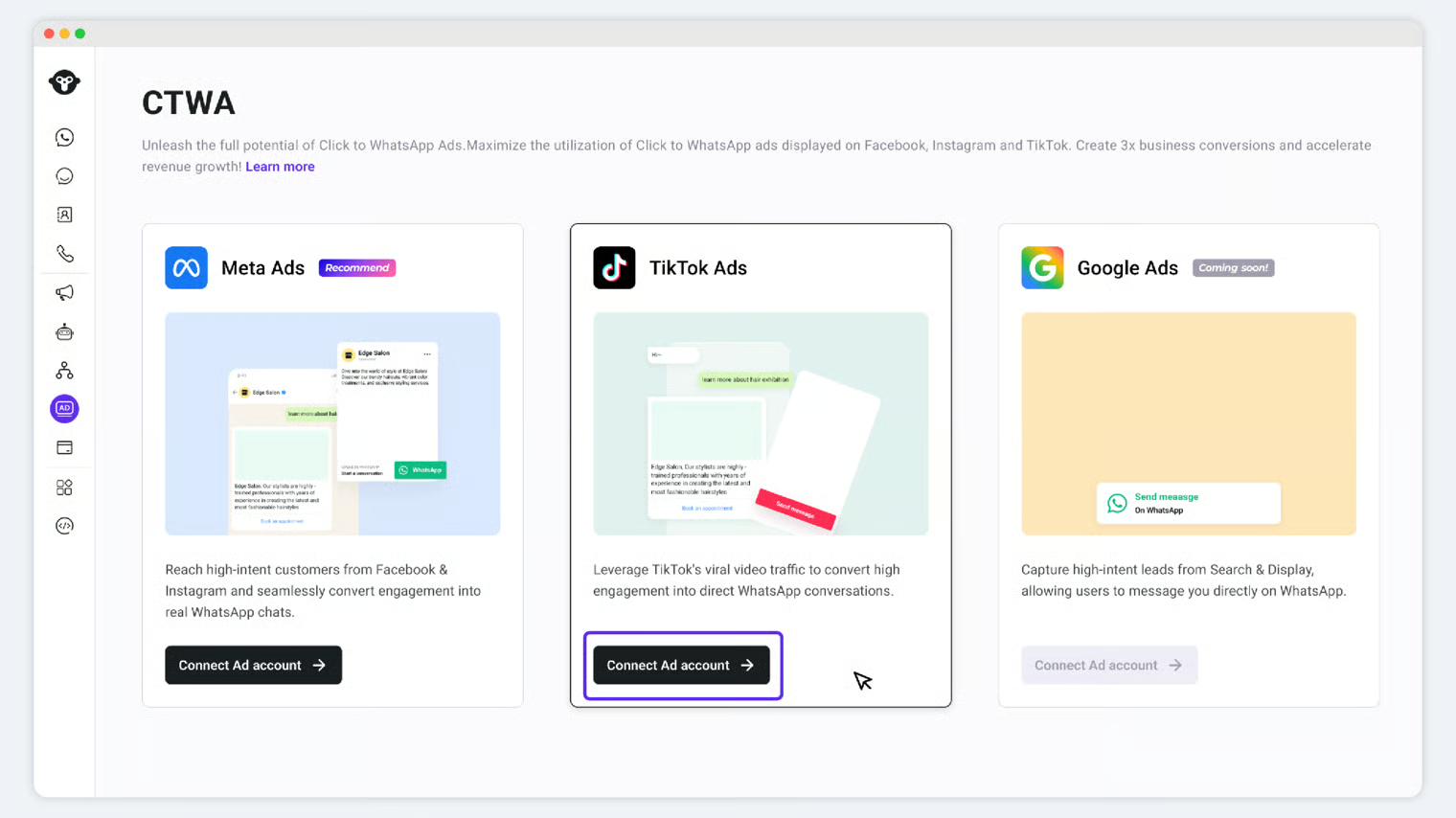
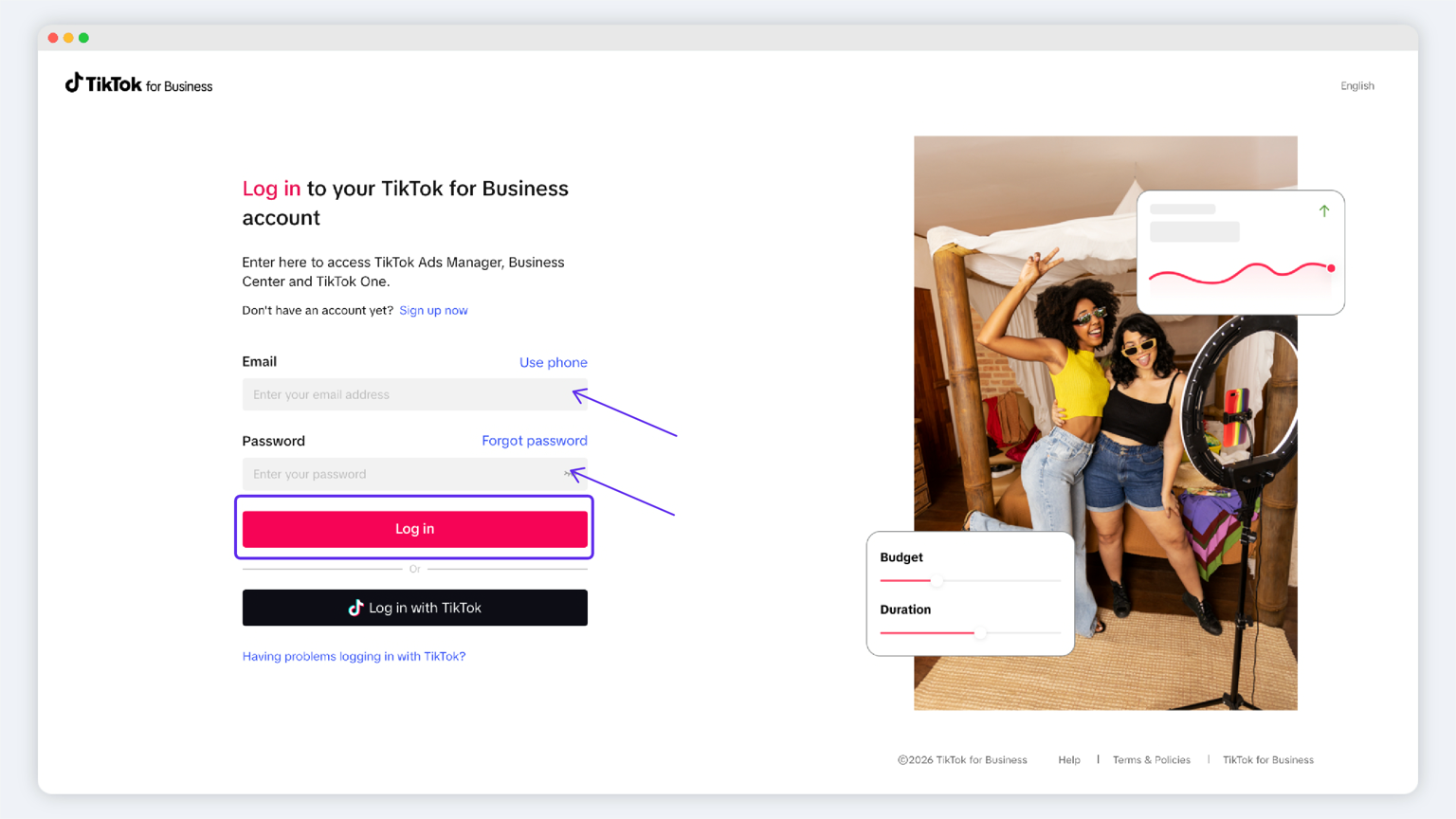
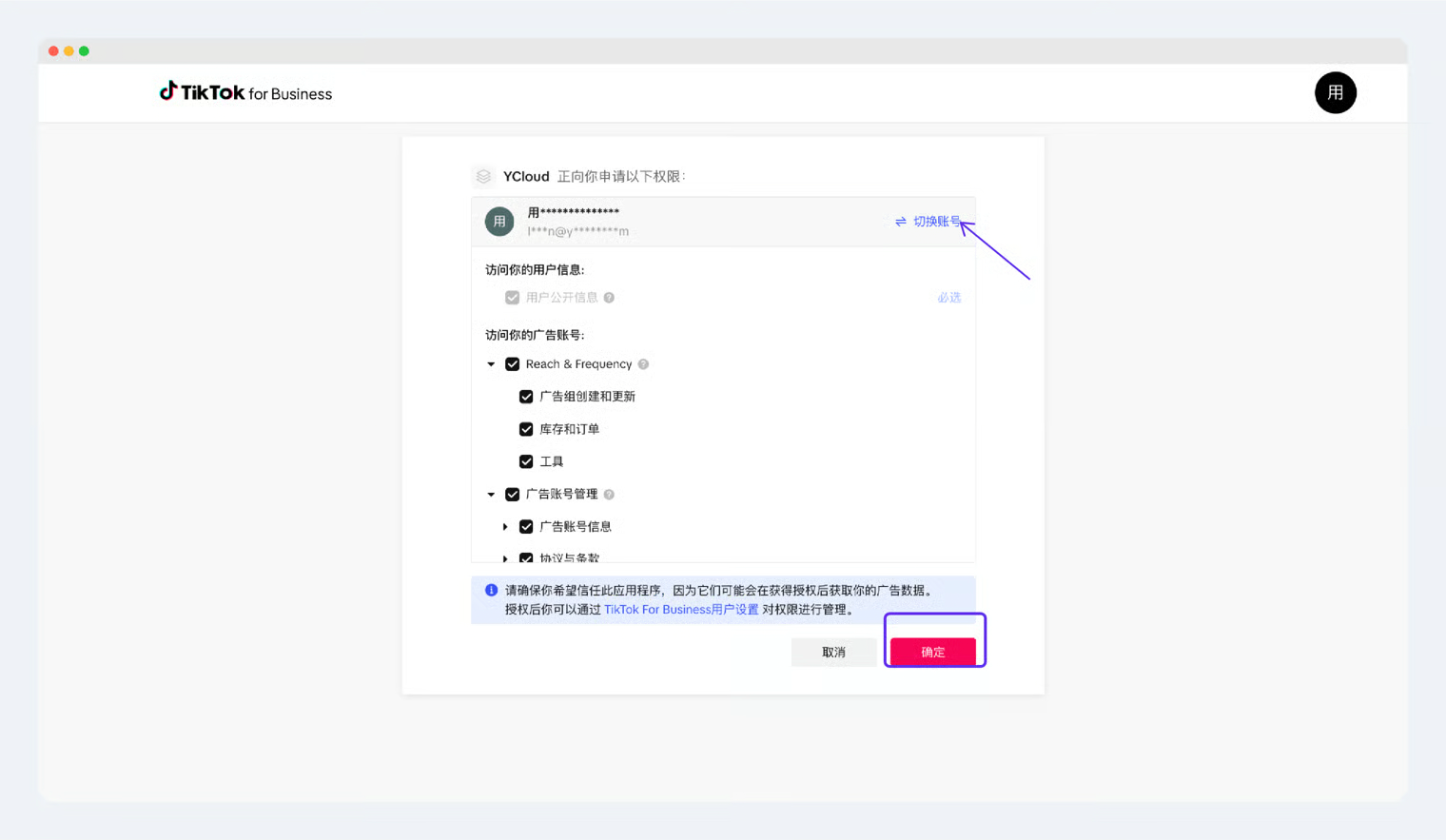
- If you find that you are logged in with the wrong TikTok account and need to switch, click Switch Account.
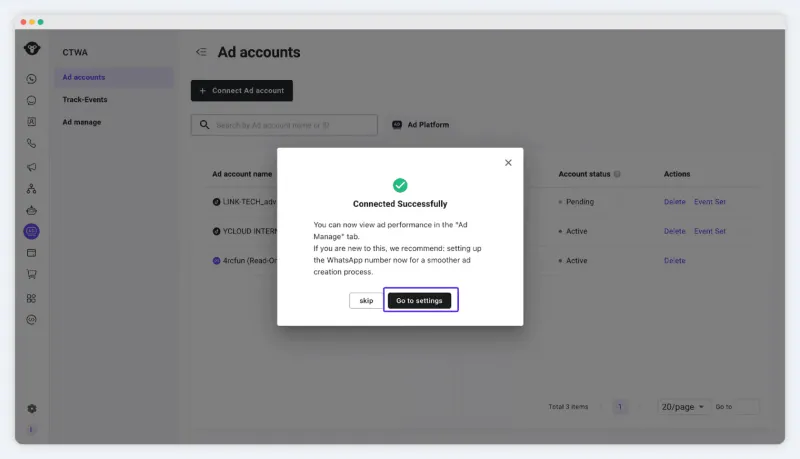
- If this is your first time using TikTok messaging ads, we recommend following the guided setup(Go to Settings). Proceed to Step 2.
- If your TikTok ad account already has a WhatsApp Business number linked, you can skip this step. Proceed to Step 3.
Important Notes
- The currently logged-in TikTok account must have sufficient permissions for the target Ad Account. Otherwise, you may encounter insufficient authorization or be unable to complete the authorization process.
Step 2: Link the WhatsApp Business Number
ℹ️ Once linked, YCloud will create a corresponding messaging event set for the WhatsApp Business Number in TikTok Ads Manager. You will need this when creating TikTok messaging ads
Steps
- After the TikTok ad account is successfully connected, follow the on-page guide and click Link WhatsApp Number Now.
ℹ️ What if you skip this step but want to link a new WhatsApp Business number later? Go to Ad Account → find the corresponding ad account → click Event Set → create a new Event Set to link a WhatsApp Business number.
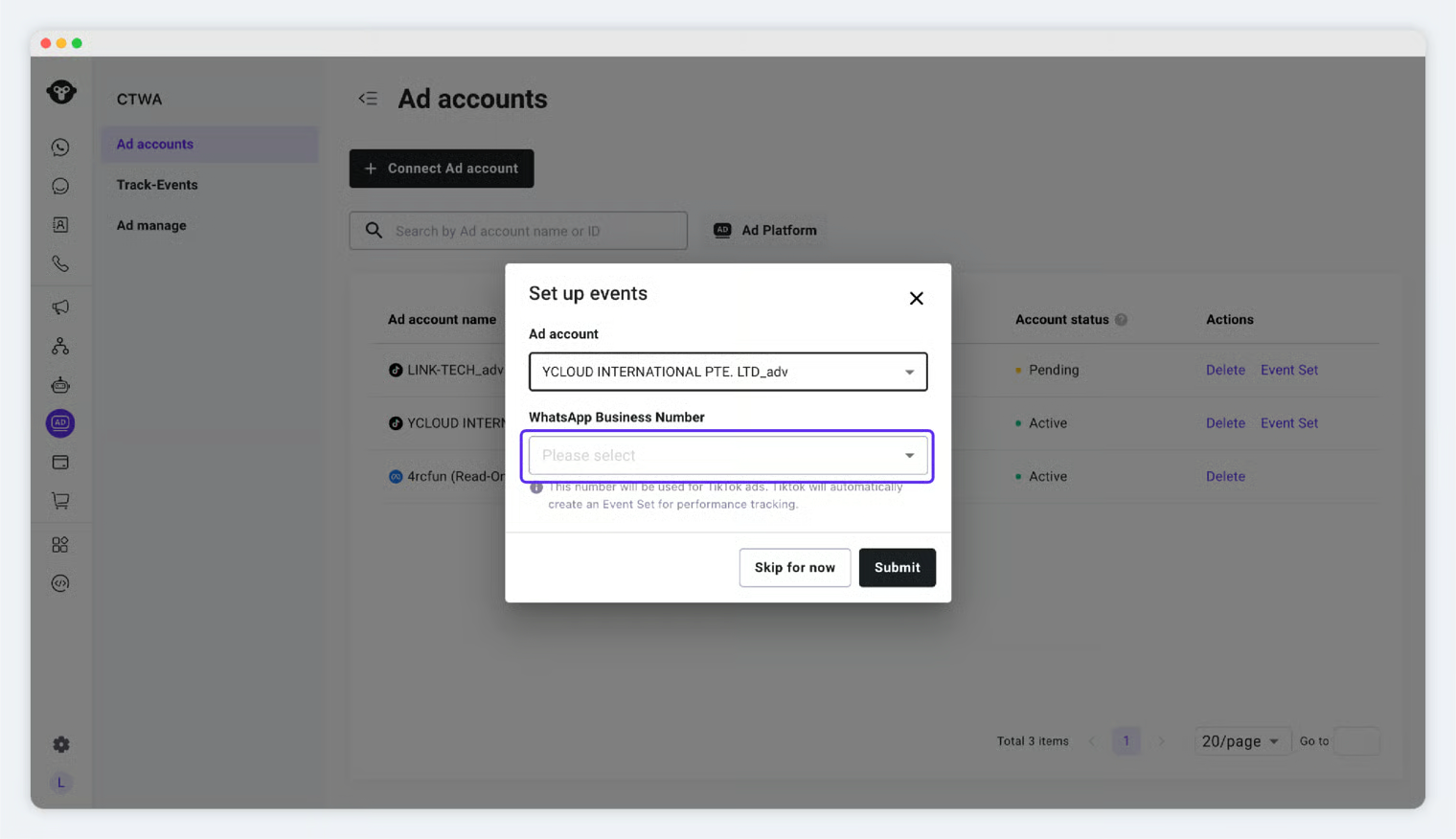
- Confirm the Ad Account.
- Select the WhatsApp Business number to use for ad delivery.
- Submit the configuration and confirm the creation was successful.
Important Notes
- The WhatsApp Business number used for ad delivery must already be connected to YCloud.
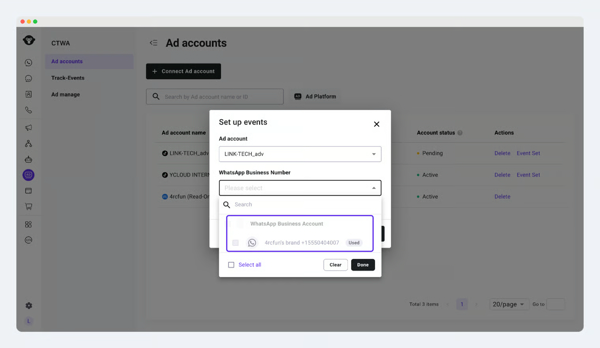
- Under the same ad account, each WhatsApp Business number only needs to be linked once. If a number has already been linked to the current ad account, it will be displayed as Used.
In The TikTok Ads Manager, Create TikTok Instant Messaging Ad
Step 3: Create a Campaign in TikTok Ads Manager
Steps
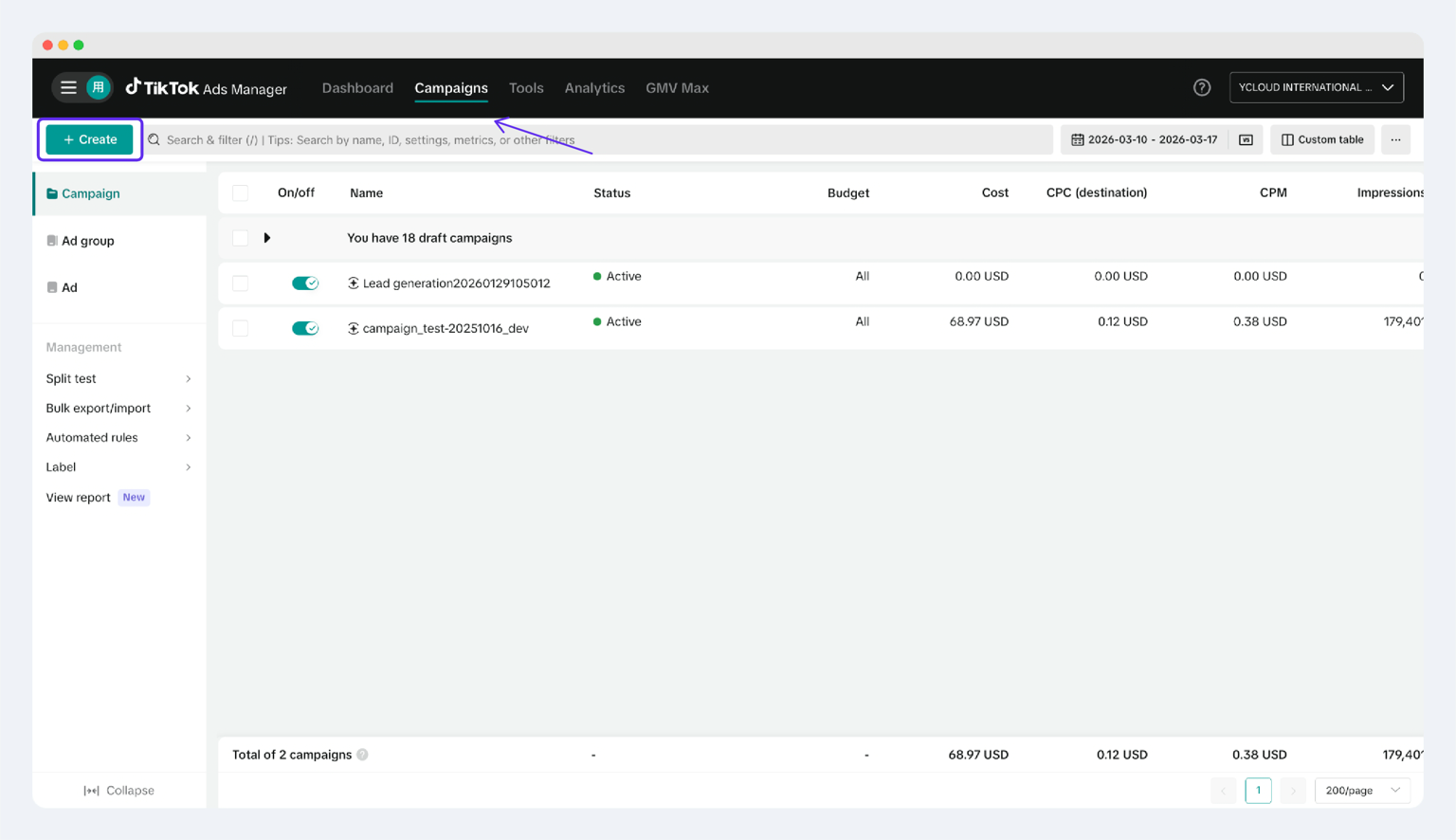
- Log in to TikTok Ads Manager, and click Create an Ad.
2. Under Campaign objective, select Lead Generation.
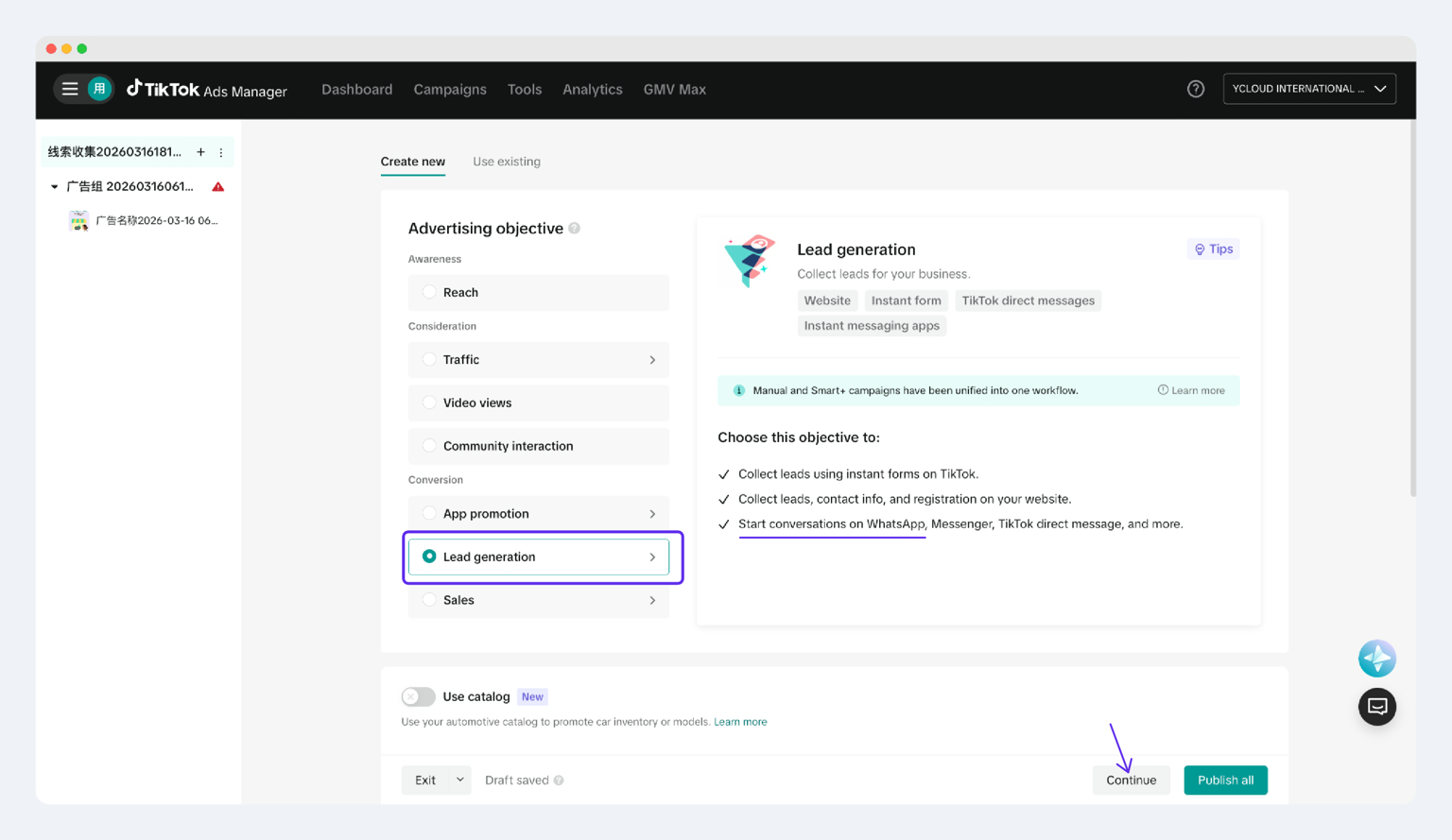
3. Continue to the ad group settings.
Step 4: Configure the Ad Group and Set Up WhatsApp Business Number
Steps
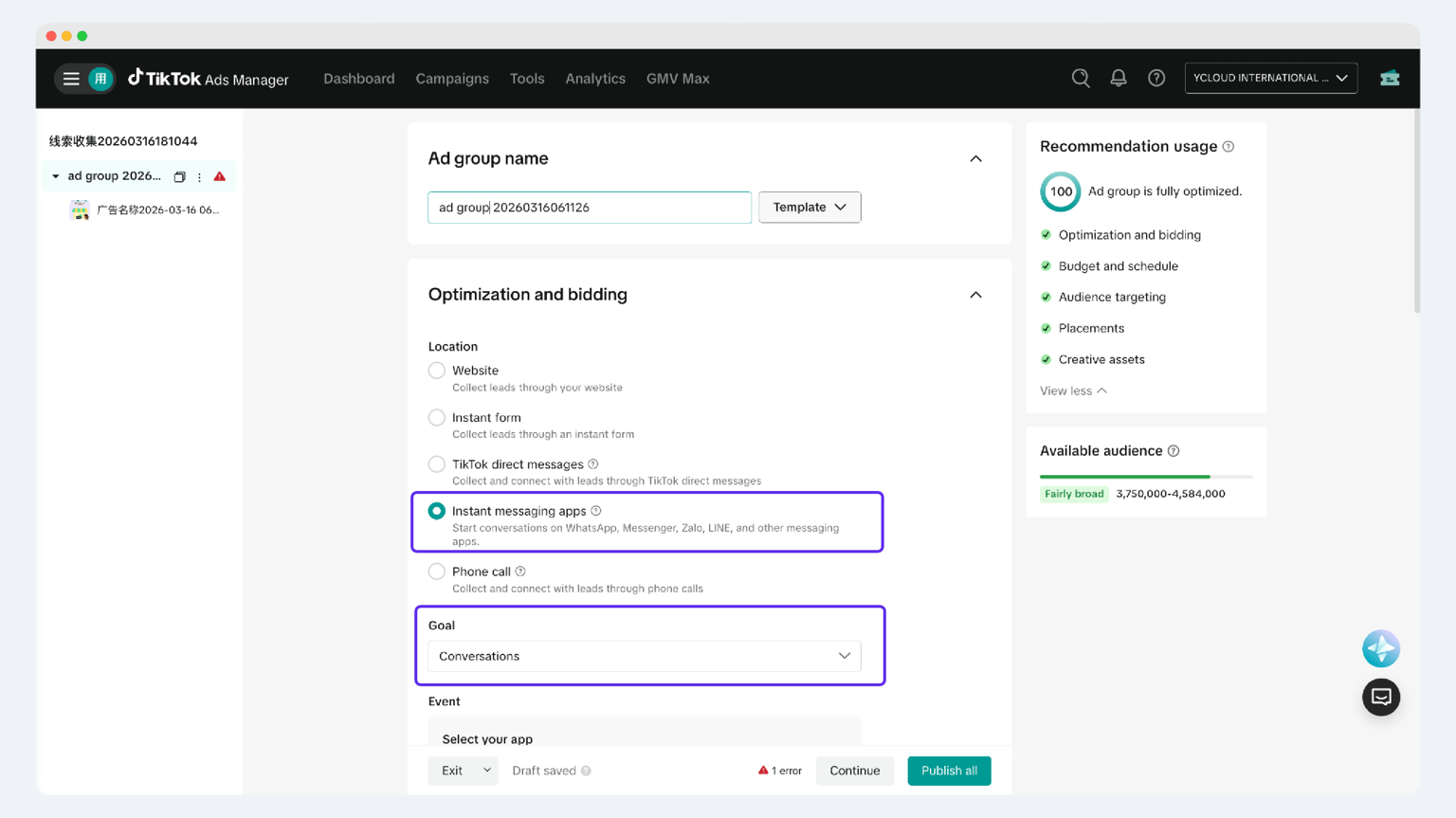
- Under Location, select Instant Messaging Apps.
- Under Goal, select Conversations.
- Under Event - Select App, select WhatsApp.
- Enter the WhatsApp Business Number for ad delivery.
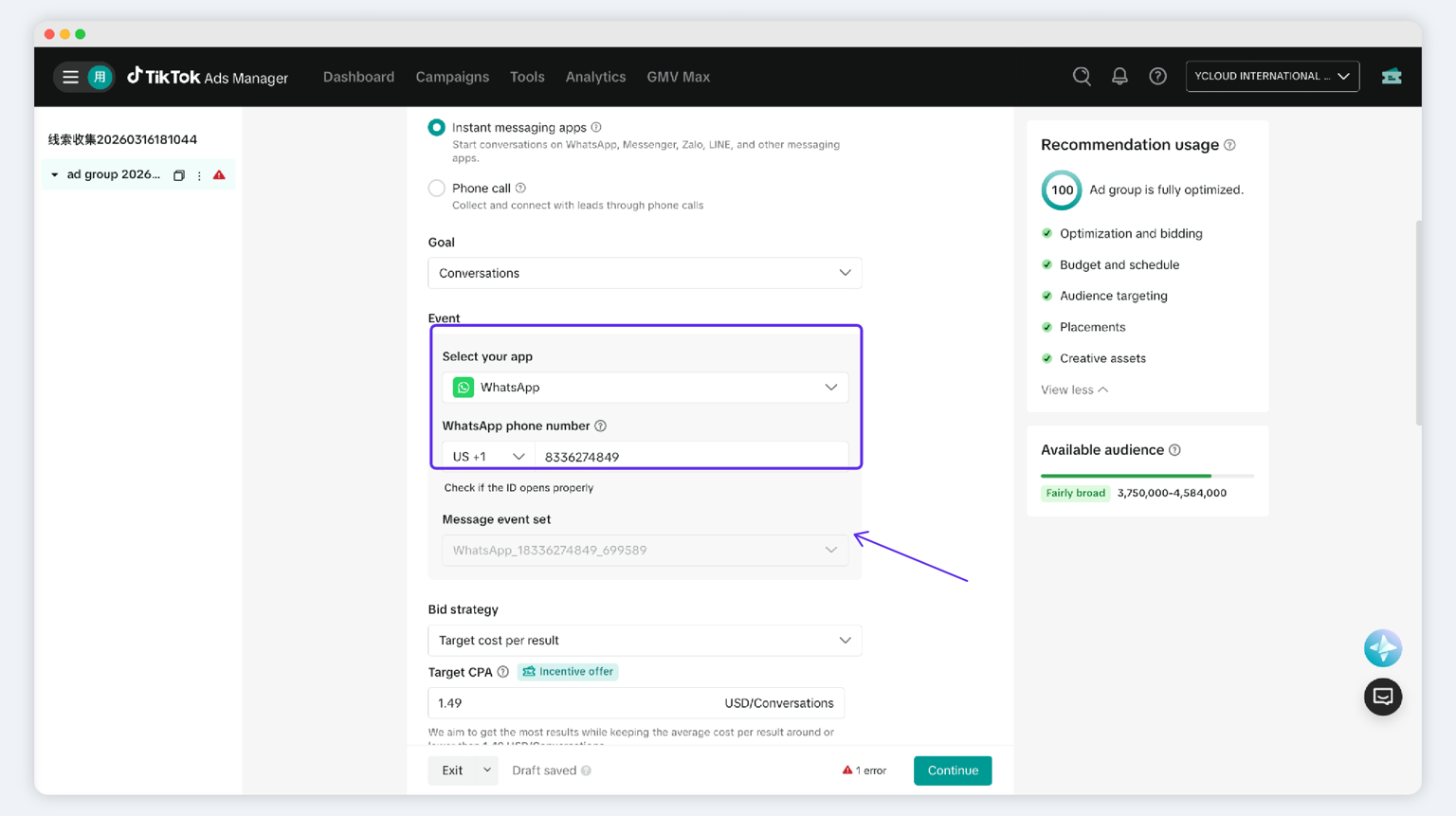
- After the number is entered, TikTok will automatically match the messaging event set (YCloud has already created the one for your WhatsApp Business Number in Step 2).
ℹ️ If you have questions about the messaging event-set (also called event set) during the TikTok messaging ad creation process, click here to learn more.
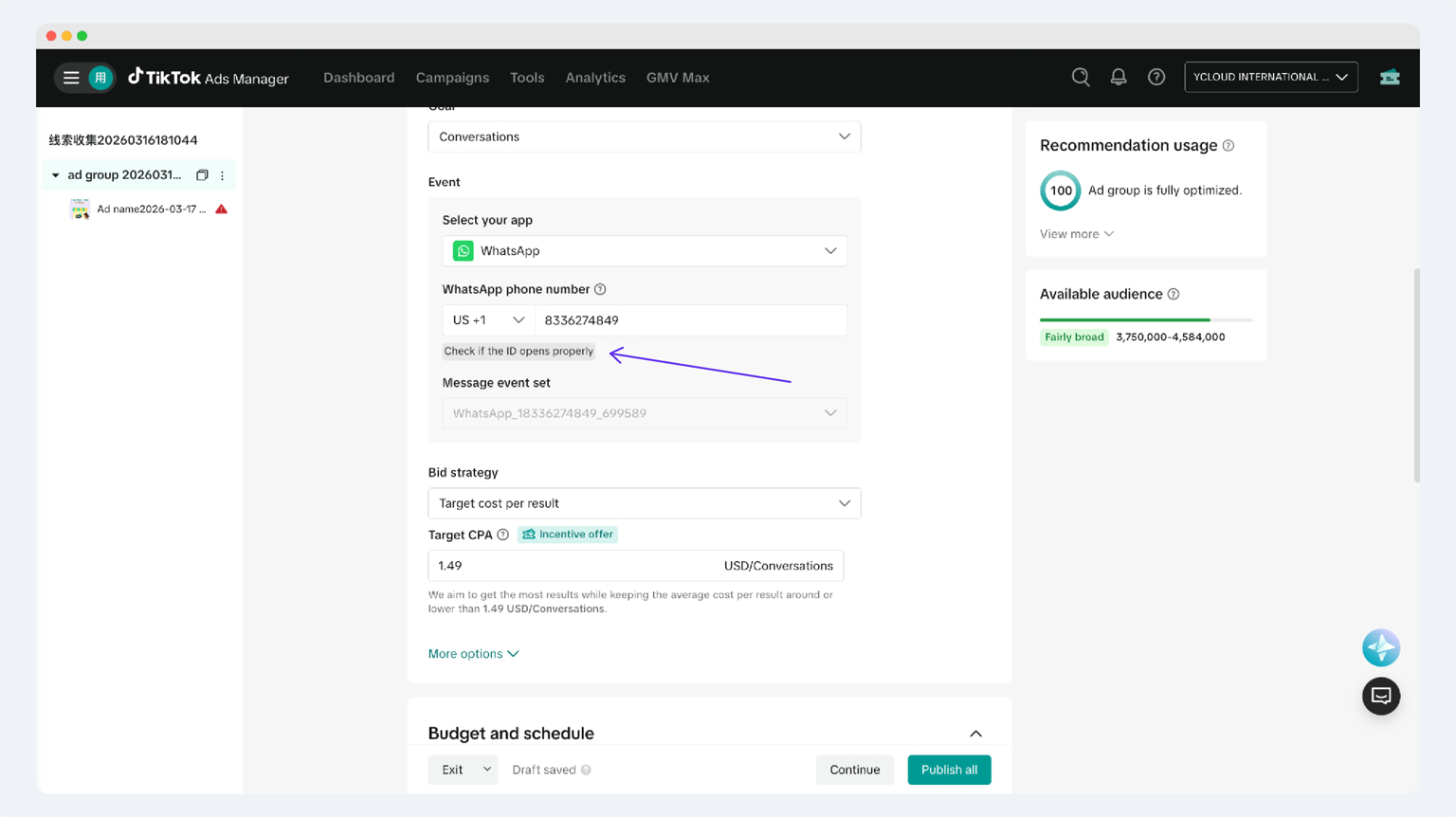
6. After entering the number, you can click Check ID to verify it opens correctly. Use the TikTok app to scan the QR code and experience the WhatsApp redirect interaction.
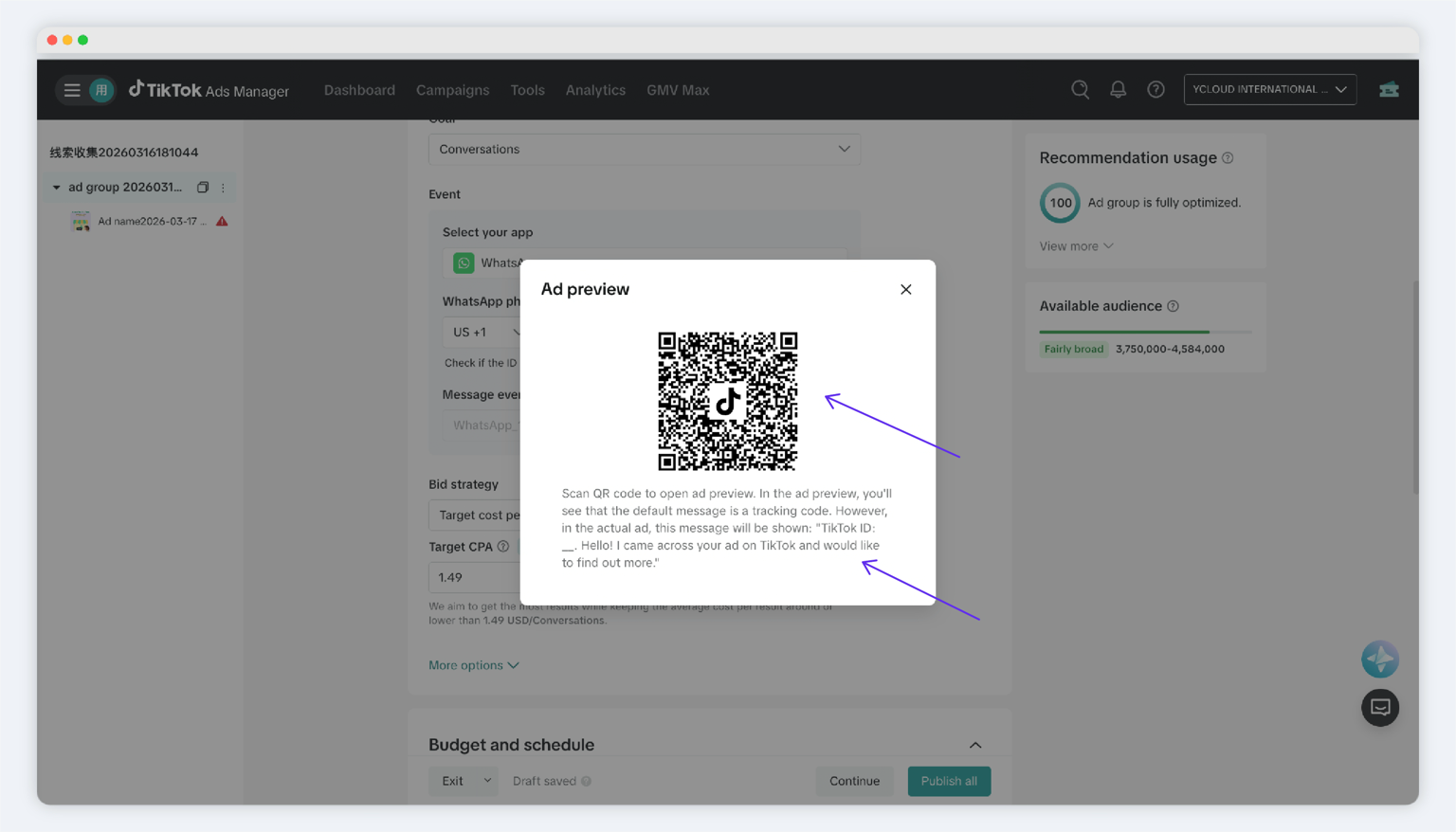
ℹ️ For TikTok messaging ads, the welcome message in WhatsApp is fixed text and cannot be customized by the advertiser.
This text will automatically switch to other languages based on the TikTok user's language settings.
7. Continue to complete the remaining settings, including budget, delivery schedule, audience targeting, and placements.
8. After completing the Ad Group configuration, proceed to the ad creative settings.
Notes
- The WhatsApp Business number entered must match the number already linked in YCloud.
- The country code and the number body must be entered separately.
Step 5: Complete the Ad Creative Configuration
Steps
- Upload ad images or video assets.
- Enter the ad copy in the Text field.
- Clearly state in the copy that users will start a conversation with the business via WhatsApp after clicking.
- Preview the ad display and confirm whether the redirect link is correct.
- Once confirmed, click Publish to submit the ad.
- After the ad passes review, you can turn on the toggle to start delivery.
Important NotesBefore publishing, it is recommended to fully preview the redirect link once to confirm that it leads to the correct WhatsApp conversation.
Use YCloud for Traffic Handling, AdTtracking, and Conversion Setup
We'll now learn how to handle ad after completing the setup on this page. You can confirm in YCloud whether WhatsApp conversations driven by TikTok traffic in YCloud and properly set up ad conversion & tracking.
Step 6: Verify That Ad Conversations Are Entering YCloud Inbox Correctly
What You Will See
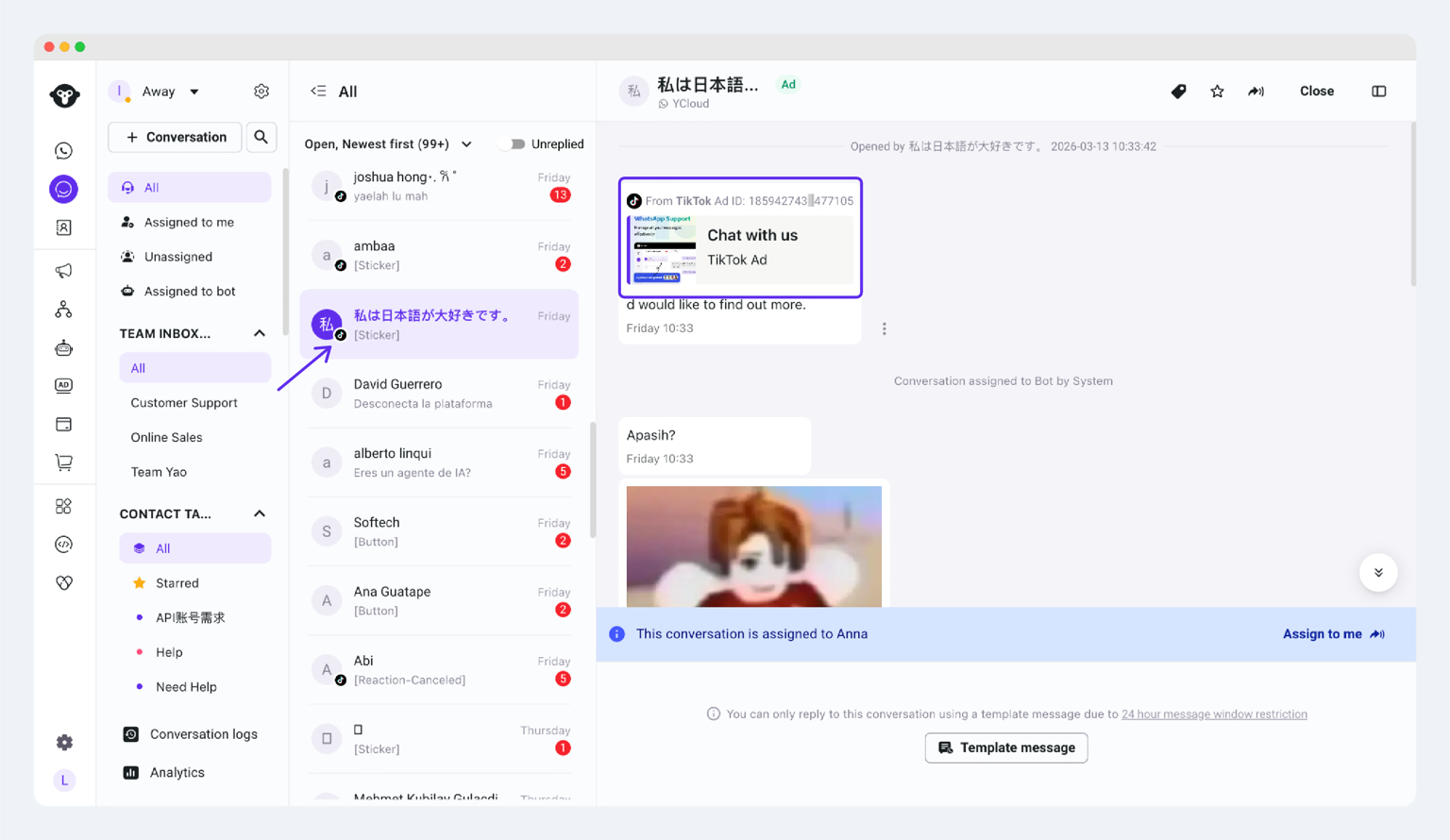
- A TikTok ad badge appears next to the contact avatar in the conversation list.
- The contact message shows source information, for example, From TikTok Ad ID: xxx.
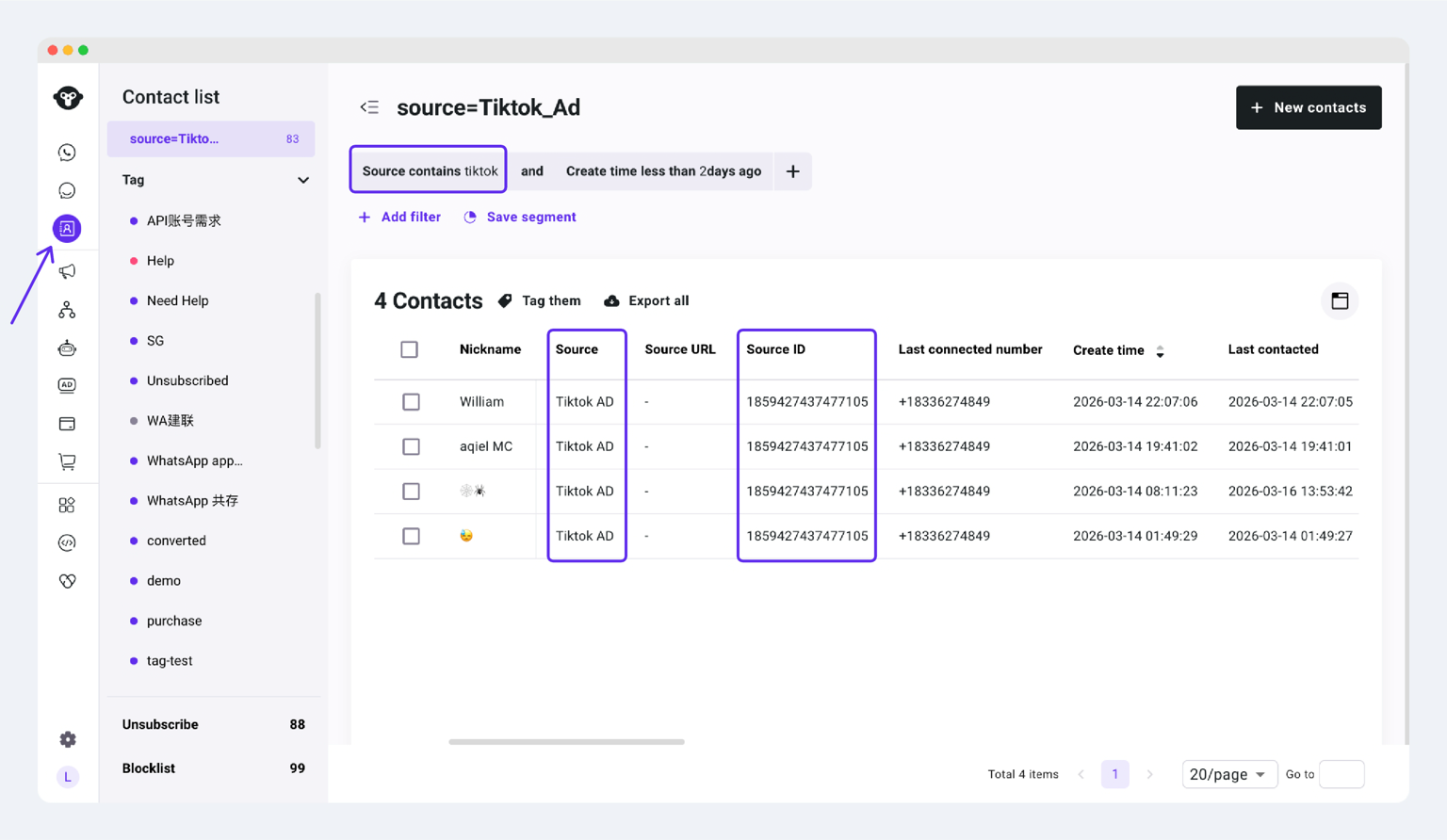
- Source = TikTok Ad: indicates that the contact came from a TikTok ad.
- Source ID: indicates the TikTok ad ID associated with this contact.
Step 7: Set Up Conversion Reporting
What Is Conversion Reporting
What Events Can Be Sent Back
- Conversation event: the user clicks the ad and starts a conversation in WhatsApp.
- Lower-funnel event: the user completes a key action after the conversation, such as registration, booking, placing an order, or making a payment.
Each ad account only needs one set of conversion reporting rules. All ads under that account will follow the same reporting rules.
Start the Setup
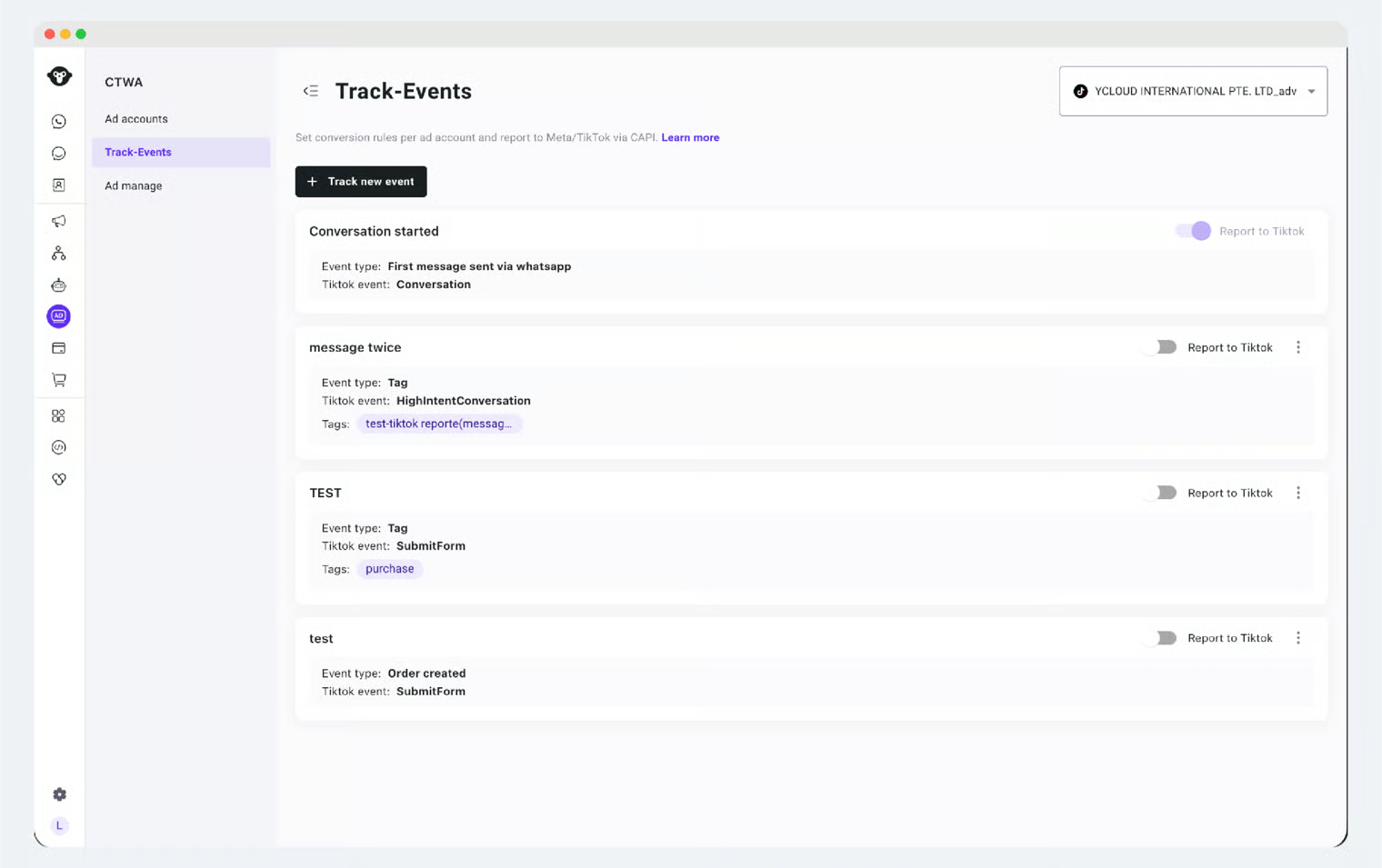
- In YCloud, go to CTWA > Track Conversion Events.
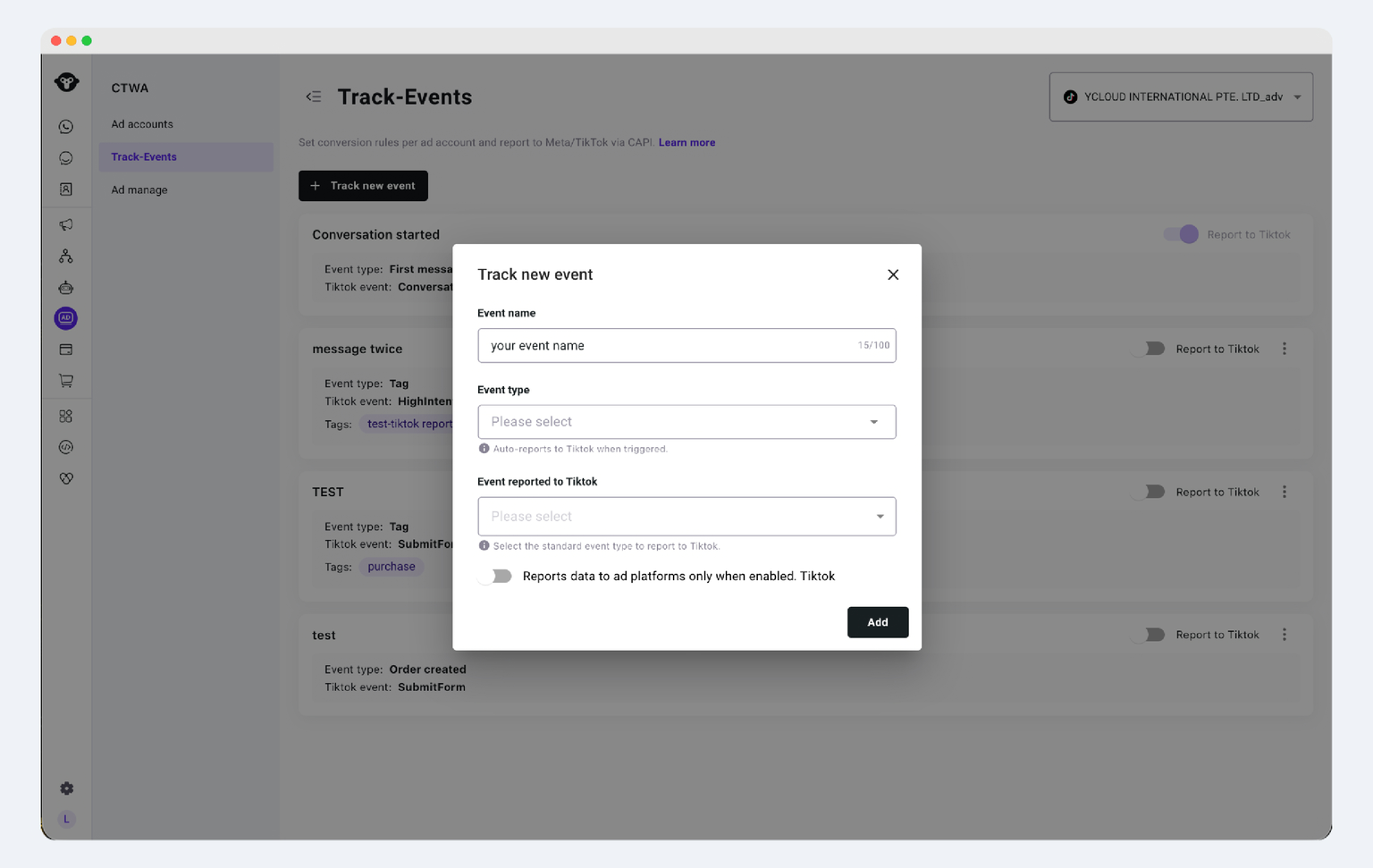
- Click + Track New Event.
- Fill in the following fields as needed:
- Event Name: for internal management only; does not affect TikTok event reporting.
- Event Type: defines what action triggers this reporting rule.
- TikTok Event: selects which lower-funnel event should be sent back to TikTok. This field is required and supports single selection only.
Send-to-TikTok Toggle
- If Send to TikTok is turned off, YCloud will still record the event, but it will not send the event back to TikTok.
- If Send to TikTok is turned on, YCloud will send the event back to TikTok when the rule is triggered.
How to Choose an Event Type
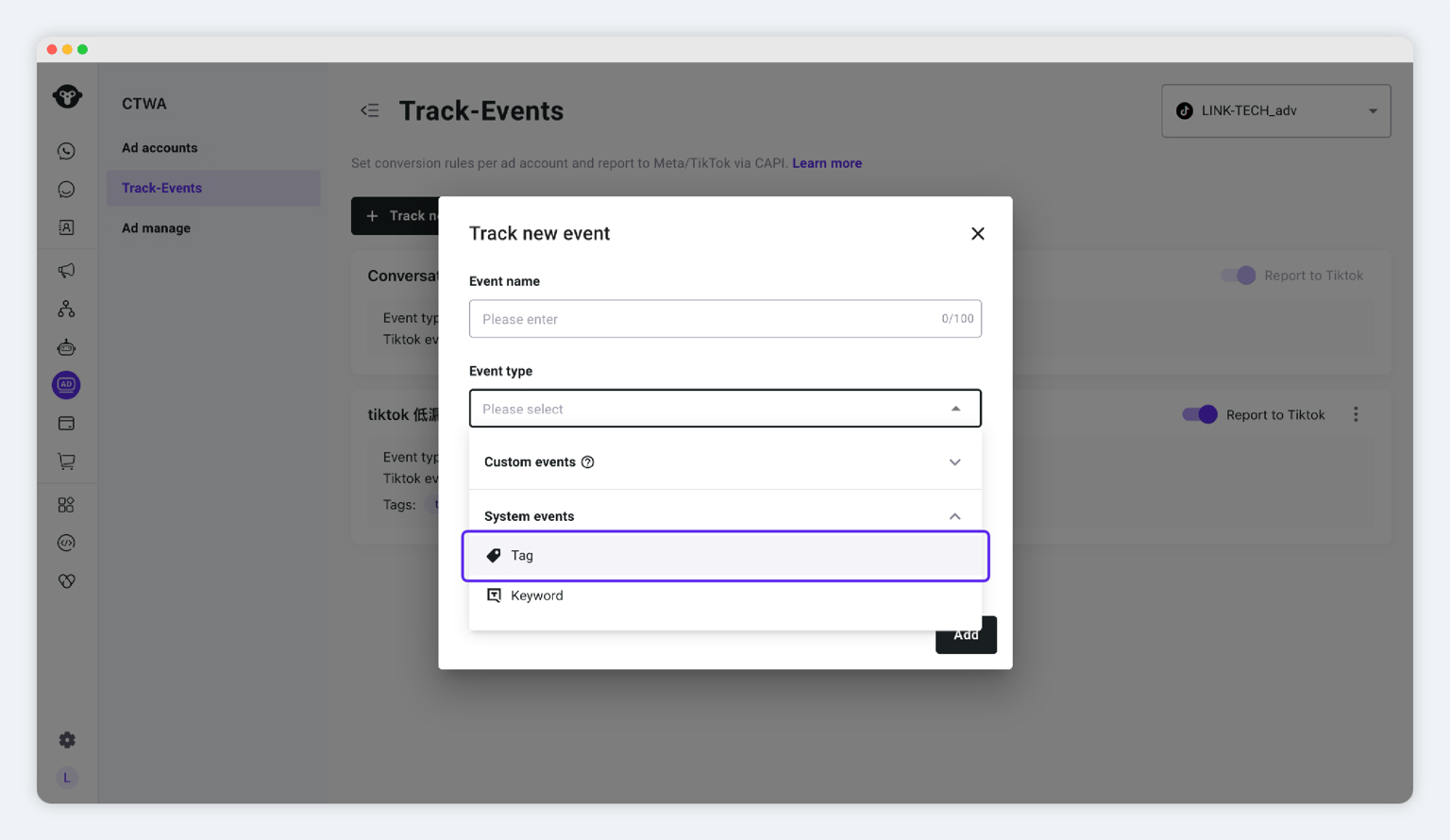
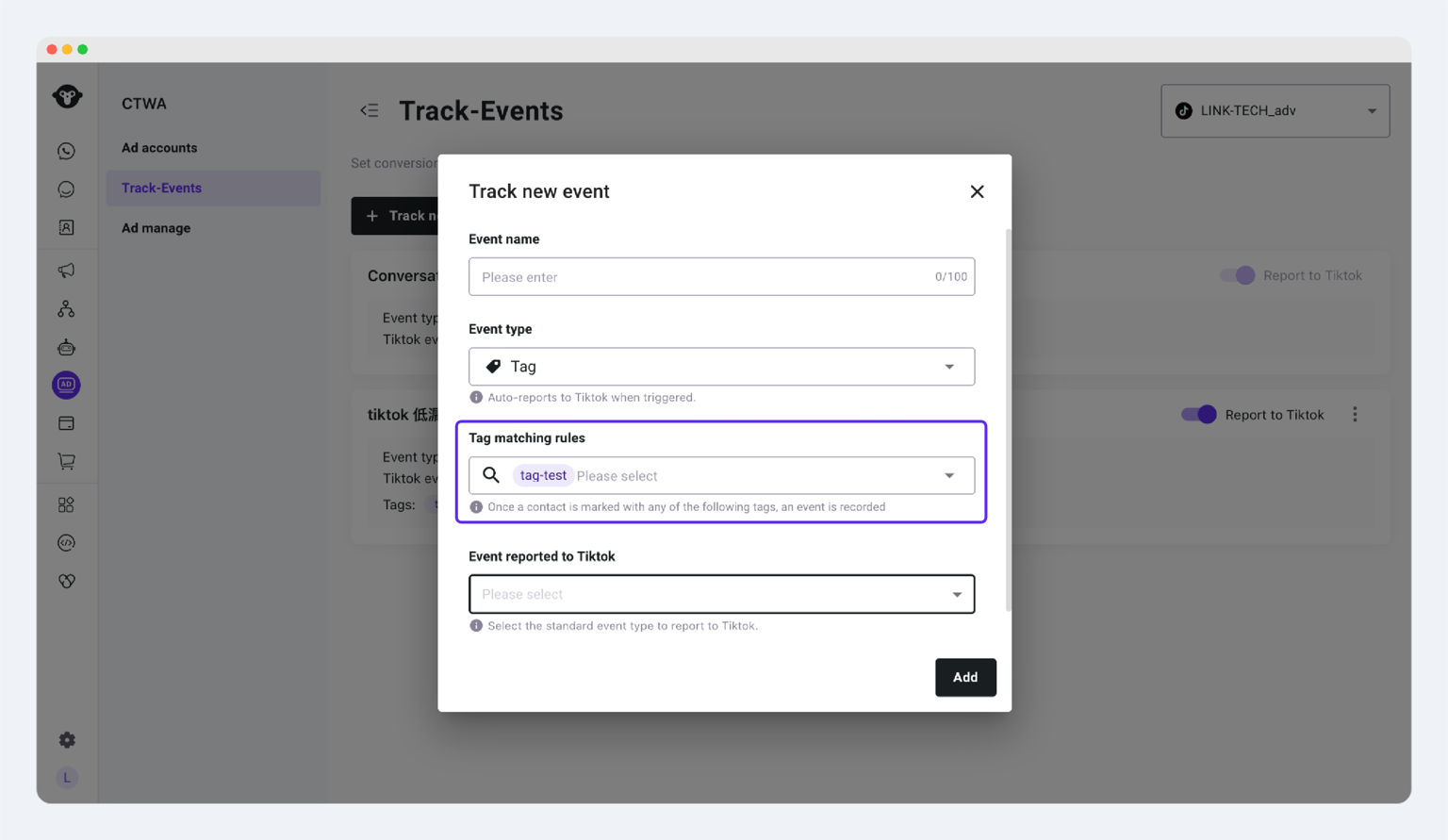
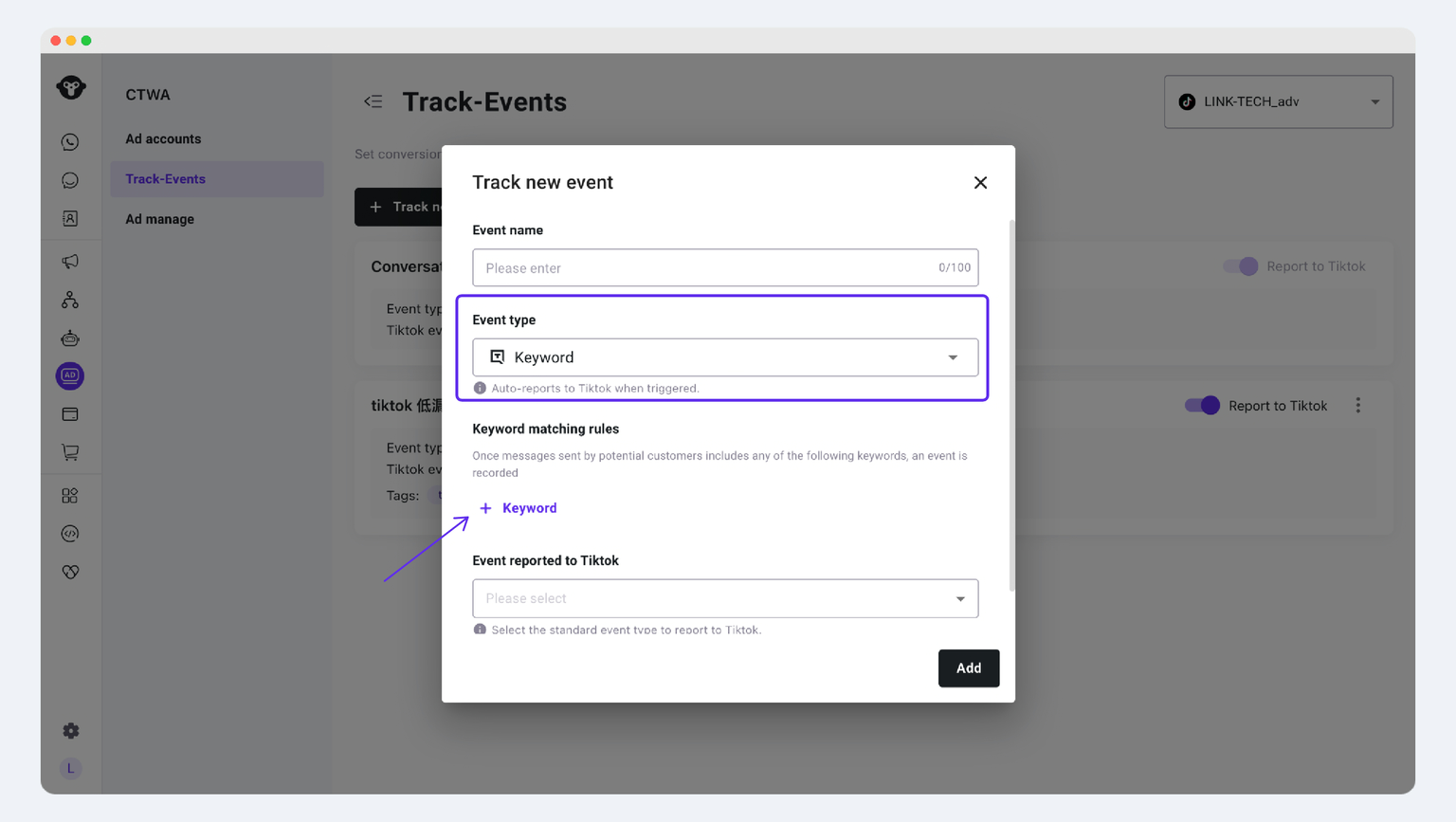
- In Event Type, select System Events - Tag.
- Enter a tag dedicated to marking conversions.
- If you need to distinguish between different ads or different conversion scenarios, use different tags for separate management.
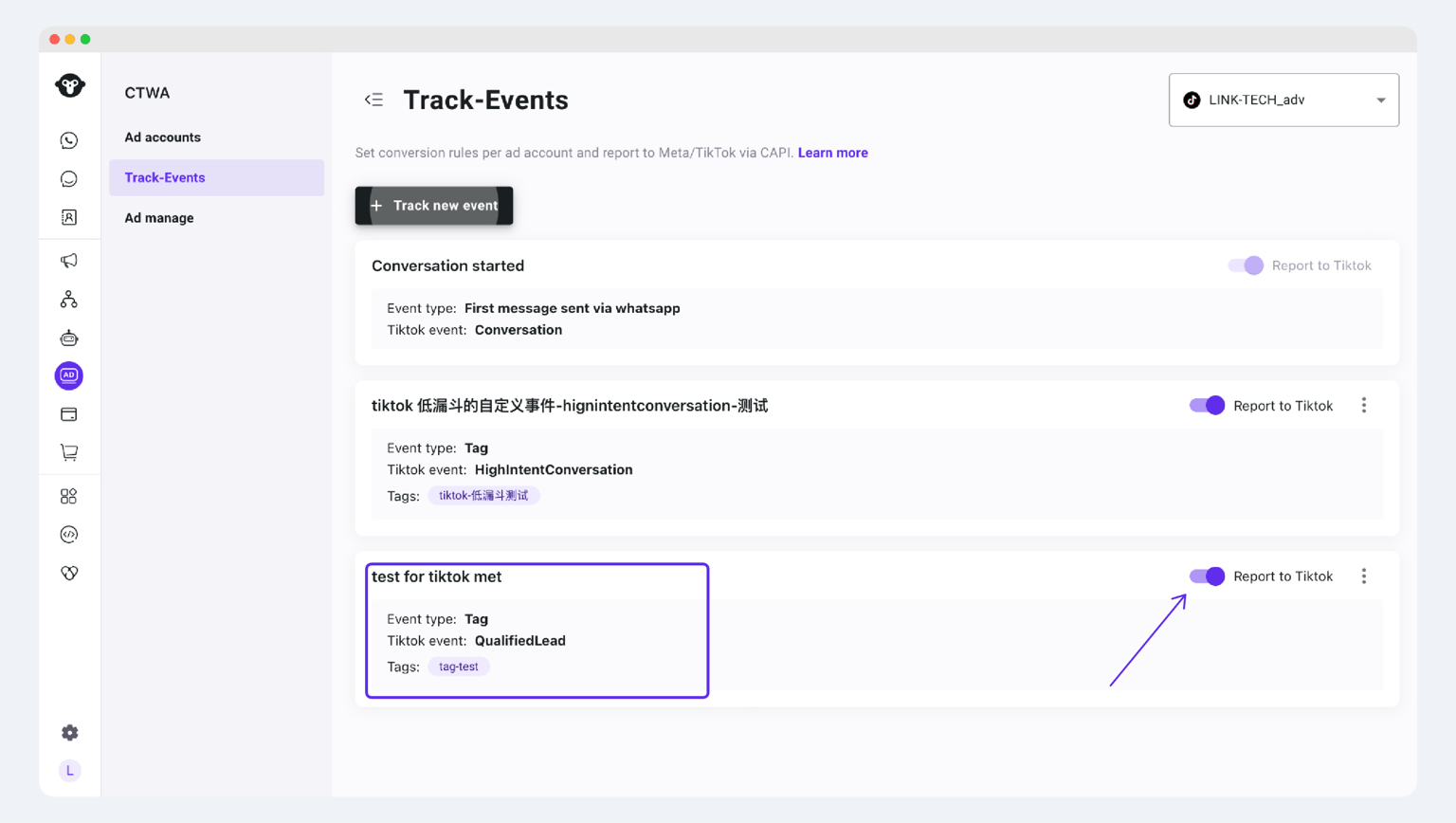
- Select the TikTok event you want to report, and turn on Send to TikTok if needed.
- Save the rule.
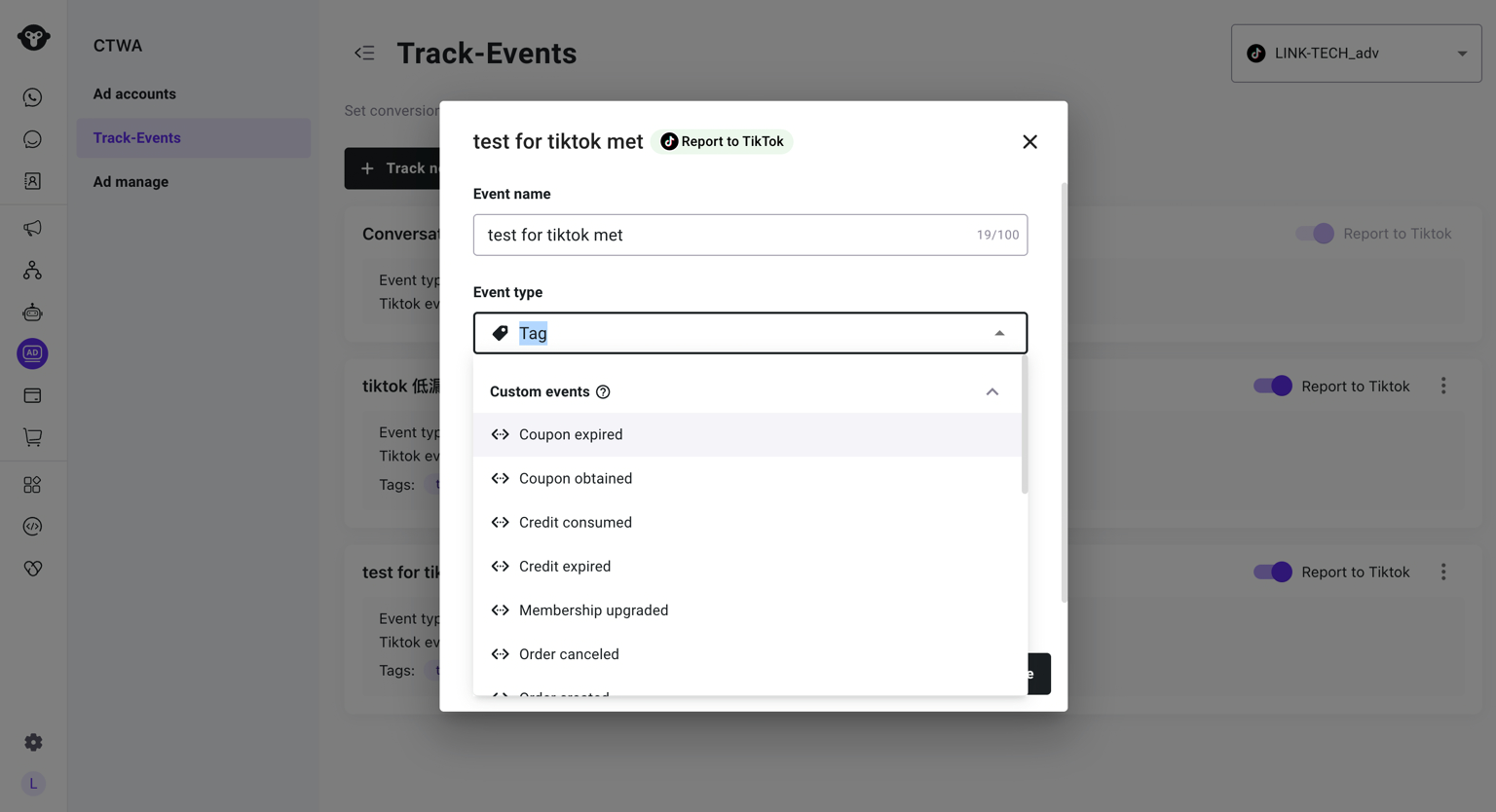
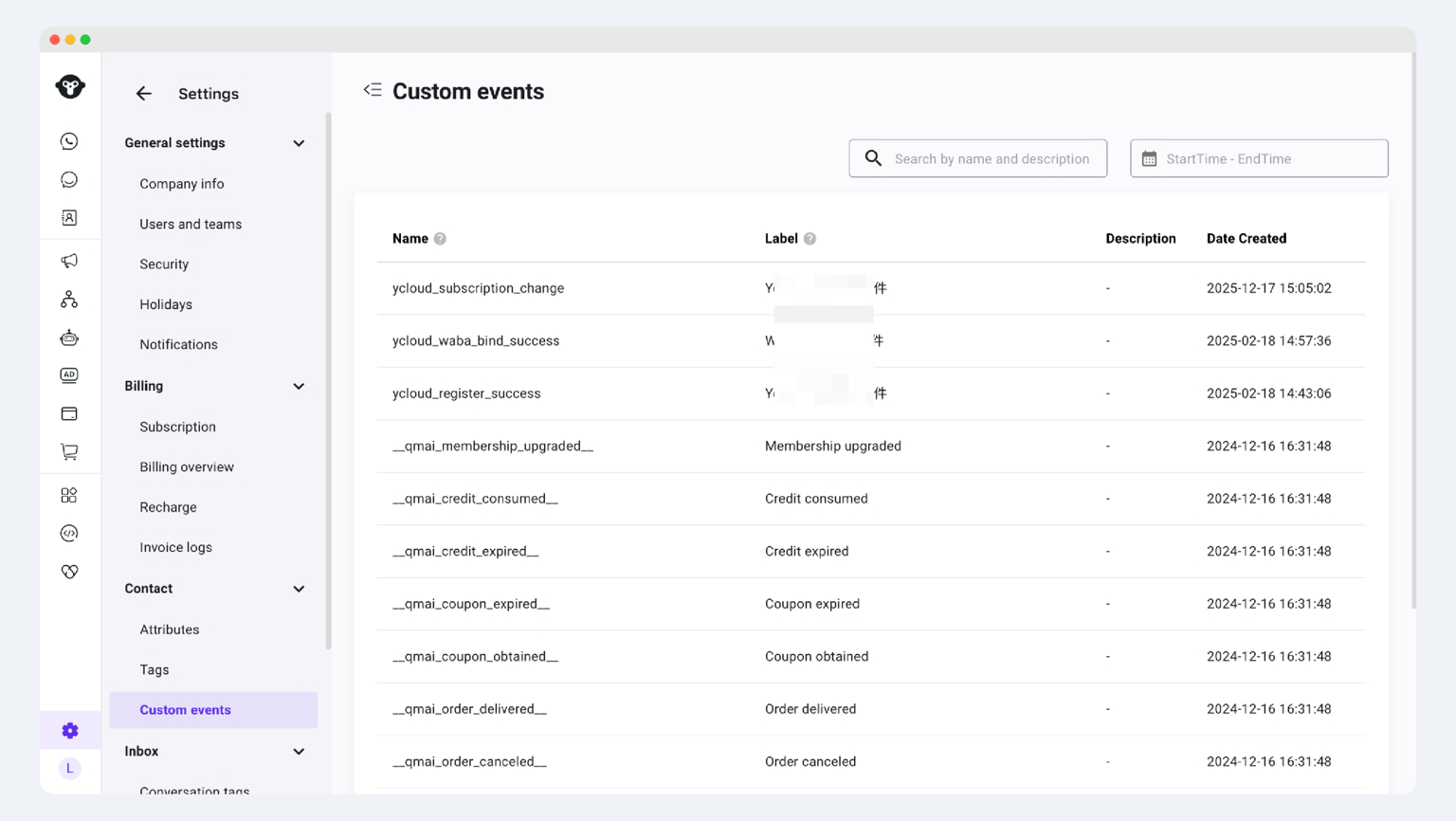
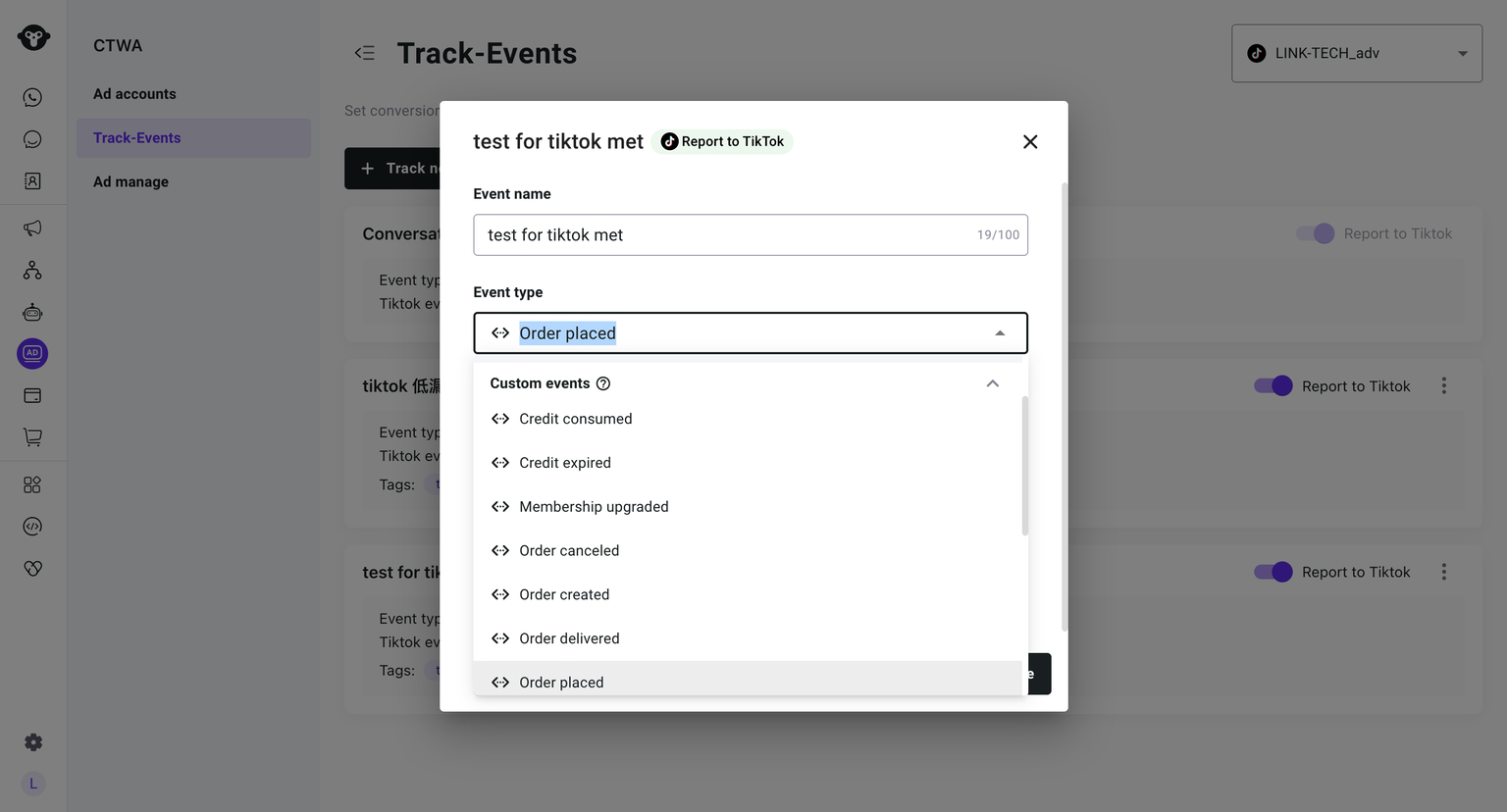
- In Event Type, select a custom event.
- Choose an existing custom event as the marker for "user has converted".
- If there is no suitable event yet, you can first create a custom event definition through the API.
- Select the corresponding event label and save the rule.
- Select the TikTok event to report, and turn on Send to TikTok if needed.
When the send-event API returns 200, it means YCloud has successfully received the event.- In Event Type, select System Events - Keywords.
- Add one or more keywords.
- Select the TikTok event to report, and turn on Send to TikTok if needed.
- Save the rule.
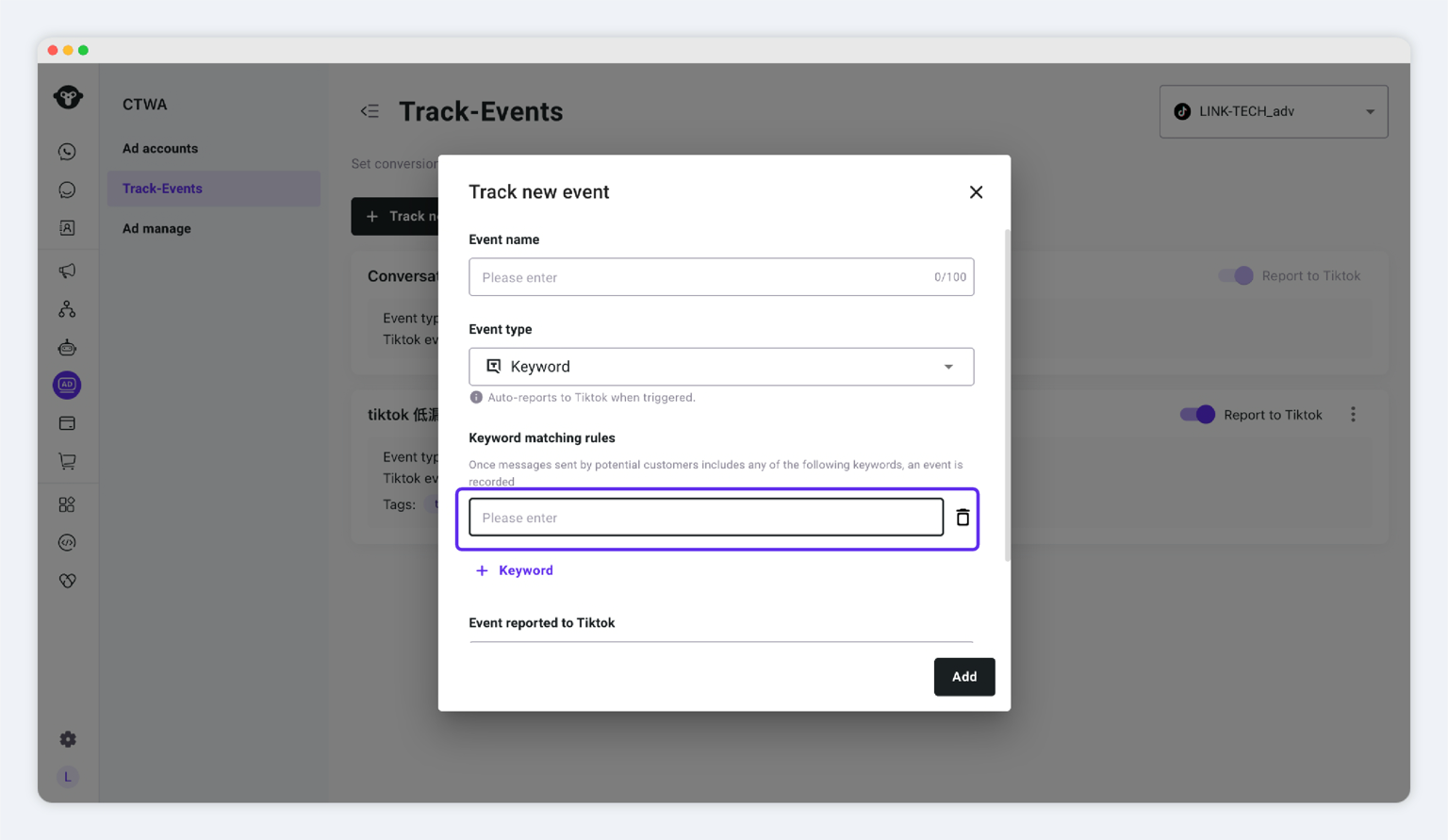
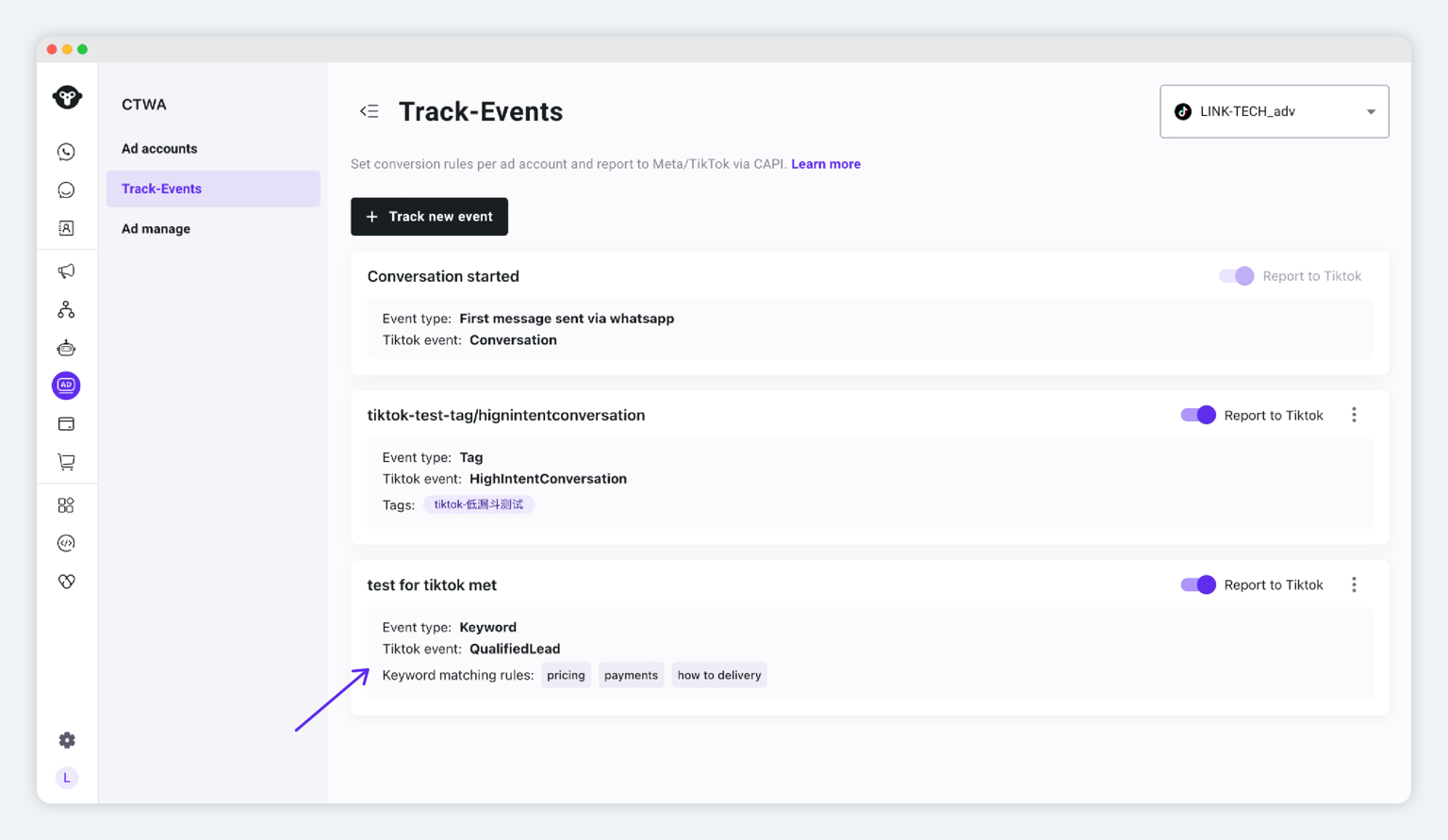
Keyword-based triggering is useful for identifying high-intent leads, but it may also result in false positives. We recommend using only keywords with clear business meaning.Step 8: View Ad Performance and Conversion Data
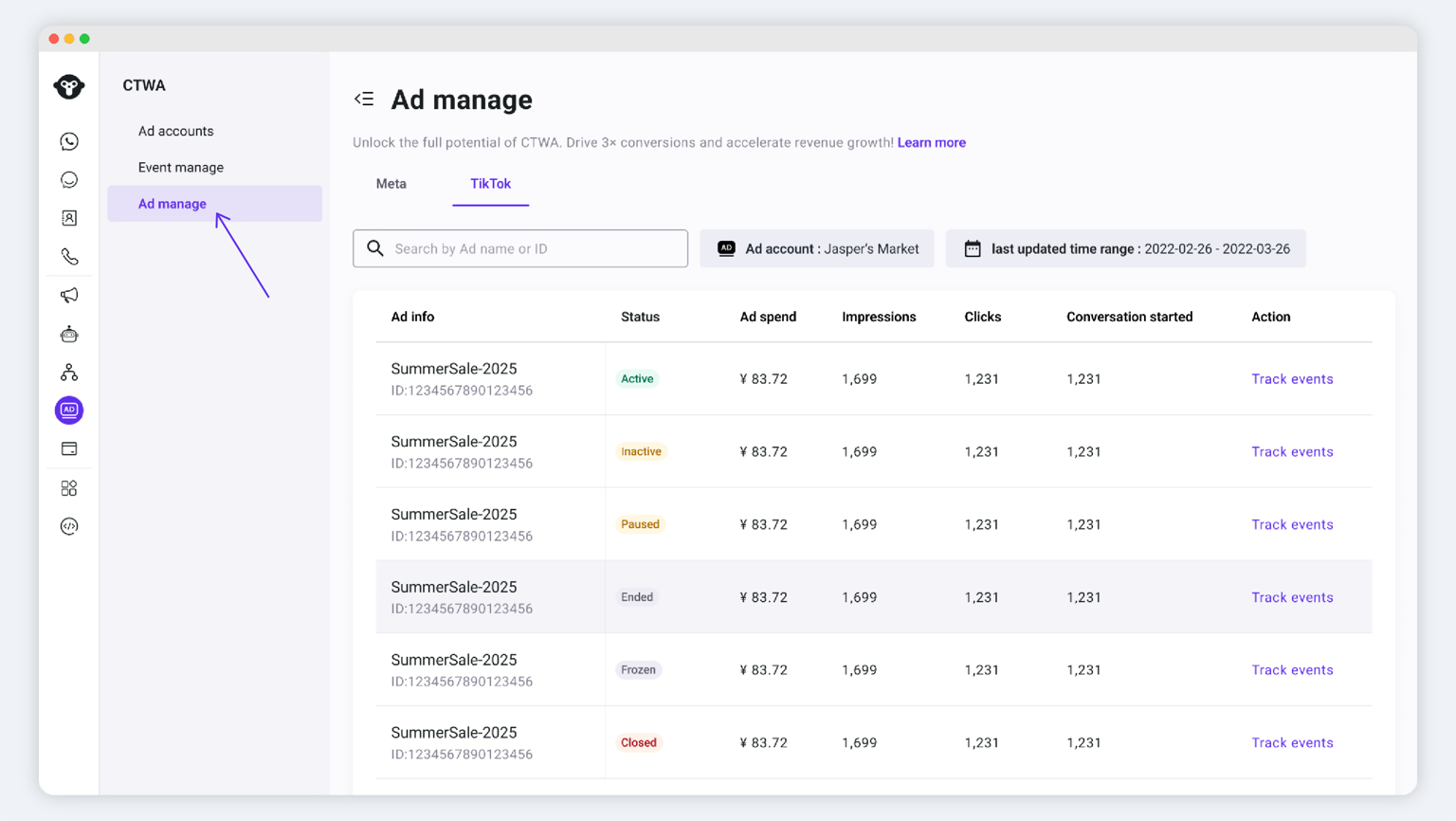
View Data in TikTok Ads Manager
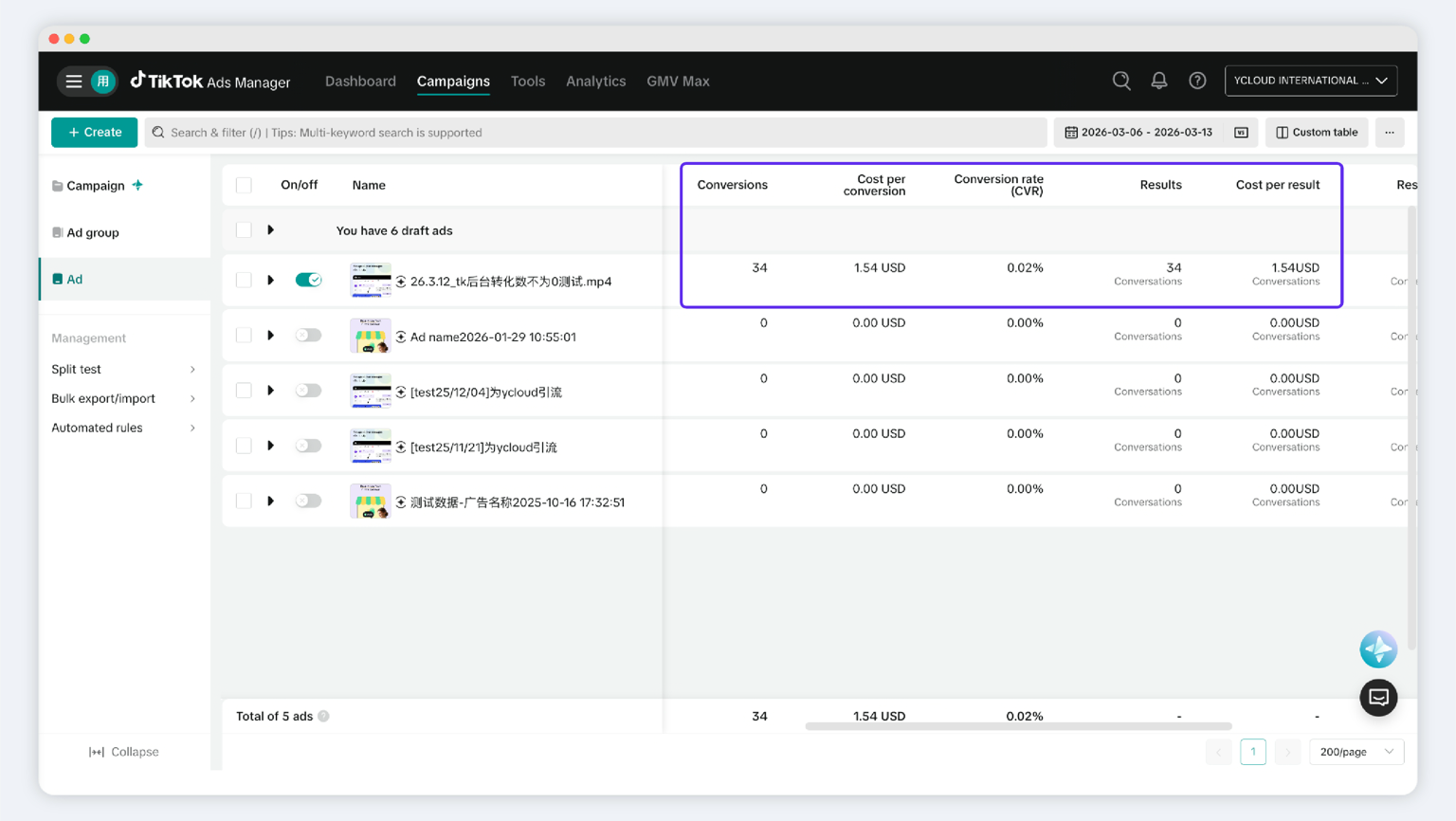
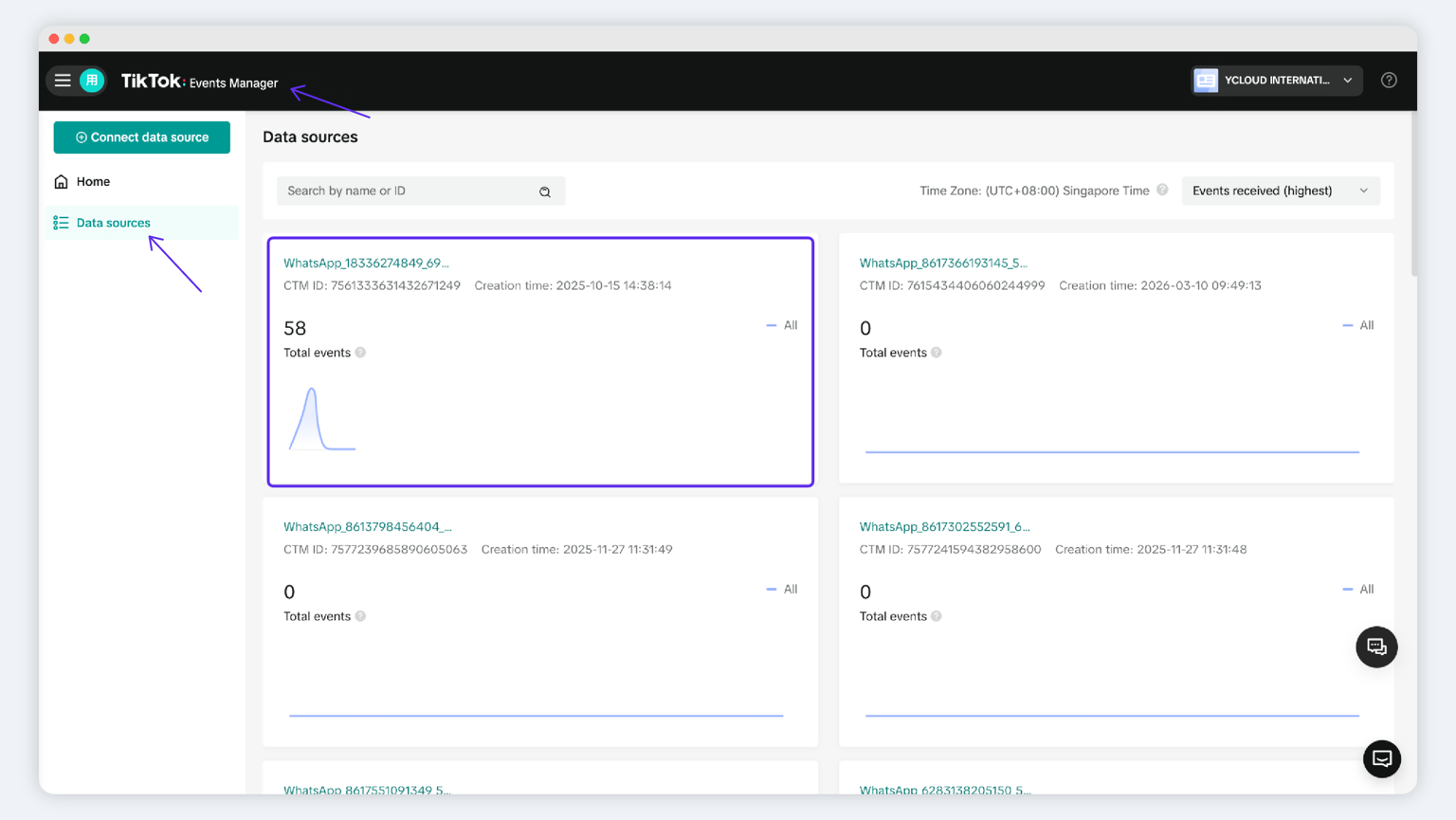
In the data source list, some event sets are named WhatsApp + [Phone Number]. You can search by WhatsApp Business Number to find the corresponding data source.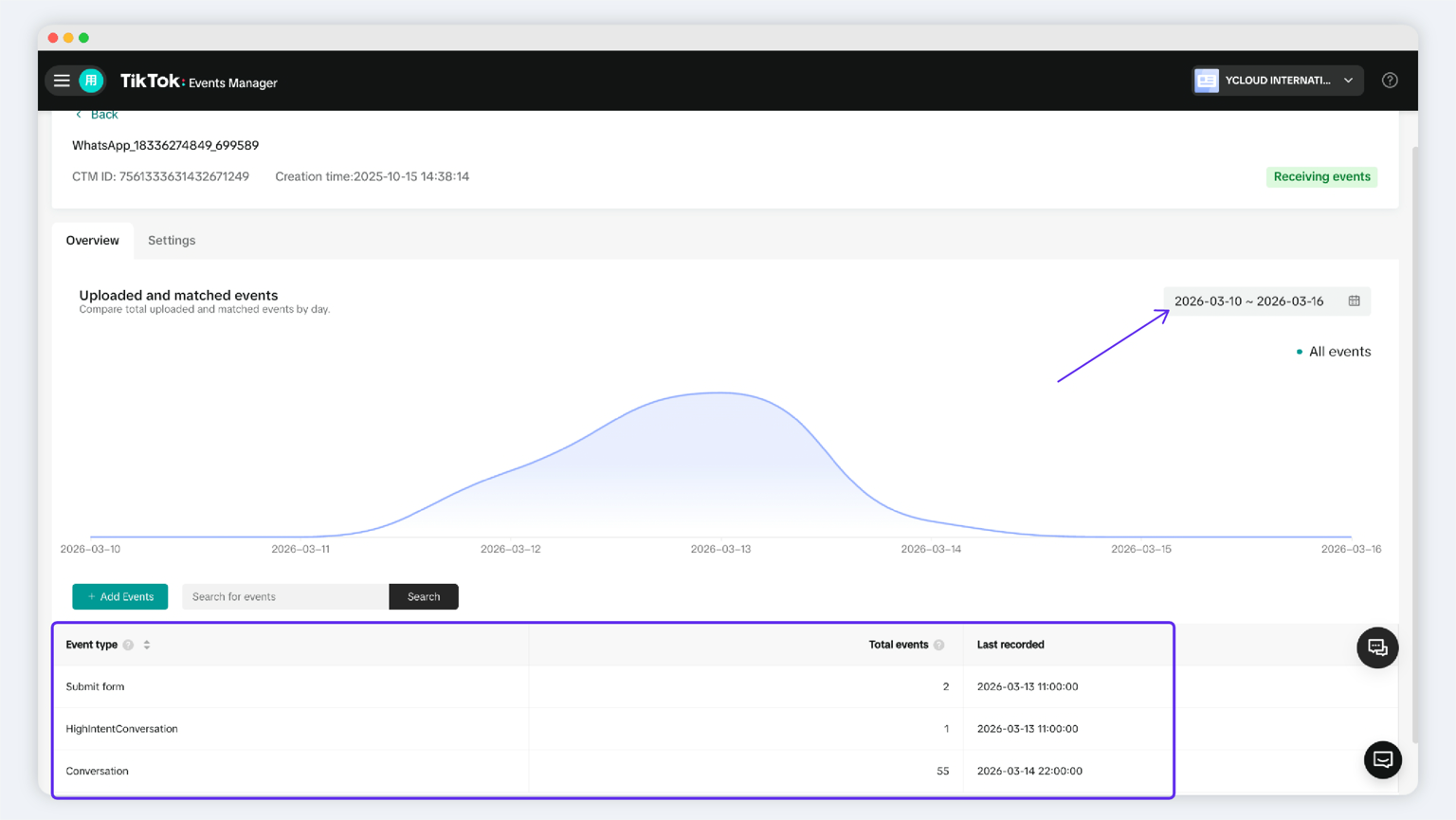
- The Conversation event is reported by YCloud by default.
- For any event other than Conversation, you must first configure the rule in Step 7 and turn on Send to TikTok before it will appear here.
View Data in YCloud
How To Get YCloud?
How to Get YCloud for FREE?
Also Checkout These Articles Before You Go!
- How to Set Up, Create & Run TikTok Ads: A Step-by-Step Guide
- How to Set Up, Create & Run Facebook Ads: A Step-by-Step Guide
- How to Set Up, Create & Run Click-to-WhatsApp (CTWA) Ads
- Top 10 CTWA (Click to WhatsApp Ads) Strategies to Generate and Convert More Leads
- How to Use ChatGPT for WhatsApp Marketing: 10 Practical Strategies
- 15 Practical Ways to Use AI in WhatsApp Marketing to Automate and Scale Faster
- How to Calculate the ROI from Your WhatsApp Marketing Campaign
- Know How to Sell on WhatsApp with Proven Strategies, Rules and Quick Wins
- Your One-Stop Guide to the WhatsApp AI Agents
- 10 Best AI Sales Agents That Actually Work
- How to Build a High-Converting WhatsApp Lead Generation Funnel in Just 5Min
- 20 Proven WhatsApp Lead Generation Strategies to Generate 1000s of Leads Per Month
Frequently Asked Questions
If `Send to TikTok` is turned off, will YCloud still record the data?
Why can I only see the Conversation event in TikTok, but not other conversion events?
Related Articles

Make your business communications much easier!


Trusted by