Customer Support

English

How to Set Up, Create & Run Click-to-WhatsApp (CTWA) Ads

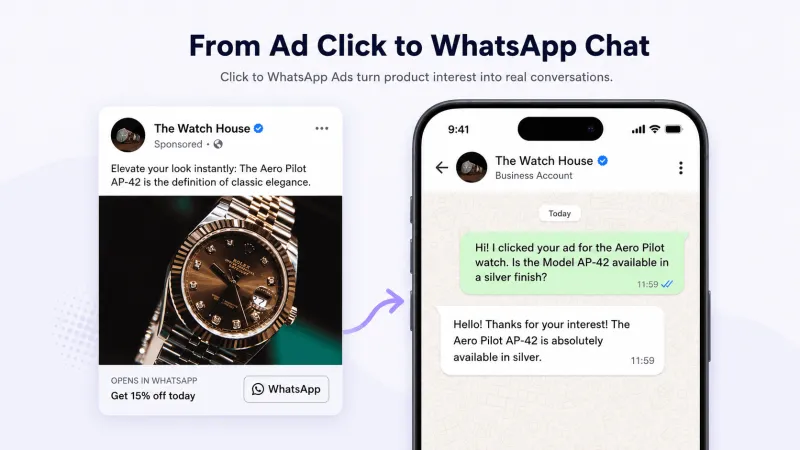
Every extra step after an ad click gives a prospect another reason to leave.
A landing page must load. A form must be completed. A sales representative must follow up. By then, the prospect’s interest may already be fading.
Click-to-WhatsApp Ads (CTWA) shorten this journey by taking users from Facebook or Instagram directly into a WhatsApp conversation with your business.
However, running CTWA involves more than adding a WhatsApp button to an ad. Your accounts must be connected correctly, the campaign needs the right settings, and the conversation after the click must be ready to capture, qualify, and follow up with leads.
In this guide, you’ll learn what Click-to-WhatsApp Ads (CTWA) is, how it works, how to set up and run Click-to-WhatsApp Ads using the WhatsApp Business App or YCloud’s WhatsApp Business API platform, and how to track and improve campaign performance.
First, let’s quickly review the key takeaways.
TL;DR
- Click-to-WhatsApp Ads (CTWA) send users from Facebook or Instagram directly into a WhatsApp conversation, removing landing pages and lead forms from the journey.
- You can create CTWA through the WhatsApp Business App or Meta Ads Manager, depending on the level of campaign control you need.
- To run CTWA, you need a Meta ad account, Facebook Page, WhatsApp Business number, active payment method, and the required account permissions.
- A click does not start the conversation. The user must send the first message before your business can respond.
- YCloud helps you manage what happens after the click through AI-powered responses, lead qualification, team Inbox, follow-ups, ad attribution, and conversion reporting.
- Strong CTWA performance depends on relevant targeting, clear ad copy, consistent chat flows, quick responses, and regular creative testing.
- Measure qualified leads, bookings, purchases, acquisition costs, and ROAS, not only clicks or conversations.
What are Click-to-WhatsApp Ads (CTWA)?
Click-to-WhatsApp Ads, commonly known as CTWA, are Facebook and Instagram ads that open a WhatsApp conversation with your business when someone clicks the call-to-action.
Instead of visiting a website, users enter WhatsApp on mobile or web, where they can ask questions, request pricing, book an appointment, explore products, or speak with your sales team.
Watch this video to learn about CTWA in details.
A typical CTWA journey looks like this:
- A prospect sees your ad on Facebook or Instagram.
- They click a CTA such as Send Message or Chat on WhatsApp.
- WhatsApp opens with your business chat.
- The prospect sends a message, and your team or automation responds.
CTWA can support lead generation, consultations, bookings, product discovery, sales, and customer support.
Next, let’s understand how this journey differs from a traditional advertising flow.
Also Read: Top 10 CTWA (Click to WhatsApp Ads) Strategies to Generate and Convert More LeadsHow CTWA Differs from Traditional Ad Flows: What Changes?
A traditional ad often sends users through several steps before a real conversation begins:
Ad → Landing page → Form submission → Follow-up → Conversation
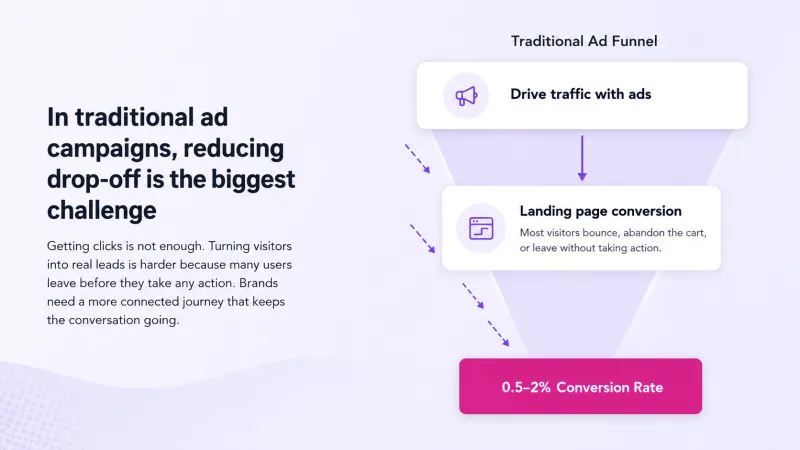
CTWA shortens that journey:
Ad → WhatsApp → Conversation
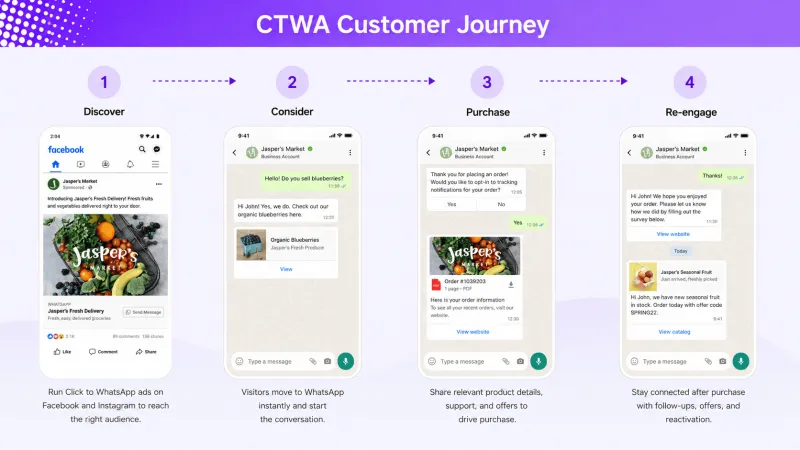
Here is the practical difference:
Area | Traditional Ad Flow | CTWA Flow |
Post-click destination | Website or landing page | WhatsApp chat |
User action | Browse a page and complete a form | Send a message and start talking |
Lead information | Collected only after form submission | Available after the user initiates the chat |
Business response | Usually begins after the lead is assigned | Can begin immediately |
Customer journey | Spread across different tools and touchpoints | Continues inside one conversation |
Performance tracking | Focuses on clicks and form submissions | Can include conversations, qualified leads, and conversion events |
The main advantage is not simply fewer clicks. It is the ability to engage prospects while their interest is still active.
However, CTWA does not guarantee conversions.
Slow replies, irrelevant automation, or poor follow-ups can still cause leads to leave.
Next, let’s look at exactly what happens after someone clicks a WhatsApp ad.
How Does CTWA Work?
A Click-to-WhatsApp Ad does not create a conversation immediately after the click.
The user must first send a message to your business (any business can set up the ad with prefilled messages to kickstart the conversation).
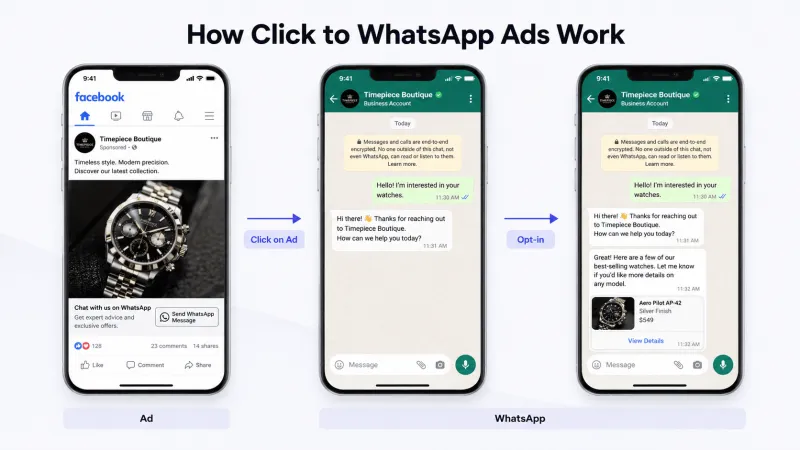
Here is how the complete process works:
Step 1: The user clicks the WhatsApp CTA
They select a button such as Send Message or Chat on WhatsApp from your Facebook or Instagram ad.
Step 2: WhatsApp opens
The ad takes them to your business chat in the WhatsApp app or WhatsApp Web.
Step 3: The user chooses how to begin
You can configure a pre-filled message or a few frequently asked questions. The user can send the suggested message, edit it, or write their own.
Step 4: The conversation reaches your business
Only after the user sends a message does the conversation become available to your team. With the WhatsApp Business Platform, referral data can also help identify the ad that generated the conversation.
Step 5: Your business responds and qualifies the lead
A sales representative, chatbot, or AI Agent can answer questions, collect relevant details, recommend the next step, and transfer serious prospects to a human agent.
Responding quickly matters because the prospect has just acted on the ad and their interest is still active.
Important: A user starting a chat allows your business to respond to that enquiry. It should not be treated as unlimited consent for unrelated future promotions. Proactive marketing messages require clear permission and must follow the WhatsApp Business Messaging Policy.
Next, let’s identify which businesses and use cases are best suited for Click-to-WhatsApp Ads.
When Should a Business Use CTWA?
CTWA works best when a conversation is an important part of the buying process. It is particularly useful for businesses that:
- Sell products or services that require explanation or consultation
- Run lead-generation campaigns on Facebook or Instagram
- Want prospects to enquire on WhatsApp instead of completing long forms
- Need to qualify leads, share quotes, or schedule demos and appointments
- Can respond quickly through sales agents, chatbots, or AI Agents
CTWA is especially useful when your audience actively uses WhatsApp, your offer is clear, and your team or automation can respond quickly.
However, it may not be the right format when customers can complete the desired action faster through a simple website checkout or when your business cannot manage incoming conversations promptly.
Next, let’s look at the requirements for creating Click-to-WhatsApp Ads.
What You Need Before Creating CTWA Ads
Before you set up Click-to-WhatsApp Ads, make sure you have:
Approved Facebook Business Manager Account
You need the required permissions to manage your business assets. Business verification is not mandatory for every CTWA campaign.
A Facebook Page
Your ad will run through a Facebook Page, even if you also plan to advertise on Instagram.
A Meta Ad Account
The ad account must have an active payment method.
A WhatsApp Business Number
Use a WhatsApp Business App or WhatsApp Business API number and connect it to your Facebook Page.
An Instagram Professional Account
This is required only if you want to run Click-to-WhatsApp Ads on Instagram. Connect it to the same Facebook Page.
To manage CTWA through YCloud, you must also connect your WhatsApp Business API number and authorize your Meta ad account in YCloud.
Note: These assets do not always need to belong to the same Business Portfolio. However, the correct ownership, sharing permissions, and connection approvals must be in place.
Once these requirements are ready, you can start setting up your WhatsApp ad in Meta Ads Manager.
How to Set Up Click-to-WhatsApp Ads
You can create click-to-WhatsApp ads in one of two ways:
- Through the WhatsApp Business App
- Meta Ads Manager
The Business App offers a quicker setup, while Ads Manager provides greater control over targeting, placements, budgets, creatives, and reporting.
Option 1: Create a WhatsApp Ad Through the WhatsApp Business App
This option is suitable for businesses that want to launch a simple campaign without configuring every setting in Ads Manager.
If you’re using an Android smartphone in select regions, you can create WhatsApp ads without a Facebook Page using your email address.
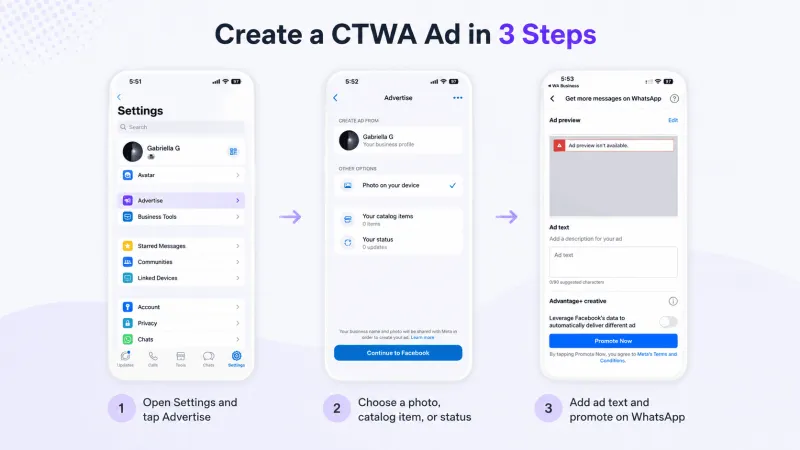
Follow the steps below to create an ad on the WhatsApp Business app with a Facebook account:
Step 1: Open the WhatsApp Business App.
Step 2: Go to Tools > Advertise and select Create Ad.
Step 3: Choose a photo, video, catalogue item, or Status content.
Step 4: Tap Continue to Facebook.
Step 5: Add your ad copy.
Step 6: Define the audience, budget, and campaign duration.
Step 7: Add or confirm your payment method.
Step 8: Review the ad and tap Create Ad.
Once Meta approves the ad, it will appear on eligible Facebook and Instagram placements and direct users to your WhatsApp chat.
Please note, the exact menu options may vary by device or region.
Refer to WhatsApp’s official Business App advertising guide if required.
Option 2: Create a WhatsApp Ad Through Meta Ads Manager
Use this method when you need more control over your WhatsApp Ads on Facebook and Instagram.
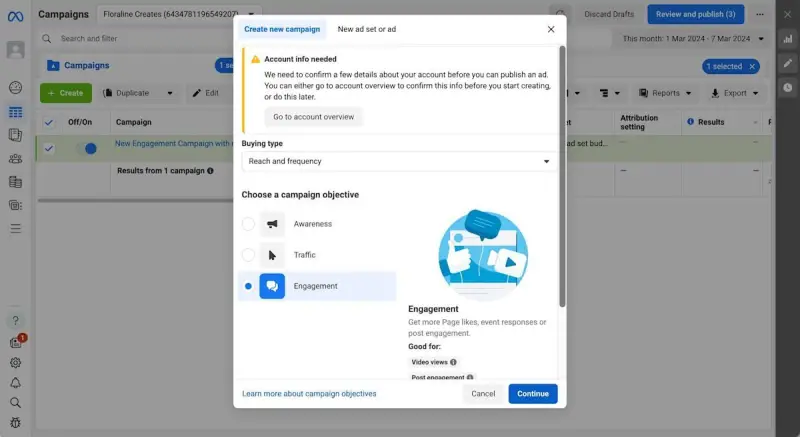
Step 1: Create the campaign
Open Meta Ads Manager and click Create. Select a supported objective, usually Engagement for conversation-focused campaigns.
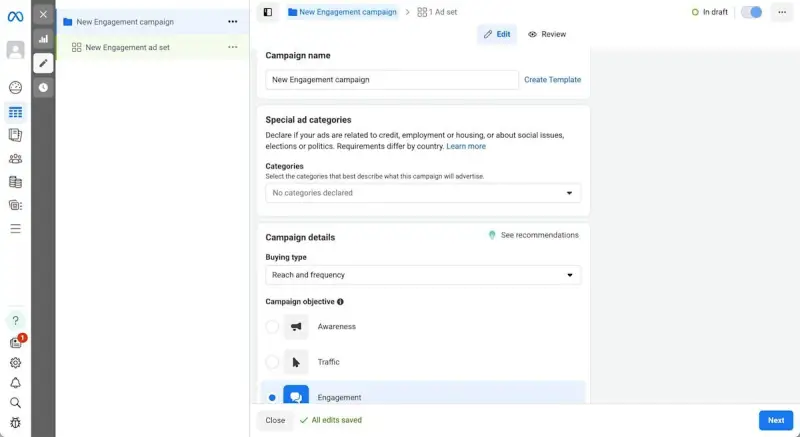
Step 2: Add the campaign details
Name the campaign and declare a Special Ad Category if it involves areas such as credit, employment, housing, social issues, elections, or politics.
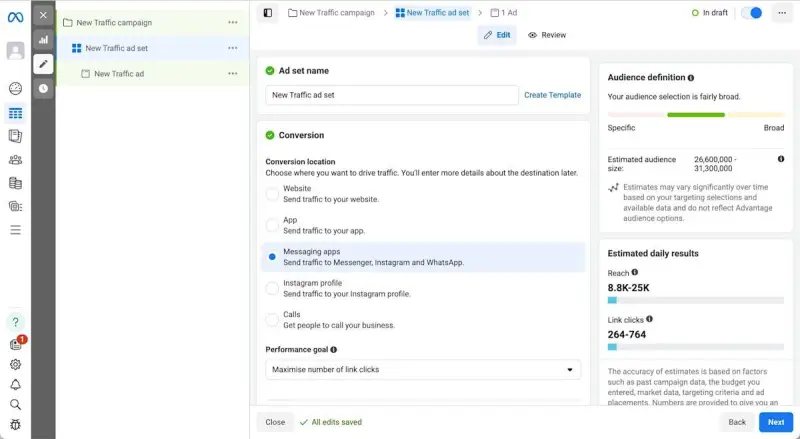
Step 3: Choose WhatsApp as the destination
Select Messaging Apps as the conversion location. Choose WhatsApp, followed by the connected Facebook Page and WhatsApp Business number.
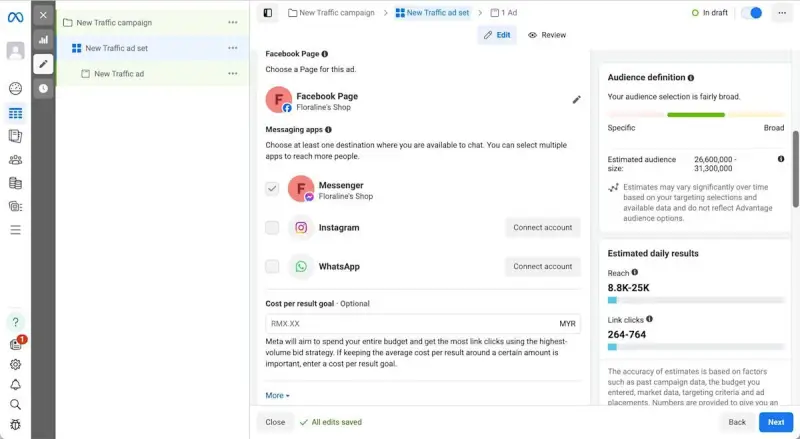
Step 4: Select your Facebook page
Select a Facebook Page you want to create the ad for. Then, choose the channel you want to direct chats to. Note that you can select multiple messaging channels for each ad.
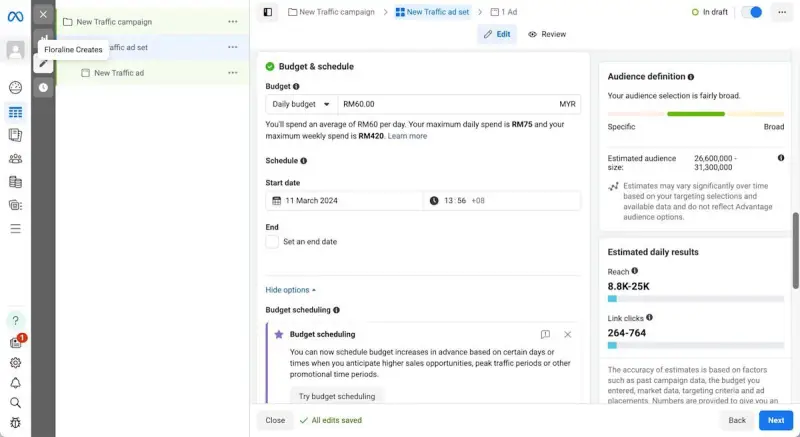
Step 5: Define your audience and budget
Set the location, age, interests, budget, schedule, and eligible Facebook and Instagram placements.
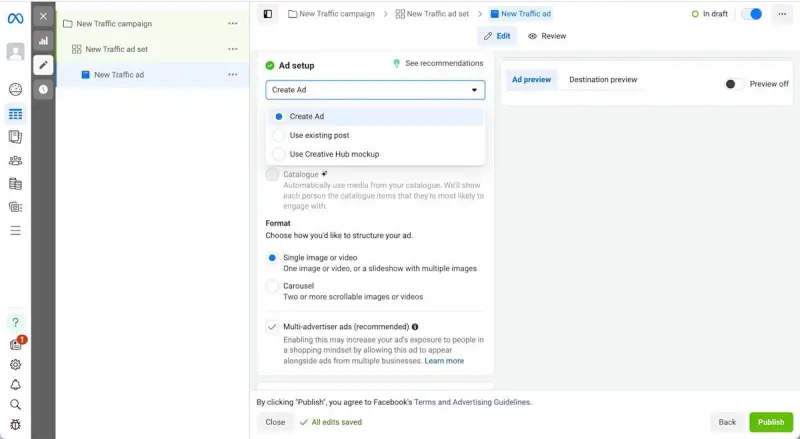
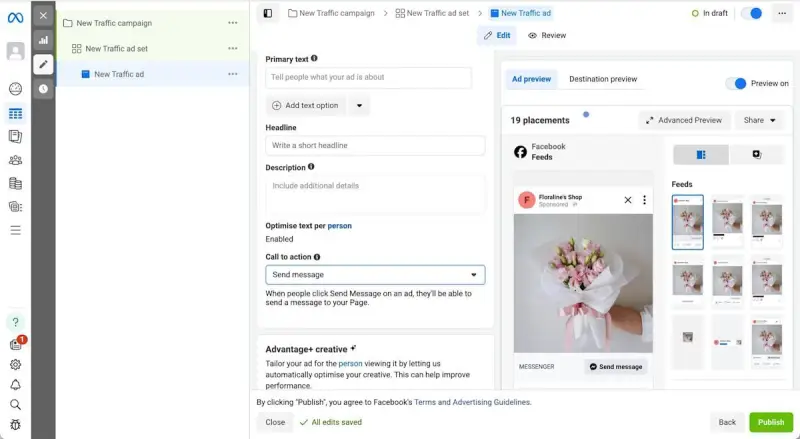
Step 6: Create the ad
Choose a single image, video, or carousel. Add the primary text, headline, description, and a CTA such as Send WhatsApp Message.
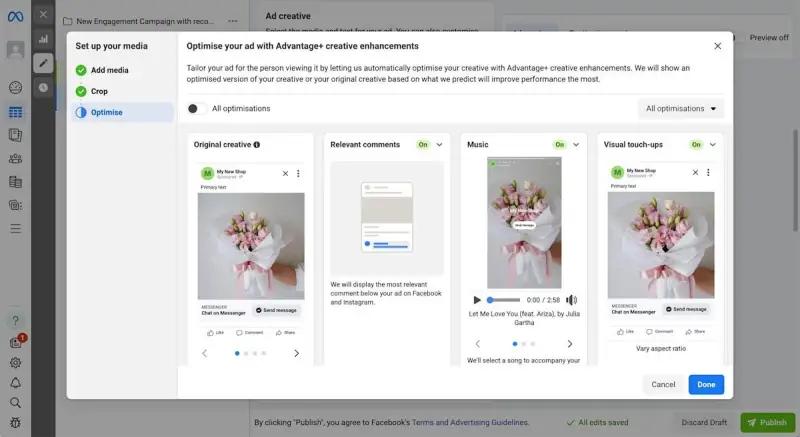
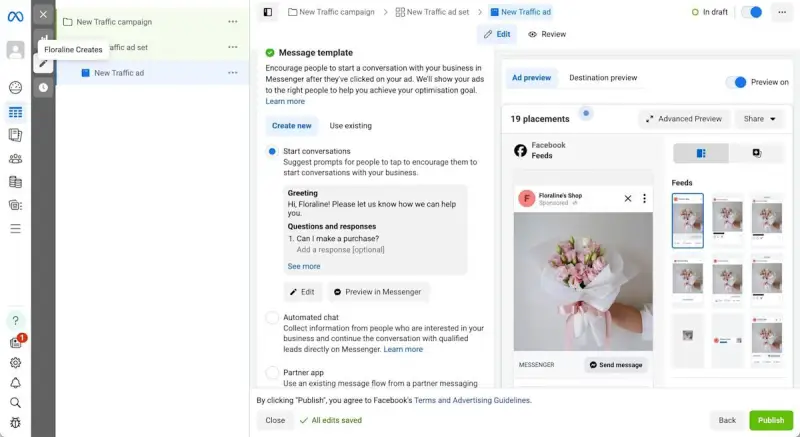
Step 7: Set the opening conversation
Add a short pre-filled message or frequently asked questions to help users begin the chat.
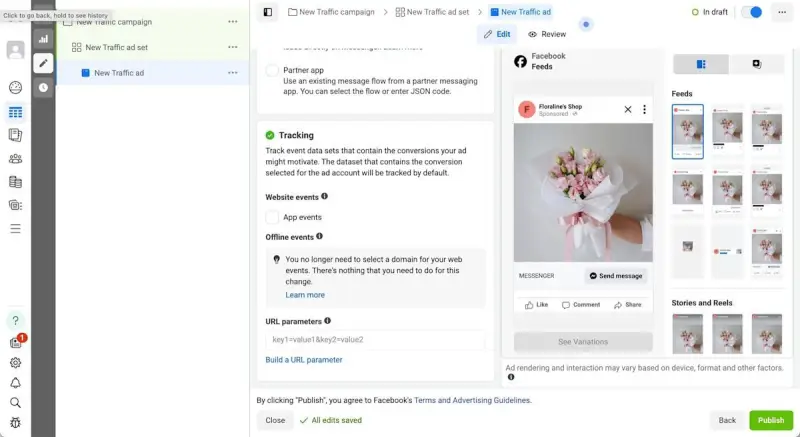
Step 8: Preview and publish
Check how the ad and WhatsApp conversation will appear. Then click Publish to submit the campaign for Meta’s review.
These methods are enough to launch a CTWA campaign. However, managing, qualifying, following up with, and tracking a large number of leads requires a more scalable setup.
Next, let’s see how to create and manage Click-to-WhatsApp Ads with YCloud.
How to Set Up Meta CTWA (Click-to-WhatsApp Ads) with YCloud
YCloud connects your WhatsApp Business API number, Meta ad account, incoming conversations, and conversion data.
The ad is created in Meta Ads Manager, while YCloud helps you receive, manage, and track the leads it generates.
List of CTWA Platforms Supported by YCloud
Platform | Description | Setup Guide |
| Meta: Facebook and Instagram | Users click an ad and start a conversation with your business in WhatsApp | |
| TikTok | Users click an ad and start a conversation with your business in WhatsApp | |
| Coming soon | — |
What You Should Prepare Before Getting Started
Before creating your CTWA campaign with YCloud, make sure the following accounts and assets are ready:
Meta Side Requirements
- An active Meta ad account with a valid payment method
- Permission to manage the Business Portfolio, ad account, and Facebook Page
- A Facebook Page for running the ad
- An Instagram professional account if you plan to advertise on Instagram
YCloud Side Requirements
- An active YCloud account
- A WhatsApp Business API number connected to YCloud
- A sales team, support team, or automation ready to respond to incoming enquiries
If your WhatsApp Business API account is not ready, follow YCloud’s Embedded Sign-up guide: Create WABA via Embedded Sign-up.
Once these requirements are ready, you can begin creating your Click-to-WhatsApp Ad with YCloud.
For this guide, we will focus on creating CTWA ads for Facebook and Instagram.
Step-by-Step Process to Set Up CTWA with YCloud
Learn the simple steps to set up your first Click-to-WhatsApp(CTWA) ad campaign.
Learn how to set up your first Click-to-WhatsApp ad campaign.
After following these steps, users can click a Facebook or Instagram ad and directly enter WhatsApp to start a conversation with your business.
Step 1: Create a WhatsApp Business API Account through YCloud
You cannot use a personal WhatsApp number to receive ad traffic. Before creating a Click-to-WhatsApp ad in Ads Manager, please first create a WhatsApp Business API account through YCloud.
👇 Learn how to create a WhatsApp Business API account

Create a WhatsApp API Account
Step 2: Connect the WhatsApp Business API Number to a Facebook Page
Meta requires a Facebook Page to be connected to a WhatsApp API account before you can create a Click-to-WhatsApp ad.
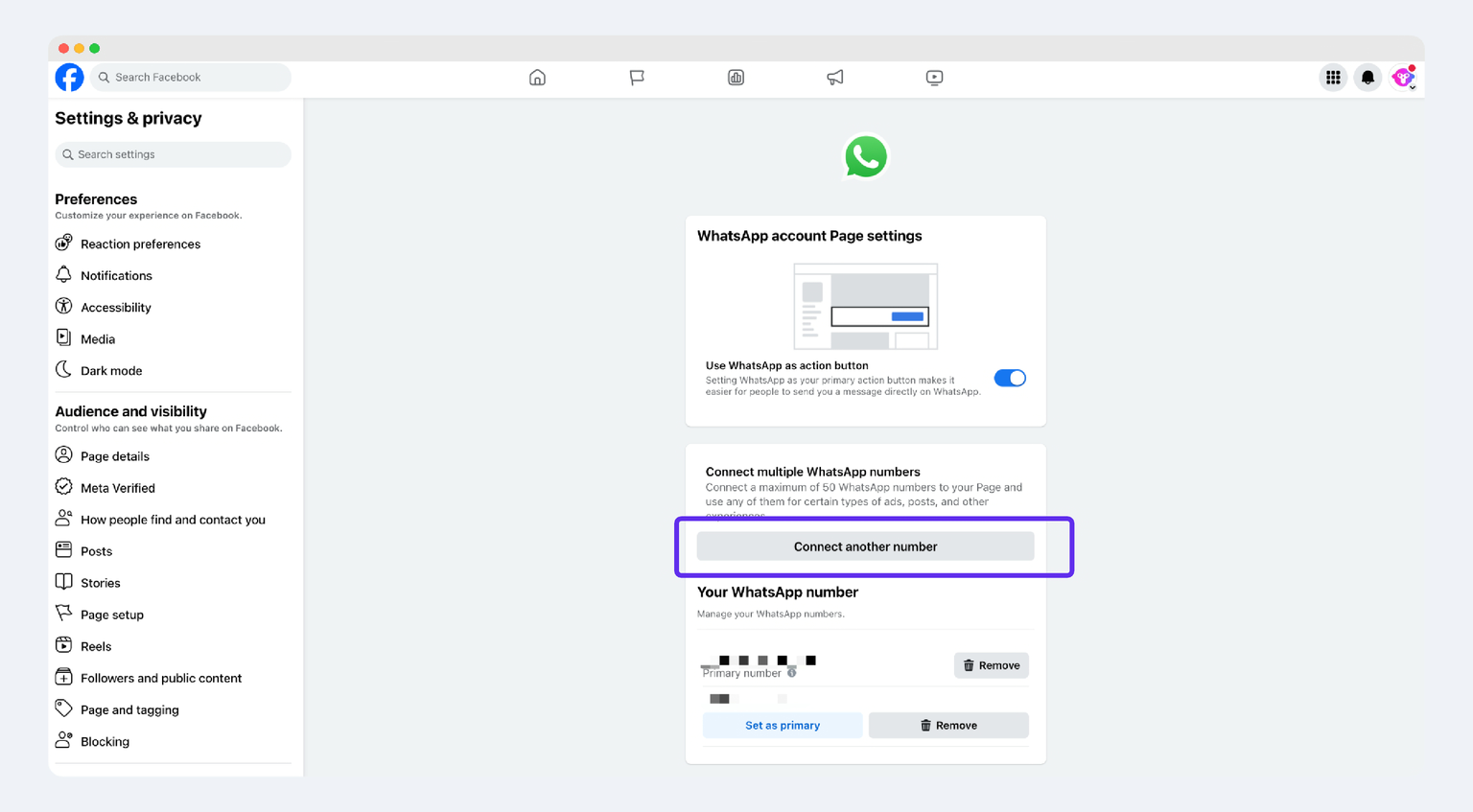
- Make sure you have admin access to this Facebook Page.
- Go to the Facebook Page and click the left-side menu > Settings > Linked accounts > WhatsApp
- Link a WhatsApp number - select the country or region code, enter the WhatsApp Business API number you want to connect, and click Continue
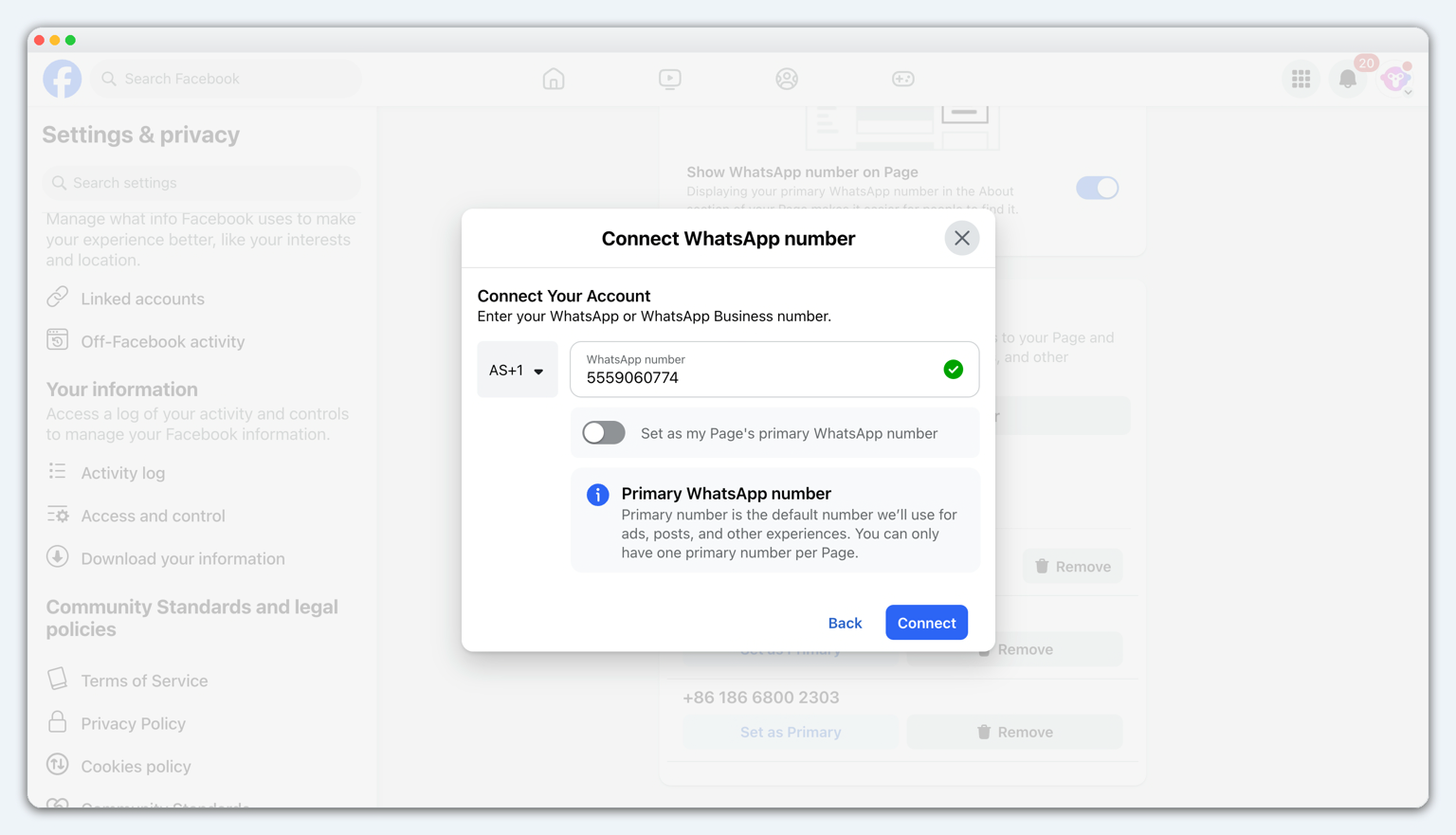
- If your WhatsApp account and ad account belong to the same BM, you can complete the connection directly
- If your WhatsApp account and ad account do not belong to the same BM, log in again to the BM account that owns the WhatsApp account, visit the Request page, and approve the connection request.
In addition, if you want to run ad campaigns on Instagram, you should also connect your Instagram account to the Facebook Page.
After completing the steps above, you can start setting up your first Click-to-WhatsApp ad.
Step 3: Set Up a Click-to-WhatsApp Ad in Facebook Ads Manager
1. Open Facebook Ads Manager
Go to your Facebook Ads Manager and click Create to start creating the ad.
2. Select the campaign objective
Please select Engagement.
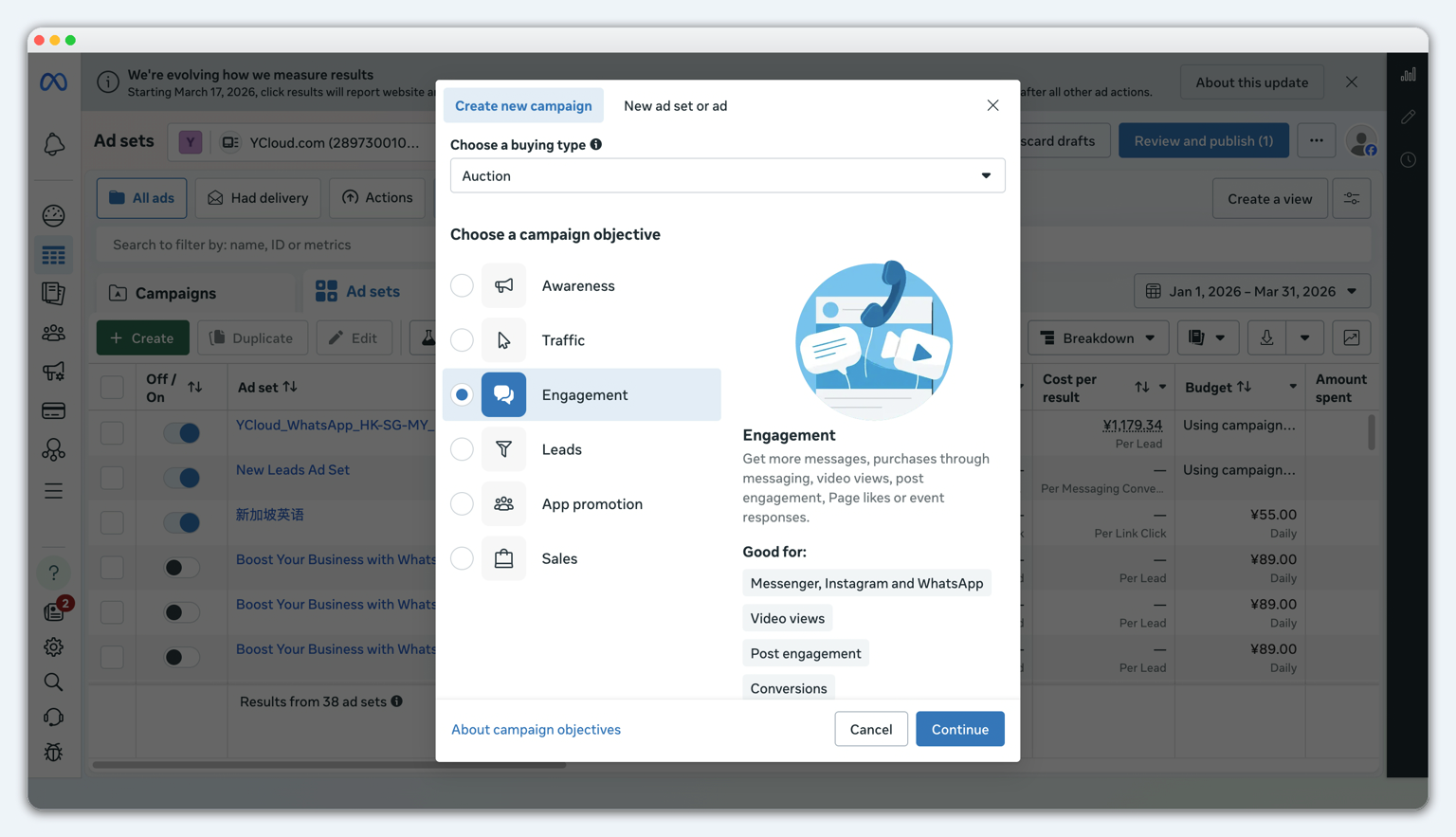
Then select Manual sales campaign.
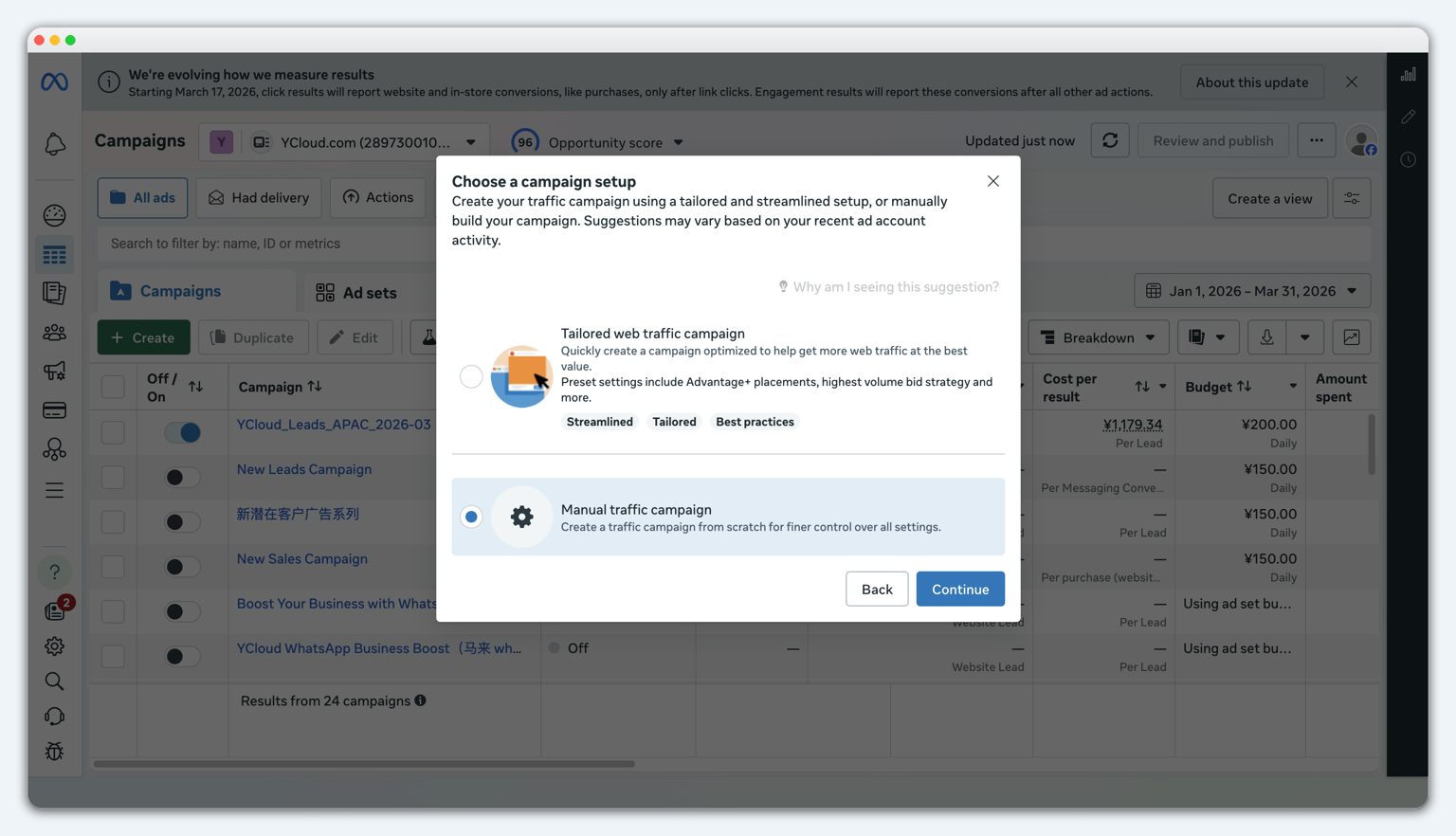
Click Continue
3. Fill in the basic campaign information
- Name your campaign
- Declare whether you have a special ad category, such as employment
- Define whether you want to A/B test the ad
- Note: In this step, you need to turn off Advantage+ catalog ads
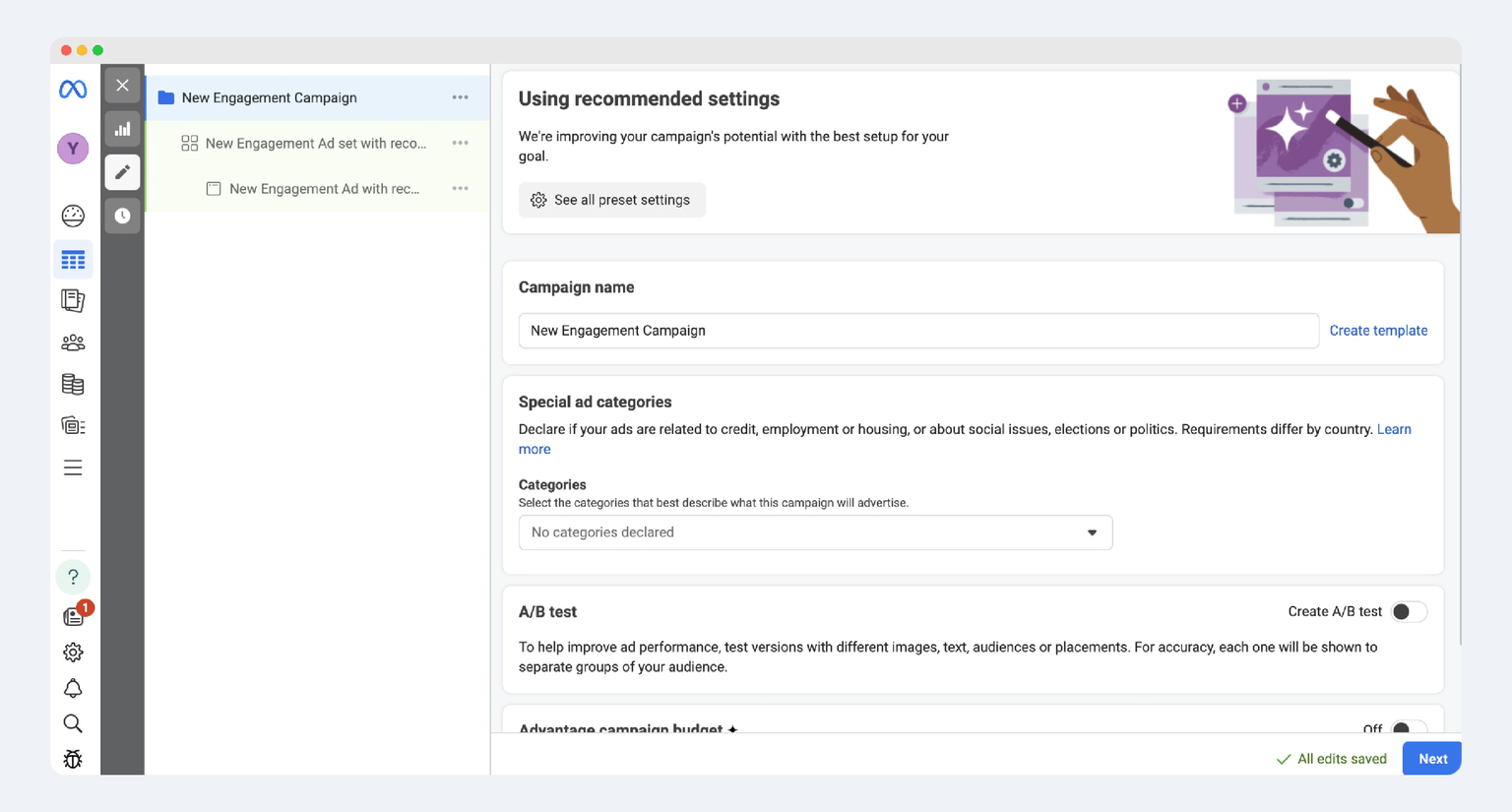
4. Fill in the ad set information
Configure the ad set as follows:
- Conversion location: Select Messaging destinations.
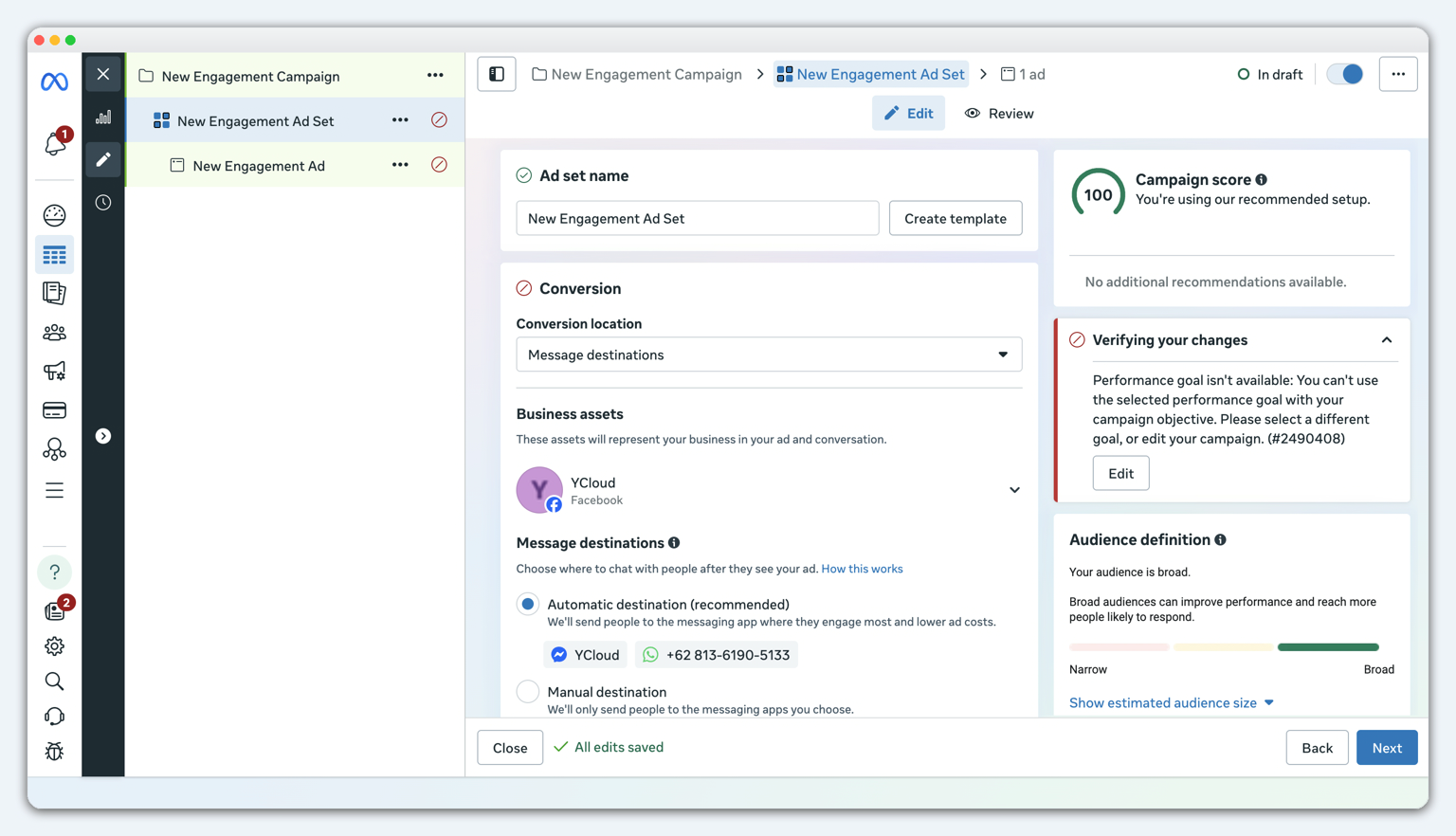
Only after completing Step 2, connecting the WhatsApp Business API account to your Facebook Page, will you see the WhatsApp number.
- Facebook Page: select the Facebook Page where you want to run the ad. Select Manual Destination
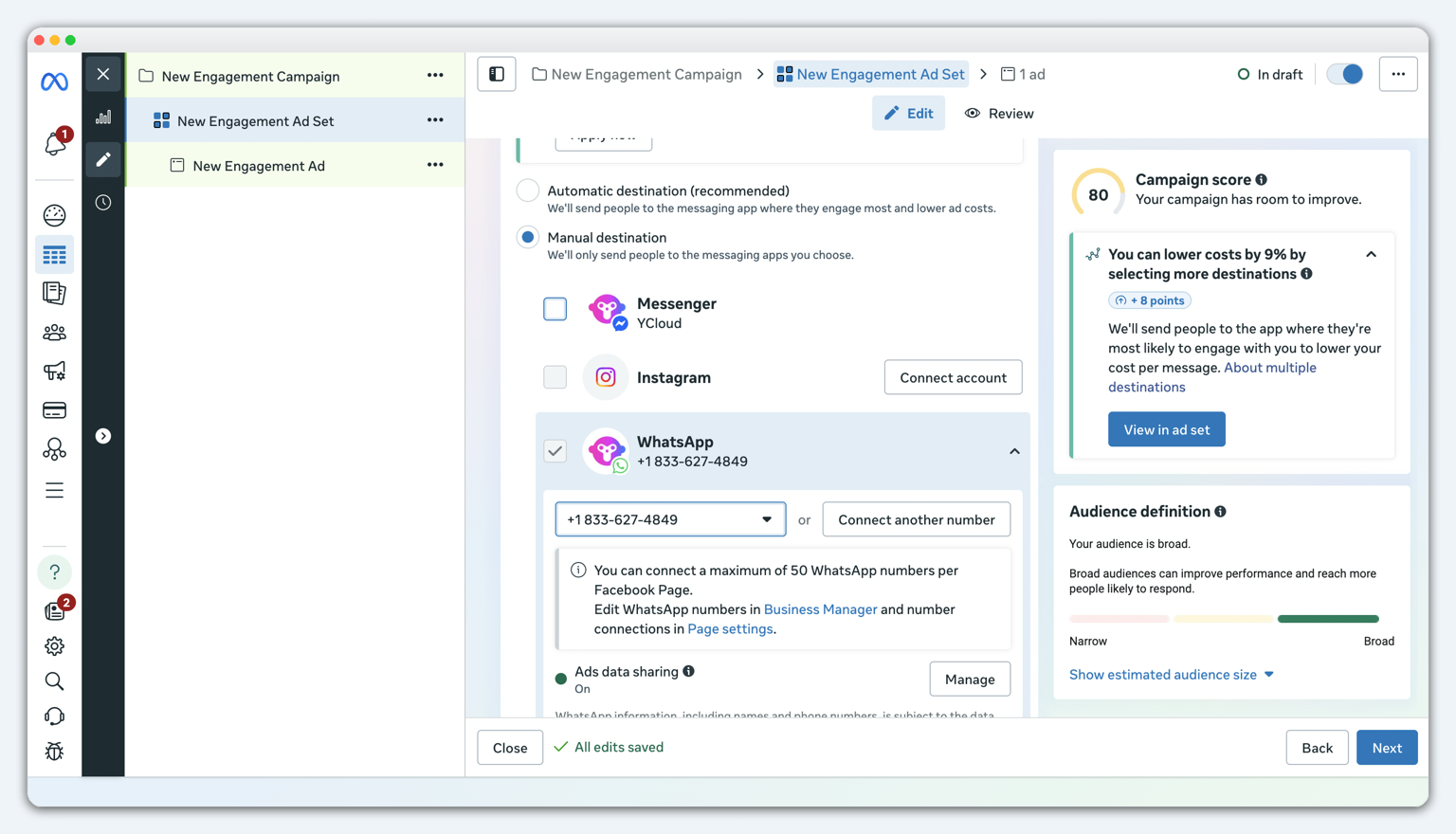
- Messaging Apps: select WhatsApp and the WhatsApp number, and do not select other messaging apps such as Messenger.
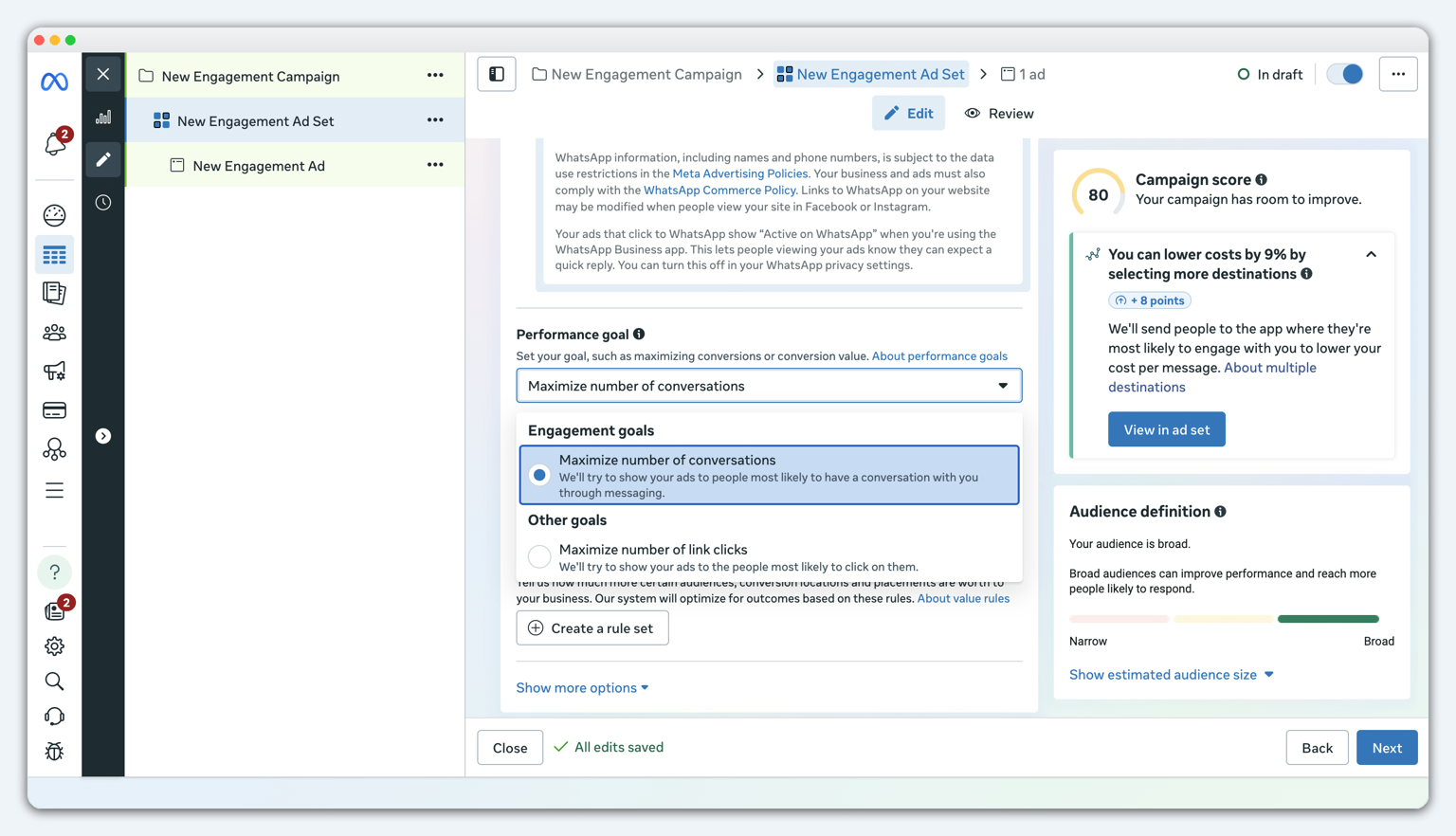
- Performance goal: select Maximize number of conversations.
- Placements: click show more settings, and select feeds
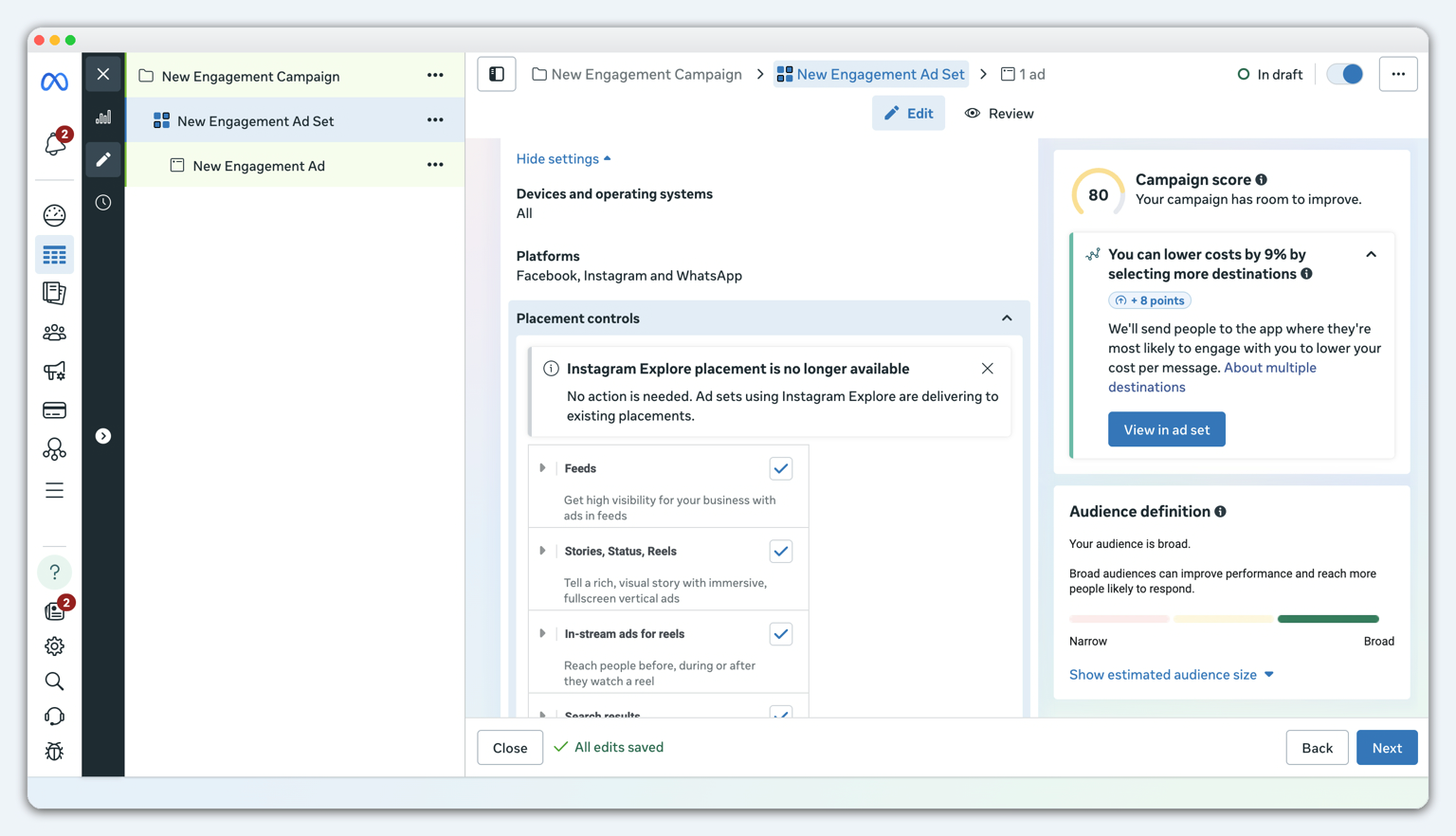
5. Select audience, placements, budget, and schedule
Based on your campaign objective, continue setting the audience, placements, budget, and schedule.
6. Set up the ad creative
When setting up ad creatives, you can refer to the following checklist:
- Adjust image sizes for different placements on Facebook and Instagram.
- If needed, convert a group of images into a video slideshow to improve click-through rate.
- Add primary text and headlines for the Click-to-WhatsApp ad. You can add multiple versions of primary text and headlines.
- Add an ad description to provide more context.
- Select a CTA button for the WhatsApp ad.
- Use advanced preview to check how the ad performs across different placements.
7. Create and preview message templates
In the ad creative settings, click New to create a message template. Message templates are used to define how users can start the first message more quickly after clicking the ad and entering WhatsApp.
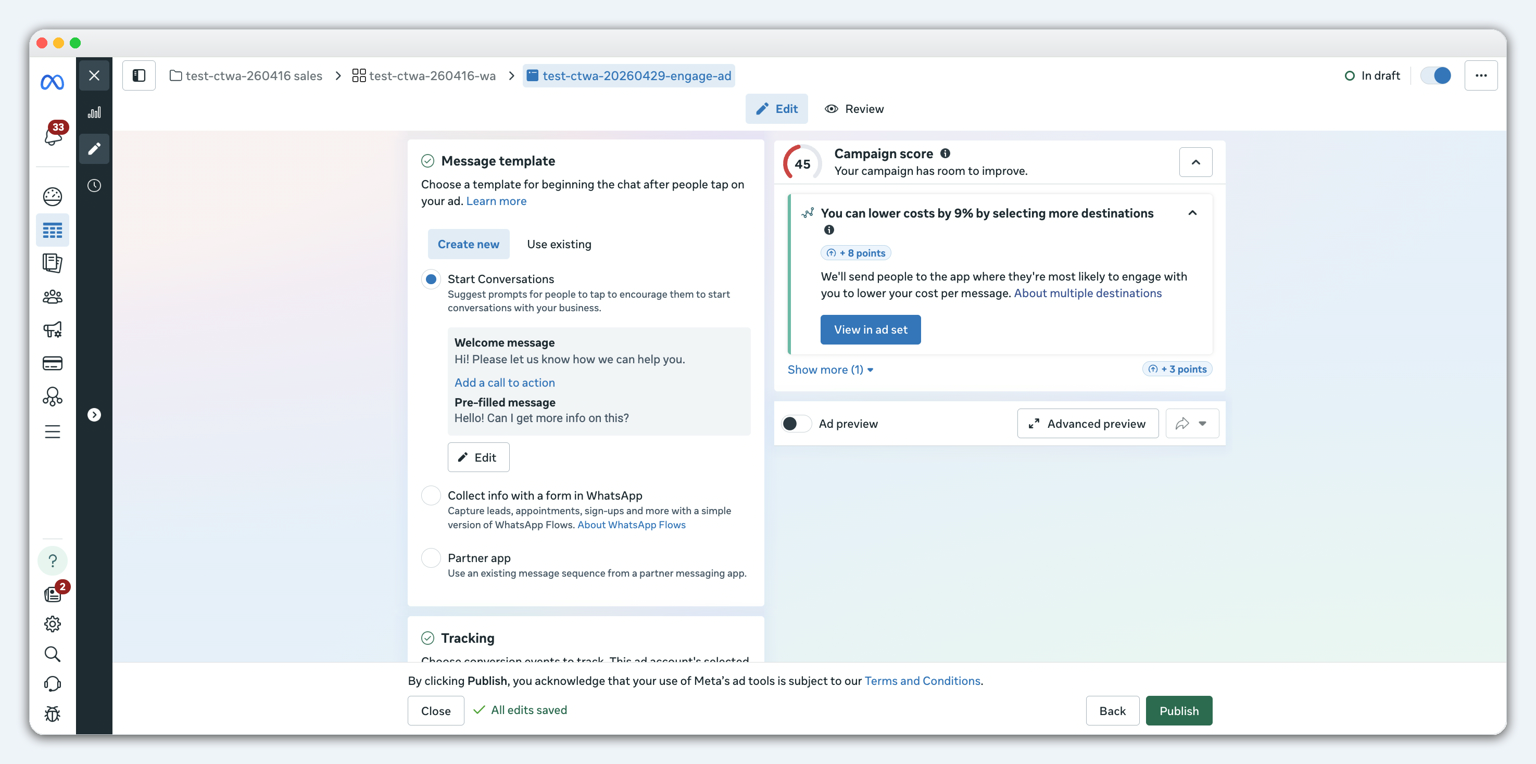
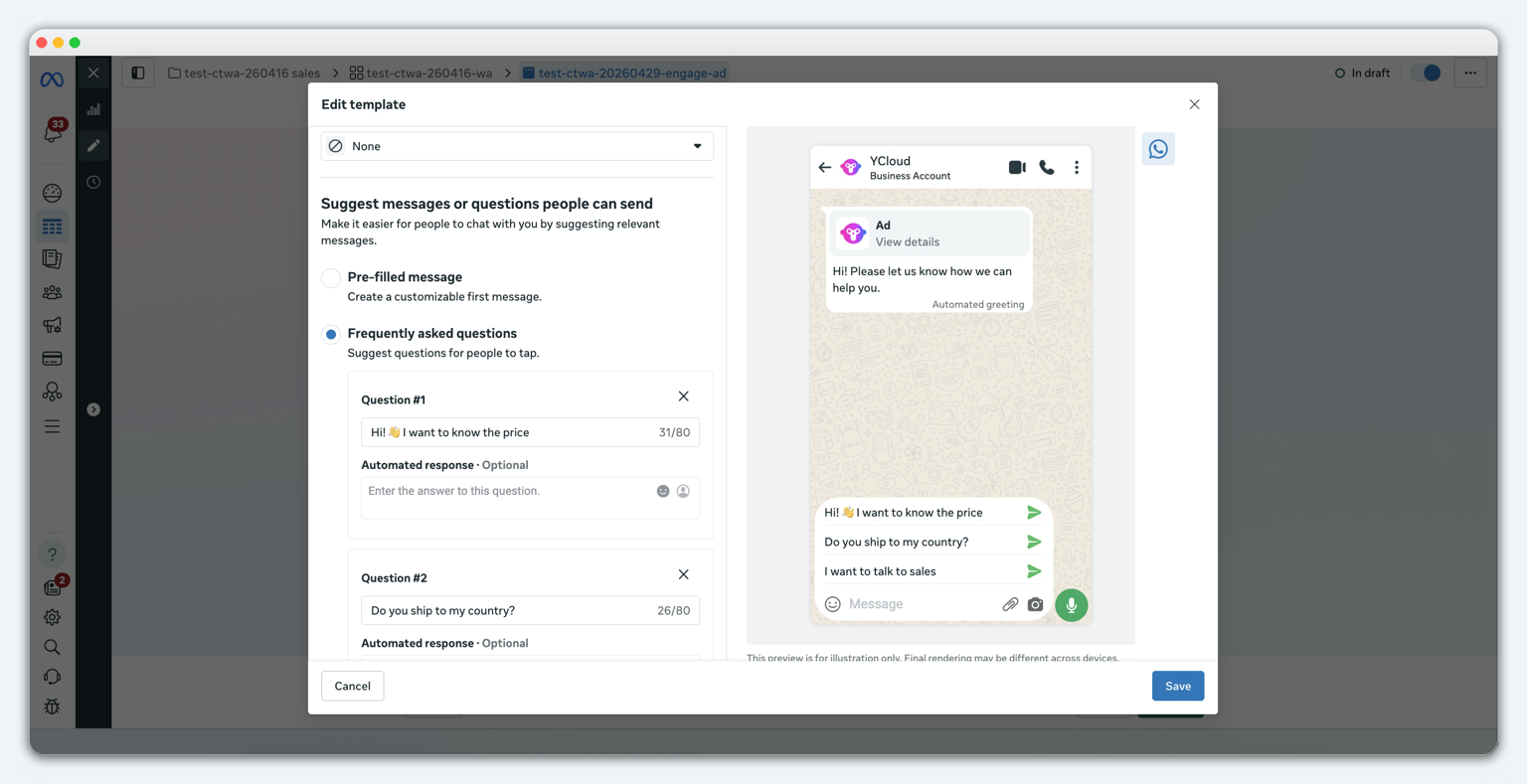
There are 2 common options:
- Frequently asked questions: show several questions that users can click to send.
- Pre-filled message: pre-fill a piece of text in the WhatsApp input box. Users can send it directly, or they can edit it before sending.
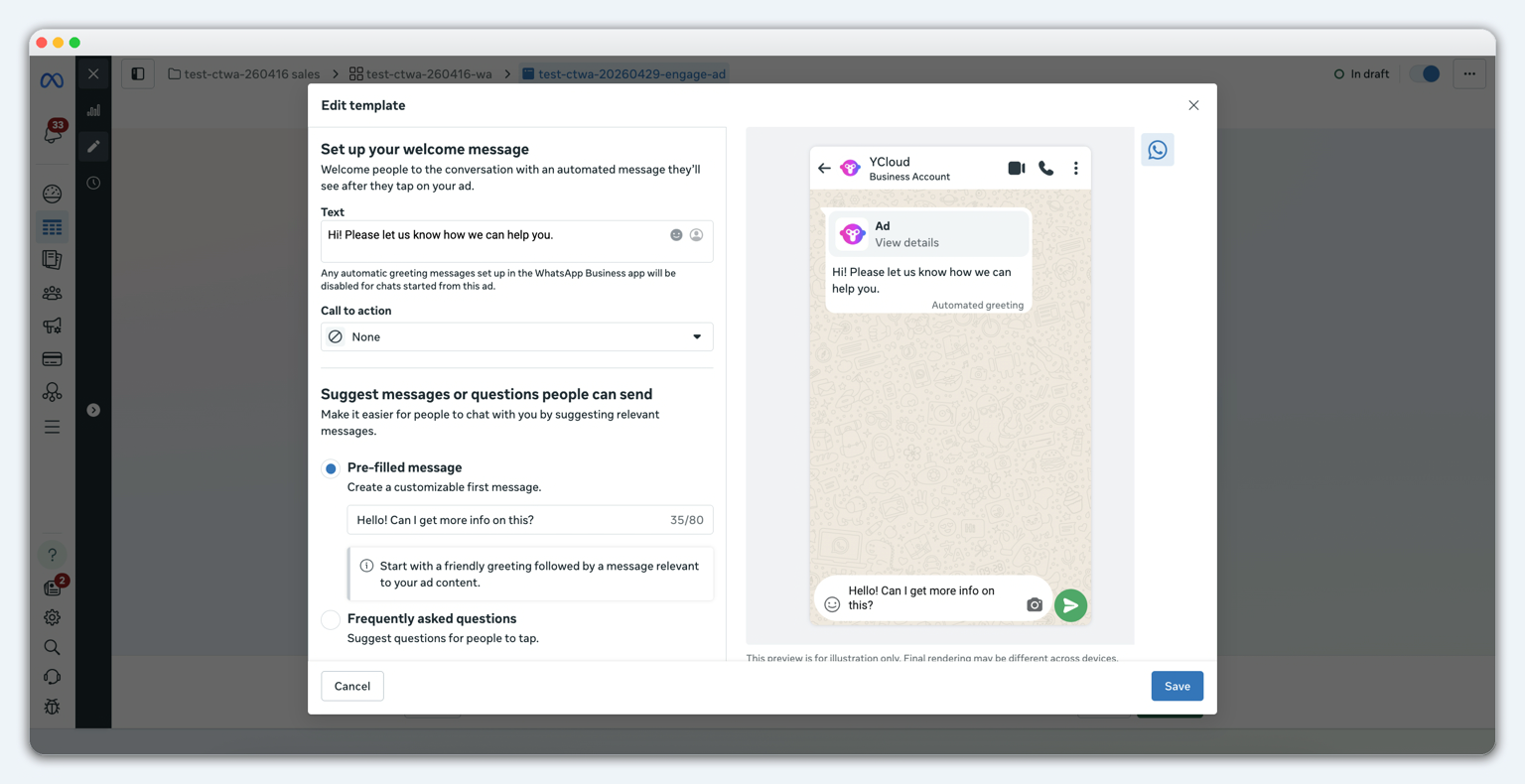
Before publishing, it is recommended to use the preview feature to check the WhatsApp opening experience users will see after clicking the ad.
8. Publish the ad
After completing the setup, submit the ad for review. After Facebook approves it, the ad will start delivering according to the audience, budget, and schedule you set.
Watch this tutorial to learn how to set up Click to WhatsApp Ads (CTWA)
Also, learn how to handle these leads from CTWA and how to track their conversion data
Next, let’s understand why businesses choose YCloud for running and managing Click-to-WhatsApp Ads.
Why Run Click-to-WhatsApp Ads with YCloud?
Generating a WhatsApp conversation is only the beginning. You still need to respond, qualify the lead, track its source, and measure whether it converts.
YCloud connects these steps in one CTWA workflow. It helps you:
- Manage conversations centrally: Receive ad-driven enquiries and handle them through YCloud’s Shared Team Inbox.
- Track lead sources: Identify the campaign and ad that brought each contact to WhatsApp.
- Qualify leads automatically: Use AI Agents or chatbots to answer common questions, collect lead details, and route relevant enquiries to your team.
- Coordinate follow-ups: Assign conversations to sales or support agents while keeping the chat history and lead context accessible.
- Report conversions to Meta: Use Conversions API to send configured lead or purchase events back to Meta for better attribution and campaign optimization.
- Review campaign performance: Monitor ad activity, leads, and conversion events to understand which campaigns generate meaningful results.
- Re-engage interested leads: Segment opted-in contacts and follow up with relevant reminders, offers, or information through WhatsApp campaigns.
Meta Ads Manager creates and delivers your Click-to-WhatsApp Ads. YCloud helps you manage and optimize what happens after someone clicks.
Next, let’s look at the tips for running high-converting Click-to-WhatsApp Ads.
Tips for Running High-Converting and Successful Click-to-WhatsApp Ads
Knowing how to run Click-to-WhatsApp Ads is not enough. The campaign must attract the right users and move them smoothly from the ad to the next step on WhatsApp.
1. Optimize for the Right Outcome
Choose a campaign objective based on your actual goal: conversations, qualified leads, or purchases. The cheapest conversation is not necessarily the most valuable one.
2. Target Users with Relevant Intent
Build audiences around customer location, interests, behaviour, and purchase intent. You can also test lookalike audiences and retarget people who have already engaged with your business.
3. Give People a Clear Reason to Message
Your copy should explain what users will receive after clicking the ad. Use specific CTAs such as:
- “Message us for a custom quote”
- “Check availability on WhatsApp”
- “Book your consultation”
- “Chat to claim the offer”
4. Design Creatives for Mobile
Use clear images or short videos that communicate one message quickly. Adapt the creative to each placement and keep important text visible on smaller screens.
Customer reviews, product demonstrations, and real use cases can also make the ad more credible.
5. Test and Rotate Your Creatives
Run three or four variations of your visuals, headlines, and CTAs. Test one major element at a time, identify what works, and refresh underperforming creatives before fatigue affects results.
6. Continue the Ad Experience on WhatsApp
The pre-filled message and welcome flow should match the ad. If the ad promises a quote, users should immediately see questions or options that help them request that quote.
7. Respond and Qualify Leads Quickly
Use YCloud AI Agents or chatbots to welcome users, answer common questions, and collect essential details. Keep qualification short and transfer sales-ready or complex enquiries to a human agent through Inbox.
8. Follow Up Based on User Intent
Not every user will convert during the first conversation. Segment opted-in leads by their ad source, interests, and funnel stage before sending relevant reminders or offers through WhatsApp campaigns.
9. Measure Business Results, Not Just Chats
Track metrics such as:
- Click-through rate
- Cost per conversation
- Response time
- Qualified lead rate
- Cost per qualified lead
- Bookings or purchases
- Customer acquisition cost
- Return on ad spend
YCloud can also report eligible lead and purchase events to Meta through CAPI. This helps you identify which CTWA campaigns contribute to meaningful business outcomes.
Also Read: 20 Proven WhatsApp Lead Generation Strategies to Generate 1000s of Leads Per MonthNext, let’s see how to get started with YCloud.
How To Get YCloud?
Kindly click on the banner below to book a FREE DEMO and learn more about our product offering, features and pricing plans.
Built with AI at its core, YCloud is the ultimate WhatsApp marketing and automation solution, giving you everything you need in one powerful platform.
Now market, sell, support, and scale your business by 10X with YCloud!
Ready to try? Explore how to get YCloud for FREE next!
How to Get YCloud for FREE?
It's Simple!
Subscribe to our FREE plan and get a free lifetime experience of YCloud with unlimited messaging API.
Book a FREE Demo and see how YCloud can power up your WhatsApp marketing strategy!
🚀 Try YCloud today and experience how effortless WhatsApp automation can be when you have the right partner.
Next, let’s wrap up the key takeaways from this guide.
Ready to Launch Your First CTWA Campaign?
Click-to-WhatsApp Ads bring interested users into a direct conversation. What happens after the click determines whether those conversations become qualified leads and customers.
YCloud helps you manage the complete journey, from automated responses and lead qualification to team follow-ups, attribution, and conversion reporting.
Ready to get started?
Sign up for YCloud and build your first CTWA workflow.
Still have questions? Find the answers in the FAQs below.
Frequently Asked Questions
Things to pay attention to when creating the ad?
✅ Correct settings
- For delivery devices, only select: app (iOS devices or Android devices).
- Ad placements: deliver to feed, Facebook, and IG placements.
❌ Do not do this
- For delivery devices, do not select web or PC. Ad parameters will be lost. CTWA ads are designed for app users.
- Ad placements: do not deliver to Reels and Stories placements. Ad attribution failure may occur. Meta is currently fixing this.
What are Click-to-WhatsApp Ads?
Click-to-WhatsApp Ads are ads that take users directly into a WhatsApp conversation with a business. After clicking the CTA, users can send a pre-filled message or write their own enquiry.
Are Click-to-WhatsApp Ads displayed inside WhatsApp?
NO! CTWA campaigns generally appear across Meta placements such as Facebook and Instagram and open a WhatsApp chat when clicked.
They are different from Ads in Status, which can appear in the WhatsApp Updates tab in supported markets. Meta states that these ads remain separate from personal chats, which continue to be ad-free.
What do I need to create Click-to-WhatsApp Ads?
You need:
- An active Meta ad account with a valid payment method
- A Facebook Page
- A WhatsApp Business number
- Permission to manage the relevant Page and ad account
- An Instagram professional account if you want to use Instagram placements
Your Facebook Page must also be connected to the WhatsApp number receiving the enquiries.
Do I need the WhatsApp Business API to run CTWA?
Not necessarily. Small businesses with basic requirements can run ads using the WhatsApp Business App.
However, the WhatsApp Business API is better suited to businesses that need AI Agents, chatbots, multi-agent access, automated qualification, CRM integration, or advanced conversion tracking.
How do I create CTWA campaigns on Facebook and Instagram?
Open Meta Ads Manager and create a campaign using a compatible objective. Select Messaging destinations as the conversion location and WhatsApp as the destination.
Then choose your Facebook Page and WhatsApp number, set the audience and budget, upload the creative, configure the opening message, and publish the ad.
How much do Click-to-WhatsApp Ads cost?
There is no fixed CTWA cost. Your spending depends on the budget, audience, placement, competition, and bidding strategy you select in Meta Ads Manager.
The ad itself is not free. However, when a customer messages your business through an eligible CTWA ad, Meta opens a 72-hour free entry-point messaging window. WhatsApp messaging charges may apply after that window.
Can responses from CTWA campaigns be automated?
Yes. With YCloud, you can use AI Agents or chatbots to welcome users, answer FAQs, collect lead information, and route relevant enquiries to sales agents.
Your team can then manage conversations and follow-ups through YCloud Inbox.
How can I track which CTWA campaigns generate conversions?
Meta Ads Manager shows metrics such as reach, clicks, conversations, and ad spend. However, these metrics do not always show whether a conversation became a qualified lead or customer.
YCloud records ad-source information and helps you track leads and conversion events. You can also use Meta Conversions API to report eligible lead or purchase events back to Meta.
Why is my WhatsApp number not appearing in Ads Manager?
Common reasons include:
- The WhatsApp number is not connected to the selected Facebook Page
- You do not have the required permissions
- The wrong Page or Business Manager is selected
- A connection request between business accounts is still pending
- The WhatsApp account setup has not been completed
Confirm the account connections and permissions before creating the ad again.
What should I do if my CTWA campaign is underperforming?
Review the complete journey rather than changing the budget immediately. Check your audience, offer, creative, CTA, opening message, response time, and lead qualification flow.
Test one major element at a time and measure results using qualified leads, cost per qualified lead, purchases, and return on ad spend, not conversations alone.
Related Articles

Make your business communications much easier!


Trusted by