How to Create Meta Click to WhatsApp Ads (CTWA) with YCloud

Team YCloud

Team YCloud

·

August 20, 2026

·

20 min read

·

Guide📘

How to Create Meta Click to WhatsApp Ads (CTWA) with YCloud

 
In this article, we’ll help you understand the prerequisites, key account relationships, and the full setup flow for Meta CTWA ads.
 
After completing this setup, you will be able to run Facebook or Instagram ads that send users directly to WhatsApp, bring leads into conversation faster, and use YCloud to receive leads, report conversion events, and review ad performance.
 
 
If you are not familiar with CTWA yet, we recommend reading this first: CTWA Introduction


What Are Meta Click-to-WhatsApp Ads (CTWA)?

Meta CTWA ads are ads shown on Facebook or Instagram that let users click a CTA and go directly into a WhatsApp conversation with your business.
 
For businesses, the value of this format is not just getting a click. The real value is that users can enter a conversation faster, while YCloud helps you handle the conversation, follow up with leads, and optimize later conversions.
 

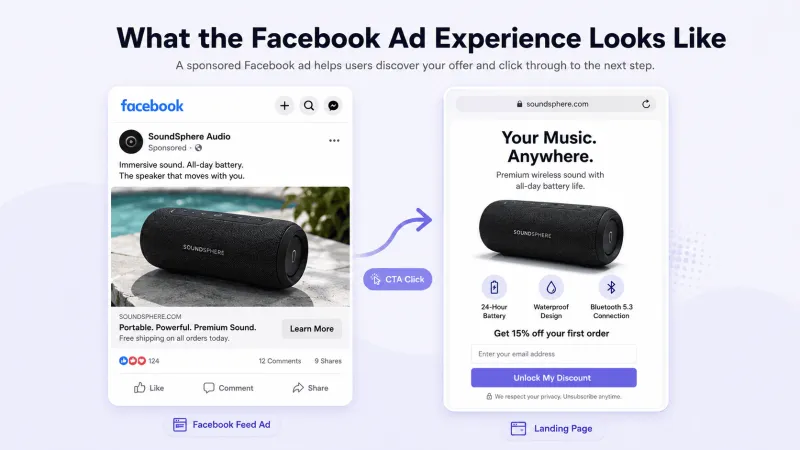
What the Ad Experience Looks Like

The illustration below shows how a user sees a Meta ad on Facebook or Instagram, clicks the CTA, and then starts a WhatsApp conversation with your business.
 

How to Create Meta Click to WhatsApp Ads (CTWA) with YCloud


Key Setup Relationships in the Meta Flow

In the Meta CTWA flow, the relationship between your ad account, Facebook Page, Instagram account, and WhatsApp Business Number directly affects whether the ad can be created and delivered successfully.
 
Before you begin, make sure these core assets are available:
  • A usable Meta ad account
  • A WhatsApp Business Number already connected to YCloud
  • A Facebook Page for ad delivery
  • The necessary permissions for the operator managing these assets


Account Relationships You Should Confirm Before Launch

In Meta CTWA, the required asset relationships vary slightly depending on where the ad will run.
 
PlacementRelationship to confirmNotes
FacebookThe Facebook Page is linked to the WhatsApp Business Number used for conversations✅When creating a Click to WhatsApp ad, the setup is based on the selected Facebook Page
InstagramThe Instagram professional account is connected to the corresponding Facebook Page,✅ and that Facebook Page is linked to the WhatsApp Business Number used for conversations ✅If the ad runs on Instagram, you need both the Instagram-to-Page relationship and the Page-to-WhatsApp relationship configured correctly


Prerequisites To Run Meta Ads with YCloud

Before moving into the formal setup, make sure the following accounts and assets are ready:
 

Meta-side Preparation

  • A usable Meta ad account
  • Permission to manage the target Business Manager, ad account, and Facebook Page
  • A Facebook Page for ad delivery
  • If you plan to run ads on Instagram, make sure the corresponding Instagram professional account is ready and available
 

YCloud-side Preparation

  • A YCloud account you can log in to normally
  • A WhatsApp Business Number already connected to YCloud
  • A sales or support team that can respond to WhatsApp inquiries in time
 
If you have not yet created and connected your WhatsApp business account in YCloud, you can start here: Create WABA via Embedded Sign-up
 

Setup Flow Overview

The full Meta CTWA setup can be divided into the following 3 stages:
  1. Connect your Meta ad account in YCloud
  2. Create a Click to WhatsApp ad in Meta Ads Manager
  3. Configure conversion reporting and review ad and conversion data in Meta and YCloud


Step-by-Step Process to Set Up Meta Click to WhatsApp Ads (CTWA) with YCloud

Step 1: Connect Your Meta Ad Account

Connecting your Meta Ad Account is a prerequisite for enabling CTWA.
 
After completing the steps on this page, you can connect the Meta ad account you plan to use for delivery in YCloud.
 
Only after the connection is successful can YCloud support later steps such as ad data viewing, conversion reporting, and performance analysis.
 

Before You Start

Before you begin authorization, please confirm that the following conditions are met:
  • You can log in to YCloud normally.
  • The currently logged-in Meta account has admin permissions for the target Business Manager and ad account.
  • You have confirmed which ad accounts need to be connected to YCloud this time.


Step 1: Start Authorization in YCloud

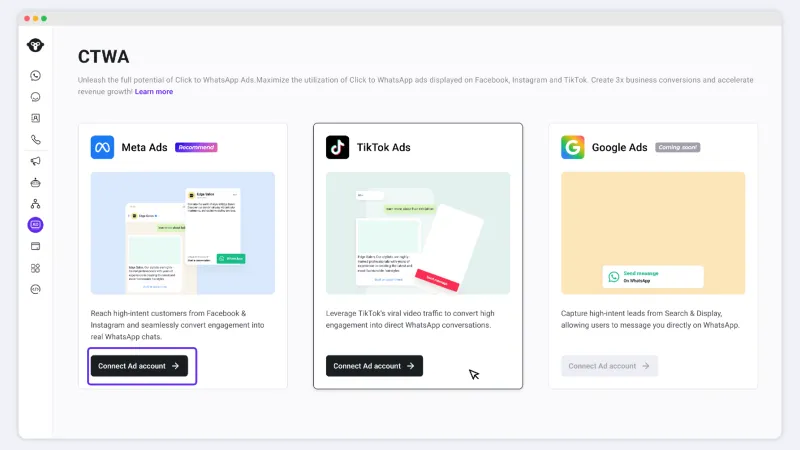
  1. Log in to YCloud and go to CTWA.
  2. Click Connect Ad Account (Meta Ads).

How to Create Meta Click to WhatsApp Ads (CTWA) with YCloud

 
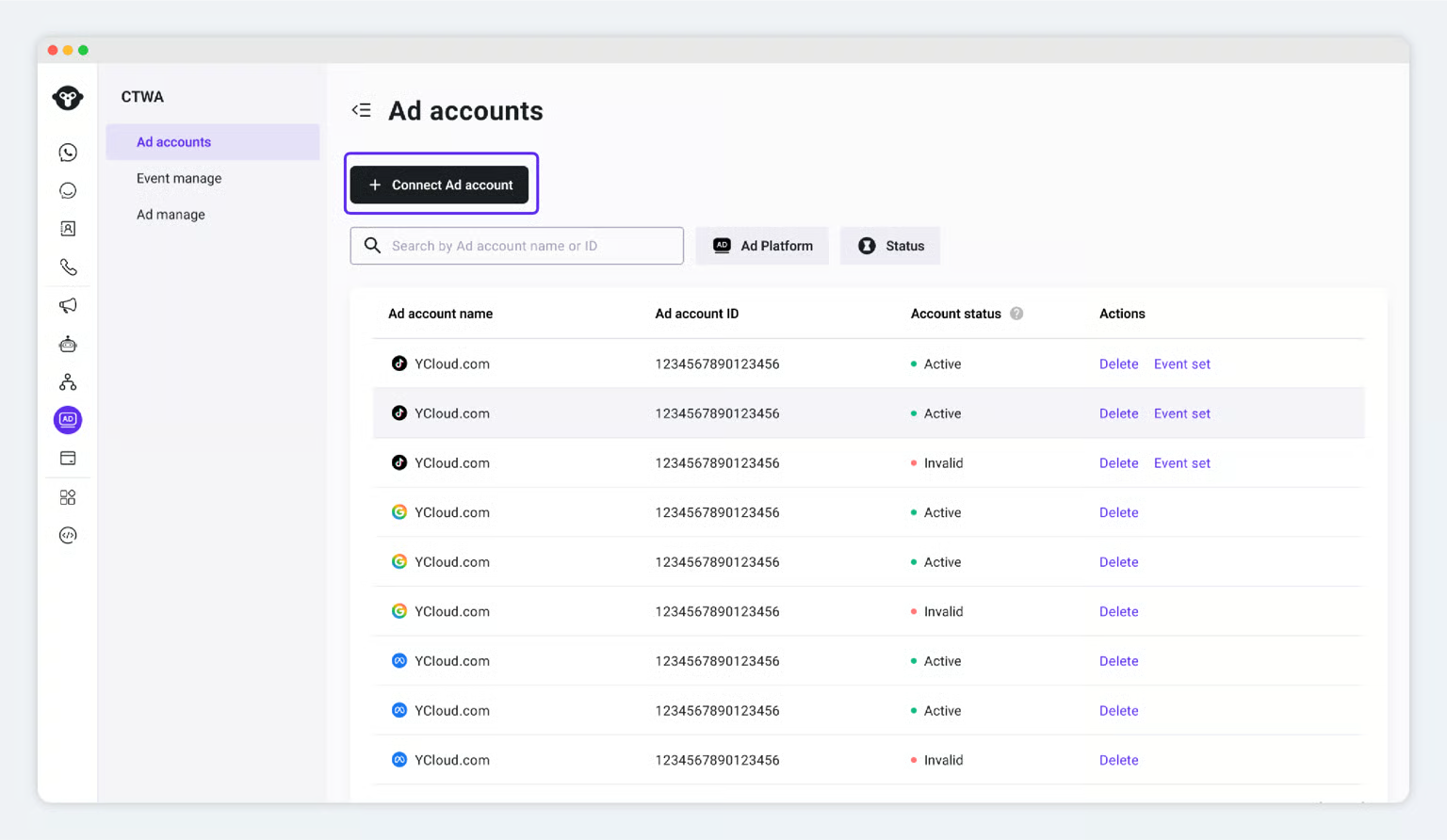
If you have already authorized at least one ad account, you can also go to CTWA > Ad Account and click Connect Ad Account to start a new authorization flow.
 

How to Create Meta Click to WhatsApp Ads (CTWA) with YCloud


Step 2: Complete Authorization on Meta

1. Log in to your Meta account
On the authorization page you are redirected to, log in with your Meta account.
 

How to Create Meta Click to WhatsApp Ads (CTWA) with YCloud


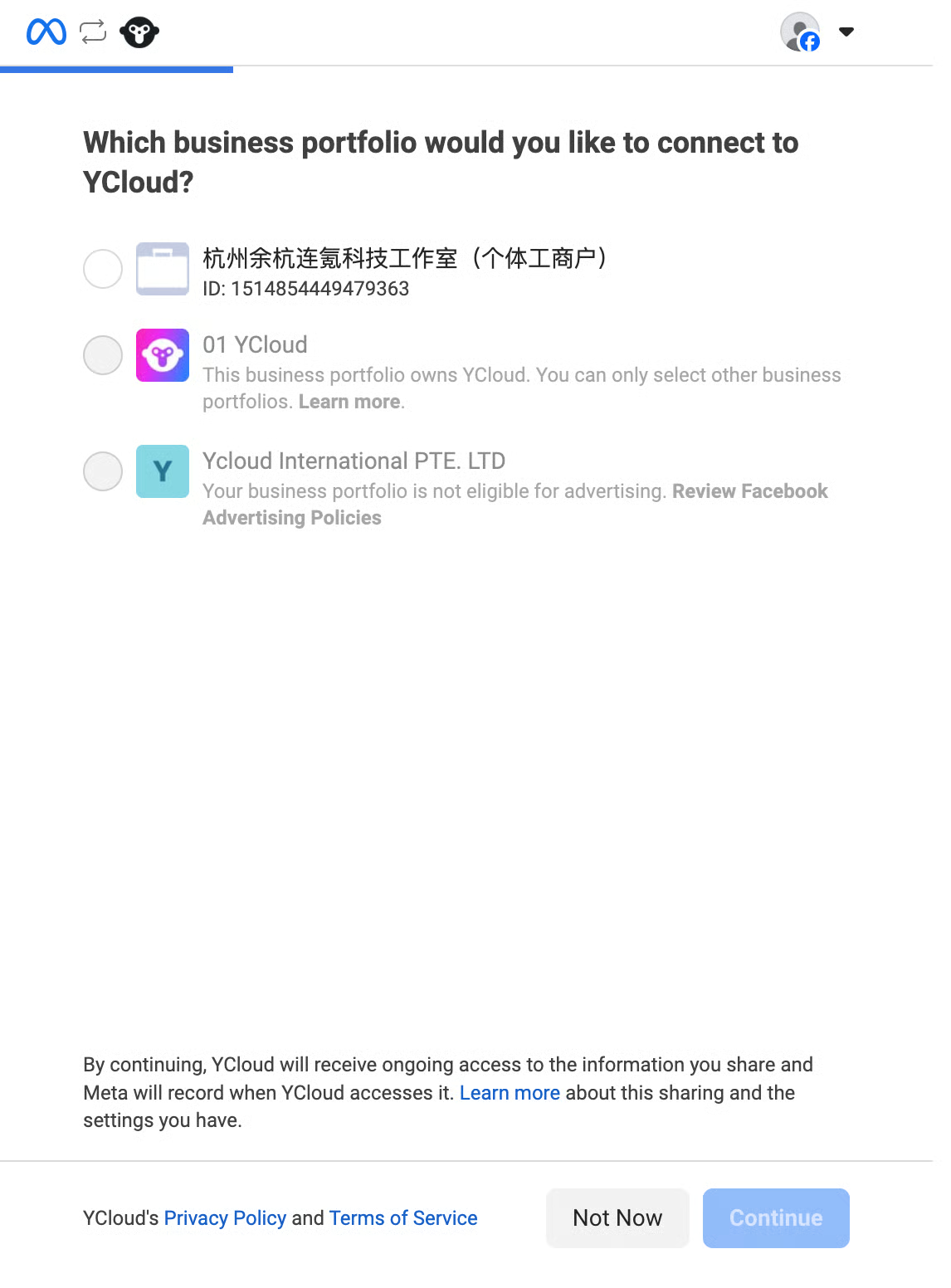
2. Select a Business Manager

Select the Business Manager you want to use this time, then click Continue.
 

How to Create Meta Click to WhatsApp Ads (CTWA) with YCloud


3. Select ad accounts and complete authorization
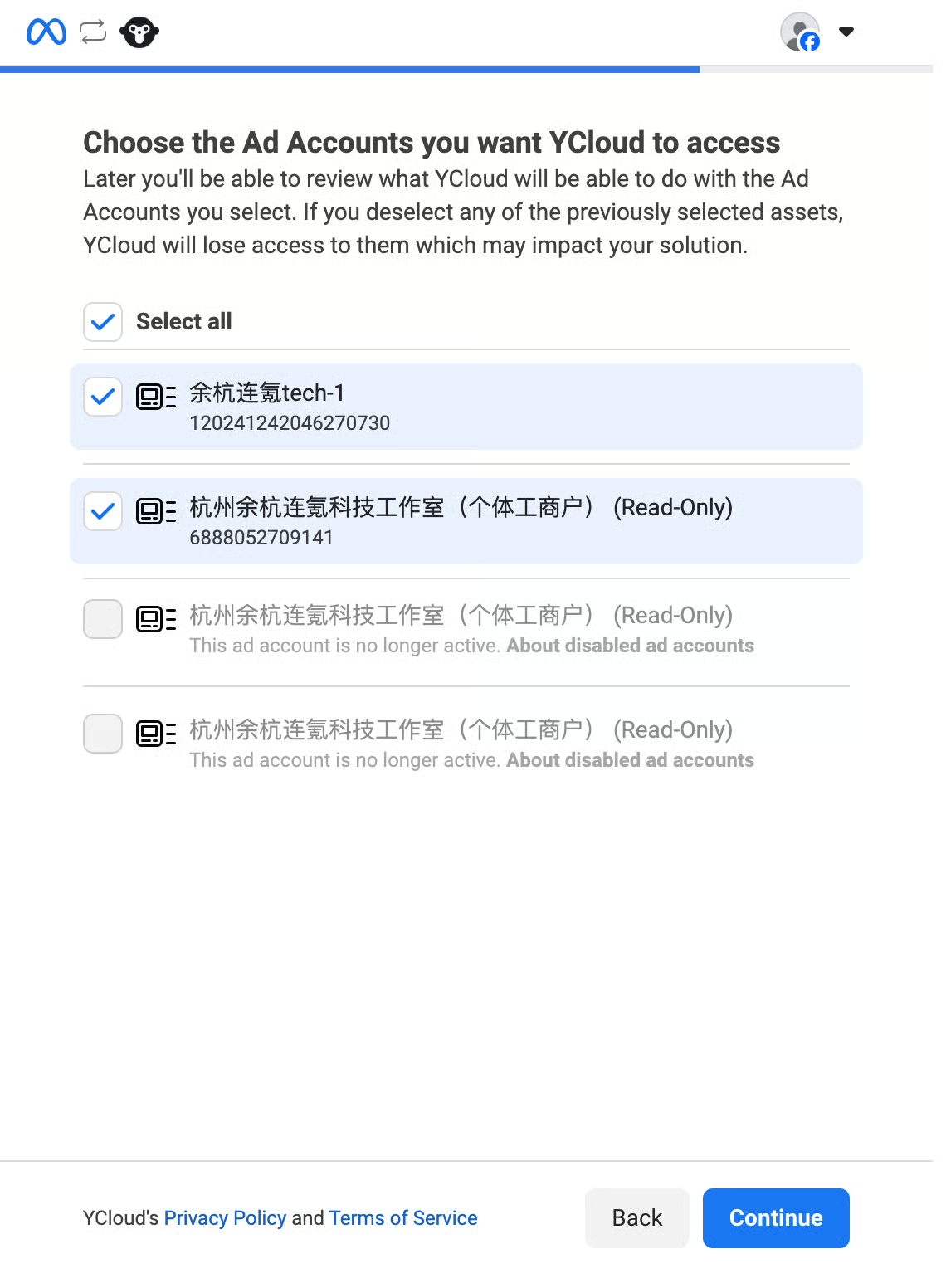
Under that Business Manager, select the ad accounts you want to authorize to YCloud. You can select multiple accounts as needed, then click Continue to complete authorization.
 

How to Create Meta Click to WhatsApp Ads (CTWA) with YCloud


If there are multiple ad accounts under the same Business Manager, we recommend that you:
  • Select only the target ad accounts that need to be connected to YCloud this time.
  • Do not uncheck ad accounts that are already selected by default.
If an ad account is already selected by default, it usually means that it has already been authorized to YCloud before. Only remove authorization if you are sure that this ad account will no longer be used later.


After authorization is complete, click Got it to return to YCloud.
 

Step 3: Confirm the connection is successful
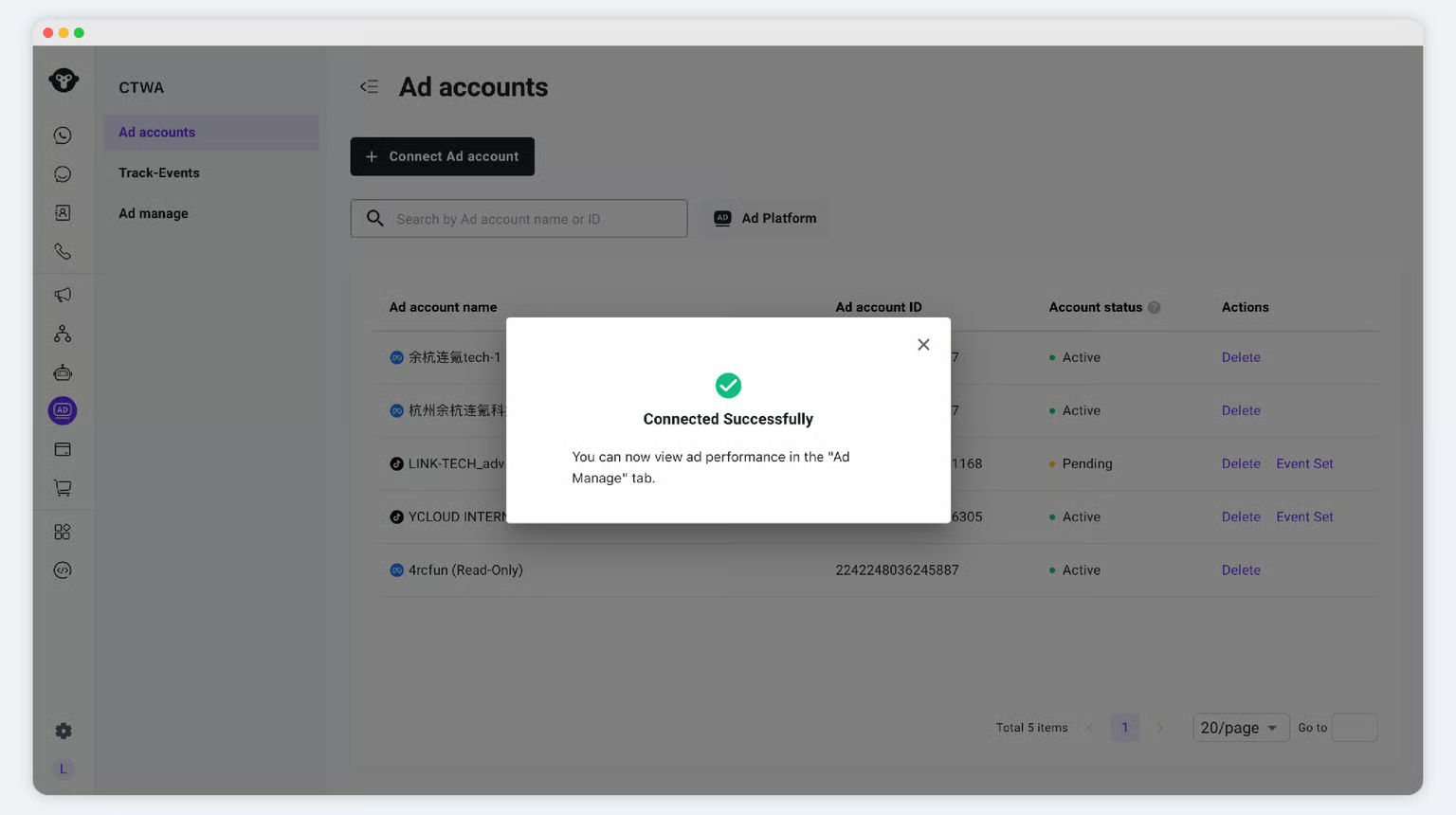
After you return to YCloud, the system will indicate that ad account authorization has been completed. You can view the list of authorized ad accounts on the Ad Account page.
 

How to Create Meta Click to WhatsApp Ads (CTWA) with YCloud

 
When the target ad account appears in the list, the connection is successful. Next, you can continue to create your ad and complete the remaining setup.
 
After your Meta ad account is authorized in YCloud, YCloud can read ad-related data and support later conversion reporting and data review.


Step 2: Create a Click to WhatsApp Ad

In Ads Manager, you will complete the ad objective selection, Page-to-WhatsApp setup, ad set configuration, and ad creative setup.
 
Learn the simple steps to set up your first Click-to-WhatsApp(CTWA) ad campaign.
 
Learn how to set up your first Click-to-WhatsApp ad campaign.
 
After following this guide, users can click a Facebook or Instagram ad and directly enter WhatsApp to start a conversation with your business.
 

Step 1: Create a WhatsApp Business API Account through YCloud

You cannot use a personal WhatsApp number to receive ad traffic. Before creating a Click-to-WhatsApp ad in Ads Manager, please first create a WhatsApp Business API account through YCloud.
 
👇 Learn how to create a WhatsApp Business API account


Step 2: Connect the WhatsApp Business API Number to a Facebook Page
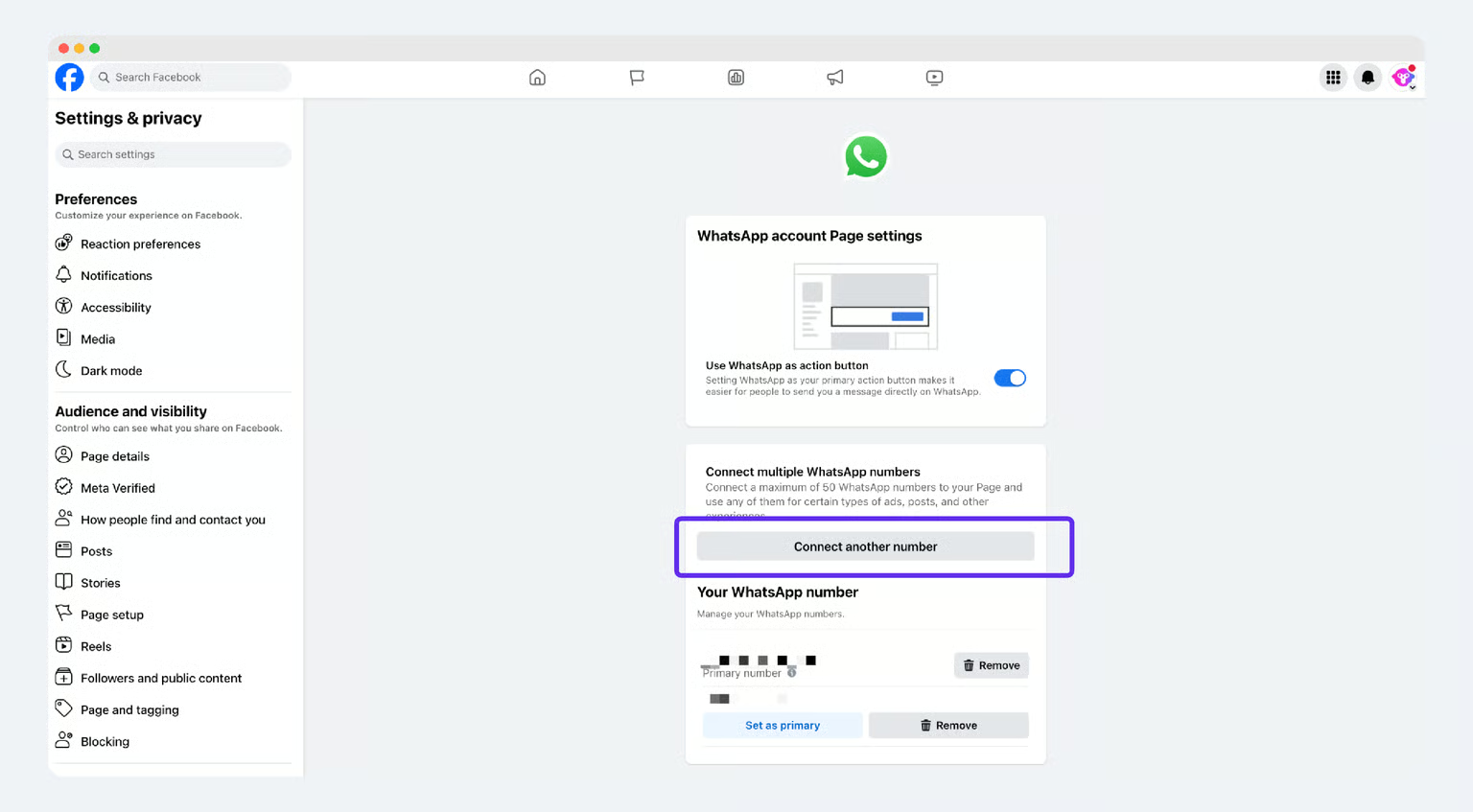
Meta requires a Facebook Page to be connected to a WhatsApp API account before you can create a Click-to-WhatsApp ad.
 

How to Create Meta Click to WhatsApp Ads (CTWA) with YCloud

 
  1. Make sure you have admin access to this Facebook Page.
  2. Go to the Facebook Page and click the left-side menu > Settings > Linked accounts > WhatsApp
  3. Link a WhatsApp number - select the country or region code, enter the WhatsApp Business API number you want to connect, and click Continue
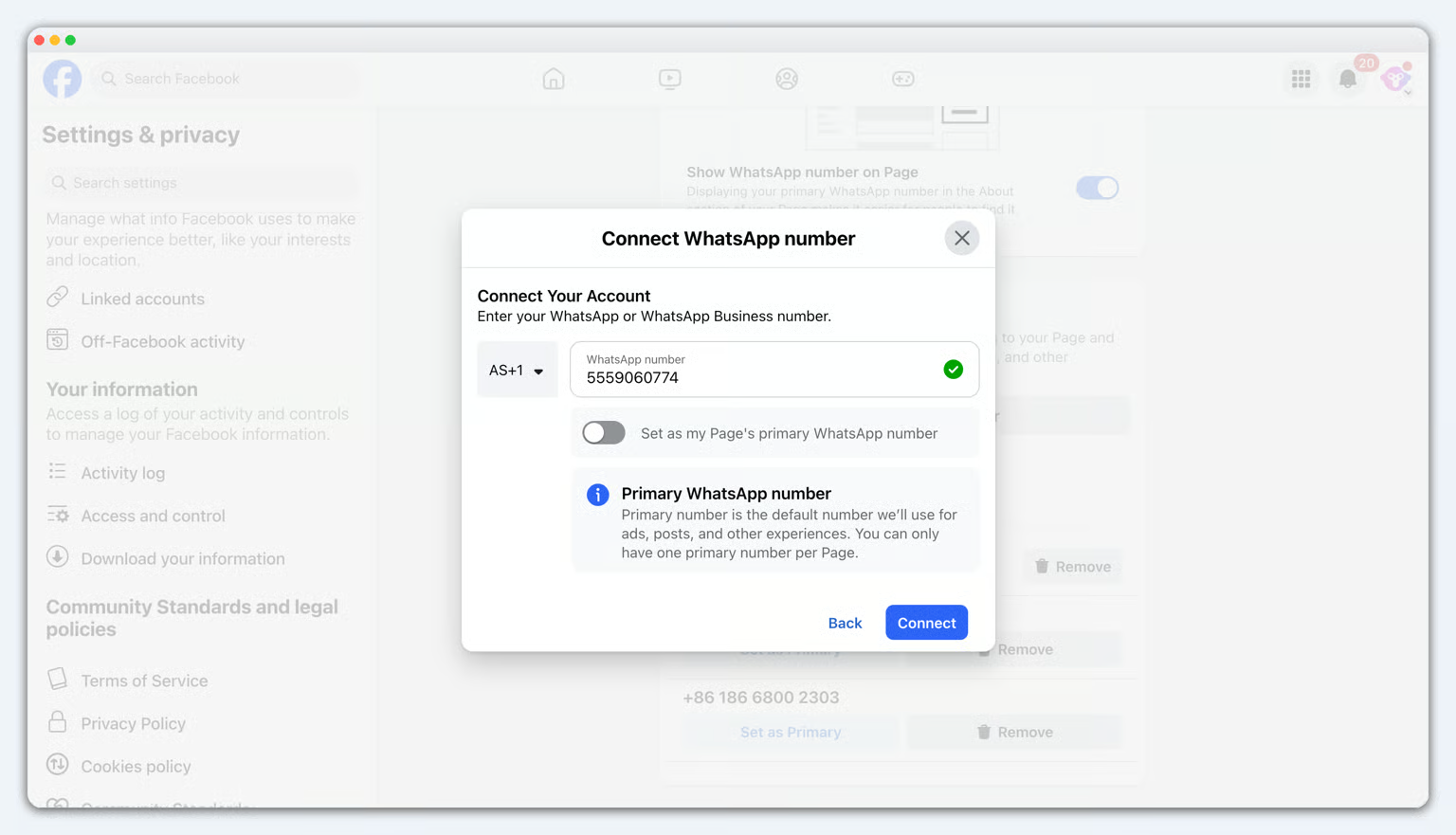
How to Create Meta Click to WhatsApp Ads (CTWA) with YCloud


  • If your WhatsApp account and ad account belong to the same BM, you can complete the connection directly
  • If your WhatsApp account and ad account do not belong to the same BM, log in again to the BM account that owns the WhatsApp account, visit the Request page, and approve the connection request.
 
In addition, if you want to run ad campaigns on Instagram, you should also connect your Instagram account to the Facebook Page.
 
After completing the steps above, you can start setting up your first Click-to-WhatsApp ad.
 

Step 3: Set Up a Click-to-WhatsApp Ad in Facebook Ads Manager
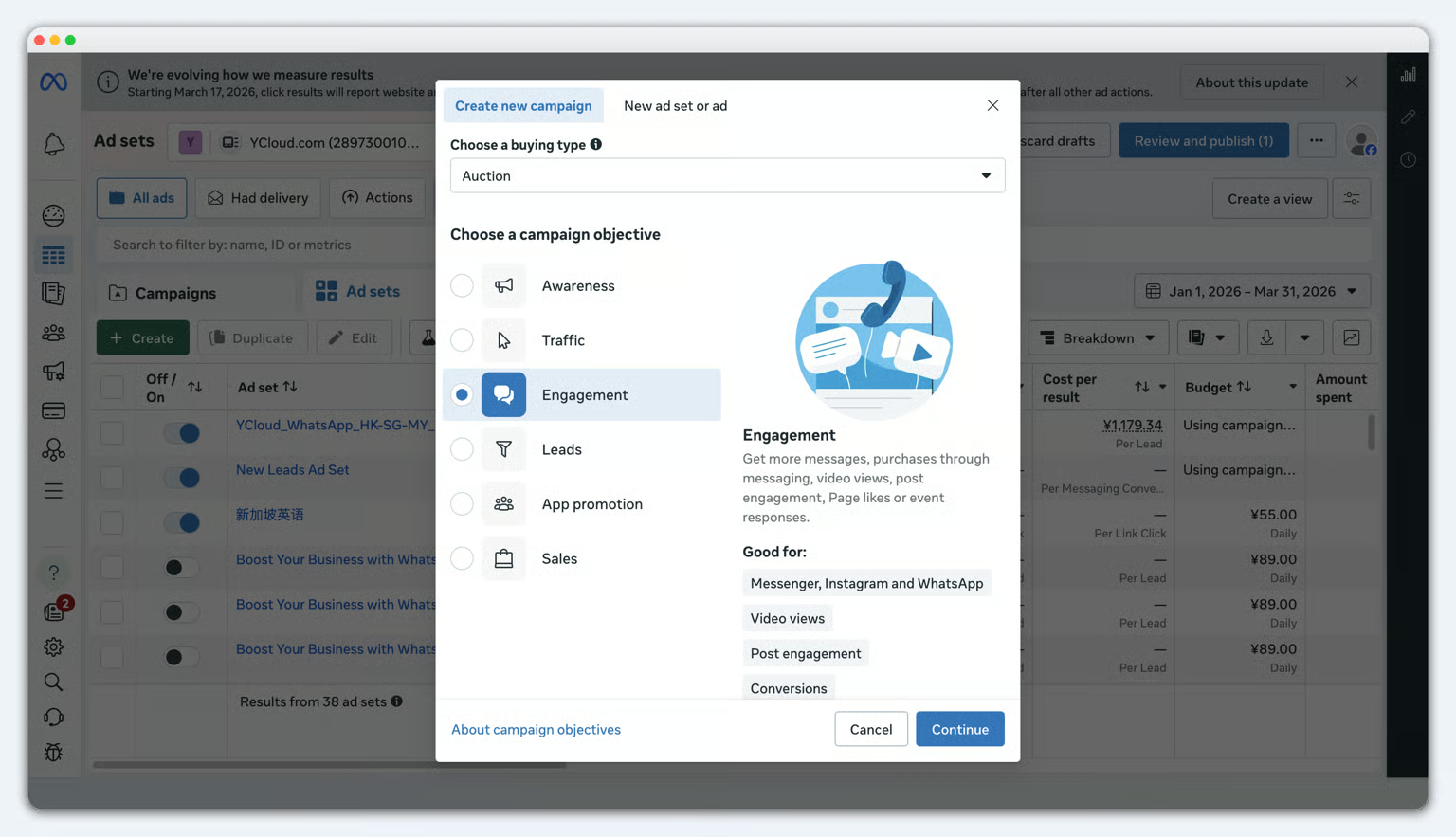
1. Open Facebook Ads Manager
Go to your Facebook Ads Manager and click Create to start creating the ad.
 
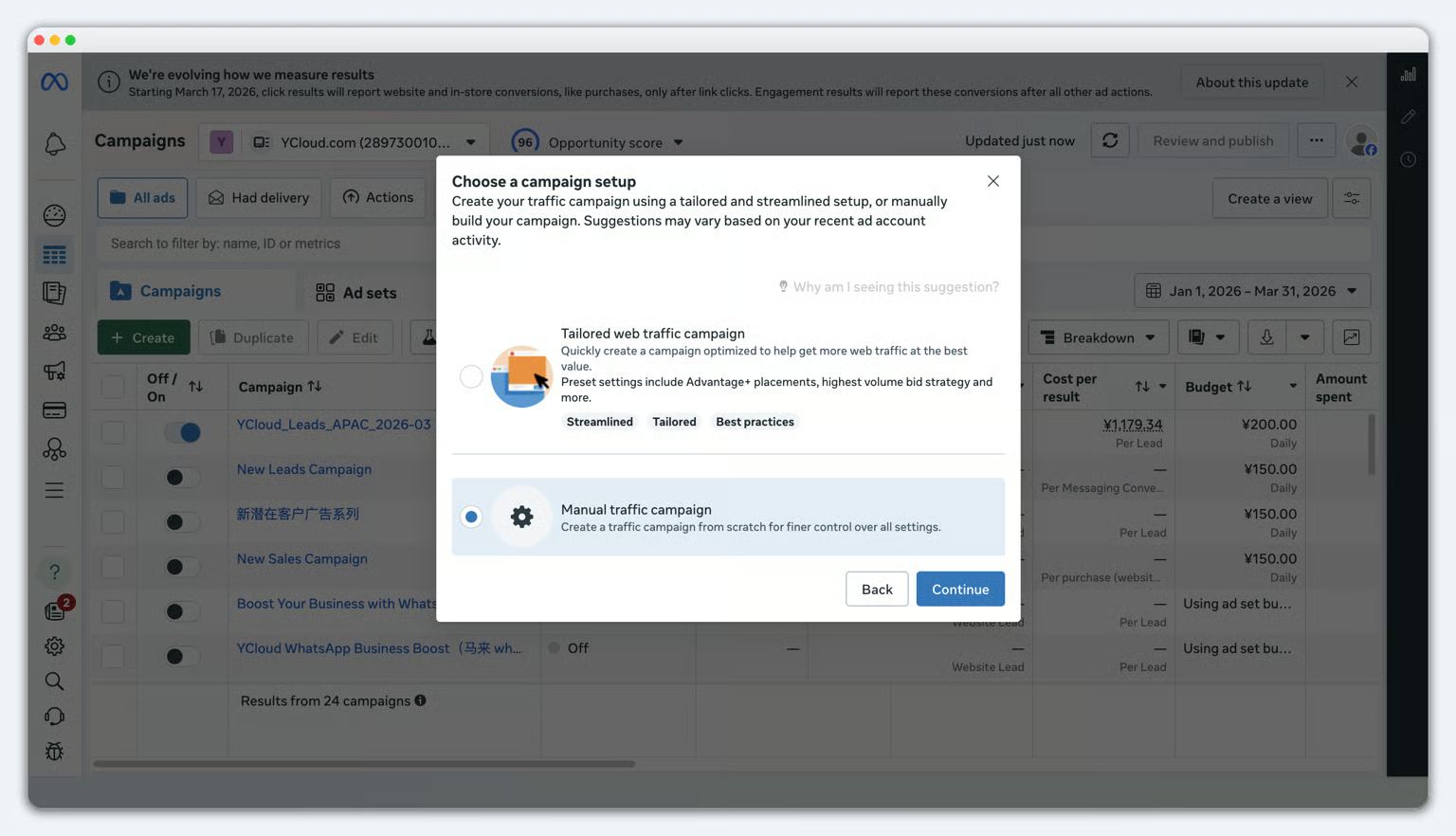
2. Select the campaign objective
Please select Engagement.
 

How to Create Meta Click to WhatsApp Ads (CTWA) with YCloud

 
Then select Manual sales campaign.
 

How to Create Meta Click to WhatsApp Ads (CTWA) with YCloud

 
Click Continue
 
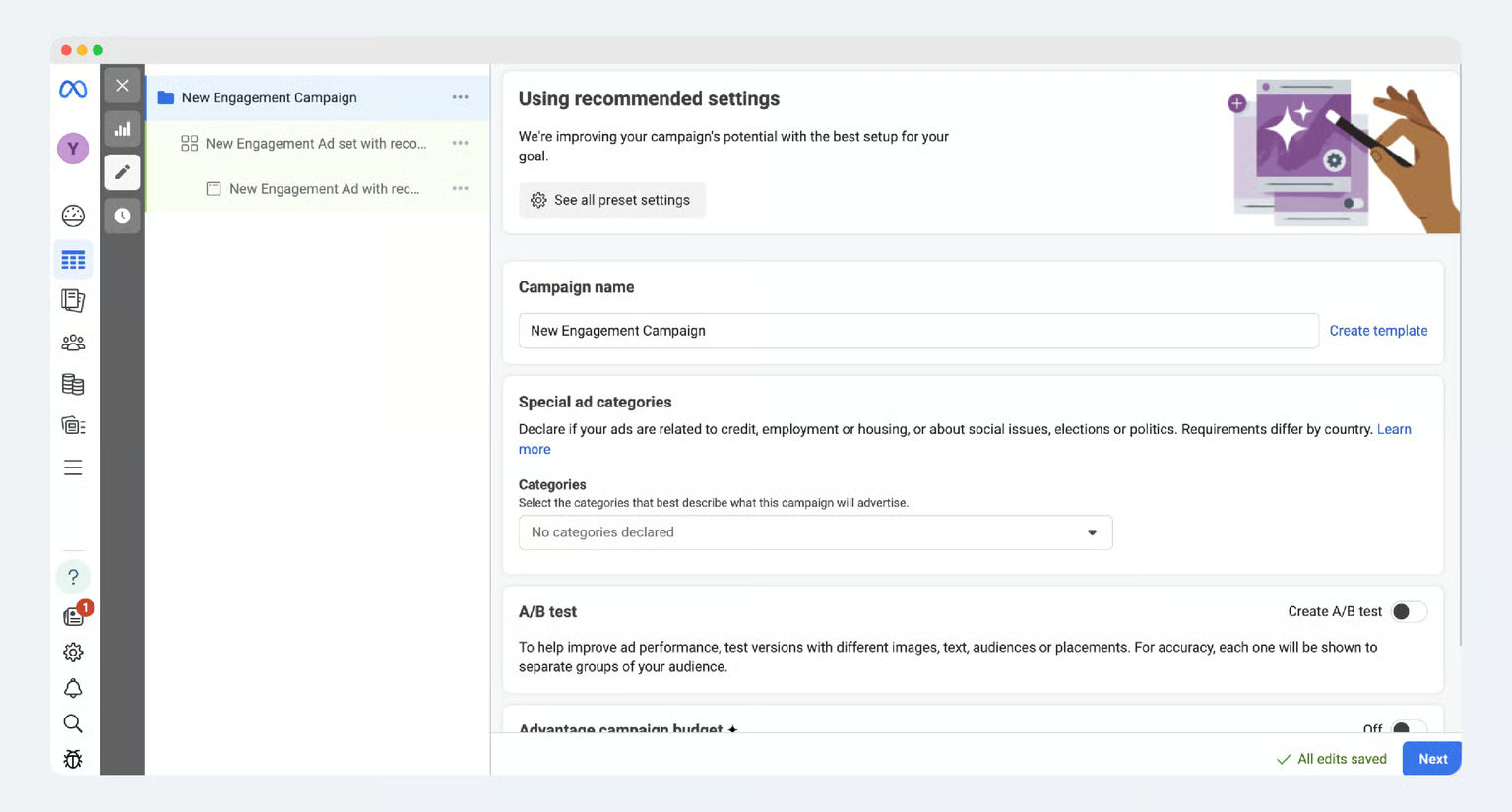
3. Fill in the basic campaign information
  • Name your campaign
  • Declare whether you have a special ad category, such as employment
  • Define whether you want to A/B test the ad
  • Note: In this step, you need to turn off Advantage+ catalog ads
 

How to Create Meta Click to WhatsApp Ads (CTWA) with YCloud

Create campaign
 
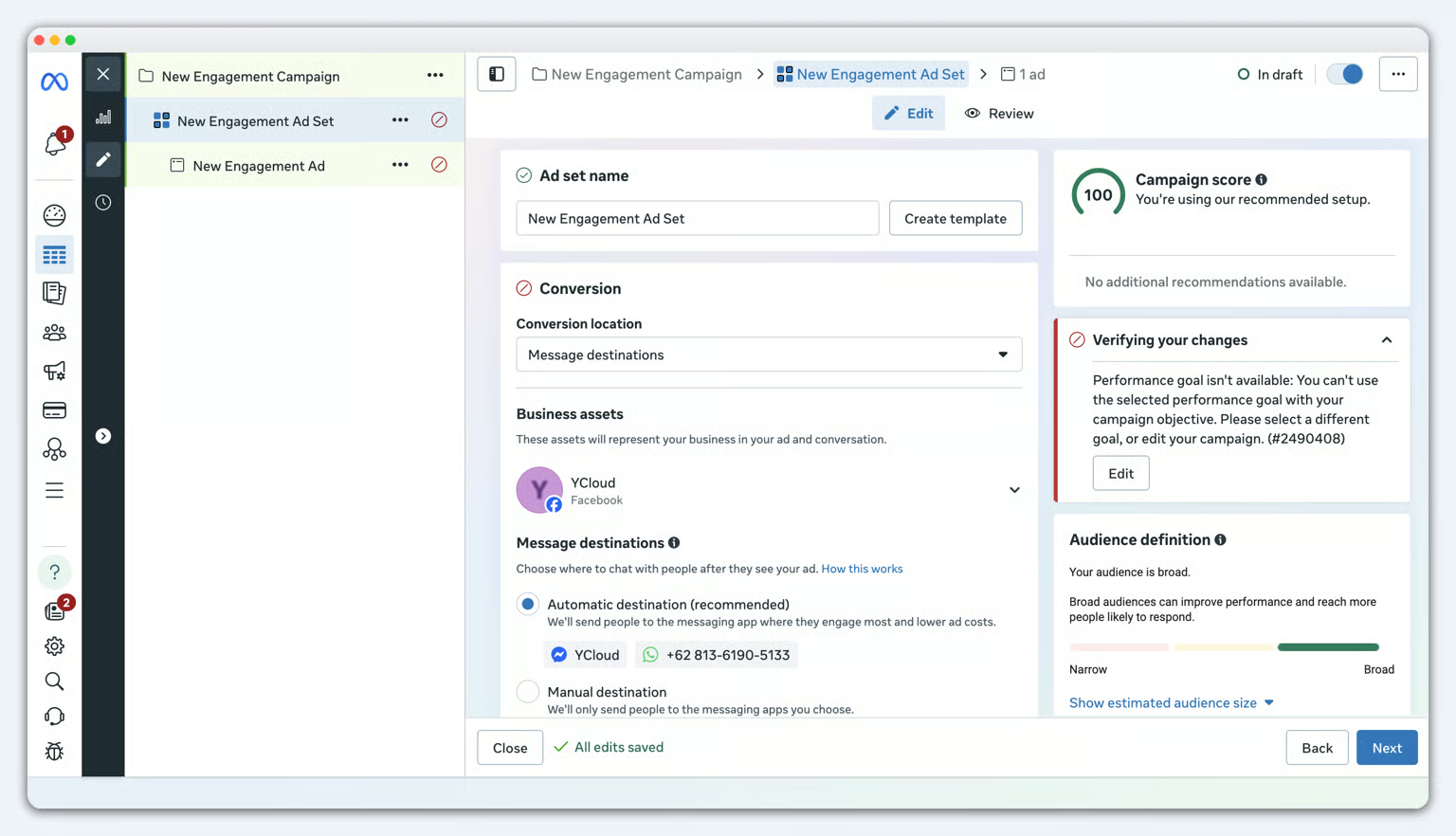
4. Fill in the ad set information
Configure the ad set as follows:
  • Conversion location: select Messaging destinations.
How to Create Meta Click to WhatsApp Ads (CTWA) with YCloud


Only after completing Step 2, connecting the WhatsApp Business API account to your Facebook Page, will you see the WhatsApp number.


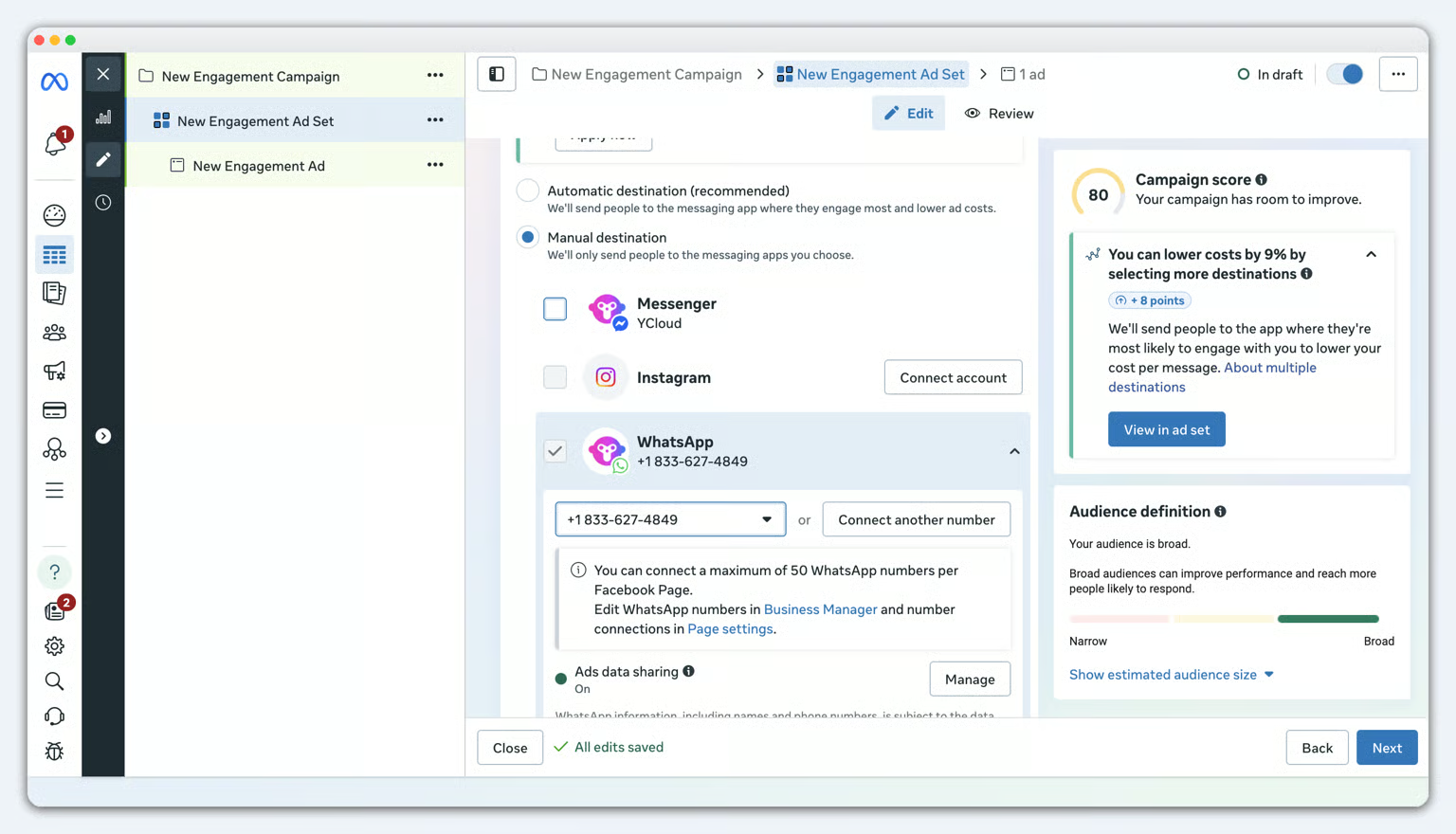
  • Facebook Page: select the Facebook Page where you want to run the ad. Select Manual Destination
How to Create Meta Click to WhatsApp Ads (CTWA) with YCloud

  • Messaging Apps: select WhatsApp and the WhatsApp number, and do not select other messaging apps such as Messenger.
  • Performance goal: select Maximize number of conversations.
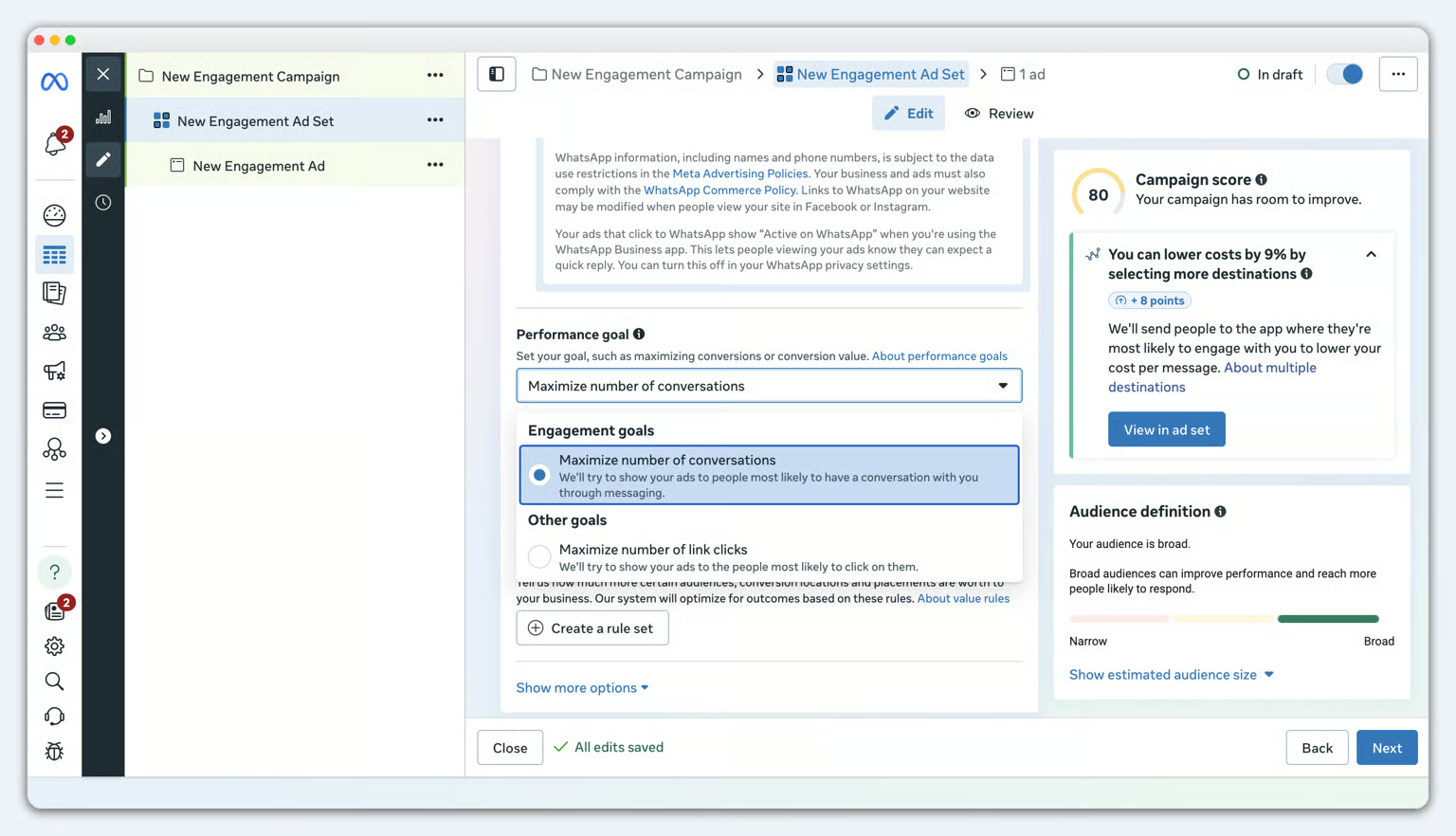
 

How to Create Meta Click to WhatsApp Ads (CTWA) with YCloud


  • Placements: click show more settings, and select feeds
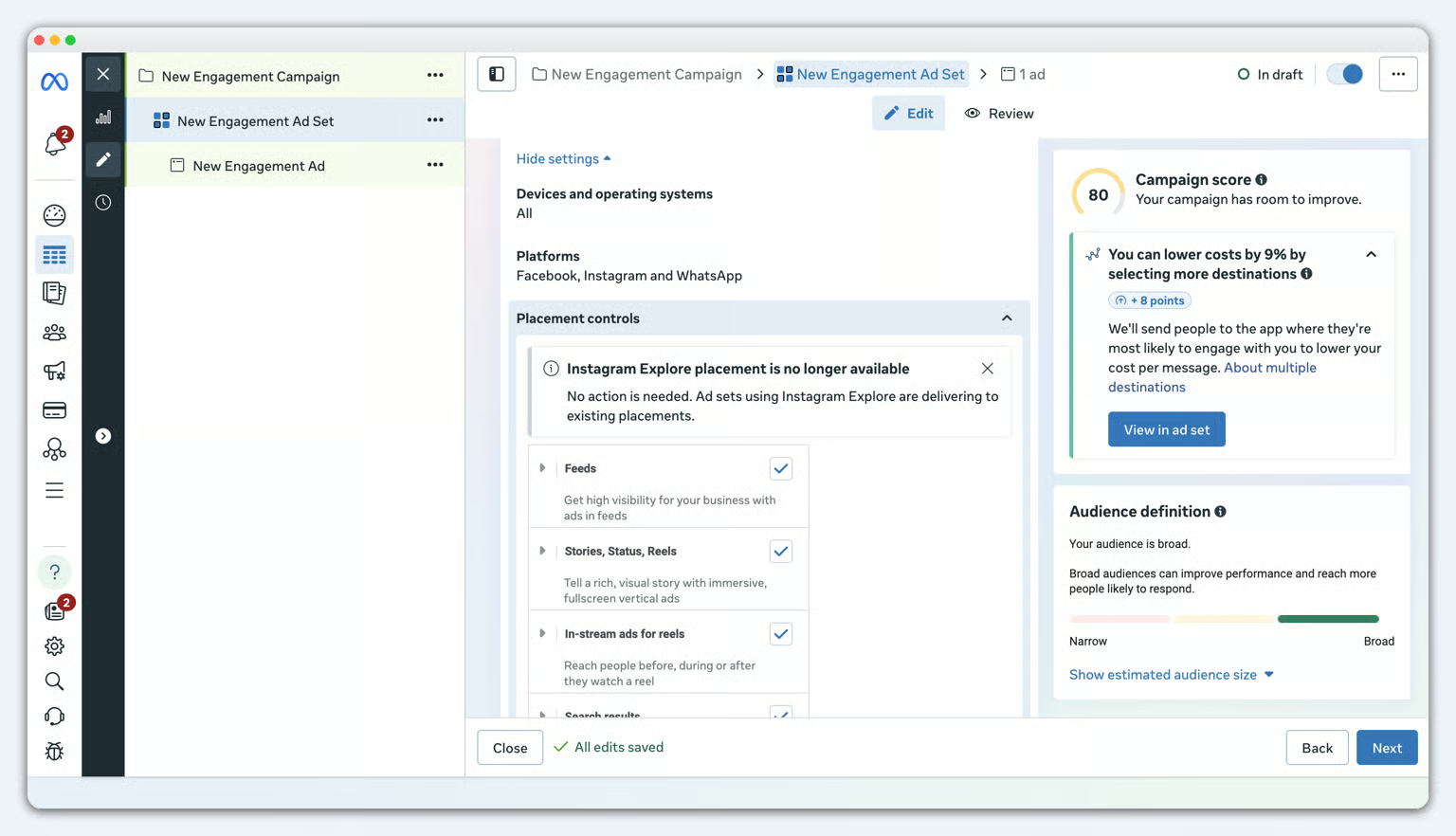
 

How to Create Meta Click to WhatsApp Ads (CTWA) with YCloud


5. Select audience, placements, budget, and schedule
Based on your campaign objective, continue setting the audience, placements, budget, and schedule.
 
6. Set up the ad creative
When setting up ad creatives, you can refer to the following checklist:
  • Adjust image sizes for different placements on Facebook and Instagram.
  • If needed, convert a group of images into a video slideshow to improve click-through rate.
  • Add primary text and headlines for the Click-to-WhatsApp ad. You can add multiple versions of primary text and headlines.
  • Add an ad description to provide more context.
  • Select a CTA button for the WhatsApp ad.
  • Use advanced preview to check how the ad performs across different placements.
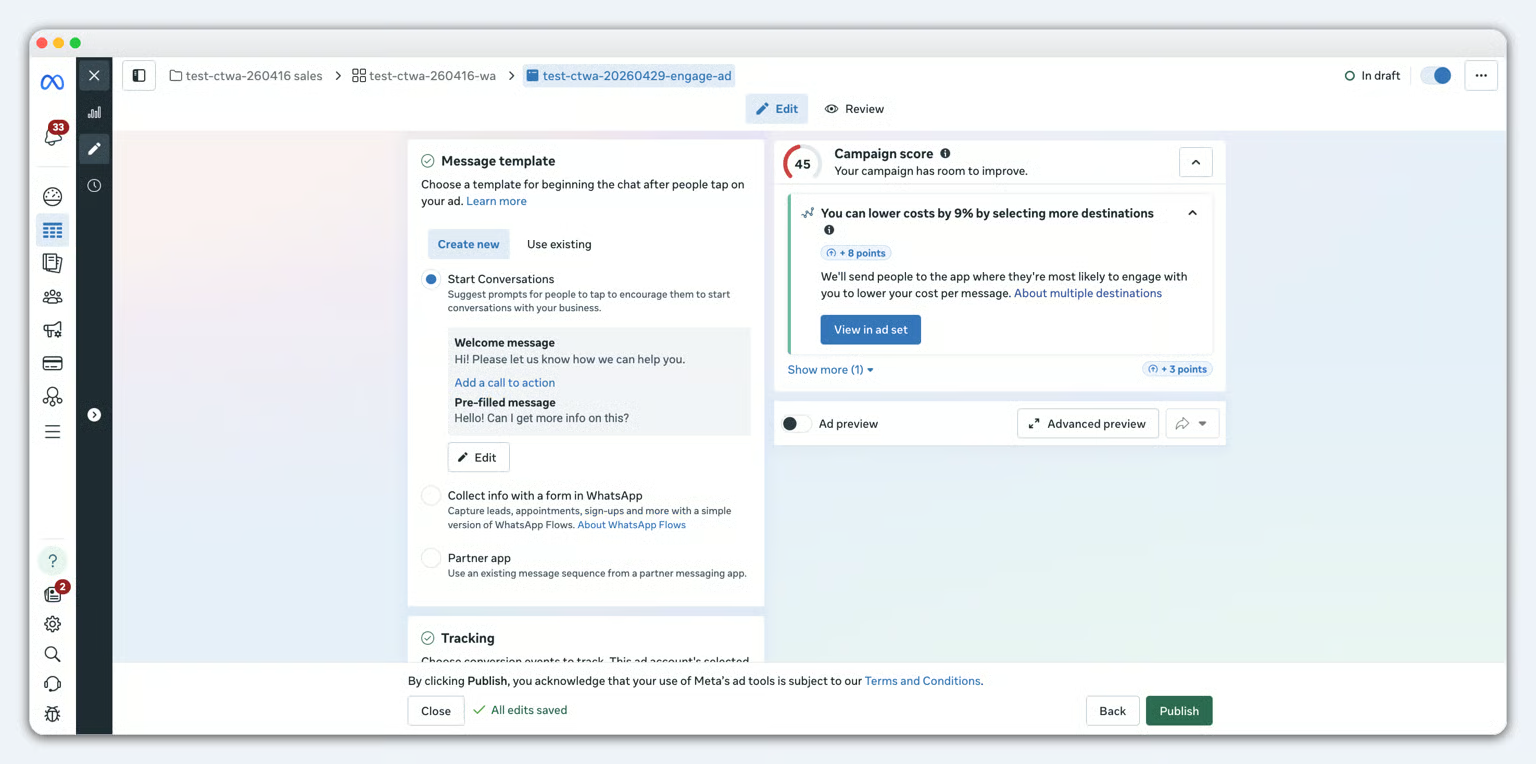
 

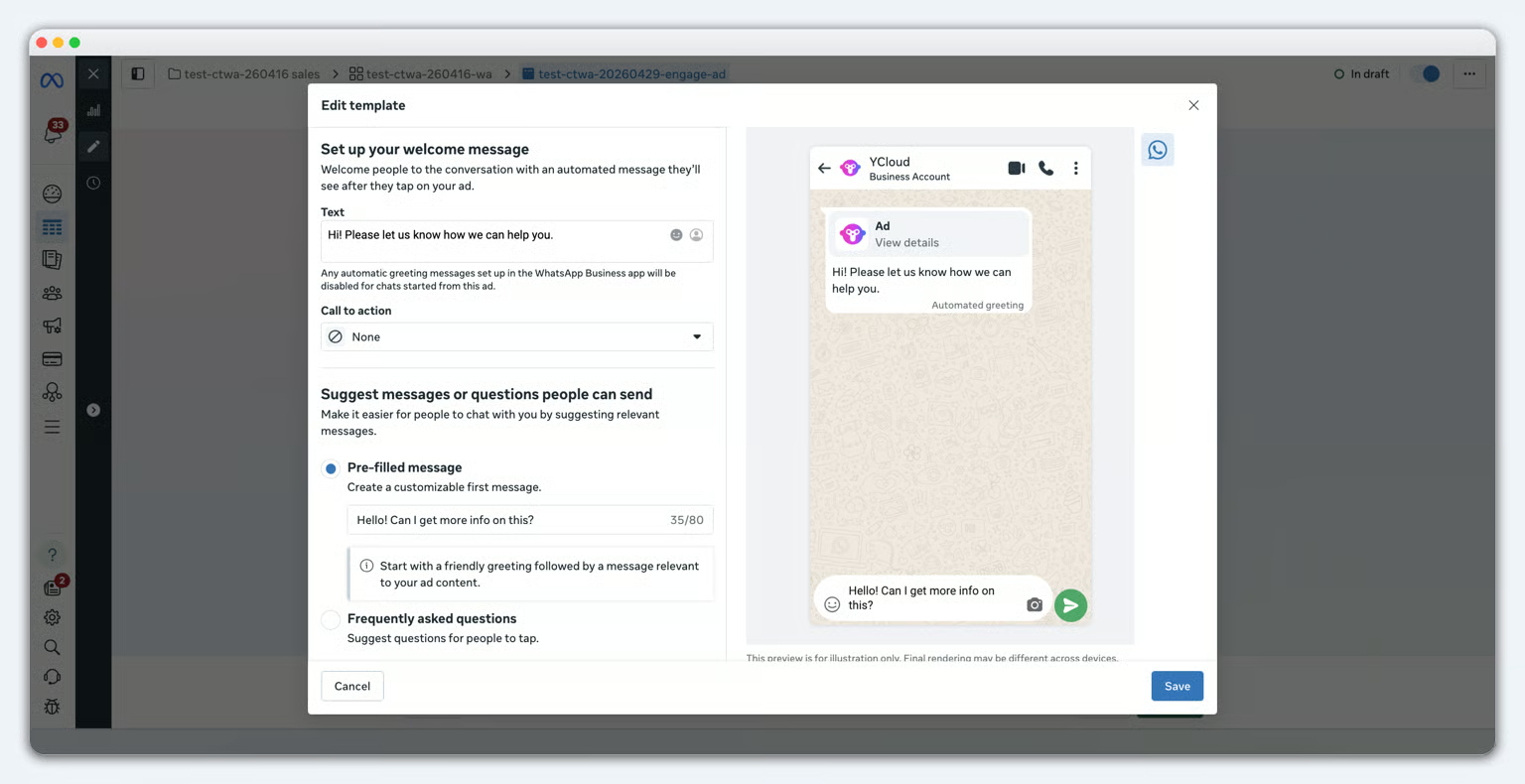
7. Create and preview message templates
In the ad creative settings, click New to create a message template. Message templates are used to define how users can start the first message more quickly after clicking the ad and entering WhatsApp.
 

How to Create Meta Click to WhatsApp Ads (CTWA) with YCloud

 
There are 2 common options:
  • Frequently asked questions: show several questions that users can click to send.
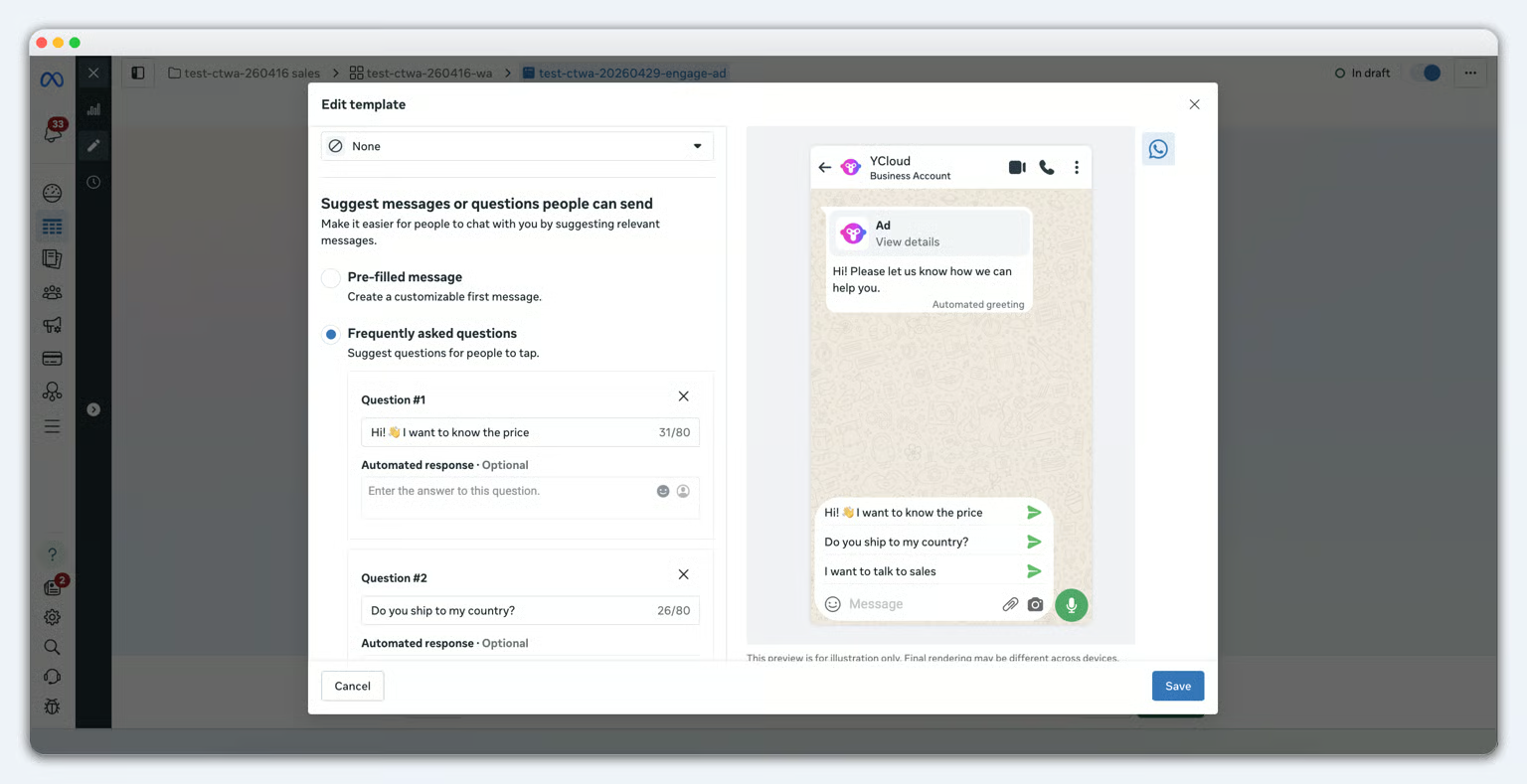
 

How to Create Meta Click to WhatsApp Ads (CTWA) with YCloud


  • Pre-filled message: pre-fill a piece of text in the WhatsApp input box. Users can send it directly, or they can edit it before sending.
 

How to Create Meta Click to WhatsApp Ads (CTWA) with YCloud

 
Before publishing, it is recommended to use the preview feature to check the WhatsApp opening experience users will see after clicking the ad.
 
 
8. Publish the ad
After completing the setup, submit the ad for review. After Facebook approves it, the ad will start delivering according to the audience, budget, and schedule you set.


Step 3: Configure Conversion Reporting and Review Data

After the ad goes live, you can continue by configuring conversion reporting rules in YCloud and reviewing conversations, conversions, and performance data in both Meta and YCloud.
 
Let’s look at how to view the conversations and set conversion reporting rules correctly.
 

1. View Conversations from Meta Ads in YCloud

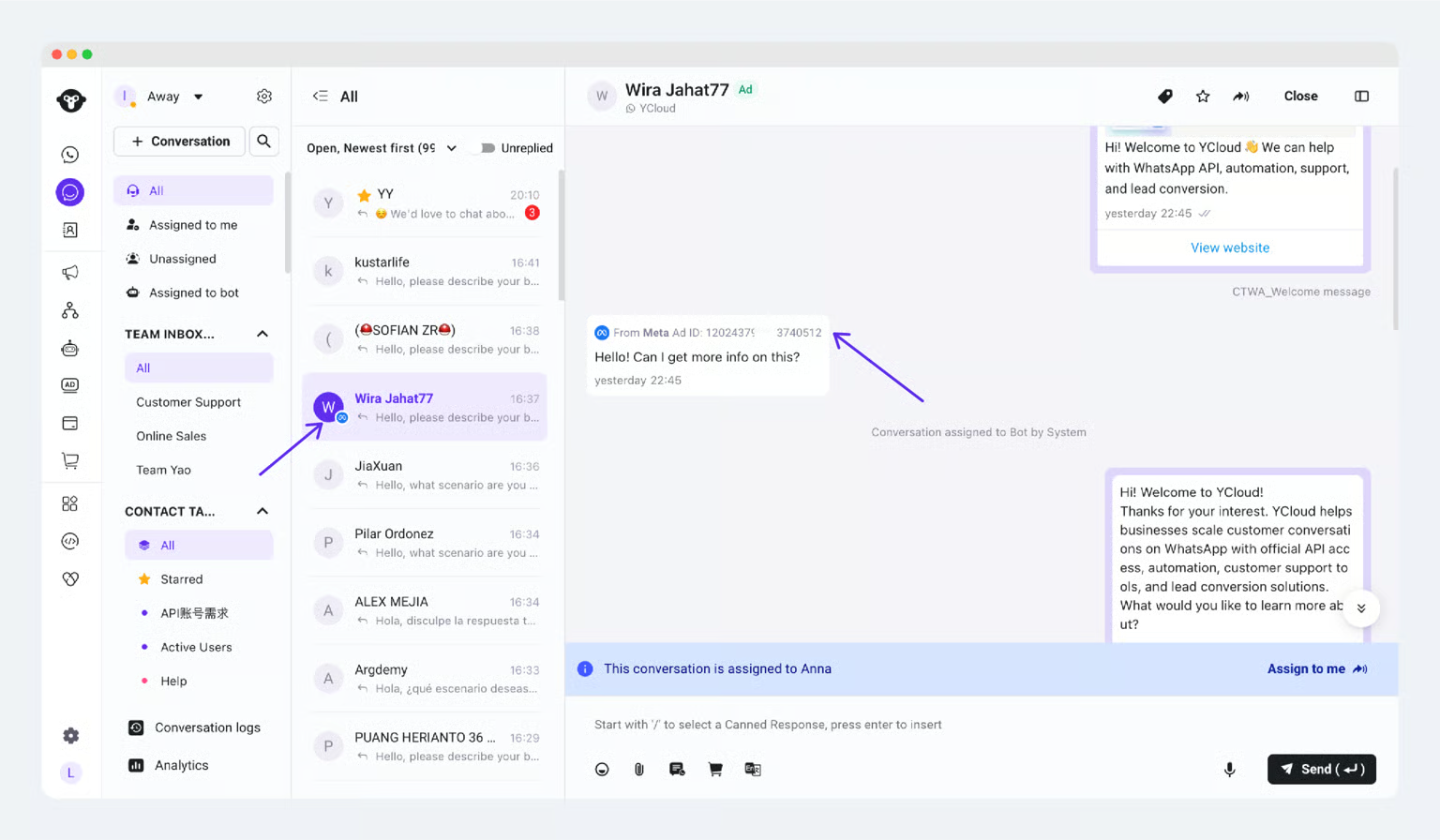
After your ads start delivering, users who click a Meta CTWA ad and open a conversation in WhatsApp will enter YCloud.
 
The focus of this step is to confirm whether ad traffic is being delivered into WhatsApp correctly and whether the source information is being recorded properly.
 
What You Will See
Once your ads start bringing in real conversations, you will usually see the following in YCloud:
  • New conversations will appear in YCloud Inbox
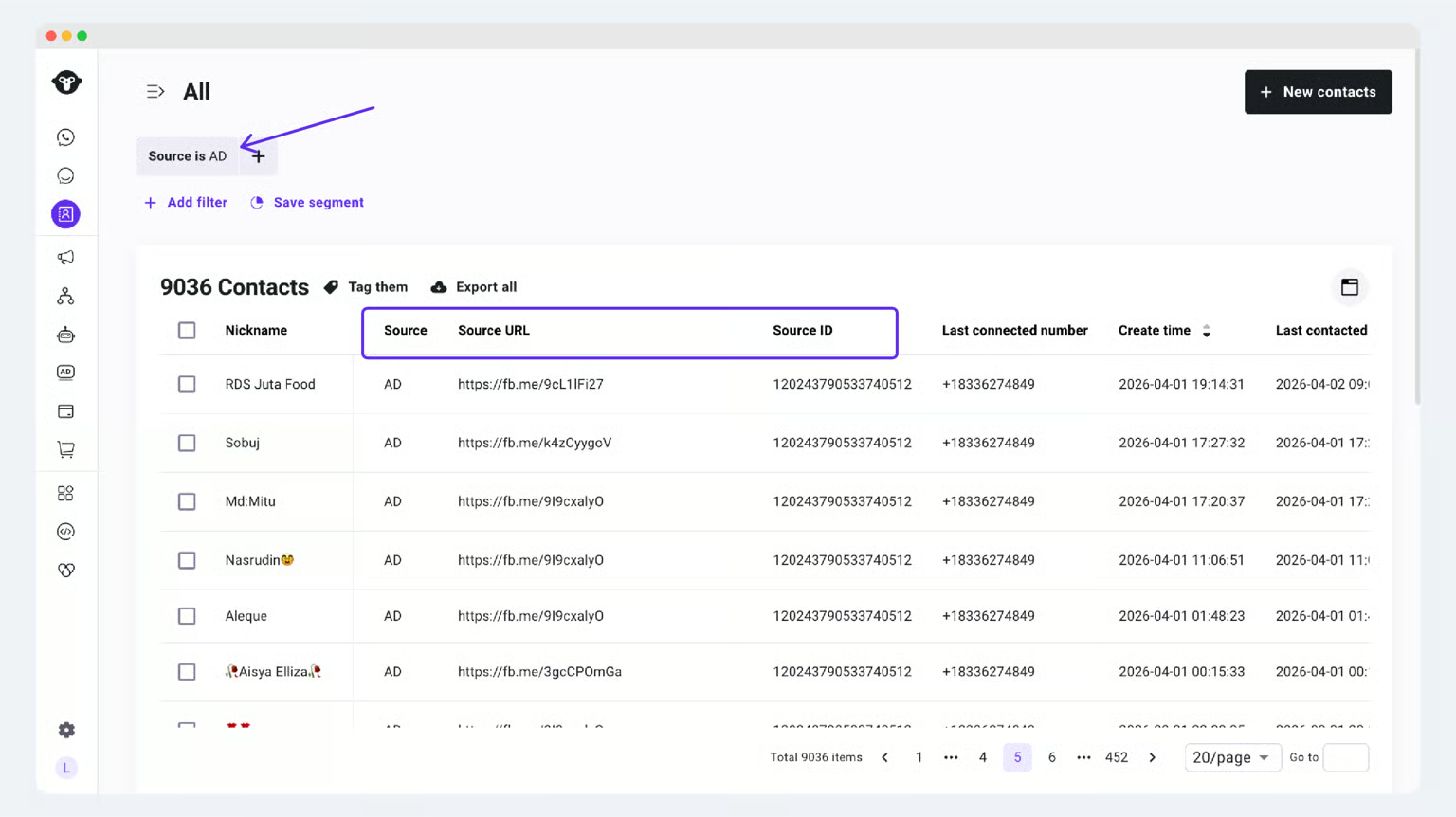
  • Contact details will display information related to the ad source
How to Create Meta Click to WhatsApp Ads (CTWA) with YCloud


How to Create Meta Click to WhatsApp Ads (CTWA) with YCloud


You can also filter contacts from ads in the contact list by using Source is AD, and use the following fields to understand the source in more detail:
  • Source = AD: This means the contact first reached your number through a Meta ad
  • Source URL: This is the Meta ad link the contact used when they first reached your number
  • Source ID: This is the Meta ad ID associated with the contact's first interaction with your number
 
If your ads are already live but you still cannot see any conversations or data, please check the following first:
  • Whether the ad has been approved and has actually started delivering
  • Whether the WhatsApp Business Number selected in the ad is the same number already connected in YCloud
  • Whether the corresponding Meta ad account has already been connected to YCloud
  • Whether any user has actually clicked the ad and started a WhatsApp conversation
 

2. Understand Meta Conversion Reporting, CAPI, and Deep Funnel Events

If you want Meta to see not only “ad clicked” or “conversation started,” but also deeper business outcomes after the WhatsApp conversation, you need to use conversion reporting.
 
What Is Conversion Reporting
Conversion reporting means that after a user clicks a Meta CTWA ad and starts a WhatsApp conversation, YCloud sends the user’s later business actions back to Meta as events through CAPI.
 
What Are Deep Funnel Events
Deep funnel events are events that are closer to actual business outcomes than “conversation started.”
 
For example, actions such as placing an order or completing payment after the conversation can better reflect whether the ad actually drove business conversion.
 
In the Meta CTWA scenario, the deep funnel event currently supported by YCloud is:
  • Purchase


What Is CAPI
CAPI (Conversion API) is the event reporting interface provided by Meta.
It helps businesses send post-conversation business events back to Meta for ad measurement and later optimization.
 
After the ad account is connected, YCloud can report eligible events back to Meta through CAPI.
When real conversations and Purchase events happen later, the related data will gradually appear in Meta’s event reporting system.
 

3. Configure Purchase Reporting in YCloud

If you want Meta to see deeper business outcomes such as purchases, you need to configure the corresponding Purchase event in YCloud.
 
Currently Supported Deep Funnel Event
In the Meta CTWA scenario, YCloud currently supports reporting only the following deep funnel event back to Meta:
  • Purchase


This means that if you want to view deeper business conversions in Meta later, or try a purchase-oriented optimization goal, you should currently configure everything around the Purchase event.
 
Purchase is not suitable for every advertiser.
To understand when “Maximize number of conversations” or “Maximize number of purchases” is more appropriate, continue reading the FAQ section below.
 
 
How to Configure Tracking Events in YCloud
  1. Go to the CTWA section in YCloud.
  2. Select the target ad from the ad list and enter Track events.
  3. Click + Track new event to create a new tracking event.
  4. Complete the following fields as needed:
  • Event name: Used only for internal identification and management
  • Trigger type: Defines what condition will trigger this event
  • Reported event type: Fixed as Purchase
 
Common Trigger Methods
YCloud currently supports 3 common ways to trigger Purchase.
You can choose the one that best fits your business workflow and use it as the condition for Purchase reporting.
 

Method 1: Trigger Purchase Through Contact Tags

If your team manually or automatically adds a tag to a contact after a purchase is completed, this is the most suitable method.
 
For example:
  • After payment is completed, the contact is tagged as Paid
  • After the customer confirms the order, the contact is tagged as Purchased
When the specified tag is added to the contact, YCloud will trigger one Purchase report.
 
Steps:
  1. Go to the CTWA section in YCloud.
  2. Select the target ad and enter Track events.
  3. Click + Track new event.
  4. In trigger type, choose “Contact Tag” or the corresponding tag-based trigger option.
  5. Select the tag that should count as a Purchase condition.
  6. In reported event type, choose Purchase.
  7. Save the configuration and enable the tracking event.


Suitable for:
  • Your sales or support team applies tags after a deal is completed
  • You already have a stable tag management process
  • You want a relatively simple way to start reporting Purchase data


Method 2: Trigger Purchase Through Keywords

If customers usually send specific keywords after a purchase is completed, such as an order number, payment confirmation phrase, or another business confirmation phrase, you can also use keyword-based triggering.
When a customer mentions a matching keyword in a WhatsApp conversation, YCloud will trigger one Purchase report.
 
Steps:
  1. Go to the CTWA section in YCloud.
  2. Select the target ad and enter Track events.
  3. Click + Track new event.
  4. In trigger type, choose “Keyword”.
  5. Add one or more keywords as trigger conditions.
  6. In reported event type, choose Purchase.
  7. Save the configuration and enable the tracking event.
 
Suitable for:
  • Your customers usually send fixed keywords after conversion
  • You want to quickly identify purchases based on conversation content
  • You do not yet have a complete tag or system-reporting setup


If the keyword itself is ambiguous, it is not recommended to use it directly as a Purchase condition.

Otherwise, false triggers may occur and affect how Meta interprets and optimizes Purchase data.
 

Method 3: Trigger Purchase Through API + Custom Event

If your business system can clearly determine exactly when a purchase is completed, then API + Custom Event is the recommended option.
 
This method is usually more suitable for:
  • Order systems
  • Payment systems
  • CRM / ERP
  • Self-built backend services
  • Mobile apps
When your system confirms that a purchase is completed, it can create a custom event through the YCloud API, and that event can then trigger one Purchase report.
 
Steps:
  1. Go to the CTWA section in YCloud.
  2. Select the target ad and enter Track events.
  3. Click + Track new event.
  4. In trigger type, choose API + Custom Event.
  5. Configure the corresponding custom event condition for this tracking event.
  6. In reported event type, choose Purchase.
  7. Save the tracking event.
  8. When your business system confirms that a purchase is completed, send the corresponding Custom Event through the YCloud API.
  9. Once the event matches, YCloud will report that Purchase back to Meta.
 
Suitable for:
  • You want to use the true purchase status from your business system as the only standard
  • You do not want to rely on manual tagging or keyword matching
  • You require higher accuracy for Purchase data
 
If you have your own order or payment system, API + Custom Event is usually the better option.

This method is closer to the real business outcome and is more suitable as the data signal Meta uses for later ad optimization.
 
 
It is recommended to define the business meaning of Purchase clearly before you start reporting it.

For example, decide whether a valid purchase means “order placed successfully” or “payment completed.” Only with a stable definition will your later data be truly useful.
 

4. How to Choose an Optimization Goal

In Meta CTWA advertising, the optimization goal should match your current stage.
 
In the Early Delivery Stage, Prioritize Maximize Number of Conversations
 
If your ads have just started delivering, or you do not yet have stable Purchase reporting data, it is recommended to prioritize:
  • Maximize number of conversations
 
This is better for first validating whether the ad can steadily bring in WhatsApp conversations and for quickly validating the basic chain from “ad click” to “conversation started.”
 
When to Consider Maximize Number of Purchases
Only after the following conditions are met should you evaluate switching to:
  • Maximize number of purchases (Purchase)
 
It is recommended that at least the following conditions be met first:
  • Purchase reporting has already been configured correctly in YCloud
  • Real customers have already triggered Purchase events
  • The business definition of Purchase is stable and will not change frequently
  • Your core campaign goal has already shifted from “getting more conversations” to “getting more purchases”


5. View Ad Performance and Conversion Data

After conversation handover and Purchase reporting are configured, you can view data both in Meta and in YCloud.
 
View in Meta
You can view ad delivery data in Meta Ads Manager > Campaigns at the campaign, ad set, or ad level, including:
  • Spend
  • Impressions
  • Clicks
  • Conversation results
If Purchase reporting has already been configured and triggered by real users, you can also view Purchase event data reported by YCloud in Meta Events Manager > Dataset.
 
View in YCloud
You can view two types of data in YCloud:
1. View overall ad data
Go to CTWA > Ad Manage, where you can view the basic delivery data of CTWA ads under a given ad account within a selected time range, such as:
  • Spend
  • Impressions
  • Clicks
  • Started conversations


2. View leads and tracking event details brought by the ad
If you want to see which leads were brought by a specific ad, or which customers triggered the Purchase event, you can go to the corresponding ad’s Track events / View Leads page.
There you can further check:
  • Which customers came from that ad
  • Which customers triggered the Purchase event
  • Whether the corresponding leads or event details can be exported


Next Step

Handle Visitors from CTWA Ads

Once the ads start bringing in conversations, you can continue handling customers in YCloud and assign your sales or support team to follow up.


View Overall CTWA Analysis Data

If you want to view CTWA ad performance and lead data from an overall perspective, you can continue reading:
 
 
Use YCloud’s Team Inbox, chatbots, or AI Agents to respond, qualify leads, and assign conversations to the appropriate team members.
 
Configure Meta Conversions API to report eligible lead or purchase events back to Meta and review campaign performance in YCloud.


Tracking CTWA Performance in YCloud

For Facebook Ads that direct users to WhatsApp, YCloud provides additional visibility into the conversations and leads generated after the click.
 
Here, in addition to seeing data such as ad campaign spending, impressions, and clicks, you will also see the number of contacts who clicked on the ads, and you will be able to export this information to plan your next set of marketing campaigns.
 
But before viewing CTWA Analytics, make sure:
  1. The corresponding ad account has been connected to YCloud.
  2. At least one customer has clicked on a CTWA ad. If no one has clicked on an ad and sent a message, it will not appear on this dashboard.
 
1. View CTWA Conversion Data
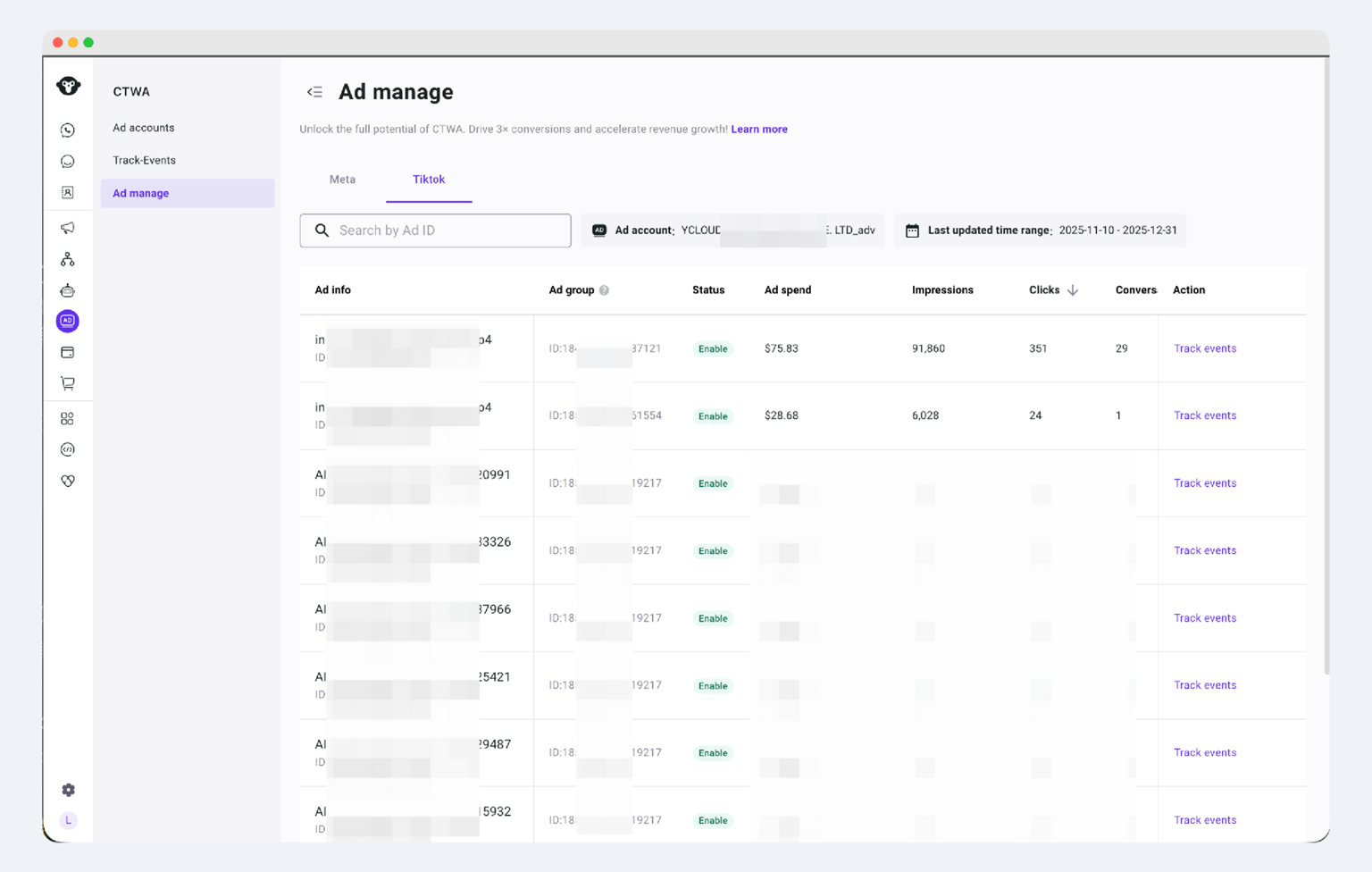
Navigation path: YCloud Dashboard > CTWA > Ad Manage
Here, you can see the delivery data for all CTWA ads, including spending, impressions, clicks, and sessions initiated.
 

How To Track CTWA Performance in YCloud

 
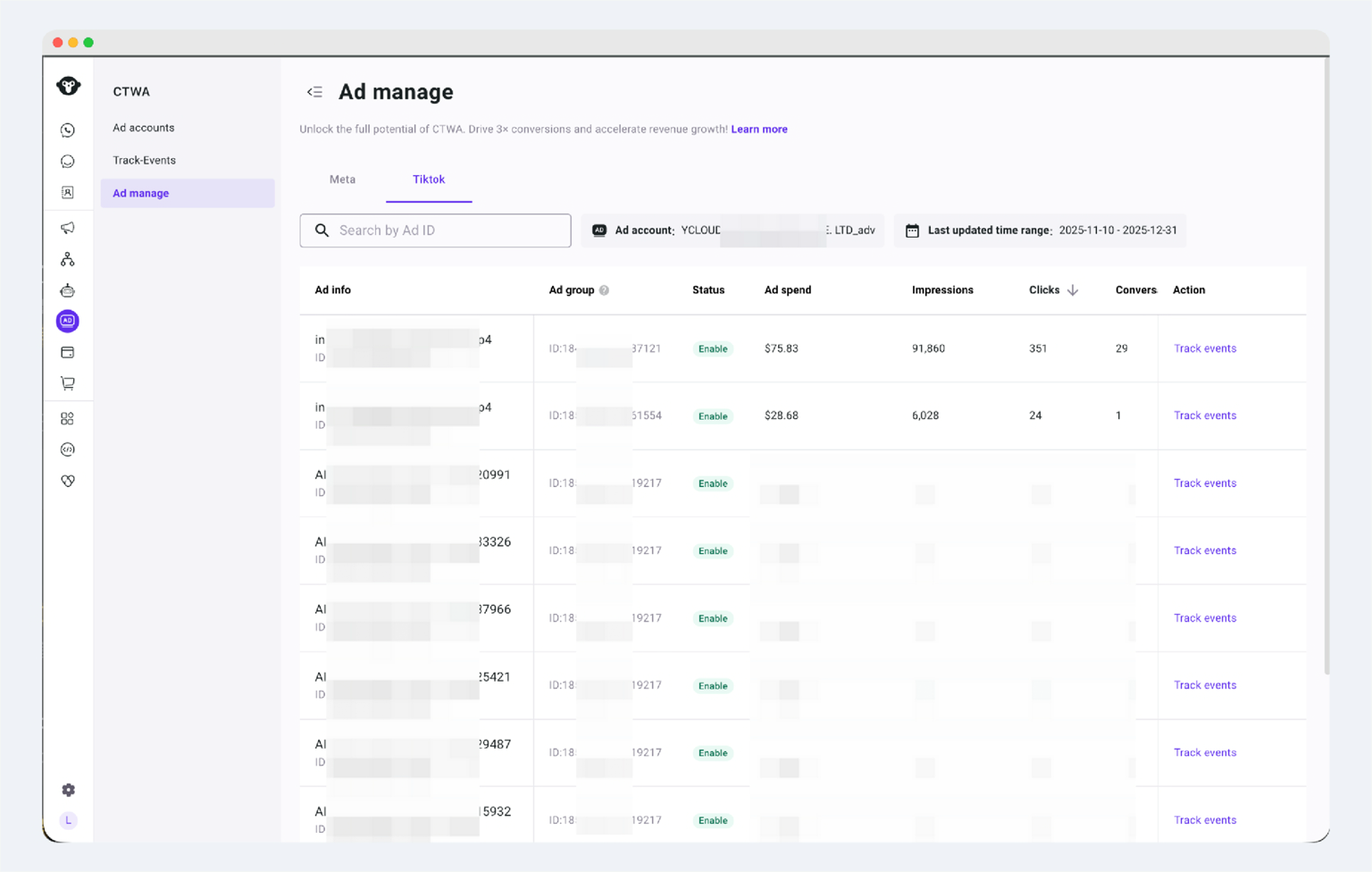
2. View Leads Generated by Ads
You can only view data from one ad account at a time.
 

How To Track CTWA Performance in YCloud

 
3. Conversion Details
You can view the Track Events details for a specific ad:
  1. In the ad list, select the target ad.
  2. Click the [View Leads/Track Events] entry.
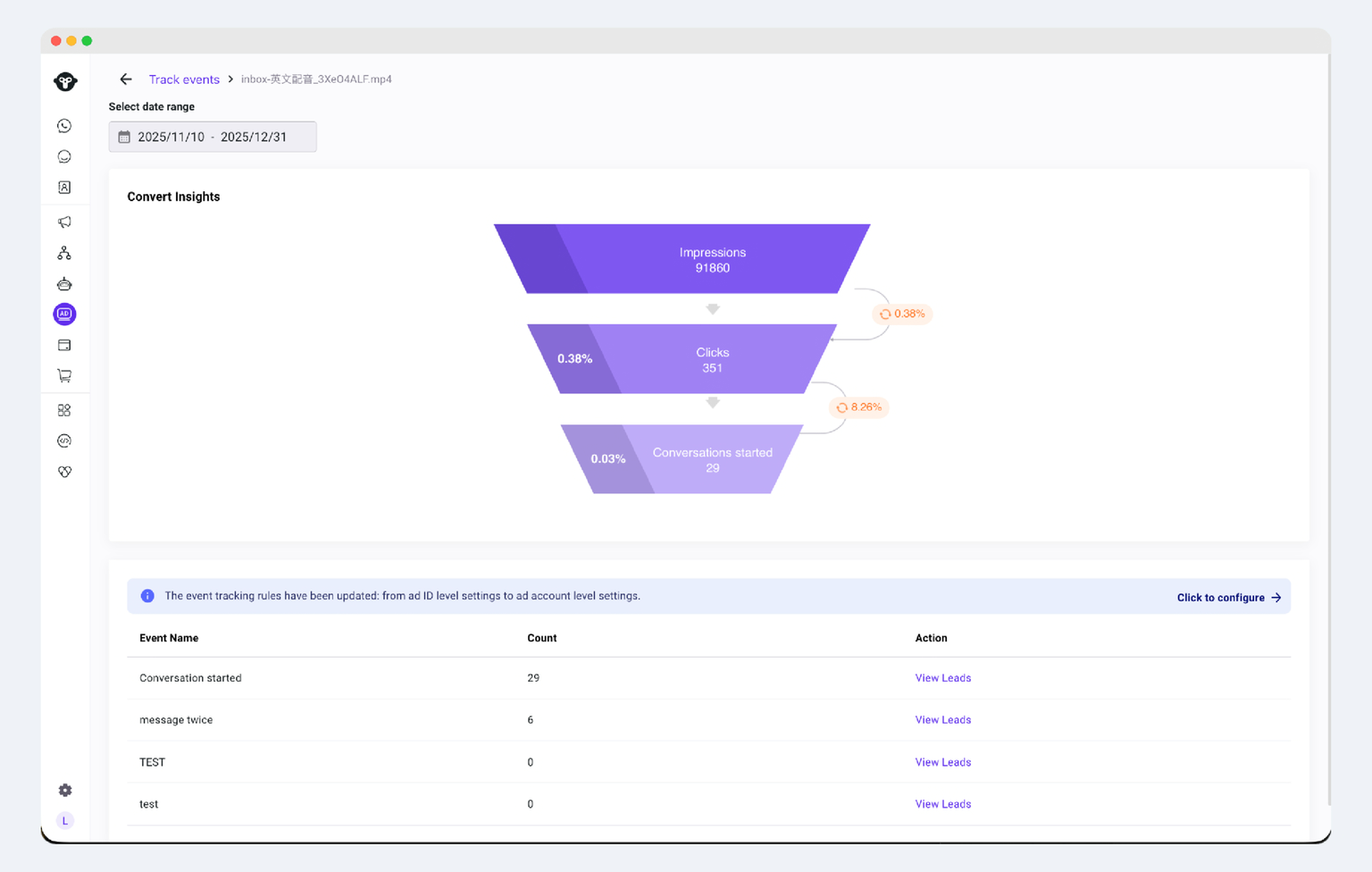
 

How To Track CTWA Performance in YCloud


Click View Leads to view and export details.


3.1 View Leads Who Triggered the Tracking Event
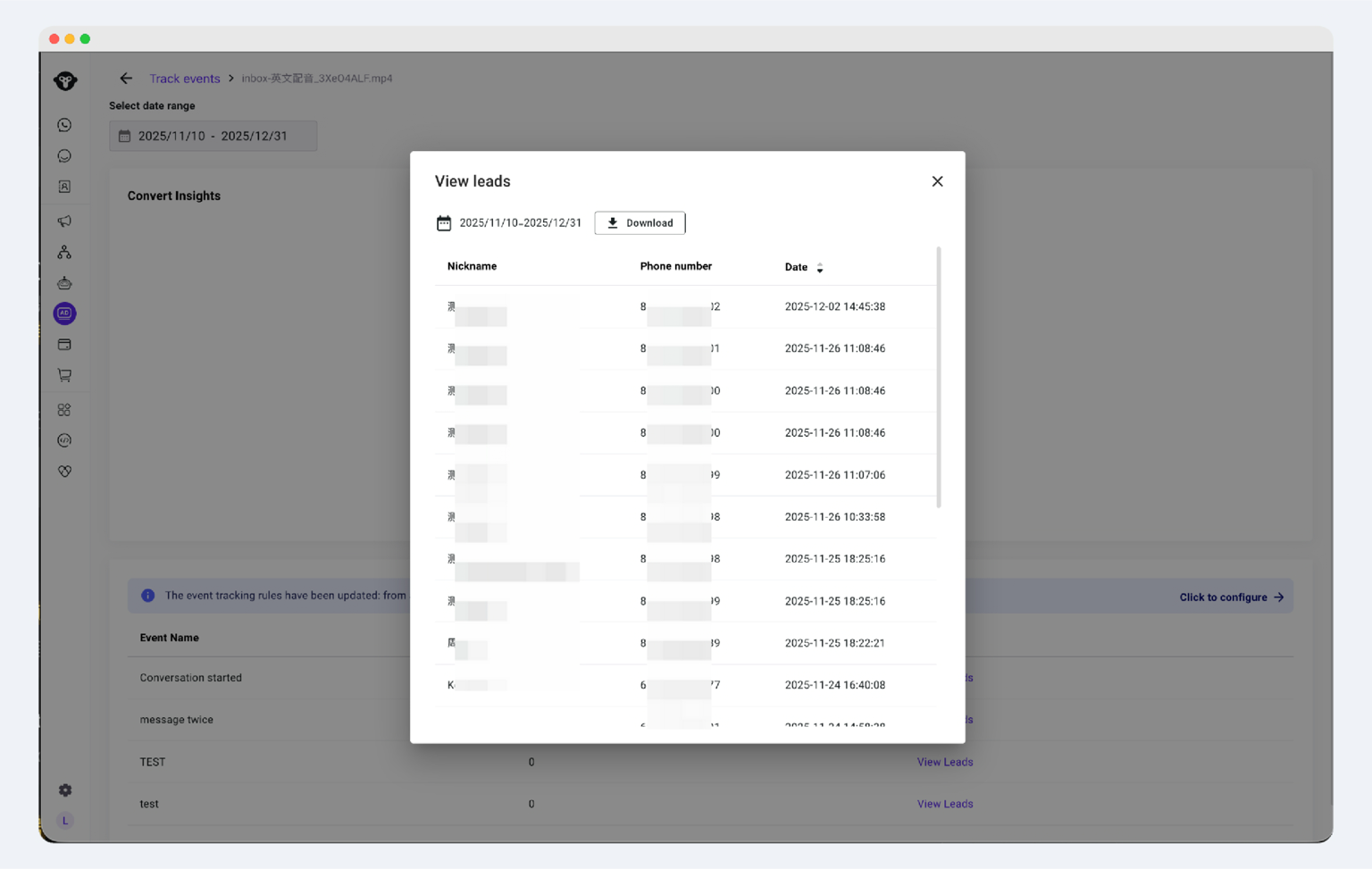
Additionally, we support exporting data at any time. Click "Download" to download your recorded lead dataset to your browser.
 

How To Track CTWA Performance in YCloud

 
Meta Ads Manager explains how the ad was delivered.
YCloud helps connect that performance with the WhatsApp leads and conversion events generated afterwards.


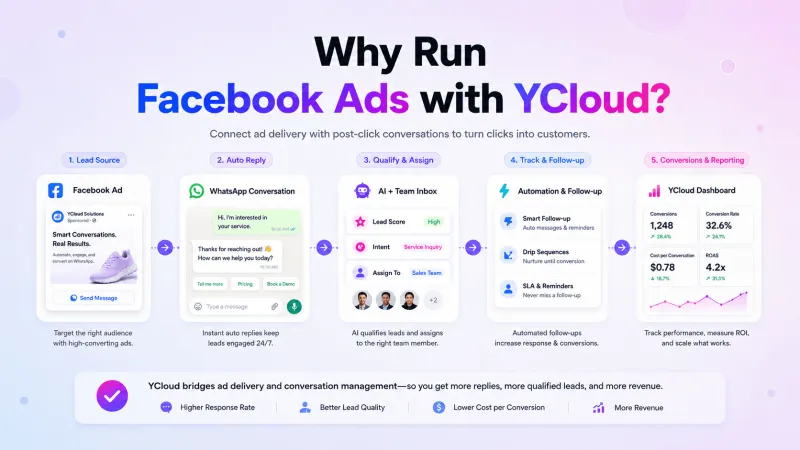
Why Run Facebook Ads with YCloud?

YCloud is most relevant when your Facebook Ads direct users to WhatsApp.
 
Meta Ads Manager handles campaign creation and delivery. YCloud connects the ad source with the WhatsApp conversation, helping your marketing and sales teams manage what happens after the click.
 

Why Run Facebook Ads with YCloud?

 
With YCloud, you can:
  • Identify where leads came from: Record the campaign and ad that generated each WhatsApp conversation.
  • Respond automatically: Use AI Agents or chatbots to greet users, answer common questions, and collect basic lead information.
  • Qualify and route leads: Direct relevant enquiries to the appropriate sales or support agents.
  • Manage conversations centrally: Handle ad-driven messages through YCloud’s Shared Team Inbox while retaining the conversation history and lead context.
  • Track results beyond clicks: Review ad spend, impressions, clicks, WhatsApp sessions, leads, and tracked conversion events through CTWA Analytics.
  • Report conversions to Meta: Use Conversions API to send configured lead or purchase events back to Meta.
  • Follow up with interested leads: Segment opted-in contacts and send relevant reminders, information, or offers through WhatsApp campaigns.


How To Get YCloud?
Kindly click on the banner below to book a FREE DEMO and learn more about our product offering, features and pricing plans.
 

How to Get YCloud?

 
Built with AI at its core, YCloud is the ultimate WhatsApp marketing and automation solution, giving you everything you need in one powerful platform.
 
Now market, sell, support, and scale your business by 10X with YCloud!
 
 
Ready to try? Explore how to get YCloud for FREE next!


How to Get YCloud for FREE?

It's Simple!
 
Subscribe to our FREE plan and get a free lifetime experience of YCloud with unlimited messaging API.
 
Book a FREE Demo and see how YCloud can power up your WhatsApp marketing strategy!
 
🚀 Try YCloud today and experience how effortless WhatsApp automation can be when you have the right partner.


Also Checkout These Articles Before You Go!


Frequently Asked Questions

First, check whether the ad has actually started delivering and whether any real users have clicked the ad and started a WhatsApp conversation. If the ad only has impressions or clicks but no one has started a conversation yet, YCloud will not show any corresponding conversation or later data.
Also, confirm that the WhatsApp Business Number used in the ad is the same one already connected in YCloud.


This is usually because you have not configured Purchase reporting correctly in YCloud yet, or because although it is configured, no real customers have triggered a Purchase event yet.
It is recommended that you first go to Meta Events Manager > Dataset to check whether any events have entered the corresponding dataset, and then confirm whether the Purchase trigger conditions in YCloud are configured correctly.
If your ads have just started delivering, it is recommended to prioritize “Maximize number of conversations.”
At this stage, the main goal is to validate whether the ads can steadily bring in WhatsApp conversations. After Purchase reporting has been configured and stable data is available, you can then evaluate whether to switch to “Maximize number of purchases (Purchase).”


These two optimization goals are suitable for different stages.
If you choose “Maximize number of purchases (Purchase),” Meta mainly relies on the data signal of whether a customer has made a purchase when optimizing the ad.
However, in the CTWA scenario, Meta cannot naturally know whether a customer completed a purchase after a WhatsApp conversation. Therefore, this type of signal mainly depends on the conversion events you configure in YCloud and the data that YCloud sends back to Meta through CAPI.
This means:
  • If you have not yet configured a Purchase event in YCloud
  • Or although it is configured, you do not yet have stable Purchase data
  • Or you are still validating whether the ads can steadily bring in conversations
Then it is more recommended to prioritize “Maximize number of conversations,” because at this stage the ad is better optimized around whether it can bring in more WhatsApp conversations.
It becomes more appropriate to consider “Maximize number of purchases” only after the following conditions are met:
  • You have correctly configured a Purchase conversion event in YCloud.
  • Real customers have already triggered Purchase, and the data is being continuously reported back to Meta.
  • The business definition of Purchase is stable. For example, you have already defined whether “order placed successfully” or “payment completed” should count as one Purchase.
  • The core goal of the ad has already shifted from “getting more conversations” to “getting more purchases.”
In simple terms:
  • If your current priority is to first get the conversation flow running, choose “Maximize number of conversations.”
  • If your current priority is to drive more purchases, and you already have stable Purchase reporting data, then choose “Maximize number of purchases.”
Practical recommendation: At the beginning of delivery, prioritize “Maximize number of conversations.” After Purchase reporting becomes stable, evaluate whether to switch to “Maximize number of purchases.”


There are usually two reasons:
  1. You are not yet steadily sending Purchase events back to Meta through YCloud.
  2. Although Purchase reporting has already been configured, the account or ad has not yet accumulated enough stable and valid Purchase signals, so Meta does not make this optimization goal available yet.
In this case, it is recommended that you first use “Maximize number of conversations” as the optimization goal to validate the basic conversation flow.
After Purchase reporting has been configured correctly and stable purchase data is available, return to Meta Ads Manager and check whether “Maximize number of purchases” is available.
No. You can first create the ad and start delivery to validate whether it can steadily bring in WhatsApp conversations.
The role of Purchase reporting is to help you measure and optimize deeper business conversions after the basic conversation flow is already working.


When you have not configured a dedicated Purchase event rule, YCloud will, by default, report one Engage behavior to Meta as a Purchase event.
Here, Engage means that after ad traffic enters WhatsApp, the user completes at least two message interactions with you.
The purpose of doing this is to provide Meta with one usable deep-interaction signal before you set your own custom Purchase rule, so that you can later use it for data analysis, audience building, and optimization testing.
Please note:
  • Seeing this kind of Purchase data in the Dataset does not mean the customer has completed a real purchase.
  • If you are still using “Maximize number of conversations” as the optimization goal, this default reporting will not directly switch your ad optimization goal to “Maximize number of purchases.”
  • If you want Purchase to more accurately represent real transactions, it is recommended that you configure a dedicated Purchase trigger rule in YCloud as soon as possible based on your own business definition.
Correct settings
  1. For delivery devices, only select: app (iOS devices or Android devices).
  2. Ad placements: deliver to Feed, Facebook, and Instagram placements.
Do not do this
  1. For delivery devices, do not select web or PC. Ad parameters will be lost. CTWA ads are designed for app users.
  2. For ad placements, do not deliver to Reels and Stories placements. Ad attribution failure may occur. Meta is currently fixing this.
When creating the ad, there are generally three optimization goals:
  1. Maximize clicks
  2. Maximize number of conversations
  3. Maximize number of purchases
If you find that Maximize number of purchases is unavailable, it means you have not uploaded Converted data yet.
Solution: First, select Maximize number of conversations as the goal. After the returned conversion data exceeds 10 per week, Meta will gradually make the Maximize number of purchases option available to you. Then, create the ad again or modify the ad goal.
 

Related Articles

How to Create TikTok Click to WhatsApp Ads (CTWA) with YCloud

How to Create TikTok Click to WhatsApp Ads (CTWA) with YCloud

This article explains how to create TikTok Click to WhatsApp Ads (CTWA) workflow with YCloud.

Team YCloud
Team YCloud · Aug 19, 2026