Customer Support

English

WhatsApp Status Ads: Setup, Pricing, & Ad Specifications

Ready to run WhatsApp Status ads but still piecing together how to launch one?
You’ve watched endless tutorials and read hundreds of guides. Yet you still need answers:
- Can your account run these ads?
- What should the creative look like?
- And what will you pay?
Well… you shouldn’t need ten tabs open to launch one campaign.
This guide takes you from those questions to setup, ad specifications, pricing and tracking, so you know what to prepare before spending your budget.
First, a quick note on availability and the settings you may see.
Disclaimer
- WhatsApp Status Ads are rolling out gradually.
- Availability, objectives, placements and ad specifications may vary by country, account and Ads Manager version.
- Check your Ads Manager for available options, and follow Meta’s official guidance if it differs from this guide or other sources.
Next, here’s a quick overview of what you need to know.
TL;DR
- WhatsApp Status Ads are paid image or video ads shown between Status updates in the Updates tab, separate from private chats and calls.
- Eligible advertisers can create them through Meta Ads Manager. Availability depends on the country, account and campaign setup.
- Destinations depend on the options available to your campaign. Confirm support for a WhatsApp chat or website before planning the ad.
- Design in 9:16 vertical format, ideally at 1080 × 1920 pixels. Preview cropping, text placement and interface overlays before publishing.
- Pricing is auction-based. Costs vary by audience, competition, objective and performance; messaging and provider fees are separate.
- Prepare for the enquiry before paying for the click. Configure welcome replies, qualification and human handover, then measure qualified leads and sales.
First, let’s clarify what WhatsApp Status Ads are and where they appear.
What Are WhatsApp Status Ads?
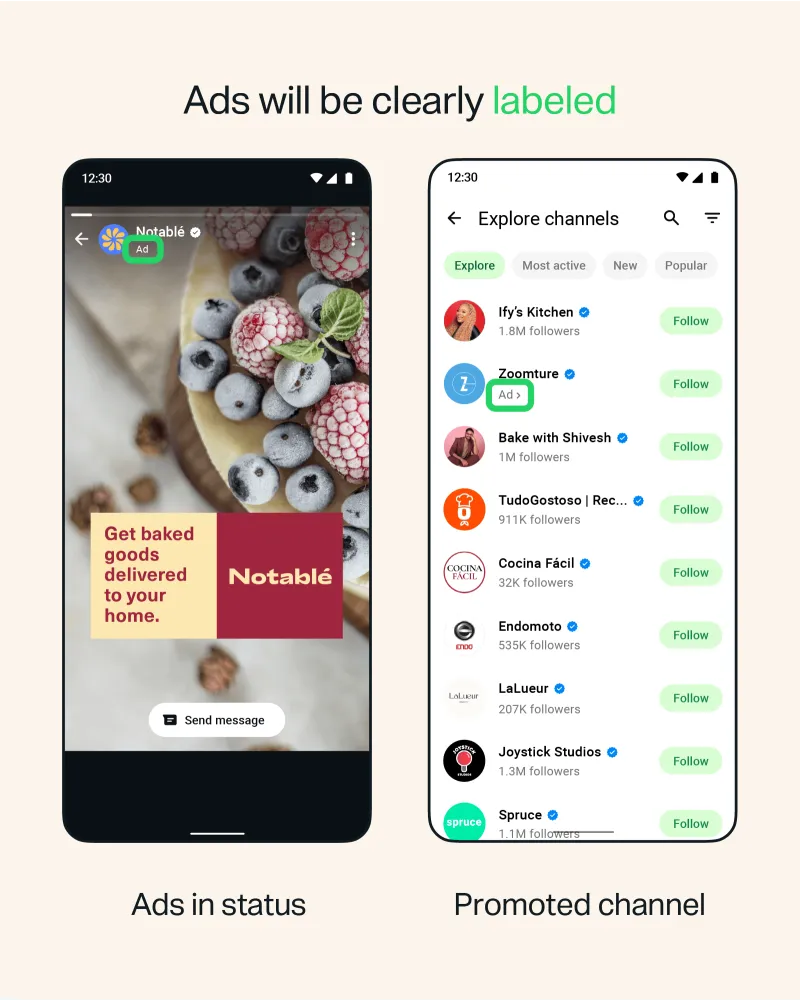
WhatsApp Status Ads are paid image or video ads that appear between people’s Status updates in the Updates tab, marked as sponsored content.
Someone browsing Status updates can tap an ad to visit a website, start a WhatsApp conversation with a business or take another supported action.
These ads appear in the Updates experience, not inside private chats, groups or calls.
Next, let’s look at exactly where businesses can advertise within WhatsApp.
Where Do Ads Appear on WhatsApp?
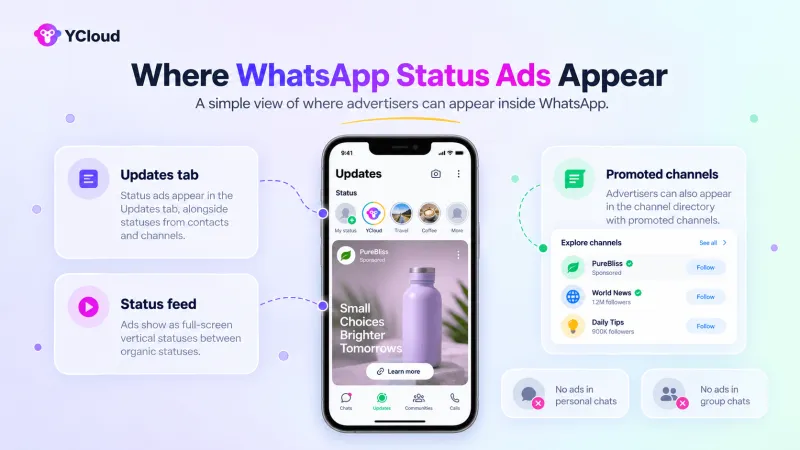
Ads appear in WhatsApp’s Updates tab, where people browse Status updates and discover Channels.
WhatsApp area | What appears here |
| Updates tab | Status ads and promoted Channels |
| Status feed | Ads between organic Status updates |
| Channel directory | Paid promotions that help people discover Channels |
| Personal chats | No ads |
| Group chats | No ads |
| Voice and video calls | No ads |
These placements keep advertising separate from private conversations.
Next, let’s clarify how Status ads differ from ordinary Status posts and Click-to-WhatsApp ads.
WhatsApp Advertising Formats: What’s the Difference?
Posting a business Status and paying for a Status ad serve different purposes.
Click-to-WhatsApp ads and promoted Channels offer two other ways to reach people.
Here’s how they compare:
Format | Where it appears | Paid or organic | Main purpose | User action |
Organic Business Status | Contacts’ Status feed, subject to privacy settings | Organic | Share updates with an existing audience | View or reply to the Status |
WhatsApp Status Ad | Between Status updates inside WhatsApp | Paid | Generate awareness, website visits or conversations | Open a chat or visit a website |
Click-to-WhatsApp Ad | Facebook and Instagram | Paid | Bring people into a business conversation | Open a WhatsApp chat |
Promoted Channel | WhatsApp’s Channel directory | Paid | Help people discover and follow a Channel | Visit the Channel and choose to follow |
For the rest of this guide, we’ll focus on paid WhatsApp Status ads, starting with how they work.
How WhatsApp Status Ads Work
A WhatsApp Status ad takes someone from seeing your offer to taking action.
Here’s the journey:
- Create the campaign: Set your goal, audience, budget and creative using Meta’s advertising tools.
- Reach your audience: Meta displays your image or video ad between Status updates.
- Prompt an action: An interested viewer taps the call-to-action button.
- Open the destination: The viewer reaches your website or WhatsApp chat, depending on your campaign settings.
- Track the result: Measure visits and conversations, then connect leads and sales through your website or CRM tracking.
A tap doesn’t automatically become a conversation or sale; the viewer still needs to send a message or complete the next action.
Before setting up a campaign, let’s check whether WhatsApp Status ads are available to your business.
Are WhatsApp Status Ads Available to Everyone?
Access can vary by country and advertising account as Meta rolls out the feature.
Your business location, target market and campaign settings may affect availability.
Your account must also meet Meta’s advertising requirements.
To check your access: Open your campaign’s ad-set settings in Meta Ads Manager and look for WhatsApp Status under placements.
If it’s missing, review your campaign objective, destination and any account restrictions. Contact Meta support if access remains unclear; a missing placement alone doesn’t explain the cause.
Seeing Status ads on your personal WhatsApp account doesn’t mean your business can create them; viewer availability and advertiser access are separate.
Next, let’s check what you need before creating your first campaign.
What Businesses Need Before Creating a WhatsApp Status Ad
Before opening Ads Manager, prepare these essentials:
- Business assets: Your Meta Business Portfolio, active ad account and Facebook Page.
- Account access: Permission to manage the ad account, Page and connected WhatsApp number.
- Payment method: A valid billing method for your advertising spend.
- Ad destination: A connected business number for chat campaigns, or a working, policy-compliant landing page where website destinations are supported.
- Creative: Your image or video, offer and call to action.
- Tracking: Website conversion events through Meta Pixel and, where appropriate, Conversions API. These aren’t required simply to start WhatsApp conversations.
- Response plan: Decide who answers enquiries, what to automate and when to hand conversations to a person.
Do you need a WhatsApp Business API number?
An WhatsApp API subscription should not be treated as a universal requirement. For chat campaigns, use an eligible WhatsApp Business App or Business Platform number supported by your Ads Manager setup. API access is useful when you need integrated automation, CRM connections and team workflows.
Where should you create the campaign?
WhatsApp’s Help Center currently directs advertisers to Meta Ads Manager for Status placements. Creating an ad inside the WhatsApp Business app generally creates Facebook or Instagram ads that open a WhatsApp chat; it does not automatically place the ad in WhatsApp Status.
With these essentials ready, let’s choose your campaign goal and where each ad should take the customer.
Campaign Objectives and CTA Destinations
Start with one question: What do you want someone to do after seeing your ad?
Your answer guides the campaign objective and where the CTA takes them.
Business goal | Objective to consider, if available | Possible destination |
| Introduce your brand or offer | Awareness | A supported destination, if needed |
| Bring visitors to your website | Traffic | Website, product or offer page |
| Start customer conversations | Engagement | WhatsApp chat |
| Generate enquiries or registrations | Leads | WhatsApp chat or a supported lead-capture destination |
| Generate purchases | Sales | Website or product page with conversion tracking |
These are planning options, not a list of universally supported Status ad configurations. Check which objective, destination and placement combinations your Ads Manager allows.
The objective affects delivery, not just reporting.
Together with your performance goal, it tells Meta which result to prioritize. Optimizing for clicks, for example, is different from optimizing for purchases.
If your goal is to gain WhatsApp Channel followers, check the separate promoted Channels option rather than assuming a Channel is available as a Status ad destination.
Next, let’s walk through creating your campaign in Meta Ads Manager.
How to Create WhatsApp Status Ads Using Meta Ads Manager
Create your campaign in Meta Ads Manager, then select WhatsApp Status as a placement.
The options you see will depend on your account, objective and destination.
Step 1: Open Meta Ads Manager
Select the correct Business Portfolio and ad account, then click Create.
Step 2: Choose Your Campaign Objective
Choose the result you want: conversations, website visits, leads or purchases. Then check whether that objective supports WhatsApp Status in your account.
For example, if your goal is website sales, choose an eligible setup that optimizes for purchases rather than chat starts.
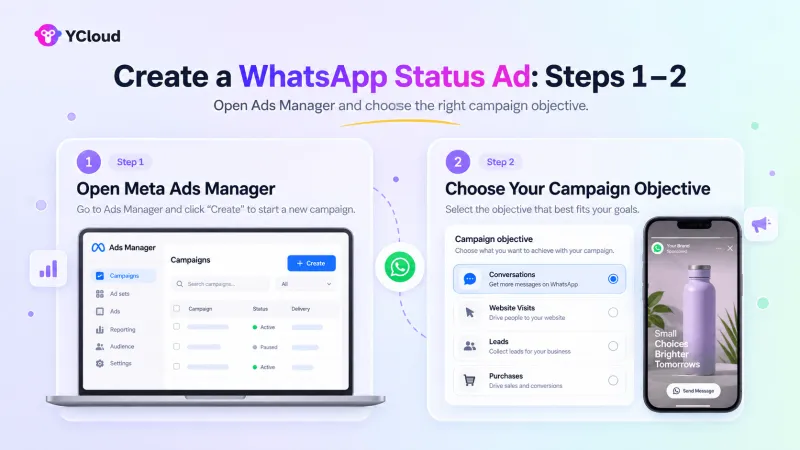
Step 3: Configure the Campaign
Give your campaign a clear name and review:
- Buying type: Use the available option that supports your campaign.
- Special Ad Category: Declare one if your advertising falls within a category Meta requires.
- Budget: Choose campaign-level or ad-set-level budgeting, then set your budget and schedule.
- A/B testing: Enable it if you want to compare specific variations.
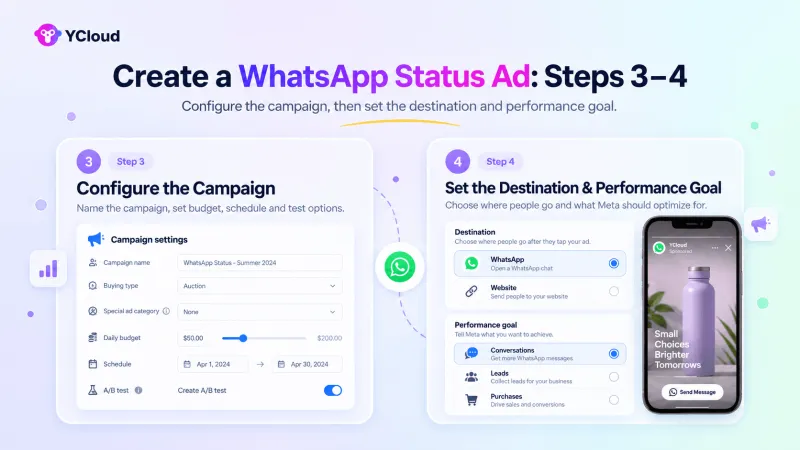
Step 4: Set the Destination and Performance Goal
At the ad-set level, choose where customers should go.
- WhatsApp: Select the messaging destination option and your business number.
- Website, where supported: Add the relevant tracking data source and conversion event.
Choose a performance goal that matches the outcome you want Meta to prioritize.
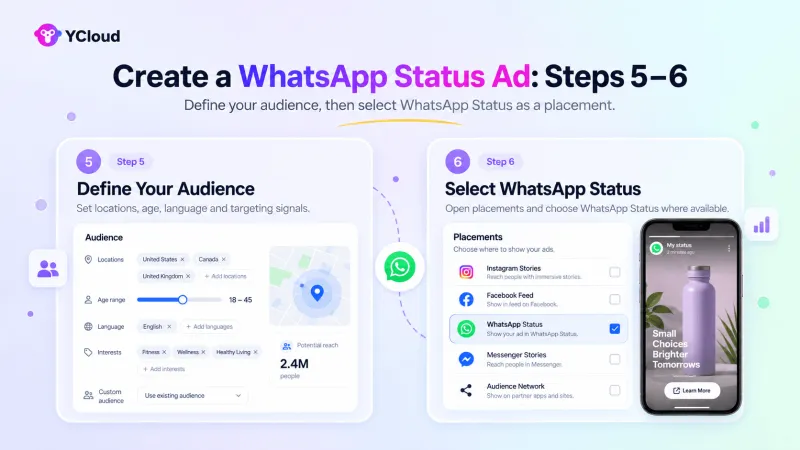
Step 5: Define Your Audience
Set the locations you serve, then review available age, language and audience controls.
Use interests, Custom Audiences or Lookalike Audiences where supported. If Advantage+ audience options appear, check which settings are firm restrictions and which are suggestions Meta can expand beyond.
Step 6: Select WhatsApp Status
Open Placements and look for WhatsApp Status.
Review all selected placements before continuing. Meta may require companion placements, such as Instagram Stories, for certain configurations. Follow the options shown in your account rather than assuming Status can always run alone.
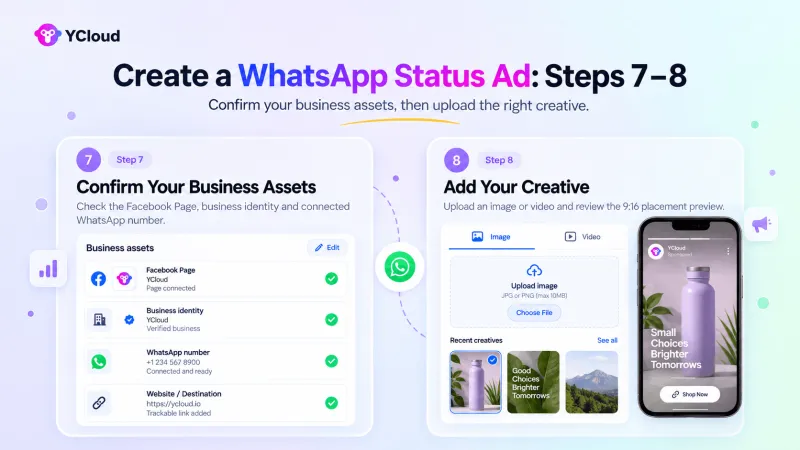
Step 7: Confirm Your Business Assets
Check that the correct Facebook Page and business identity are selected.
For chat campaigns, confirm the connected WhatsApp number. For website campaigns, verify the destination and tracking setup. Resolve any asset-access warnings before proceeding.
Step 8: Add Your Creative
Upload your image or video and add the available text fields and CTA.
Use a 9:16 vertical creative, keep important text clear of interface overlays and check the placement preview for cropping.
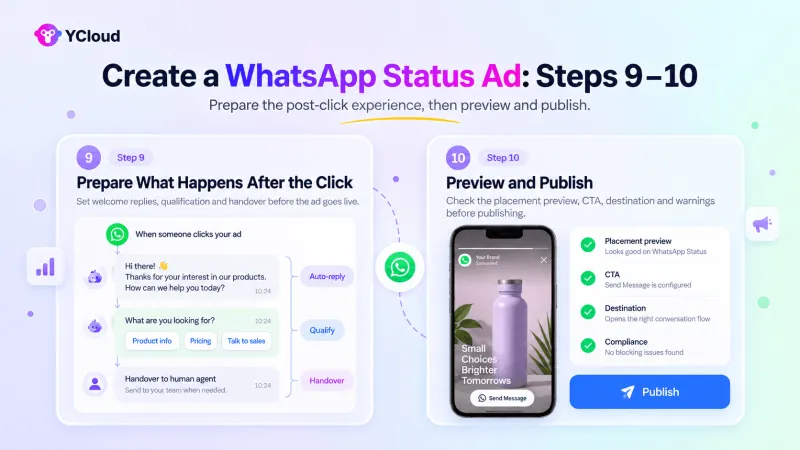
Step 9: Prepare What Happens After the Click
For WhatsApp conversations:
- Add an opening message or conversation starter where available.
- Set up your welcome response and qualification questions in your WhatsApp app or connected platform.
- Decide when automation should hand the conversation to a person.
For website visits:
- Check that the page loads quickly on mobile.
- Add campaign tracking parameters.
- Test the form, checkout and conversion events.
Step 10: Preview and Publish
Preview the WhatsApp Status placement and check the offer, text, cropping, CTA and destination. Resolve any warnings, then click Publish to submit the ad for review.
After approval, confirm that the campaign is delivering. Where reporting allows, check WhatsApp Status results separately from other placements.
WhatsApp directs advertisers to Meta Ads Manager for Status placements. Use its official setup guidance alongside the options displayed in your account.
Next, let’s clarify what you can create directly from the WhatsApp Business app.
Can You Create Status Ads from the WhatsApp Business App?
The WhatsApp Business app lets eligible businesses create ads, but using a Status update as your creative does not mean the ad will appear inside WhatsApp Status.
WhatsApp’s Help Center directs advertisers to Meta Ads Manager for Status placements.
If an advertising option is available in your Business app:
- Select your content: Choose an eligible Status update or upload an image or video.
- Open the advertising option: Follow the creation prompts available in your account.
- Connect your business assets: Link your Facebook Page and confirm the ad account and payment details when prompted.
- Set your audience and spend: Choose whom to reach, your budget and campaign duration.
- Check the placements: Confirm where the ad will appear before paying. An app-created ad may run on Facebook or Instagram and open a WhatsApp chat.
Creation, billing and delivery use Meta’s advertising infrastructure.
To advertise specifically between WhatsApp Status updates, use the Ads Manager process above.
Next, let’s check the sizes, ratios and specifications your creative needs.
WhatsApp Status Ad Sizes, Ratios and Creative Specifications
Design your ad for a vertical mobile screen.
WhatsApp supports a 9:16 aspect ratio for images and videos; use the highest-quality source file available.
Creative element | Recommended format |
Orientation | Full-screen vertical |
Aspect ratio | 9:16 AM |
Production resolution | 1080 × 1920 px |
Creative type | Image or video |
Image file format | JPG or PNG; confirm acceptance during upload |
Video file format | MP4 or MOV; confirm acceptance during upload |
Sound | Make the message understandable without audio; add captions for speech |
Safe area | Keep key text, logos and prices clear of interface overlays |
CTA | Choose an option supported by your objective and destination |
Video duration and file size | Follow the limits displayed in Ads Manager |
1080 × 1920 px is a recommended design size, not a confirmed minimum requirement.
Check the placement preview and upload validation before publishing.
Paid Status ads follow your campaign schedule. They do not automatically expire after 24 hours like organic Status updates.
Next, let’s look at safe zones so your message stays visible on screen.
Creative Safe Zones and Mobile Preview
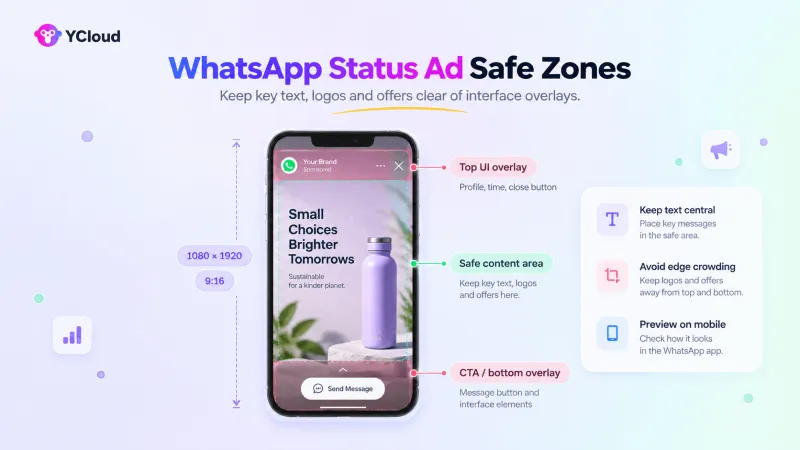
The right dimensions won’t help if the ad’s interface covers your offer. Keep important content near the centre and leave room at the top and bottom.
- Protect key details: Keep logos, prices, disclaimers and CTA wording away from the profile, sponsored label and native CTA button.
- Check mobile readability: Your message should be easy to read without zooming.
- Preview different screen sizes: Watch for cropping, covered text and awkward line breaks.
- Check the uploaded creative: Look for blurred text or compression that reduces image quality.
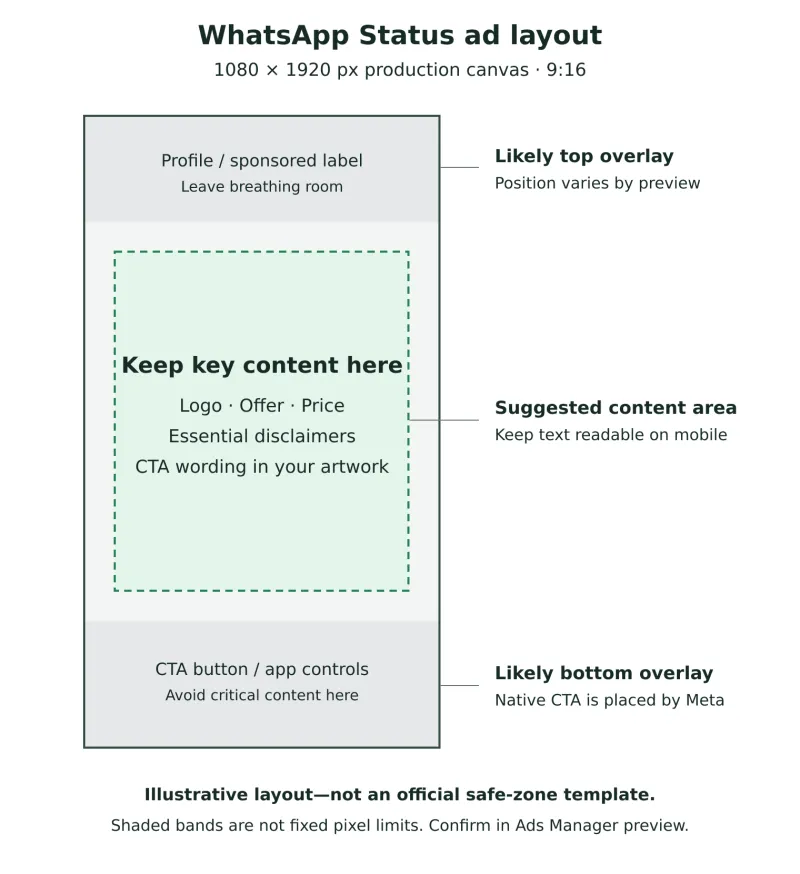
This is an illustrative layout, not Meta’s official safe-zone template. The shaded areas are not fixed pixel limits; confirm positioning in your placement preview.
Next, let’s compare image and video ads to help you choose the right format.
Image Ads vs Video Ads
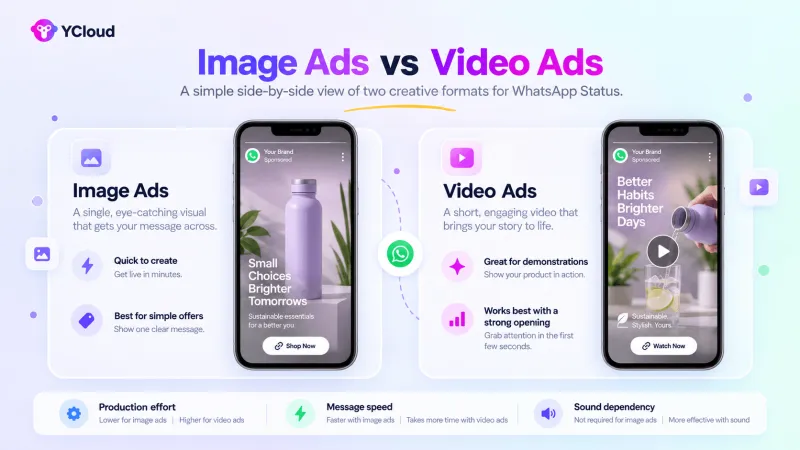
Use an image when your offer is easy to explain at a glance.
Use video when showing the product in action helps someone understand its value.
Consideration | Image ads | Video ads |
| Production effort | Usually quicker to create and update | Usually require more filming or editing |
| Product demonstration | Show appearance, features or results | Show how a product or service works |
| Message speed | Present the offer at a glance | Need a clear opening to hold attention |
| Sound dependency | None | Should remain understandable without sound |
| Best suited for | Offers, announcements and simple messages | Demonstrations, launches and short stories |
Neither format always performs better.
Test both with the same audience, offer and campaign goal, then compare the results that matter to your business.
Next, let’s look at how to design a Status ad that makes your offer clear.
How to Design an Effective WhatsApp Status Ad
Your ad should answer three questions at a glance:
- What’s the offer?
- Why should I care?
- What do I do next?
- Focus on one offer. Give each ad a single purpose, such as promoting a product, booking a demo or requesting a quote.
- Make the opening clear. Show the offer immediately. For video, avoid a lengthy introduction.
- Use a strong visual hierarchy. Make the main benefit most prominent, followed by supporting details and the next action.
- Keep the copy minimal. Save detailed explanations for the website or conversation.
- State the benefit before explaining the product. Explain what the customer gains before listing product features.
- Match the CTA to the destination. “Request a quote” should open a clear path to getting a quote.
- Make it work without sound. Use captions and on-screen text where needed.
- Keep your branding consistent. Use recognizable colours, fonts and a visible logo.
- Keep conditions readable. Include essential offer terms without shrinking them into unreadable fine print.
- Continue the promise after the click. Your landing page or opening chat should address the same offer the customer saw.
Next, let’s turn these principles into practical ad-copy and CTA examples.
Status Ad Copy and CTA Framework
Start with what matters to the customer, then give them one clear next step.
Use these formulas to build your copy:
Formula | Example |
| Problem → Benefit → CTA | “Still tracking enquiries in spreadsheets? Keep every lead in one place. Ask us for a demo.” |
| Offer → Deadline → CTA | “Free onboarding with annual plans until [date]. Get the offer.” |
| Product → Use case → CTA | “Appointment software for busy clinics. Let patients book online. Learn more.” |
| Question → Answer promise → Chat CTA | “Which plan fits your team? Tell us what you need. Chat with us on WhatsApp.” |
| Proof point → Outcome → Learn More | “[Customer] reduced booking time by [verified result]. See how they did it. Learn more.” |
Use genuine offers and deadlines, and replace placeholders with verified facts.
Choose a CTA that matches the next step:
Your goal | CTA to consider, if available |
| Start an enquiry | Chat on WhatsApp / Send Message |
| Explain a product or service | Learn More |
| Take customers to a product page | Shop Now |
| Collect registrations | Sign Up |
| Promote a redeemable offer | Get Offer |
Button labels and availability depend on your account, objective, destination and placement. Select from the options Ads Manager provides; the wording in your creative should support that action.
Next, let’s look at how to choose the audience for your Status ads.
WhatsApp Status Ad Targeting
You manage your audience through Meta Ads Manager, but don’t assume every Facebook or Instagram targeting option also works for WhatsApp Status.
Depending on your campaign and account, available controls may include:
- Location, language and age: Reach people in the markets you serve.
- Interests: Explore relevant audience groups where supported.
- Custom Audiences: Reconnect with eligible customers or people who have engaged with your business.
- Lookalike Audiences: Reach people similar to an existing audience, where available.
WhatsApp may also use signals such as general location, device language, followed Channels and ad interactions to determine relevance. These signals are not necessarily controls you can select yourself.
Start with a clear audience hypothesis, for example, “business owners in the cities we serve”, then compare lead quality and acquisition costs. Adding more filters does not automatically improve results.
For retargeting, confirm that your data collection, consent and tracking setup support the audience you want to build.
Next, let’s explain how ad personalization works while keeping private conversations protected.
How Ad Personalization Works Without Reading Private Chats
WhatsApp uses limited account and activity information to show relevant ads. It does not read private conversations to decide which ads someone sees.
- Private messages and calls remain end-to-end encrypted. Their content and personal group membership are not used for ad targeting.
- Other signals help determine relevance: General location, language, followed Channels and interactions with ads.
- Connected Meta accounts can influence personalization: This depends on the user’s choices in Accounts Center and their ad settings.
- An ad impression does not reveal a phone number: Advertisers do not receive someone’s number simply because they saw an ad.
Next, let’s look at what determines the cost of WhatsApp Status ads.
How Much Do WhatsApp Status Ads Cost?
There is no fixed price for WhatsApp Status ads.
They use Meta’s advertising auction, so costs vary with your audience, country, competition, campaign objective, placement, bid strategy, seasonality and creative performance. Meta’s ad auction guide
You control spending through a daily budget, an average daily amount or a lifetime budget for the campaign’s scheduled duration.
Cost component | What to know |
| Advertising spend | The amount spent delivering your ads through Meta |
| Billing event | Depends on campaign configuration; a reported cost per conversation does not necessarily mean you are billed per conversation |
| WhatsApp messaging fees | Separate charges may apply to Business Platform messages, subject to Meta’s pricing rules and free-message exceptions |
| Additional charges | Provider fees, taxes or location-based advertising fees may apply |
Check WhatsApp’s messaging rates separately when estimating your total campaign cost.
Meta does not guarantee a price per Status view, click or conversation. Treat agency benchmarks as estimates, and use your own campaign results to judge affordability.
Next, let’s work out a test budget based on what a customer is worth to your business.
How to Build a Test Budget
Start with what you can afford to pay for a customer, then work backward to a conversation cost.
- Set your acquisition limit: Decide the maximum cost per sale based on your margins and desired profit.
- Estimate lead quality: What percentage of chats become qualified leads?
- Estimate sales conversion: What percentage of those qualified leads become customers?
- Calculate your conversation limit:
Maximum cost per conversation = Maximum acquisition cost × Chat-to-qualified-lead rate × Qualified-lead-to-sale rate
For example:
Measure | Illustrative assumption |
| Maximum acquisition cost | $100 per customer |
| Chats becoming qualified leads | 40% |
| Qualified leads becoming customers | 25% |
| Maximum cost per conversation | $100 × 40% × 25% = $10 |
At that ceiling, testing 50 conversations would allow up to $500 in ad spend. These are planning assumptions, not expected results or Meta benchmarks. Budget separately for messaging, software and other acquisition costs.
Run the test with a defined spending limit and allow enough time for leads to convert. Scale only when actual lead quality and sales support your target acquisition cost.
Next, let’s look at what should happen after someone taps your ad.
What Happens After Someone Taps the Ad?
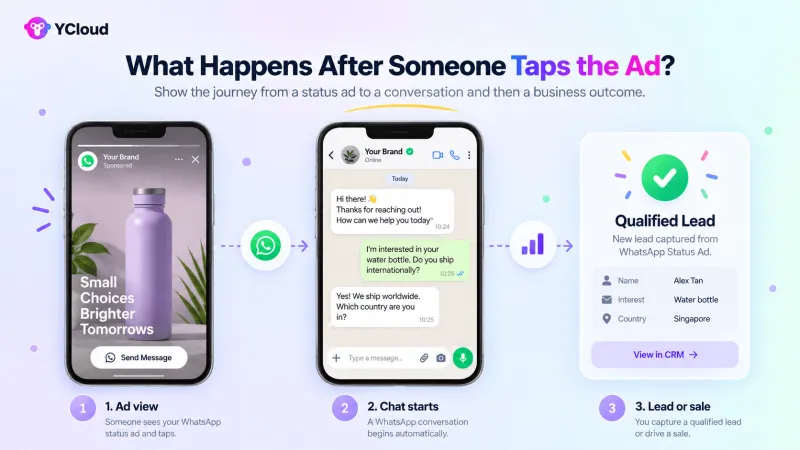
For ads that open WhatsApp, a tap brings the customer to your chat.
The customer still needs to send a message before the conversation begins. Make that next step easy, then prepare a flow that helps them move forward.
Stage | What to set up |
| Start the chat | A pre-filled message that references the advertised offer |
| Welcome the customer | An immediate response that acknowledges their enquiry |
| Understand the need | A simple question to identify what they’re looking for |
| Qualify the lead | Ask only the details needed to assess fit, such as requirements, location or timeline |
| Recommend a solution | Suggest the relevant product, service or next step |
| Save the enquiry | Create or update the CRM record through your connected integration |
| Assign the conversation | Route it to the right salesperson or support team |
| Bring in a person | Hand over complex questions with the conversation context |
| Follow up | Agree on the next action and send permitted reminders |
| Track the outcome | Record whether the enquiry became a qualified lead, booking or sale |
These steps require configuration in your WhatsApp platform and connected systems; they don’t happen automatically because you launched an ad.
The ad earns attention. What your business does with the conversation determines whether that attention becomes revenue.
Next, let’s look at the use cases for WhatsApp Status Ads.
Use Cases for WhatsApp Status Ads
Start with the action you want customers to take, then build the offer and follow-up around it. Here are practical ways to connect an ad to a measurable business result.
Use case | Offer | CTA direction | Post-click workflow | Conversion to track |
| Product launches | Early access to a new product | Explore the product | Show product details and answer questions | Purchase or early-access signup |
| Limited-time promotions | A discount with a clear expiry date | Claim the offer | Confirm eligibility and guide customers to checkout | Offer redemption |
| Appointment booking | An available consultation or service slot | Book an appointment | Collect requirements, show availability and confirm the slot | Confirmed booking |
| Lead generation | A relevant consultation, assessment or resource | Enquire now | Ask qualifying questions and assign the lead | Qualified lead |
| Demo requests | A demonstration tailored to the business | Request a demo | Capture business needs and schedule a session | Confirmed demo booking |
| Event registration | A webinar, workshop or business event | Register | Collect attendee details and send confirmation | Completed registration |
| Store or branch discovery | A local offer or service | Find a location | Share the nearest branch, opening hours and directions | Tracked store visit or offer redemption |
| Ecommerce product discovery | A product selection for a specific need | Explore products | Help customers compare options and complete checkout | Purchase |
| Education enquiries | Course information or an admissions consultation | Ask about a course | Check interests and eligibility, then connect an adviser | Qualified enquiry or application |
| Property enquiries | An available listing or viewing opportunity | Request details | Capture location, budget and preferences, then arrange a viewing | Confirmed viewing |
| Travel quotations | A trip package or tailored itinerary | Request a quote | Collect dates, destination and traveller details | Qualified quotation request |
| Financial-service enquiries | Information about an eligible service | Learn more | Explain the service and route enquiries to an authorised adviser | Qualified enquiry or consultation |
CTA directions describe the intended action; use the button and destination supported by your campaign. Conversion outcomes require suitable tracking, CRM records or offline confirmation.
Looking to grow a WhatsApp Channel?
Promoted Channels are the more direct format. Promote the value of following your Channel, send people to it and measure new followers.
Next, let’s look at the metrics that show whether your ads are delivering useful business results.
Key Metrics to Track
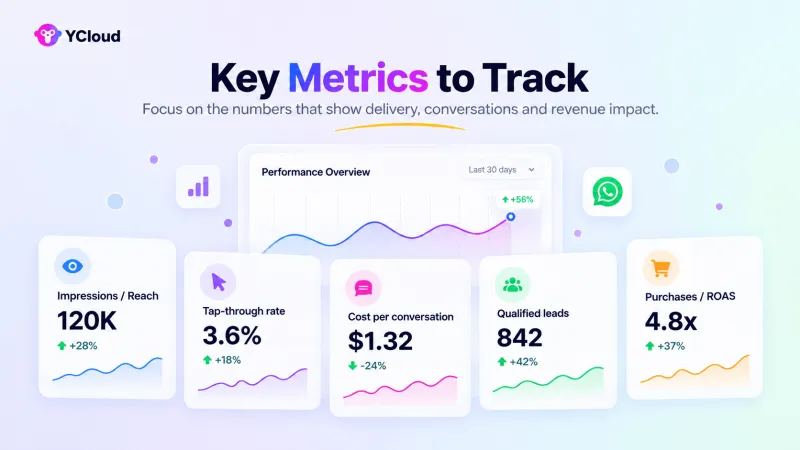
Clicks show interest.
Qualified leads and sales show whether that interest is valuable.
Track both, using Ads Manager for ad performance and your WhatsApp platform, CRM or checkout system for business outcomes.
Delivery and engagement
Metric | What it tells you |
| Spend | How much you have spent on advertising |
| Reach | How many people saw the ad |
| Impressions | How many times the ad appeared |
| Frequency | Average impressions per person reached |
| Video plays and completion | Whether viewers start and finish your video |
| Link clicks | How often people click through |
| Link CTR | Link clicks ÷ impressions × 100 |
| CPM | Ad spend per 1,000 impressions |
| Cost per link click | Ad spend ÷ link clicks |
Conversation performance
A click that opens WhatsApp does not necessarily become a sent message. Track what happens after the click to identify where potential customers drop off.
Metric | What it tells you |
| Conversations started | How many messaging conversations are attributed to the ad, using the reporting platform’s definition |
| Cost per conversation | Ad spend ÷ attributed conversations started |
| Opening-message completion rate | Percentage of measurable chat opens that result in a sent message |
| First-response time | How quickly customers receive a reply; measure automated and human responses separately |
| Qualification rate | Qualified leads ÷ conversations assessed × 100 |
| Human-handover rate | Percentage of automated conversations transferred to a person |
Opening-message completion, qualification and handover rates may require custom tracking. If chat opens cannot be measured, use link clicks as a clearly labelled proxy.
Business and revenue outcomes
Metric | What it tells you |
| Leads | Enquiries captured from the campaign |
| Qualified leads | Enquiries that meet your business’s fit criteria |
| Purchases or bookings | Completed transactions or confirmed appointments |
| Conversion rate | Percentage of a defined starting group—such as leads—that purchases or books |
| Cost per acquisition | Campaign acquisition costs ÷ new customers acquired |
| Revenue | Sales value attributed to the campaign |
| ROAS | Attributed revenue ÷ ad spend |
Available metrics depend on the objective, destination and tracking setup.
Use consistent attribution periods, define each conversion clearly and avoid counting the same customer twice. ROAS measures revenue against ad spend; it does not measure profit.
Next, let’s look at how to connect ad activity with conversions.
Tracking WhatsApp Status Ad Conversions
A customer may click today, enquire tomorrow and buy next week. To connect that sale to your ad, carry the campaign source through your website, WhatsApp conversation and CRM.
Tracking method | How to use it |
Meta Pixel | Track website actions such as form submissions and purchases. It does not track activity inside WhatsApp chats. |
Conversions API | Send supported website, CRM or messaging events to Meta through a configured integration. Confirm that your setup supports the intended events and Status campaigns. |
UTM parameters | Add campaign tags to website destination URLs so your analytics can identify incoming traffic. UTMs alone do not track chat outcomes. |
CRM source attribution | Save the available campaign and ad identifiers against the lead, then retain them through qualification, booking and purchase. |
Unique opening messages | Use an offer-specific message or campaign code to help identify enquiries. Treat this as a supporting signal because customers can edit or remove it. |
Offline conversions | Send eligible store purchases, phone bookings or sales-team outcomes through a supported integration. Meta recommends Conversions API for offline events. |
Meta’s Conversions API documentation covers supported event sources, including its guidance on sending offline events.
Track the journey from chat to sale
Link the conversation to a unique CRM contact or lead record. Update that record as the enquiry becomes qualified, then attach the booking or order ID, sale value and conversion date.
Prevent duplicate results
Update existing leads when customers return. If Pixel and Conversions API report the same conversion, use matching event names and event IDs so Meta can recognise the duplicate. Follow Meta’s event deduplication guidance.
Understand attribution limits
Check the attribution window used in your campaign reporting. A sale outside that window may remain visible in your CRM without being credited to the ad in Ads Manager. Different attribution rules and incomplete matching can also produce different totals across systems.
Next, let’s look at how to use these results to improve campaign performance.
How to Optimize a WhatsApp Status Ad Campaign
Before increasing spend, identify where results weaken: ad delivery, clicks, conversations or sales. Fix that stage first.
- Check approval and delivery. Confirm the ad is approved, receiving impressions and spending as expected. Resolve account, payment or scheduling issues first.
- Review placement results. Where reporting allows, separate WhatsApp Status performance from other placements so combined totals do not hide weak results.
- Compare creatives. Test different visuals, opening lines or offers under comparable conditions. Judge them by qualified leads or sales alongside clicks.
- Assess conversation quality. Read a sample of enquiries. Are you attracting suitable buyers, or people who misunderstood the offer?
- Check response time. Measure how quickly customers receive useful help, including after an automated greeting or human handover.
- Find chat drop-offs. Identify questions or steps where customers stop replying. Remove unnecessary questions and make the next action clear.
- Refine qualification. Ask only what your team needs to assess fit. Route promising enquiries promptly and offer human help when needed.
- Reallocate budget. Move spend toward audiences and creatives delivering customers at an acceptable acquisition cost. Allow enough time for sales to materialise.
- Watch for creative fatigue. Rising frequency alongside falling engagement or increasing acquisition costs can signal that an ad needs refreshing.
- Scale gradually. Increase spend in measured steps, then check lead quality, acquisition cost and your team’s capacity before increasing it again.
Next, let’s look at how to structure A/B tests so each experiment answers a clear question.
A/B Tests Worth Running
Start with one question you want answered.
Change one meaningful variable and keep the other conditions comparable so you can understand what influenced the result.
Test | What to compare | Measure success by |
| Image vs video | A static visual against a short video presenting the same offer | Cost per qualified lead or purchase |
| Offer-led vs problem-led copy | Lead with the offer or the customer’s challenge | Qualification rate and acquisition cost |
| Product vs customer outcome | Show the product or the result it helps customers achieve | Qualified enquiries or sales |
| Chat vs website CTA | Send customers to WhatsApp or a relevant landing page, where supported | Cost per completed booking or sale |
| Short vs detailed opening message | A brief enquiry against one that includes more context | Message completion and qualification rate |
| Broad vs defined audience | Wider targeting against a relevant, narrower audience | Acquisition cost and lead quality |
| Automated vs immediate human response | A configured welcome flow against a promptly available team member | Qualification and sales conversion rates |
| Discount vs consultation | A price incentive against expert guidance | Profit per customer acquired |
| Qualification flows | Different question sequences or numbers of questions | Completion rate and qualified leads generated |
Compare both versions against the same business outcome.
A chat CTA and a website CTA, for example, should be judged by bookings or sales, not by comparing conversations with page visits. Changing the destination may also require different campaign settings, making this a test of the overall customer journey.
Allow enough time for leads to convert before choosing a winner. A handful of cheap clicks is not enough evidence to increase spend.
Next, let’s cover the common mistakes that can undermine your results.
Common WhatsApp Status Ad Mistakes
Small gaps between the ad, destination and follow-up can waste budget.
Check for these before increasing spend.
Mistake | What to do instead |
| Confusing Status ads with Click-to-WhatsApp ads | Check the placement: Status ads appear inside WhatsApp; Click-to-WhatsApp ads appear on Facebook and Instagram. |
| Uploading square or landscape creative without previewing | Check how it fills the vertical placement and adjust cropping before publishing. |
| Reusing Instagram creative unchanged | Review the copy, layout, CTA and destination for the Status experience. |
| Placing text behind interface elements | Keep essential details clear of profile information, labels and CTA overlays. |
| Promoting several offers at once | Give each ad one clear offer and next step. |
| Opening a chat with no guidance | Prepare a relevant opening message and a useful welcome response. |
| Replying slowly | Have automation or a team ready when customers send their enquiry. |
| Tracking clicks alone | Follow enquiries through to qualification, bookings and sales. |
| Making misleading or unsupported claims | Use verifiable statements and make offer conditions clear. |
| Assuming an enquiry permits ongoing promotions | Obtain the required permission for subsequent marketing messages. |
| Treating third-party estimates as Meta benchmarks | Use your own test results to set cost expectations. |
| Scaling before checking lead quality | Confirm that enquiries become suitable customers at an acceptable cost. |
Next, let’s troubleshoot ads that are unavailable, rejected or failing to deliver.
Troubleshooting WhatsApp Status Ads
If an ad is not working as expected, check the campaign, ad set and ad levels separately. Meta’s Delivery column usually shows where the issue begins.
Issue | What to check |
| WhatsApp Status placement is missing | Confirm that the placement is available for your country, ad account, objective and destination. If it remains unavailable, the rollout may not have reached your account. |
| WhatsApp account cannot be connected | Check that the account is active, belongs to the correct Business Portfolio and that you have sufficient permissions. |
| Business number does not appear | Confirm that the number is linked to the selected business and Page. Also check whether another business owns or manages it. |
| Ad is rejected | Review the stated rejection reason, creative, landing page and claims against Meta’s advertising policies. Correct the issue or request another review if the decision appears incorrect. |
| Image appears blurry | Upload a high-quality vertical source file, avoid screenshots and repeated compression, and inspect the placement preview. See WhatsApp’s image-quality troubleshooting guidance. |
| Creative is cropped | Use a 9:16 layout, reposition key content within the central area and check the mobile preview before publishing. |
| CTA opens the wrong destination | Verify the selected conversion location, website URL, connected WhatsApp account and CTA at the ad level. |
| Campaign receives no delivery | Check its approval status, schedule, budget, audience size, payment method, spending limit and account restrictions. Meta notes that delivery may take time after approval. |
| Conversations are not attributed | Check the attribution settings and whether the reporting setup supports the selected campaign and destination. Compare Ads Manager data with WhatsApp and CRM records. |
| Users open WhatsApp but do not send the message | Shorten the pre-filled message, make its purpose clear and ensure the ad promise matches the chat. Opening WhatsApp alone does not start a conversation; the user must send the message. |
| Pixel or conversion event is inactive | Use Events Manager to test the event, confirm the correct Pixel is connected and complete the action on the website. Check for installation, consent or event-configuration errors. |
Avoid changing several settings simultaneously. Fix one likely cause, publish the update and check whether delivery or tracking improves.
Next, let’s review the advertising policies and consent requirements that apply before and after a customer responds.
Advertising Policies, Consent and Compliance
Your ad and the messages that follow must both meet the relevant rules. Ad approval does not grant permission for unrestricted follow-up.
- Check advertising and product restrictions. Follow Meta’s Advertising Standards and the WhatsApp Business Messaging Policy. Some products are prohibited; others have country, age, licensing or platform restrictions.
- Declare a Special Ad Category where required. Housing, employment and financial products or services may require this classification and restricted targeting. Check the requirements for your campaign and market.
- Keep claims and prices accurate. Substantiate advertised benefits and clearly disclose fees, eligibility, expiry dates and promotional conditions. The landing page or WhatsApp conversation should match the offer shown in the ad.
- Obtain permission for later marketing. Explain what customers are signing up to receive and keep a record of their opt-in. Tapping an ad or asking a question does not provide unlimited permission for future promotions.
- Use approved templates when required. On the WhatsApp Business Platform, messages sent outside the 24-hour customer-service window following the customer’s last message must use approved templates. Template approval does not replace consent.
- Make opting out easy. Provide a simple way to stop marketing messages and honour requests received on or off WhatsApp. These consent, template and opt-out requirements are covered in the Business Messaging Policy.
- Protect customer information. Publish a clear privacy notice, obtain the necessary permissions for tracking and data sharing, and limit access to customer records.
- Check local requirements. Follow the advertising, consumer-protection, privacy and industry rules applicable to your business and target markets. Meta approval does not replace those obligations.
Next, let’s compare WhatsApp Status Ads with promoted channels and decide which one you should use.
WhatsApp Status Ads vs Promoted Channels: Which Should You Use?
Choose based on the action you want people to take: enquire, visit your website or follow your updates.
Business goal | Better starting option |
| Generate enquiries | Status ad with a chat CTA |
| Drive website traffic | Status ad with a website CTA, where supported |
| Grow your WhatsApp Channel following | Promoted Channel |
| Publish recurring one-way updates | WhatsApp Channel; paid promotion is optional |
| Acquire leads from Facebook or Instagram | Click-to-WhatsApp ad |
Status ads promote an offer or action. Promoted Channels help people discover and follow your Channel.
Following a Channel does not automatically give your business permission to send followers private promotional messages.
Check that your account supports the selected placement and destination before planning the campaign.
Next, let’s see if WhatsApp Status Ads are right for your business.
Are WhatsApp Status Ads Right for Your Business?
WhatsApp usage alone is not enough. Your offer, response capacity and tracking should support the action you want customers to take.
Consider testing them when:
- Your audience regularly views WhatsApp Status.
- Your offer is easy to understand at a glance.
- A conversation can help customers enquire, compare or buy.
- Your team or configured automation can respond promptly.
- You can connect enquiries to qualified leads and sales.
- Your budget and expected response volume allow a meaningful test.
Reconsider or resolve the gaps first when:
- Chat cannot move the purchase forward and a suitable website destination is unavailable.
- Your team cannot handle additional enquiries.
- Applicable policies or regulations prevent the planned acquisition approach.
- You have no measurable action after the click.
- Status placement is unavailable for your account or intended market.
Start with a controlled test and judge it by lead quality and acquisition cost before committing more budget.
Next, let’s look at the best practices checklist.
WhatsApp Status Ads Best-Practice Checklist
Before publishing, check the full journey, from seeing the ad to completing the intended action.
- Eligibility: Status ads are available for your account and target market.
- Objective: The campaign objective and performance goal match your intended result.
- Audience: Targeting reflects the customers you want to reach.
- Placement: WhatsApp Status is selected, and any additional placements are intentional.
- Creative: Your image or video uses a clear, high-quality 9:16 layout.
- Safe zones: Key text, logos and offer details remain clear of interface overlays.
- CTA: The available button clearly describes the next action.
- Destination: The correct chat or webpage opens and matches the advertised offer.
- Opening message: For chat campaigns, the pre-filled message is short and relevant.
- Automation: Any welcome or qualification flow has been tested.
- Human handover: Customers can reach the right team when they need help.
- Tracking: Campaign identifiers and conversion events are configured and tested.
- Policy review: Claims, pricing, consent and follow-up messaging meet applicable requirements.
- Mobile preview: Cropping, readability and the destination have been checked on mobile.
- Test budget: Spend limits, success measures and a review point are agreed.
Next, let’s look at how to prepare your WhatsApp conversations with YCloud.
Prepare Your WhatsApp Conversations with YCloud
When a customer messages you about an ad, your response should pick up from the offer they saw.
YCloud brings shared inbox, automation and lead routing together to help your team manage those enquiries.
Before launching:
- Connect your business number. Set up the WhatsApp account that will receive enquiries and give the relevant team members access.
- Prepare the welcome flow. Acknowledge the advertised offer and ask one clear question to understand the customer’s needs.
- Configure your AI agent. Add product information, FAQs and offer conditions so it can answer relevant questions and qualify leads.
- Set human-handover rules. Route enquiries by customer requirements or business hours, with a clear path to a person.
- Connect your business systems. Configure supported integrations to save lead details and update customer records.
- Test the entire conversation. Check replies, qualification questions, assignment and handover before sending paid traffic.
YCloud’s AI agents support configurable knowledge sources, workflows and escalation rules. Confirm Status-specific attribution support separately before relying on automatic campaign reporting.
How to Get Started with YCloud
Kindly click on the banner below to book a FREE DEMO and learn more about our product offering, features and pricing plans.
Built with AI at its core, YCloud is the ultimate WhatsApp marketing and automation solution, giving you everything you need in one powerful platform.
Now market, sell, support, and scale your business by 10X with YCloud!
Ready to try? Explore how to get YCloud for FREE next!
How to Get YCloud for FREE?
It's Simple!
Subscribe to our FREE plan and get a free lifetime experience of YCloud with unlimited messaging API.
Book a FREE Demo and see how YCloud can power up your WhatsApp marketing strategy!
🚀 Try YCloud today and experience how effortless WhatsApp automation can be when you have the right partner.
Next, let’s wrap up the key decisions before launching your first campaign.
Wrapping Up
WhatsApp Status Ads let businesses reach people between Status updates, but results depend on what happens after the tap as much as the ad itself. Confirm availability, prepare the destination and follow-up, and measure qualified leads, bookings or sales. Start with a controlled test and scale once the results justify more spend.
Next, we’ll answer the most common questions about WhatsApp Status Ads.
Frequently Asked Questions
What are WhatsApp Status Ads?
They are paid image or video ads displayed between organic Status updates in WhatsApp’s Updates tab.
Where do ads appear on WhatsApp?
Status ads appear between Status updates. Promoted Channels help people discover Channels in the directory.
Are WhatsApp ads shown inside private chats?
No. These advertising placements are separate from personal messages, group chats and calls. See WhatsApp’s advertising overview.
Are WhatsApp Status Ads available worldwide?
Do not assume universal access. Availability can vary by country and account. Check whether WhatsApp Status appears in your Ads Manager placement options.
Who can create WhatsApp Status Ads?
Advertisers with eligible accounts, access to the required business assets and a supported campaign setup. The placement must be available in their account.
Do I need the WhatsApp Business API?
The API is not a universal requirement for advertising. For chat destinations, check which business-number setup your account supports. The API is useful when you need team access, automation and integrations.
Can I create Status ads from the WhatsApp Business app?
Use Meta Ads Manager for the Status placement. Creating an ad from a Status update in the Business app does not necessarily mean it will appear inside WhatsApp; app-created ads can run on Facebook and Instagram. Check WhatsApp’s creation guidance.
How do I create WhatsApp Status Ads in Meta Ads Manager?
Create a campaign, choose a supported objective and destination, set your audience and budget, then select WhatsApp Status where available. Add your creative, test the destination, preview and submit for review.
What is the recommended WhatsApp Status ad size?
Use 1080 × 1920 pixels as a practical vertical design size. This is a production recommendation, not a universal minimum upload requirement.
What is the correct aspect ratio?
Use 9:16 for a full-screen vertical layout. Preview the creative to check cropping and interface overlays. WhatsApp provides additional image-quality guidance.
How long can a WhatsApp Status video ad be?
Check the accepted duration shown when uploading to the Status placement. We have not verified a universal maximum; organic Status limits should not be assumed to apply to paid ads.
How much do WhatsApp Status Ads cost?
There is no guaranteed cost per click, view or conversation. Costs depend on Meta’s ad auction, your audience, objective and campaign performance. Messaging and provider charges may apply separately.
Can a Status ad open a WhatsApp conversation?
Yes, with a supported chat destination. The customer must send a message after opening WhatsApp for an enquiry to begin.
Can a Status ad direct users to a website?
Use a website destination only if Ads Manager offers it for your Status campaign. Destination options should be checked before designing the ad.
How are WhatsApp Status ads targeted?
Targeting is configured through Meta’s advertising tools. Available controls depend on the campaign, while limited WhatsApp information can also inform ad relevance. Do not assume every Facebook or Instagram targeting option is available.
Does Meta read WhatsApp messages to personalize ads?
No. Personal messages and calls remain end-to-end encrypted. WhatsApp describes using limited signals such as general location, language, followed Channels and ad interactions, with connected-account information depending on user choices. See WhatsApp’s privacy explanation.
What is the difference between Status ads and Click-to-WhatsApp ads?
Status ads appear inside WhatsApp. Click-to-WhatsApp ads appear on Facebook or Instagram and direct people into a WhatsApp chat.
What is the difference between Status ads and promoted Channels?
Status ads encourage an action around an offer. Promoted Channels help people discover and follow a Channel for ongoing updates.
Which metrics should businesses track?
Track spend, impressions, clicks and conversations alongside qualified leads, bookings, sales and acquisition cost. Revenue attribution requires suitable tracking and connected business records.
Why is the WhatsApp Status placement missing from my account?
Your country, account or campaign configuration may not be eligible. Check the objective, destination and account restrictions; if those are correct, access may still be unavailable for your account.
Related Articles

Make your business communications much easier!


Trusted by